
TP-Link TL-MR3420 Wireless N300 3G/4G Router User Manual
మోడల్: TL-MR3420
1. పరిచయం
The TP-Link TL-MR3420 Wireless N300 3G/4G Router is designed to share a 3G/4G mobile broadband connection wirelessly. By connecting a compatible UMTS/HSPA/EVDO USB modem to the router, a Wi-Fi hotspot is instantly established, allowing multiple devices to access the internet. This router also features a 3G/WAN connection backup strategy, ensuring a continuous internet connection by switching between 3G/4G and WAN (Ethernet) connections as needed. It supports wireless N speeds of up to 300Mbps, suitable for various online activities.
2. ప్యాకేజీ విషయాలు
- TP-Link TL-MR3420 Wireless N300 3G/4G Router
- పవర్ అడాప్టర్
- ఈథర్నెట్ కేబుల్
- త్వరిత సంస్థాపన గైడ్
3. హార్డ్వేర్ ఓవర్view
3.1 Front Panel and LEDs
The front panel of the router features LED indicators that provide information about the device's status, including power, system, WLAN, WAN, LAN, and 3G/4G connection status.

చిత్రం: ముందు భాగం view of the TL-MR3420 router, showing the TP-Link logo and status LEDs.
3.2 Side Panel (USB Port)
The side panel includes a USB 2.0 port, primarily used for connecting a compatible 3G/4G USB modem.
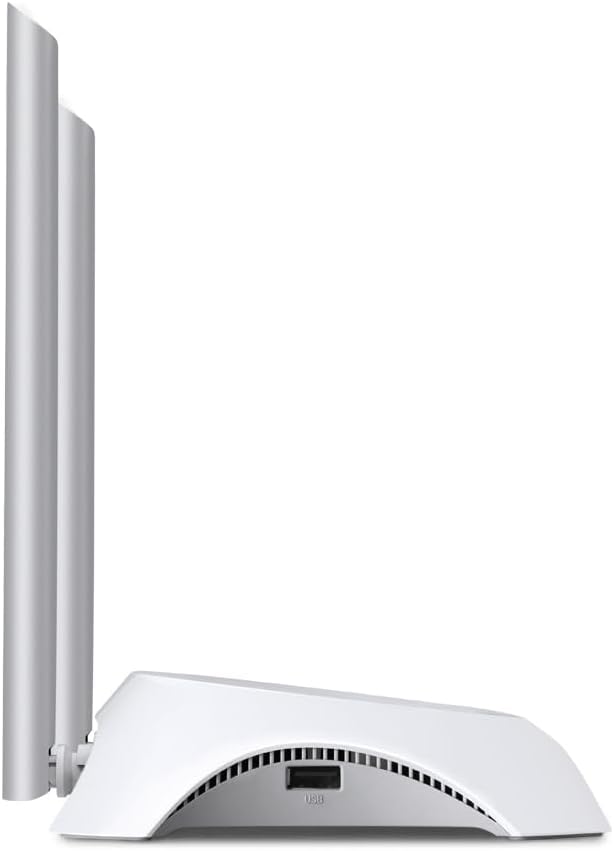
చిత్రం: వైపు view of the TL-MR3420 router, highlighting the USB port for modem connection.
3.3 Rear Panel (Ports and Buttons)
The rear panel provides various ports and buttons for connectivity and control.
- పవర్ పోర్ట్: పవర్ అడాప్టర్కు కనెక్ట్ చేస్తుంది.
- బటన్ ఆన్ / ఆఫ్ బటన్: రౌటర్ను ఆన్ లేదా ఆఫ్ చేస్తుంది.
- WAN పోర్ట్ (నీలం): Connects to a DSL/Cable modem for traditional internet access.
- LAN పోర్ట్లు (పసుపు): Four ports for connecting wired devices like computers or switches.
- WPS/రీసెట్ బటన్: WPS ఫంక్షన్ కోసం నొక్కండి; ఫ్యాక్టరీ రీసెట్ కోసం నొక్కి పట్టుకోండి.
- యాంటెన్నా కనెక్టర్లు: For attaching the two external antennas.

చిత్రం: వెనుక view of the TL-MR3420 router, displaying the power port, WAN port, LAN ports, WPS/Reset button, and antenna connectors.
4. సెటప్ గైడ్
4.1 భౌతిక కనెక్షన్
- యాంటెన్నాలను అటాచ్ చేయండి: Screw the two detachable antennas firmly into their connectors on the rear panel.
- Connect 3G/4G USB Modem: Insert your compatible 3G/4G USB modem into the USB port on the side of the router.
- పవర్ ఆన్: Connect the power adapter to the router's power port and plug it into a wall outlet. Press the Power On/Off button if necessary.
- (Optional) Connect to WAN: If using a wired internet connection as a backup or primary, connect an Ethernet cable from your DSL/Cable modem to the blue WAN port on the router.
- (Optional) Connect Wired Devices: Connect your computer or other wired devices to the yellow LAN ports using Ethernet cables.

Image: The TL-MR3420 router with a 3G USB modem connected to its side USB port.
4.2 ప్రారంభ కాన్ఫిగరేషన్ (Web ఇంటర్ఫేస్)
- రూటర్కి కనెక్ట్ చేయండి: Connect your computer to the router either via an Ethernet cable to a LAN port or wirelessly using the default Wi-Fi SSID printed on the router's label (e.g., TP-Link_XXXX).
- యాక్సెస్ Web బ్రౌజర్: తెరవండి a web బ్రౌజర్ (ఉదా., క్రోమ్, ఫైర్ఫాక్స్) మరియు టైప్ చేయండి
http://tplinkwifi.netorhttp://192.168.0.1(లేదాhttp://192.168.1.1) into the address bar. Press Enter. - లాగిన్: డిఫాల్ట్ యూజర్నేమ్ మరియు పాస్వర్డ్ను నమోదు చేయండి, అవి సాధారణంగా
adminfor both. If these do not work, check the label on the bottom of your router. - త్వరిత సెటప్ను అమలు చేయండి: Follow the on-screen Quick Setup Wizard to configure your internet connection and wireless settings.
4.3 3G/4G Connection Setup
During the Quick Setup, select 3G/4G రూటర్ mode. The router will automatically detect your USB modem. You may need to select your region and ISP, and enter APN (Access Point Name) details if prompted. Ensure your 3G/4G USB modem is compatible with the TL-MR3420.
4.4 WAN Connection Setup (Optional)
If you are using a wired internet connection, configure the WAN settings. This can be done via Dynamic IP, Static IP, or PPPoE, depending on your Internet Service Provider (ISP) requirements. The TL-MR3420 supports a 3G/WAN failover strategy, allowing you to set a preferred connection (3G/4G or WAN) and use the other as a backup.
4.5 వైర్లెస్ నెట్వర్క్ సెటప్
Set your desired Wireless Network Name (SSID) and a strong password (WPA/WPA2 Personal recommended) for your Wi-Fi network. This will secure your wireless connection.
5. రూటర్ను ఆపరేట్ చేయడం
5.1 LED సూచికలను అర్థం చేసుకోవడం
| LED | స్థితి | సూచన |
|---|---|---|
| శక్తి | On | Router is powered on. |
| వ్యవస్థ | ఫ్లాషింగ్ | రూటర్ సాధారణంగా పని చేస్తుంది. |
| WLAN | ఆన్/ఫ్లాషింగ్ | Wireless function is enabled/data is being transmitted. |
| WAN | ఆన్/ఫ్లాషింగ్ | WAN port is connected/data is being transmitted. |
| LAN (1-4) | ఆన్/ఫ్లాషింగ్ | Corresponding LAN port is connected/data is being transmitted. |
| 3G/4G | ఆన్/ఫ్లాషింగ్ | 3G/4G modem is connected and working/data is being transmitted. |
5.2 కనెక్ట్ చేసే పరికరాలు
- వైర్లెస్ పరికరాలు: కోసం వెతకండి your Wi-Fi network (SSID) on your device and enter the password you configured.
- వైర్డు పరికరాలు: Connect an Ethernet cable from your device to any of the yellow LAN ports on the router.
5.3 3G/WAN Failover
The router can be configured to use either 3G/4G or WAN as the primary internet connection, with the other serving as a backup. If the primary connection fails, the router will automatically switch to the backup, ensuring continuous internet access. This setting can be managed in the router's web interface under Network > WAN Backup.
6. నిర్వహణ
6.1 ఫర్మ్వేర్ అప్గ్రేడ్
TP-Link అధికారి నుండి ఫర్మ్వేర్ నవీకరణల కోసం క్రమం తప్పకుండా తనిఖీ చేసి, ఇన్స్టాల్ చేయండి. website. Firmware updates can improve performance, add new features, and fix bugs. Download the correct firmware for your model and follow the instructions provided on the TP-Link support page for upgrading via the web interface (System Tools > Firmware Upgrade).
6.2 బ్యాకప్ మరియు పునరుద్ధరణ కాన్ఫిగరేషన్
మీరు మీ రౌటర్ యొక్క కాన్ఫిగరేషన్ సెట్టింగ్లను బ్యాకప్ చేయవచ్చు a file on your computer. This allows you to restore your settings quickly after a factory reset or if you need to revert to a previous configuration (System Tools > Backup & Restore).
6.3 సిస్టమ్ రీబూట్
If the router is experiencing issues, a simple reboot can often resolve them. You can reboot the router from the web interface (System Tools > Reboot) or by unplugging and replugging the power adapter.
6.4 ఫ్యాక్టరీ రీసెట్
A factory reset will revert all settings to their default values. This can be done by pressing and holding the WPS/Reset button on the rear panel for approximately 5-10 seconds until the System LED flashes rapidly, or via the web interface (System Tools > Factory Defaults).
7. ట్రబుల్షూటింగ్
- Cannot access the internet:
- Check LED indicators: Ensure Power, System, WLAN, and 3G/4G (or WAN) LEDs are on or flashing correctly.
- Verify physical connections: Ensure all cables are securely connected.
- Check 3G/4G modem: Ensure it is properly inserted and recognized by the router.
- Confirm ISP settings: Verify that your 3G/4G or WAN settings (APN, connection type) are correct in the router's web ఇంటర్ఫేస్.
- Reboot the router and modem.
- వైర్లెస్ కనెక్షన్ సమస్యలు:
- Ensure WLAN LED is on/flashing.
- Verify correct Wi-Fi SSID and password.
- Move closer to the router to check signal strength.
- Change wireless channel in router settings to avoid interference.
- తక్కువ ఇంటర్నెట్ వేగం:
- Check your 3G/4G signal strength or WAN connection speed.
- Ensure no other devices are heavily using bandwidth.
- రౌటర్ ఫర్మ్వేర్ను నవీకరించండి.
8. స్పెసిఫికేషన్లు
| ఫీచర్ | వివరాలు |
|---|---|
| మోడల్ పేరు | TL-MR3420 |
| వైర్లెస్ స్టాండర్డ్ | IEEE 802.11n, 802.11g, 802.11b |
| వైర్లెస్ స్పీడ్ | 300Mbps వరకు |
| ఫ్రీక్వెన్సీ బ్యాండ్ | 2.4 GHz |
| యాంటెన్నా రకం | 2x 5dBi Detachable Omni Directional Antennas |
| ఇంటర్ఫేస్లు | 1x 10/100Mbps WAN Port, 4x 10/100Mbps LAN Ports, 1x USB 2.0 Port |
| బటన్లు | WPS/Reset Button, Power On/Off Button |
| కొలతలు (W x D x H) | 11.34 x 8.9 x 2.8 అంగుళాలు (ఉత్పత్తి కొలతలు) |
| వస్తువు బరువు | 9.5 ఔన్సులు |
| విద్యుత్ సరఫరా | 12VDC / 1A (External Power Adapter) |
| వైర్లెస్ సెక్యూరిటీ | 64/128-బిట్ WEP, WPA/WPA2, WPA-PSK/WPA2-PSK ఎన్క్రిప్షన్ |
| అనుకూల పరికరాలు | Personal Computer, UMTS/HSPA/EVDO USB Modems |
9. వారంటీ మరియు మద్దతు
9.1 ఉత్పత్తి వారంటీ
The TP-Link TL-MR3420 Wireless N300 3G/4G Router typically comes with a 2-year limited warranty. Please refer to the warranty card included in your package or visit the official TP-Link webమీ ప్రాంతానికి సంబంధించిన వివరణాత్మక వారంటీ నిబంధనలు మరియు షరతుల కోసం సైట్ను చూడండి.
9.2 సాంకేతిక మద్దతు
For technical assistance, troubleshooting, or further inquiries, please visit the official TP-Link support website. You can find FAQs, firmware updates, and contact information for customer support.
- TP-లింక్ మద్దతు Webసైట్: www.tp-link.com/support/