
పరిచయం
The TP-Link Archer C7 AC1750 is a high-performance wireless router designed to provide fast and reliable Wi-Fi connectivity for your home or office network. Featuring dual-band technology and Gigabit Ethernet ports, it supports the 802.11ac Wi-Fi standard, offering a combined bandwidth of up to 1750 Mbps (450 Mbps on 2.4 GHz and 1300 Mbps on 5 GHz). This manual provides essential information for setting up, operating, maintaining, and troubleshooting your Archer C7 router.
ప్యాకేజీ విషయాలు
- TP-Link Archer C7 AC1750 Wireless Dual Band Gigabit Router
- పవర్ అడాప్టర్
- ఈథర్నెట్ కేబుల్
- త్వరిత సంస్థాపన గైడ్

Image: The retail packaging box for the TP-Link Archer C7 AC1750 router, showing the product features and design.
సెటప్
1. భౌతిక సంబంధం
- పవర్ ఆన్: Connect the provided power adapter to the router's power port and plug it into a power outlet. Press the Power On/Off button if necessary.
- మోడెమ్కి కనెక్ట్ చేయండి: Connect your modem's Ethernet cable to the blue WAN port on the back of the Archer C7 router.
- పరికరాలను కనెక్ట్ చేయండి (ఐచ్ఛికం): For wired connections, connect your computers or other network devices to the yellow LAN ports (Ethernet 1-4) using Ethernet cables.
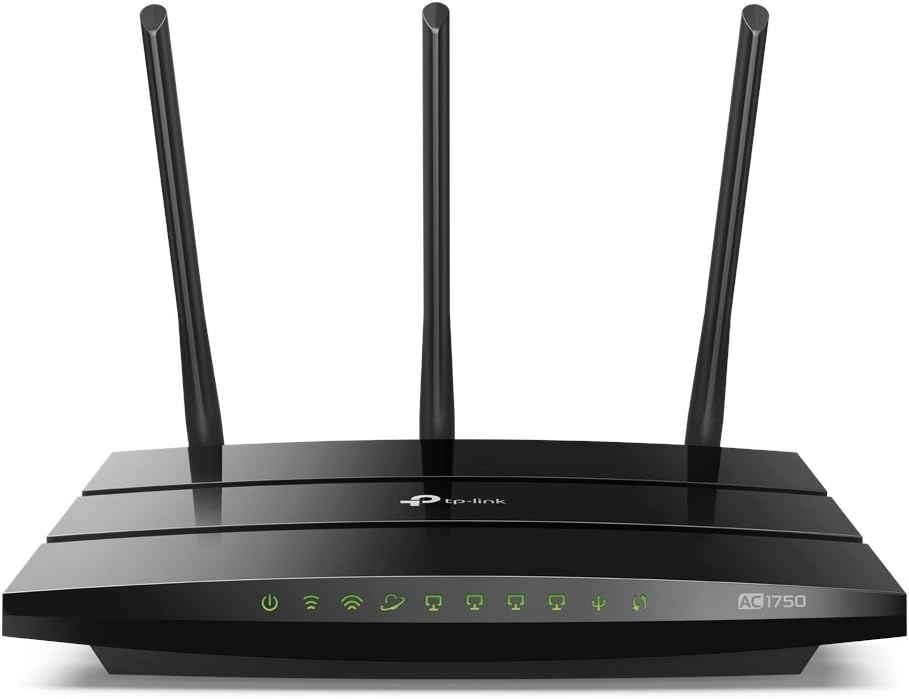
Image: The rear panel of the Archer C7 router, highlighting the power input, USB ports, blue WAN port, and four yellow LAN ports.
2. ప్రారంభ ఆకృతీకరణ
మీరు మీ రౌటర్ను ఉపయోగించి కాన్ఫిగర్ చేయవచ్చు a web బ్రౌజర్ లేదా TP-లింక్ టెథర్ యాప్.
- ఒక ఉపయోగించి Web బ్రౌజర్:
- Connect your computer to the router either wirelessly (using the default Wi-Fi name and password found on the router's label) or via an Ethernet cable to a LAN port.
- తెరవండి a web బ్రౌజర్ మరియు టైప్ చేయండి
http://tplinkwifi.netorhttp://192.168.0.1చిరునామా పట్టీలోకి. - Log in using the default username and password (usually
adminరెండింటికీ, లేదా రౌటర్ లేబుల్పై పేర్కొన్న విధంగా). - Follow the on-screen Quick Setup Wizard to configure your internet connection and wireless settings.
- TP-Link Tether యాప్ని ఉపయోగించడం:
- యాప్ స్టోర్ లేదా గూగుల్ ప్లే నుండి TP-లింక్ టెథర్ యాప్ను డౌన్లోడ్ చేసుకోండి.
- మీ మొబైల్ పరికరాన్ని రూటర్ యొక్క డిఫాల్ట్ Wi-Fi నెట్వర్క్కి కనెక్ట్ చేయండి.
- Open the Tether app and follow the instructions to set up your router.
రూటర్ను ఆపరేట్ చేయడం
డ్యూయల్-బ్యాండ్ Wi-Fi
The Archer C7 operates on two separate Wi-Fi bands: 2.4 GHz and 5 GHz. This allows for greater flexibility and performance.
- 2.4 GHz బ్యాండ్: Ideal for basic internet use like browsing and email, and for devices that are further away from the router.
- 5 GHz బ్యాండ్: Provides faster speeds and less interference, suitable for bandwidth-intensive activities such as online gaming and HD video streaming.
అతిథి నెట్వర్క్ యాక్సెస్
The router supports creating a separate guest network, providing secure Wi-Fi access for visitors without sharing your main network's password or resources. This enhances network security and privacy.
IP-ఆధారిత బ్యాండ్విడ్త్ నియంత్రణ
Utilize the IP-based Bandwidth Control feature to manage the bandwidth allocated to individual devices connected to your network. This helps ensure fair bandwidth distribution and prevents a single device from monopolizing the connection.
షేరింగ్ కోసం USB పోర్ట్లు
The dual USB ports allow you to share files, media, and even a printer across your network. You can access shared content locally or remotely via an FTP server, turning your router into a versatile media and file సర్వర్.

Image: The front panel of the Archer C7 router, displaying the LED indicators for power, internet, 2.4 GHz Wi-Fi, 5 GHz Wi-Fi, LAN activity, and USB activity.
నిర్వహణ
- ఫర్మ్వేర్ నవీకరణలు: TP-లింక్ను క్రమం తప్పకుండా తనిఖీ చేయండి website for firmware updates. Updating your router's firmware can improve performance, add new features, and enhance security. Follow the instructions provided with the firmware update carefully.
- రెగ్యులర్ రీబూట్లు: Periodically restarting your router can help clear its memory and resolve minor connectivity issues, ensuring optimal performance.
- భౌతిక శుభ్రపరచడం: Keep the router clean and free from dust to prevent overheating. Ensure proper ventilation around the device.
ట్రబుల్షూటింగ్
- ఇంటర్నెట్ యాక్సెస్ లేదు:
- Check all cable connections, especially the Ethernet cable from your modem to the router's WAN port.
- మీ మోడెమ్ సరిగ్గా పనిచేస్తుందని ధృవీకరించండి.
- మీ మోడెమ్ మరియు రౌటర్ రెండింటినీ పునఃప్రారంభించండి.
- నెమ్మది వై-ఫై వేగం:
- మీ పరికరాలు తగిన Wi-Fi బ్యాండ్కి కనెక్ట్ చేయబడ్డాయని నిర్ధారించుకోండి (వేగవంతమైన వేగం కోసం 5 GHz).
- ఇతర ఎలక్ట్రానిక్ పరికరాల నుండి రౌటర్ను దూరంగా తరలించడం ద్వారా జోక్యాన్ని తగ్గించండి.
- ఫర్మ్వేర్ నవీకరణల కోసం తనిఖీ చేయండి.
- Consider using IP-based Bandwidth Control to prioritize certain devices.
- Forgotten Wi-Fi Password or Router Login Password:
- Locate the label on the bottom of your router for default Wi-Fi credentials.
- If you changed the password and forgot it, you may need to perform a factory reset. Use a pin to press and hold the Reset button on the back of the router for about 10 seconds until the LEDs flash. This will restore the router to its factory default settings.
స్పెసిఫికేషన్లు
| ఫీచర్ | వివరాలు |
|---|---|
| మోడల్ సంఖ్య | ఆర్చర్ C7 |
| Wi-Fi ప్రమాణం | 802.11ac |
| ఫ్రీక్వెన్సీ బ్యాండ్ క్లాస్ | డ్యూయల్-బ్యాండ్ (2.4 GHz & 5 GHz) |
| మొత్తం అందుబాటులో ఉన్న బ్యాండ్విడ్త్ | 1750 Mbps (450 Mbps at 2.4GHz, 1300 Mbps at 5GHz) |
| ఈథర్నెట్ పోర్ట్స్ | 4 గిగాబిట్ LAN పోర్ట్లు, 1 గిగాబిట్ WAN పోర్ట్ |
| USB పోర్ట్లు | Dual USB Ports (for file, media, and printer sharing) |
| కొలతలు | 9.57 x 6.32 x 1.28 అంగుళాలు |
| వస్తువు బరువు | 1.12 పౌండ్లు |
| చేర్చబడిన భాగాలు | Router, Power Adapter, Ethernet Cable |
వారంటీ
TP-Link products typically come with a standard manufacturer's warranty. Please refer to the warranty card included in your product packaging or visit the official TP-Link website for detailed warranty terms and conditions specific to your region and product model. Keep your purchase receipt as proof of purchase for warranty claims.
మద్దతు
మరింత సహాయం, సాంకేతిక మద్దతు కోసం లేదా తాజా డ్రైవర్లు మరియు ఫర్మ్వేర్లను డౌన్లోడ్ చేసుకోవడానికి, దయచేసి అధికారిక TP-Link మద్దతును సందర్శించండి. webసైట్. మీరు సాధారణ సమస్యలు మరియు పరిష్కారాల కోసం తరచుగా అడిగే ప్రశ్నలు మరియు కమ్యూనిటీ ఫోరమ్లను కూడా కనుగొనవచ్చు.
- TP-లింక్ మద్దతు Webసైట్: https://www.tp-link.com/support
- TP-లింక్ టెథర్ యాప్: Available on App Store and Google Play for easy management.