
1. ఉత్పత్తి ముగిసిందిview
The HP ProDisplay P17A is a 17-inch LED-backlit LCD monitor designed for general computing tasks. It features a 5:4 aspect ratio with a maximum resolution of 1280 x 1024 pixels, providing clear and consistent visuals. This monitor is equipped with both VGA and HDMI connectivity options, offering versatility for various system configurations. Its compact design and energy-efficient LED backlighting make it suitable for a range of environments.

మూర్తి 1: ముందు view of the HP ProDisplay P17A monitor, showcasing దాని డిస్ప్లే మరియు స్టాండ్.
2. సెటప్ సూచనలు
2.1 మానిటర్ను అన్ప్యాక్ చేయడం
ప్యాకేజింగ్ నుండి అన్ని భాగాలను జాగ్రత్తగా తొలగించండి. కింది అంశాలు ఉన్నాయని నిర్ధారించుకోండి:
- HP ProDisplay P17A Monitor
- Monitor Stand (base and neck)
- పవర్ కేబుల్
- VGA Cable (may vary by region/package)
- HDMI Cable (may vary by region/package)
2.2 స్టాండ్ను అసెంబుల్ చేయడం
- గీతలు పడకుండా ఉండటానికి మానిటర్ ముఖాన్ని మృదువైన, శుభ్రమైన ఉపరితలంపై ఉంచండి.
- Attach the stand neck to the back of the monitor, aligning the tabs and pushing until it clicks into place.
- Attach the stand base to the bottom of the stand neck, securing it with the captive screw if present.
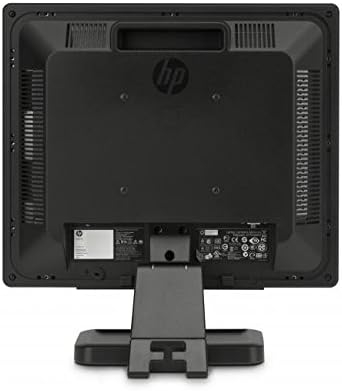
చిత్రం 2: వెనుక view of the monitor, illustrating the stand attachment point and various connectivity ports.
2.3 కనెక్ట్ కేబుల్స్
- పవర్ కనెక్షన్: పవర్ కేబుల్ను మానిటర్ పవర్ ఇన్పుట్కి కనెక్ట్ చేయండి మరియు తరువాత గ్రౌండెడ్ ఎలక్ట్రికల్ అవుట్లెట్కి కనెక్ట్ చేయండి.
- వీడియో కనెక్షన్:
- For VGA: Connect one end of the VGA cable to the VGA port on the monitor and the other end to the VGA port on your computer. Tighten the screws on the VGA connector.
- For HDMI: Connect one end of the HDMI cable to the HDMI port on the monitor and the other end to the HDMI port on your computer.
- అన్ని కనెక్షన్లు సురక్షితంగా ఉన్నాయని నిర్ధారించుకోండి.
3. ఆపరేటింగ్ సూచనలు
3.1 పవర్ చేయడం ఆన్/ఆఫ్
మానిటర్ను ఆన్ లేదా ఆఫ్ చేయడానికి దాని ముందు బెజెల్పై ఉన్న పవర్ బటన్ను నొక్కండి. మానిటర్ ఆన్లో ఉన్నప్పుడు పవర్ ఇండికేటర్ లైట్ వెలుగుతుంది.
3.2 డిస్ప్లే సెట్టింగ్లను సర్దుబాటు చేయడం (OSD మెనూ)
The On-Screen Display (OSD) menu allows you to adjust various monitor settings. Use the buttons on the front bezel to navigate and select options.
- మెనూ బటన్: OSD మెనుని తెరుస్తుంది.
- నావిగేషన్ బటన్లు (+ / - or Up/Down): Move through menu options and adjust values.
- ఎంచుకోండి/సరే బటన్: ఎంపికను నిర్ధారిస్తుంది లేదా ఉప-మెనూలోకి ప్రవేశిస్తుంది.
- నిష్క్రమణ బటన్: ప్రస్తుత మెనూ లేదా OSD నుండి నిష్క్రమిస్తుంది.
సాధారణ సర్దుబాటు సెట్టింగ్లలో ఇవి ఉన్నాయి:
- ప్రకాశం/కాంట్రాస్ట్: కాంతి మరియు చీకటి ప్రాంతాల మధ్య మొత్తం ప్రకాశం మరియు వ్యత్యాసాన్ని సర్దుబాటు చేస్తుంది.
- రంగు నియంత్రణ: Allows adjustment of color temperature, RGB levels, or preset color modes.
- ఇన్పుట్ ఎంపిక: Manually switches between VGA and HDMI input sources.
- చిత్ర నియంత్రణ: Adjusts sharpness, aspect ratio, and auto-adjustment for analog signals.
- నిర్వహణ: విద్యుత్ ఆదా ఎంపికలు, OSD సమయం ముగిసింది, భాష ఎంపిక.
4. నిర్వహణ
4.1 మానిటర్ను శుభ్రపరచడం
- శుభ్రపరిచే ముందు ఎల్లప్పుడూ మానిటర్ను ఆఫ్ చేసి, పవర్ కార్డ్ను అన్ప్లగ్ చేయండి.
- మెత్తని, మెత్తని బట్టను తేలికగా ఉపయోగించండి డిampనీరు లేదా రాపిడి లేని స్క్రీన్ క్లీనర్తో శుభ్రం చేయండి.
- క్లీనర్ను నేరుగా స్క్రీన్ లేదా మానిటర్పై పిచికారీ చేయవద్దు casing.
- Avoid using benzene, thinner, ammonia-based cleaners, or abrasive materials, as these can damage the surface.
4.2 సాధారణ సంరక్షణ
- ప్రత్యక్ష సూర్యకాంతిలో లేదా వేడి మూలాల దగ్గర మానిటర్ను ఉంచడం మానుకోండి.
- మానిటర్ చుట్టూ తగినంత వెంటిలేషన్ ఉండేలా చూసుకోండి.
- వెంటిలేషన్ ఓపెనింగ్స్ను నిరోధించవద్దు.
- పదునైన వస్తువులు లేదా అధిక ఒత్తిడి నుండి స్క్రీన్ను రక్షించండి.
5. ట్రబుల్షూటింగ్
Before contacting support, try the following basic troubleshooting steps:
5.1 తెరపై చిత్రం లేదు
- Ensure the monitor's power cable is securely connected to both the monitor and a working electrical outlet.
- Verify the power indicator light on the monitor is on. If not, press the power button.
- Check that the video cable (VGA or HDMI) is securely connected to both the monitor and the computer.
- Ensure the correct input source is selected on the monitor (use the OSD menu to switch inputs).
- మీ కంప్యూటర్ని పునఃప్రారంభించండి.
5.2 పేలవమైన చిత్ర నాణ్యత
- Fuzzy or Blurry Image: మీ కంప్యూటర్లోని డిస్ప్లే రిజల్యూషన్ మానిటర్ యొక్క నేటివ్ రిజల్యూషన్కు (1280 x 1024) సెట్ చేయబడిందని నిర్ధారించుకోండి.
- తప్పు రంగులు: Adjust color settings through the OSD menu or your computer's display settings.
- Image Off-Center/Incorrect Size (VGA only): Use the "Auto Adjust" function in the OSD menu.
- తళతళలాడుతోంది: Check the refresh rate setting on your computer; ensure it is set to 60 Hz.
5.3 Monitor Not Responding to Buttons
- Unplug the monitor's power cable, wait 10 seconds, then plug it back in and try again.
- బటన్లు ఏవీ ఇరుక్కుపోకుండా చూసుకోండి.
6. సాంకేతిక లక్షణాలు
| ఫీచర్ | స్పెసిఫికేషన్ |
|---|---|
| బ్రాండ్ | హ్యూలెట్ ప్యాకర్డ్ |
| మోడల్ పేరు | HP P17A |
| మోడల్ సంఖ్య | F4M97AAABA |
| స్క్రీన్ పరిమాణం | 17 అంగుళాలు |
| ప్రదర్శన రకం | LED బ్యాక్లిట్ LCD |
| స్థానిక రిజల్యూషన్ | 1280 x 1024 (SXGA) |
| కారక నిష్పత్తి | 5:4 |
| కాంట్రాస్ట్ రేషియో | 1000:1 |
| రిఫ్రెష్ రేట్ | 60 Hz |
| ప్రతిస్పందన సమయం | 5 మిల్లీసెకన్లు |
| Viewing యాంగిల్ | 170 డిగ్రీలు |
| కనెక్టివిటీ | 1x VGA, 1x HDMI |
| విద్యుత్ వినియోగం | 25 వాట్స్ (గరిష్టంగా) |
| అంశం కొలతలు (D x W x H) | 8.12"డి x 14.85"వా x 15.24"హ |
| వస్తువు బరువు | 8.2 పౌండ్లు |
| మౌంటు రకం | వాల్ మౌంట్ (VESA అనుకూలమైనది) |
| అదనపు ఫీచర్లు | Anti Glare Screen |

Figure 3: Dimensions of the HP ProDisplay P17A monitor.
7. వారంటీ మరియు మద్దతు
7.1 వారంటీ సమాచారం
This product is often sold as a refurbished item. Refurbished products typically come with a limited warranty provided by the refurbisher or seller. Please refer to your purchase documentation for specific warranty terms and conditions, including duration and coverage details.
7.2 సాంకేతిక మద్దతు
For technical assistance, troubleshooting beyond this manual, or warranty claims, please contact the vendor or HP customer support. Have your monitor's model number (F4M97AAABA) and serial number ready when contacting support.
You can find additional support resources, drivers, and documentation on the official HP support webసైట్.