
పరిచయం
This manual provides instructions for setting up, operating, and maintaining your Mercury MW3030R Dual Band Wireless Router. Please read this manual carefully before use to ensure proper installation and optimal performance.
భద్రతా సమాచారం
- పరికరాన్ని నీరు లేదా అధిక తేమకు గురిచేయవద్దు.
- పరికరాన్ని విడదీయడానికి లేదా మరమ్మతు చేయడానికి ప్రయత్నించవద్దు.
- పరికరంతో అందించబడిన పవర్ అడాప్టర్ను మాత్రమే ఉపయోగించండి.
- రౌటర్ వేడెక్కకుండా నిరోధించడానికి దాని చుట్టూ సరైన వెంటిలేషన్ ఉండేలా చూసుకోండి.
ప్యాకేజీ విషయాలు
మీ ప్యాకేజీ కింది అంశాలను కలిగి ఉందని ధృవీకరించండి:
- Mercury MW3030R Wireless Router
- పవర్ అడాప్టర్
- ఈథర్నెట్ కేబుల్
- త్వరిత సంస్థాపనా మార్గదర్శిని (ఈ మాన్యువల్ వివరణాత్మక మార్గదర్శిగా పనిచేస్తుంది)
ఉత్పత్తి ముగిసిందిview
Familiarize yourself with the router's components and indicators.
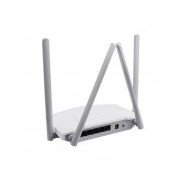
మూర్తి 1: వెనుక view of the Mercury MW3030R router. This image displays the four external antennas, the WAN port (typically blue), multiple LAN ports (typically yellow), and the power input jack. The reset button and WPS button are also usually located on the rear panel.
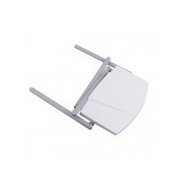
మూర్తి 2: పై నుండి క్రిందికి view of the Mercury MW3030R router with its antennas folded. This perspective highlights the router's sleek, white casing and its overall compact form factor, suitable for various placements.
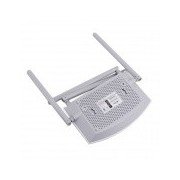
మూర్తి 3: దిగువన view of the Mercury MW3030R router. This image shows the ventilation holes designed for heat dissipation and the product label, which typically contains important information such as the default Wi-Fi name (SSID), password, and web management address.
LED సూచికలు:
- పవర్ LED: Indicates the power status of the router.
- ఇంటర్నెట్ LED: Indicates the status of the internet connection.
- WLAN LED: వైర్లెస్ కార్యాచరణను సూచిస్తుంది.
- LAN LED లు: Indicate connection status for each LAN port.
సెటప్
1. హార్డ్వేర్ కనెక్షన్
- పవర్ ఆన్: Connect the power adapter to the router's power port and plug it into a wall outlet. Wait for the Power LED to become stable.
- ఇంటర్నెట్ (WAN) కి కనెక్ట్ అవ్వండి: Connect one end of an Ethernet cable to your modem's LAN port and the other end to the router's WAN port (usually distinctively colored, e.g., blue).
- కనెక్ట్ పరికరాలు (LAN): For wired connections, connect your computer or other devices to the router's LAN ports (usually yellow) using Ethernet cables.
- యాంటెన్నాలు: Adjust the four antennas for optimal signal coverage.
2. ప్రారంభ కాన్ఫిగరేషన్ (Web ఇంటర్ఫేస్)
- రూటర్కి కనెక్ట్ చేయండి: Connect your computer to the router either via an Ethernet cable to a LAN port or wirelessly using the default Wi-Fi SSID and password printed on the router's label (refer to Figure 3).
- యాక్సెస్ Web బ్రౌజర్: తెరవండి a web browser (e.g., Chrome, Firefox) and type the default access address (e.g., http://192.168.1.1 or http://tplinkwifi.net) ను అడ్రస్ బార్లోకి వెళ్లి ఎంటర్ నొక్కండి.
- లాగిన్: డిఫాల్ట్ యూజర్నేమ్ మరియు పాస్వర్డ్ను నమోదు చేయండి (సాధారణంగా నిర్వాహకుడు రెండింటికీ, లేదా రౌటర్ లేబుల్పై పేర్కొన్న విధంగా).
- త్వరిత సెటప్ను అమలు చేయండి: Follow the on-screen instructions of the Quick Setup Wizard to configure your internet connection type (e.g., PPPoE, Dynamic IP, Static IP) and wireless settings (SSID, password).
- డిఫాల్ట్ పాస్వర్డ్ను మార్చండి: For security, it is highly recommended to change the default login password for the router's web నిర్వహణ ఇంటర్ఫేస్.
ఆపరేటింగ్ సూచనలు
Wi-Fiకి కనెక్ట్ చేస్తోంది
- On your wireless device (smartphone, laptop), search for available Wi-Fi networks.
- Select your router's Wi-Fi network name (SSID) that you configured during setup.
- Enter the Wi-Fi password you set.
- మీ పరికరం ఇప్పుడు ఇంటర్నెట్కు కనెక్ట్ అయి ఉండాలి.
డ్యూయల్ బ్యాండ్ ఆపరేషన్
The MW3030R supports both 2.4GHz and 5.0GHz wireless bands. The 2.4GHz band offers wider coverage, while the 5.0GHz band provides faster speeds with less interference over shorter distances. You can connect your devices to either band based on your needs.
అతిథి నెట్వర్క్
రౌటర్లను యాక్సెస్ చేయండి web interface to enable and configure a separate guest network. This allows guests to access the internet without accessing your main network resources.
నిర్వహణ
- ఫర్మ్వేర్ నవీకరణలు: తయారీదారుని క్రమం తప్పకుండా తనిఖీ చేయండి webఫర్మ్వేర్ అప్డేట్ల కోసం సైట్. ఫర్మ్వేర్ను అప్డేట్ చేయడం వల్ల పనితీరును మెరుగుపరచవచ్చు, కొత్త ఫీచర్లను జోడించవచ్చు మరియు భద్రతా లోపాలను పరిష్కరించవచ్చు.
- రౌటర్ను పునఃప్రారంభించడం: మీకు నెట్వర్క్ సమస్యలు ఎదురైతే, పవర్ అడాప్టర్ను అన్ప్లగ్ చేసి, 10 సెకన్లు వేచి ఉండి, ఆపై దాన్ని తిరిగి ప్లగ్ చేయడం ద్వారా రౌటర్ను రీస్టార్ట్ చేయడానికి ప్రయత్నించండి.
- శుభ్రపరచడం: రౌటర్ను శుభ్రంగా మరియు దుమ్ము లేకుండా ఉంచండి. మృదువైన, పొడి వస్త్రాన్ని ఉపయోగించండి. ద్రవ క్లీనర్లను ఉపయోగించవద్దు.
- ప్లేస్మెంట్: రౌటర్ను అడ్డంకులు మరియు అంతరాయానికి కారణమయ్యే పరికరాలకు (ఉదా. మైక్రోవేవ్లు, కార్డ్లెస్ ఫోన్లు) దూరంగా కేంద్ర స్థానంలో ఉంచండి.
ట్రబుల్షూటింగ్
ఇంటర్నెట్ యాక్సెస్ లేదు
- Check if the Internet LED on the router is lit or blinking correctly.
- మీ మోడెమ్ నుండి ఈథర్నెట్ కేబుల్ రౌటర్ యొక్క WAN పోర్ట్కు సురక్షితంగా కనెక్ట్ చేయబడిందని నిర్ధారించుకోండి.
- మీ మోడెమ్ మరియు రూటర్ని పునఃప్రారంభించండి.
- రౌటర్లో మీ ఇంటర్నెట్ కనెక్షన్ సెట్టింగ్లను ధృవీకరించండి web ఇంటర్ఫేస్.
తక్కువ వైర్లెస్ వేగం
- Ensure your device is connected to the 5.0GHz band if it supports it, for faster speeds.
- Move closer to the router or adjust antenna positions.
- ఇతర ఎలక్ట్రానిక్ పరికరాల నుండి జోక్యం కోసం తనిఖీ చేయండి.
- Reduce the number of devices connected to the network or bandwidth-intensive activities.
రౌటర్లను యాక్సెస్ చేయలేరు Web ఇంటర్ఫేస్
- మీ పరికరం రౌటర్కి (వైర్డు లేదా వైర్లెస్) కనెక్ట్ చేయబడిందని నిర్ధారించుకోండి.
- Verify the IP address you are typing in the browser is correct (e.g., http://192.168.1.1).
- మీ బ్రౌజర్ కాష్ను క్లియర్ చేయడానికి లేదా వేరే బ్రౌజర్ను ఉపయోగించడానికి ప్రయత్నించండి.
- If you forgot the login password, you may need to perform a factory reset (Warning: This will erase all your settings).
స్పెసిఫికేషన్లు
| ఫీచర్ | వివరణ |
|---|---|
| మోడల్ | MW3030R |
| వైర్లెస్ ప్రమాణాలు | IEEE 802.11ac/n/g/b/a |
| ఫ్రీక్వెన్సీ | 2.4GHz మరియు 5.0GHz (డ్యూయల్ బ్యాండ్) |
| వైర్లెస్ స్పీడ్ | Up to 600Mbps (combined) |
| యాంటెన్నాలు | 4 బాహ్య యాంటెన్నాలు |
| ఇంటర్ఫేస్లు | 1x WAN Port, Multiple LAN Ports (typically 3 or 4) |
| విద్యుత్ సరఫరా | External Power Adapter (provided) |
వారంటీ మరియు మద్దతు
The Mercury MW3030R router comes with a standard manufacturer's warranty. For detailed warranty information, technical support, or service inquiries, please refer to the official Mercury webసైట్ లేదా వారి కస్టమర్ సపోర్ట్ను సంప్రదించండి. వారంటీ క్లెయిమ్ల కోసం మీ కొనుగోలు రసీదును ఉంచండి.