
1. పరిచయం
The Excelvan HOP-E801 is a high-speed thermal receipt printer designed for Point of Sale (POS) systems and various other applications requiring efficient and reliable receipt printing. This manual provides detailed instructions for setting up, operating, maintaining, and troubleshooting your printer to ensure optimal performance.
Note: This device is not compatible with Mac OS.

Image 1.1: Excelvan HOP-E801 Thermal Receipt Printer. This image shows the overall design of the printer, highlighting its compact size and the receipt paper exiting the top.
2. ఉత్పత్తి లక్షణాలు
- ప్రింటింగ్ విధానం: Thermal line printing for fast and quiet operation.
- అధిక వేగం: Prints at up to 300 mm/s.
- రిజల్యూషన్: Supports 576 dots/line or 512 dots/line.
- పేపర్ అనుకూలత: Supports 79.5 ± 0.5 mm and 57.5 ± 0.5 mm thermal paper rolls with a maximum diameter of 80 mm.
- బహుళ ఇంటర్ఫేస్లు: Equipped with USB, Ethernet (100M), COM (Serial), and Cash Drawer ports for versatile connectivity.
- ఆటోమేటిక్ కట్టర్: Features an automatic cutter for convenient receipt separation.
- కమాండ్ సెట్: Compatible with ESC/POS print commands.
- బార్కోడ్ మద్దతు: Prints 1D barcodes (UPC-A/E, JAN13/8, CODE39/ITF/CODABAR/CODE93/128) and 2D barcodes (QRCODE).
- Graphic Printing: Supports bitmap image download and printing.
- మన్నిక: Print head lifespan of 100 km (at print density ≤ 12.5) and cutter lifespan of 1,000,000 cuts.
- బఫర్: 2048 K Bytes input buffer and 256 K Bytes NV Flash.
- ఆపరేటింగ్ సిస్టమ్ మద్దతు: Compatible with Windows 2000/2003/XP/Win7/Win8/Win8.1/Linux/Android/iOS.
3. ప్యాకేజీ విషయాలు
అన్ని వస్తువులు ఉన్నాయని మరియు పాడవకుండా ఉన్నాయని నిర్ధారించుకోవడానికి దయచేసి ప్యాకేజీని జాగ్రత్తగా తనిఖీ చేయండి:
- 1 x Excelvan HOP-E801 Thermal Receipt Printer
- 1 x European Plug Power Adapter
- 1 x USB Cable (1.1m)
- 1 x థర్మల్ పేపర్ రోల్
- 1 x Paper Deflector
- 1 x డ్రైవర్ సిడి
- 1 x వినియోగదారు మాన్యువల్

Image 3.1: All components included in the Excelvan HOP-E801 Thermal Receipt Printer package, laid out for inspection.
4. సెటప్ గైడ్
4.1 ప్రింటర్ను కనెక్ట్ చేస్తోంది
- పవర్ కనెక్షన్: Connect the power adapter to the printer's power port and then plug it into a suitable power outlet.
- డేటా కనెక్షన్: Connect the printer to your host device (computer, POS system) using one of the available interfaces:
- USB: Use the provided USB cable to connect the printer to a USB port on your host device.
- ఈథర్నెట్: Connect an Ethernet cable from your network router or switch to the printer's Ethernet port.
- Serial (COM): Use a serial cable to connect the printer to a COM port on your host device.
- క్యాష్ డ్రాయర్ కనెక్షన్ (ఐచ్ఛికం): If using a cash drawer, connect its cable to the printer's cash drawer port.

చిత్రం 4.1: వెనుక view of the Excelvan HOP-E801 printer, showing the USB, Serial (COM), Ethernet, Cash Drawer, and Power ports, along with the ON/OFF switch.
4.2 థర్మల్ పేపర్ను లోడ్ చేస్తోంది
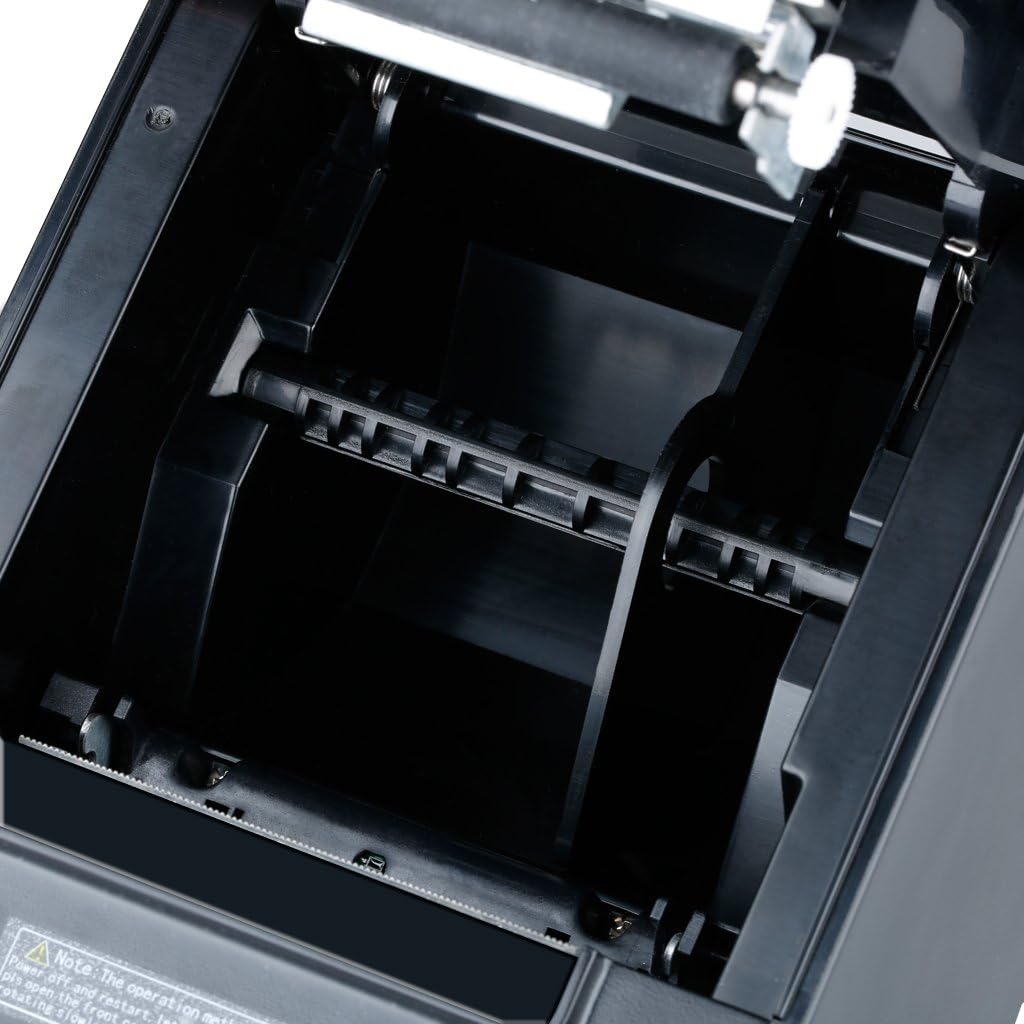
- Press the 'OPEN' button or lever on the side of the printer to open the paper cover.
- Insert the thermal paper roll into the paper compartment, ensuring the paper feeds from the bottom of the roll and the leading edge comes out towards the front of the printer.
- కట్టర్ దాటి కొద్ది మొత్తంలో కాగితాన్ని బయటకు లాగండి.
- పేపర్ కవర్ సరిగ్గా తగిలే వరకు గట్టిగా మూసివేయండి.

చిత్రం 4.2: అంతర్గత view of the paper compartment, illustrating the correct orientation for loading a thermal paper roll.
4.3 డ్రైవర్ ఇన్స్టాలేషన్
For Windows operating systems, insert the provided Driver CD into your computer and follow the on-screen instructions to install the printer driver. Drivers for Linux, Android, and iOS may be available for download from the manufacturer's website. Ensure the correct driver is installed for your specific operating system and connection type (USB, Ethernet, or Serial).
4.4 DIP Switch Settings (Set Print Mode)
The printer features DIP switches on the bottom panel to configure various print modes and settings. Refer to the detailed DIP switch configuration table in the full user manual for specific settings. Ensure the printer is powered off before adjusting DIP switches.
చిత్రం 4.3: క్లోజప్ view of the DIP switches located on the bottom of the printer, used for setting various print modes.
5. ఆపరేటింగ్ సూచనలు
5.1 పవర్ చేయడం ఆన్/ఆఫ్
Use the ON/OFF switch located at the rear of the printer to power it on or off. The 'Power' indicator light will illuminate when the printer is on.
5.2 స్థితి సూచికలు
The printer has three indicator lights on the front panel:
- శక్తి: ప్రింటర్ ఆన్ చేయబడిందని సూచిస్తుంది.
- లోపం: Illuminates to indicate a printer error (e.g., paper jam, print head overheating).
- పేపర్: పేపర్ రోల్ తక్కువగా ఉన్నప్పుడు లేదా బయట ఉన్నప్పుడు వెలుగుతుంది.

Image 5.1: Close-up of the printer's front panel, showing the Power, Error, and Paper indicator lights, along with the paper feed button and the 'OPEN' button for the paper cover.
5.3 Self-Test Print
To perform a self-test, ensure the printer is off and paper is loaded. Press and hold the 'FEED' button (usually next to the indicator lights) while turning on the printer. Release the button once the printer starts printing. The self-test printout will display printer information, settings, and a sample print pattern.

Image 5.2: A self-test printout from the Excelvan HOP-E801 printer, showing diagnostic information and print quality.
5.4 ప్రాథమిక ముద్రణ
Once the printer is connected and drivers are installed, you can send print jobs from your application. Ensure the printer is selected as the default or desired printer in your software settings.
6. నిర్వహణ
6.1 ప్రింటర్ను శుభ్రపరచడం
క్రమం తప్పకుండా శుభ్రపరచడం ముద్రణ నాణ్యతను కాపాడుకోవడానికి మరియు ప్రింటర్ జీవితకాలం పొడిగించడానికి సహాయపడుతుంది.
- బాహ్య: ఒక మృదువైన, d తో బాహ్య తుడవడంamp వస్త్రం. కఠినమైన రసాయనాలు లేదా రాపిడి క్లీనర్లను ఉపయోగించవద్దు.
- ప్రింట్ హెడ్: Gently clean the thermal print head with an alcohol swab or a specialized thermal printer cleaning pen. Ensure the printer is off and cooled down before cleaning.
- పేపర్ పాత్: కాగితపు మార్గం నుండి ఏదైనా కాగితపు దుమ్ము లేదా శిధిలాలను మృదువైన బ్రష్ లేదా సంపీడన గాలిని ఉపయోగించి తొలగించండి.
6.2 Replacing Paper Rolls
Follow the instructions in Section 4.2 to replace an empty thermal paper roll.
6.3 కట్టర్ నిర్వహణ
The automatic cutter is designed for durability. If the cutter becomes stuck, refer to the troubleshooting section. Avoid forcing the cutter or using non-standard paper, which can damage the mechanism.
7. ట్రబుల్షూటింగ్
This section addresses common issues you might encounter with your Excelvan HOP-E801 printer.
- ప్రింటర్ స్పందించడం లేదు:
- Check if the power cable is securely connected and the printer is turned on.
- Verify the data cable (USB, Ethernet, COM) connection to both the printer and the host device.
- మీ అప్లికేషన్లో సరైన ప్రింటర్ డ్రైవర్ ఇన్స్టాల్ చేయబడి, ఎంచుకోబడిందని నిర్ధారించుకోండి.
- 'Error' Indicator Light On:
- A paper jam might have occurred. Open the paper cover, clear any jammed paper, and re-load the paper roll.
- The print head might be overheating. Turn off the printer and let it cool down for a few minutes before restarting.
- 'Paper' Indicator Light On:
- The paper roll is low or empty. Replace the thermal paper roll as described in Section 4.2.
- పేలవమైన ముద్రణ నాణ్యత:
- The thermal paper might be old or of poor quality. Try a new roll of high-quality thermal paper.
- The print head might be dirty. Clean the print head as described in Section 6.1.
- Adjust print density settings if available in your driver or application.
- Cutter Stuck:
If the cutter becomes stuck, turn off the printer and restart it. This may reset the cutter mechanism. If the issue persists, gently try to rotate the cutter back to its original position if accessible, or contact support.
8. స్పెసిఫికేషన్లు
| మోడల్ | HOP-E801 |
| ప్రింటింగ్ పద్ధతి | థర్మల్ లైన్ ప్రింటింగ్ |
| ప్రభావవంతమైన ప్రింట్ వెడల్పు | 72 మి.మీ |
| రిజల్యూషన్ | 576 dots/line or 512 dots/line (203 DPI) |
| ప్రింట్ స్పీడ్ | 300 mm/s (Max Monochrome Print Speed: 32 Pages per minute) |
| పేపర్ వెడల్పు | 79.5 ± 0.5 mm, 57.5 ± 0.5 mm |
| పేపర్ వ్యాసం | 80 మిమీ |
| ఇంటర్ఫేస్లు | USB, Ethernet (100M), COM (Serial), Cash Drawer |
| ఆదేశాలు | ESC/POS compatible |
| బార్కోడ్ మద్దతు | 1D: UPC-A/E, JAN13/8, CODE39/ITF/CODABAR/CODE93/128 2D: QRCODE |
| Graphic Printing | Supports bitmap download and printing |
| కట్టర్ ఫంక్షన్ | Automatic Cutter |
| ప్రింట్ హెడ్ జీవితకాలం | 100 km (at print density ≤ 12.5) |
| Cutter Lifespan | 1,000,000 కోతలు |
| ఇన్పుట్ బఫర్ | 2048 K Bytes |
| NV ఫ్లాష్ | 256 K Bytes |
| ఇన్పుట్ వాల్యూమ్tage | AC 110 V-240 V, 50-60 Hz |
| అవుట్పుట్ కరెంట్ | DC 24 V/2.5 A |
| క్యాష్ డ్రాయర్ అవుట్పుట్ | DC 24 V/1 A |
| ఉత్పత్తి కొలతలు | 18 cm x 14.5 cm x 12.5 cm (7.09 x 5.71 x 4.92 అంగుళాలు) |
| ఆపరేటింగ్ సిస్టమ్ మద్దతు | Windows 2000/2003/XP/Win7/Win8/Win8.1/Linux/Android/iOS |

Image 8.1: Diagram illustrating the dimensions of the Excelvan HOP-E801 Thermal Receipt Printer in centimeters and inches.
9. వారంటీ మరియు మద్దతు
Warranty information for the Excelvan HOP-E801 Thermal Receipt Printer is not provided in this document. For details regarding warranty coverage, technical support, or spare parts availability, please refer to the documentation included with your purchase or contact Excelvan customer service directly.