
1. పరిచయం
The CHERRY KC 1000 is a reliable wired keyboard designed for professional office use and everyday computing. It features a full-size Italian QWERTY layout, a flat design, and quiet keystrokes for comfortable and efficient typing. This manual provides essential information for setting up, operating, maintaining, and troubleshooting your keyboard.
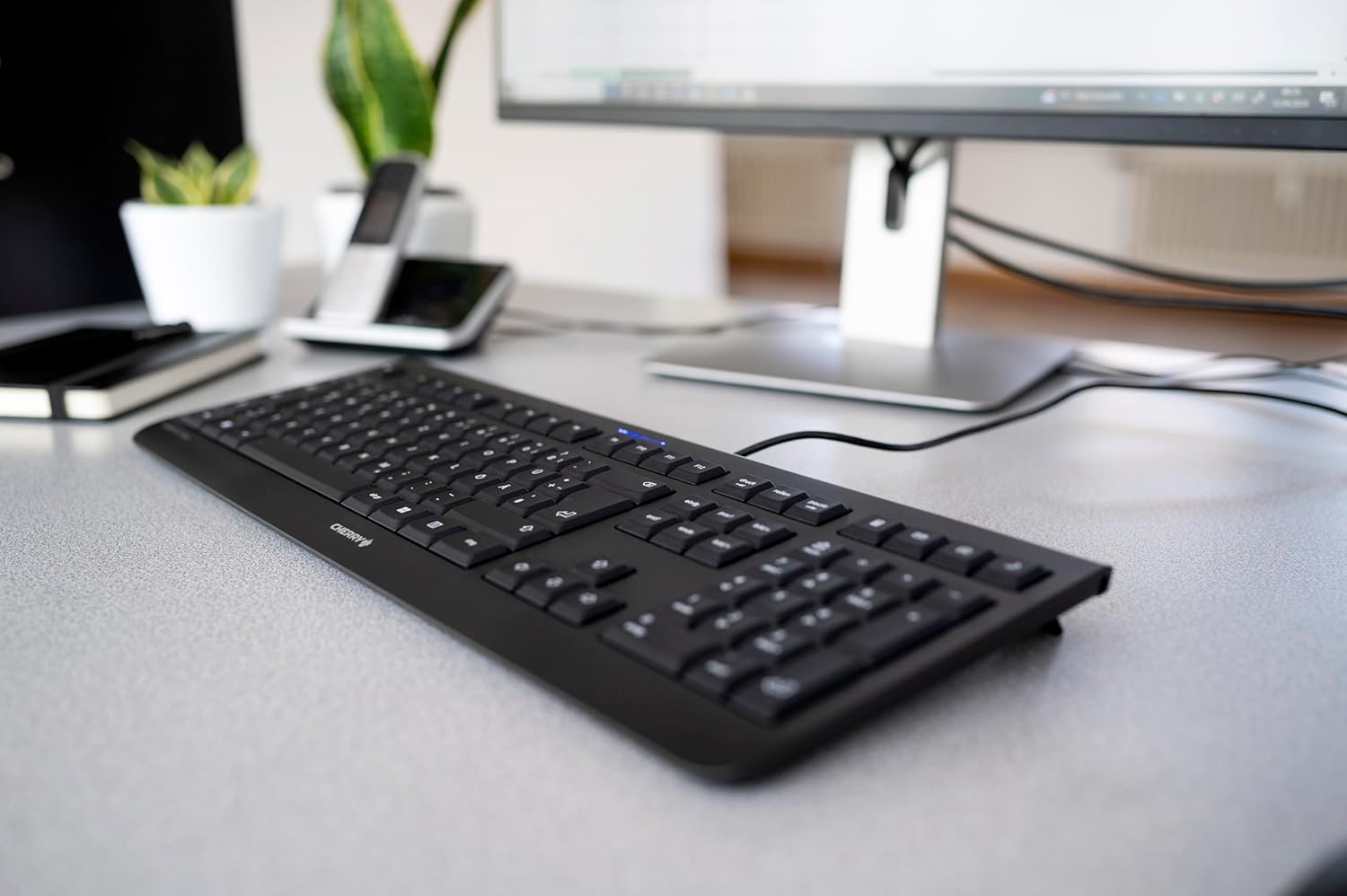
Image 1.1: The CHERRY KC 1000 keyboard in a typical office setup.
2. సెటప్
The CHERRY KC 1000 keyboard is designed for simple Plug & Play installation. No additional drivers are required for most operating systems.
2.1 కీబోర్డ్ను కనెక్ట్ చేయడం
- Locate an available USB-A port on your computer (desktop PC, laptop, or compatible device).
- Insert the USB connector of the CHERRY KC 1000 keyboard into the USB-A port.
- Your operating system will automatically detect and install the necessary drivers. This process usually takes a few seconds.
- కీబోర్డ్ ఇప్పుడు ఉపయోగం కోసం సిద్ధంగా ఉంది.
The keyboard features a 180 cm (approximately 5.9 feet) long cable, providing ample flexibility for desk arrangements.

Image 2.1: The USB cable connection of the CHERRY KC 1000 keyboard.
3. కీబోర్డ్ను ఆపరేట్ చేయడం
The CHERRY KC 1000 offers a standard Italian QWERTY layout with additional function keys for enhanced productivity.
3.1 కీ లేఅవుట్ మరియు విధులు
The keyboard includes a full-size layout with a dedicated numeric keypad and cursor keys. The Italian QWERTY layout supports specific characters and symbols commonly used in the Italian language.

చిత్రం 3.1: ముగిసిందిview of the CHERRY KC 1000 Italian QWERTY key layout.
3.2 ప్రత్యేక ఫంక్షన్ కీలు
The keyboard features 4 additional keys located above the numeric keypad for quick access to common functions:
- క్యాలిక్యులేటర్: Opens the default calculator application.
- ఇమెయిల్: మీ డిఫాల్ట్ ఇమెయిల్ క్లయింట్ను ప్రారంభిస్తుంది.
- బ్రౌజర్: మీ డిఫాల్ట్ను తెరుస్తుంది web బ్రౌజర్.
- స్లీప్ మోడ్: మీ కంప్యూటర్ను స్లీప్ మోడ్లో ఉంచుతుంది.
3.3 స్థితి LED లు
Three blue status LEDs are located above the function keys to indicate the status of:
- క్యాప్స్ లాక్: Illuminates when Caps Lock is active.
- NUM: Illuminates when Num Lock is active.
- స్క్రోల్: Illuminates when Scroll Lock is active.

Image 3.2: User interacting with the CHERRY KC 1000 keyboard.
4. నిర్వహణ
Proper care and maintenance will ensure the longevity and optimal performance of your CHERRY KC 1000 keyboard.
4.1 కీబోర్డ్ను శుభ్రపరచడం
- శుభ్రం చేయడానికి ముందు మీ కంప్యూటర్ నుండి కీబోర్డ్ను డిస్కనెక్ట్ చేయండి.
- కొద్దిగా మెత్తని, మెత్తని బట్టను ఉపయోగించండి dampened with water or a mild cleaning solution (e.g., isopropyl alcohol) to wipe the keycaps and keyboard surface.
- Avoid using abrasive cleaners, solvents, or harsh chemicals, as these can damage the keyboard's finish or key legends.
- కీల మధ్య దుమ్ము మరియు శిధిలాల కోసం, సంపీడన గాలి లేదా చిన్న బ్రష్ను ఉపయోగించండి.
- మీ కంప్యూటర్కు కీబోర్డ్ను తిరిగి కనెక్ట్ చేసే ముందు పూర్తిగా పొడిగా ఉందని నిర్ధారించుకోండి.
4.2 సాధారణ సంరక్షణ
- కీబోర్డ్ మీద ద్రవాలు చిందకుండా ఉండండి.
- కీబోర్డ్ను ఎక్కువసేపు తీవ్రమైన ఉష్ణోగ్రతలకు లేదా ప్రత్యక్ష సూర్యకాంతికి గురిచేయవద్దు.
- Do not attempt to disassemble the keyboard, as this may void the warranty.
5. ట్రబుల్షూటింగ్
If you encounter issues with your CHERRY KC 1000 keyboard, refer to the following common troubleshooting steps.
5.1 కీబోర్డ్ స్పందించడం లేదు
- USB కనెక్షన్ను తనిఖీ చేయండి: Ensure the USB cable is securely plugged into both the keyboard and the computer's USB port. Try a different USB port.
- కంప్యూటర్ పునఃప్రారంభించండి: Sometimes a simple computer restart can resolve connectivity issues.
- మరొక కంప్యూటర్లో పరీక్ష: If possible, connect the keyboard to another computer to determine if the issue is with the keyboard or the original computer.
- డ్రైవర్ పునఃస్థాపన: Although Plug & Play, sometimes reinstalling drivers can help. Disconnect the keyboard, restart the computer, and then reconnect the keyboard.
5.2 కీలు సరిగ్గా పనిచేయకపోవడం
- క్లీన్ కీలు: Dust or debris under the keycaps can cause keys to stick or not register. Refer to the cleaning instructions in Section 4.1.
- సాఫ్ట్వేర్ వైరుధ్యాలు: Ensure no other software or keyboard utilities are interfering with the keyboard's operation.
5.3 Status LEDs Not Working
- Verify that the corresponding lock function (Caps Lock, Num Lock, Scroll Lock) is activated.
- If the keyboard is otherwise functional, a minor software glitch might be preventing the LED from lighting up. A computer restart may resolve this.
6. స్పెసిఫికేషన్లు
Below are the technical specifications for the CHERRY KC 1000 Wired Keyboard.
| ఫీచర్ | వివరాలు |
|---|---|
| మోడల్ పేరు | చెర్రీ KC 1000 |
| మోడల్ సంఖ్య | JK-0800IT-2 |
| కనెక్టివిటీ | వైర్డు USB-A |
| కీబోర్డ్ లేఅవుట్ | Italian QWERTY |
| కీల సంఖ్య | 109 |
| కీలక సాంకేతికత | Membrane or Rubber Dome |
| ప్రత్యేక లక్షణాలు | Whisper-quiet keystroke, 4 additional function keys (Calculator, Email, Browser, Sleep Mode), 3 blue status LEDs |
| కేబుల్ పొడవు | 1.8 మీటర్లు (5.9 అడుగులు) |
| మెటీరియల్ | ప్లాస్టిక్ |
| రంగు | నలుపు |
| బరువు | 530 గ్రాములు |
| అనుకూల పరికరాలు | ల్యాప్టాప్, PC |
| ధృవపత్రాలు | c-tick, cULus, CE, FCC, BSMI, TÜV/GS, Blue Angel eco-label |
7. వారంటీ మరియు మద్దతు
CHERRY products are manufactured to high-quality standards. For information regarding warranty coverage, please refer to the warranty card included with your product or visit the official CHERRY website. For technical support or further assistance, please contact CHERRY customer service through their official channels.
The product package includes: 1 CHERRY KC 1000 keyboard and a printed instruction manual.