
పరిచయం
This manual provides essential information for the proper setup, operation, and maintenance of your Lenovo 4XD0K25030 Stereo Analog Headset. Please read these instructions carefully before using the product to ensure optimal performance and longevity.
ఉత్పత్తి ముగిసిందిview
కీ ఫీచర్లు
- ద్వంద్వ కనెక్టివిటీ: Supports both Bluetooth wireless and 3.5mm wired connections for versatile use.
- స్టీరియో ఆడియో అవుట్పుట్: Delivers immersive stereo sound for various audio experiences.
- తేలికపాటి డిజైన్: Constructed for comfortable wear over extended periods.
- ఇంటిగ్రేటెడ్ మైక్రోఫోన్: Features a boom microphone for clear voice communication.
- ఇన్-లైన్ నియంత్రణలు: Equipped with media control buttons for easy audio management.
పెట్టెలో ఏముంది
- Lenovo 4XD0K25030 Stereo Analog Headset
- ఆడియో కేబుల్ (3.5mm)

మూర్తి 1: ముందు view of the Lenovo 4XD0K25030 Stereo Analog Headset.

మూర్తి 2: వైపు view of the headset, showing the adjustable headband and microphone arm.
ఉత్పత్తి వీడియో
వీడియో 1: ఒక ఓవర్view of the Lenovo Stereo Analog Headset, highlighting its features and design.
సెటప్
Wired Connection (3.5mm Jack)
- Locate the 3.5mm audio jack on your computer, music player, or telephone.
- Insert the 3.5mm connector of the headset cable firmly into the audio jack.
- సౌకర్యవంతమైన ఫిట్ కోసం హెడ్సెట్ను సర్దుబాటు చేయండి.
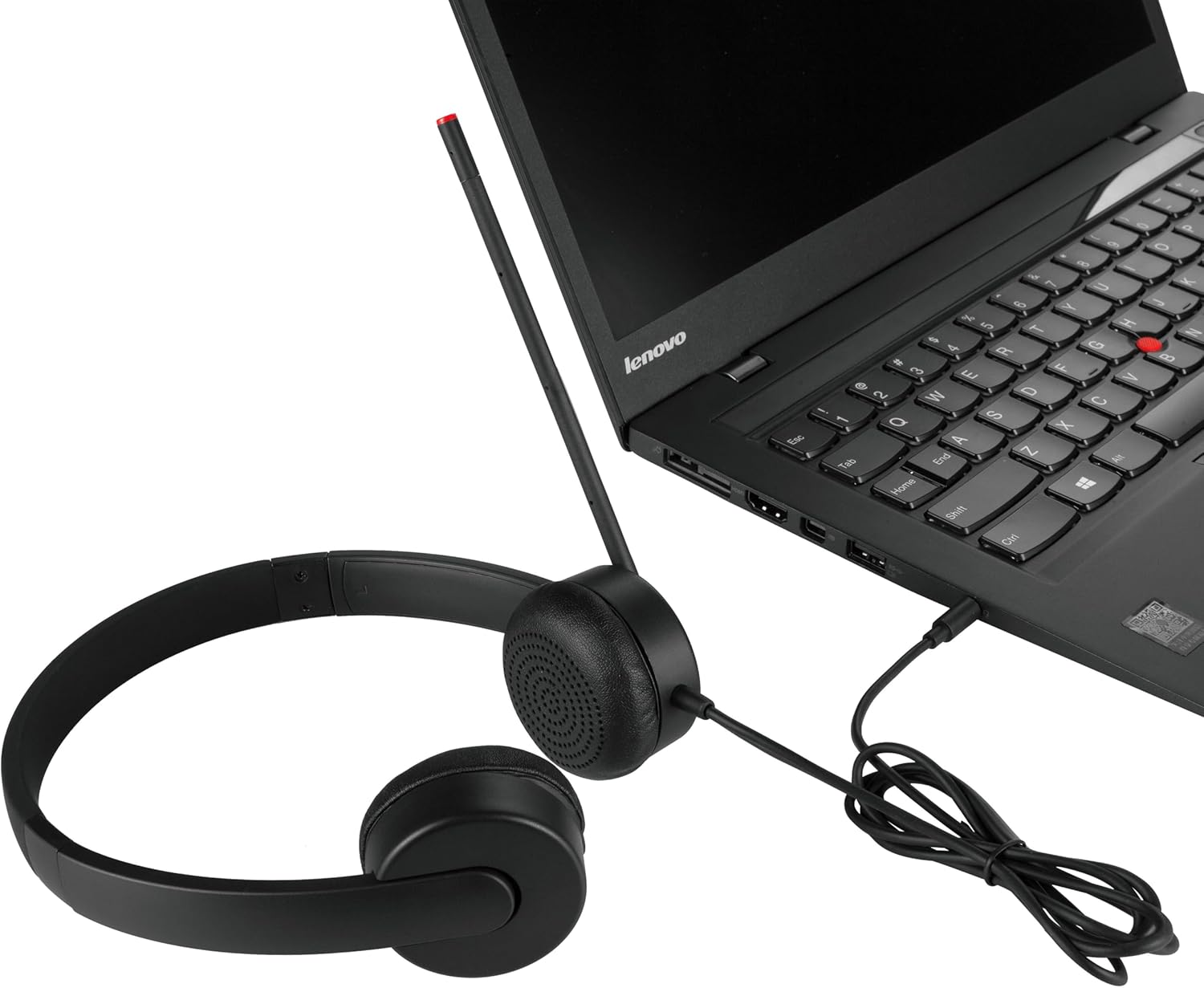
Figure 3: Headset connected to a laptop via the 3.5mm audio jack.
బ్లూటూత్ వైర్లెస్ కనెక్షన్
- Ensure the headset is charged (if applicable, though this model is primarily wired with Bluetooth support).
- Turn on the headset's Bluetooth function (refer to the headset's specific power/pairing button if available, as detailed instructions are not provided in product data).
- On your device (computer, smartphone), navigate to Bluetooth settings.
- బ్లూటూత్ని ప్రారంభించి, అందుబాటులో ఉన్న పరికరాల కోసం శోధించండి.
- Select "Lenovo 4XD0K25030" or a similar name from the list of found devices to pair.
- Once paired, the headset will connect automatically when in range and Bluetooth is enabled on both devices.
ఆపరేటింగ్ సూచనలు
ఆడియో ప్లేబ్యాక్
- Connect the headset to your audio source using either the 3.5mm cable or Bluetooth.
- Start playing audio from your device.
- Adjust the volume using the in-line media controls on the headset or your connected device.
మైక్రోఫోన్ వినియోగం
- Position the microphone boom appropriately near your mouth for clear voice capture.
- Ensure the microphone is not muted (if an in-line mute function is present).
- For optimal performance, ensure your device's audio settings recognize the headset's microphone as the input source.
ఇన్-లైన్ నియంత్రణలు
The headset features in-line media controls. Specific functions may vary slightly depending on the connected device and operating system, but typically include:
- వాల్యూమ్ అప్/డౌన్: ఆడియో అవుట్పుట్ స్థాయిని సర్దుబాటు చేస్తుంది.
- ప్లే/పాజ్: మీడియా ప్లేబ్యాక్ను నియంత్రిస్తుంది.
- ట్రాక్ దాటవేయి: తదుపరి లేదా మునుపటి ట్రాక్కి వెళుతుంది.
- కాల్ సమాధానం/ముగింపు: ఫోన్ కాల్స్ నిర్వహిస్తుంది.
నిర్వహణ
- శుభ్రపరచడం: హెడ్సెట్ను శుభ్రం చేయడానికి మృదువైన, పొడి వస్త్రాన్ని ఉపయోగించండి. కఠినమైన రసాయనాలు లేదా రాపిడి పదార్థాలను ఉపయోగించకుండా ఉండండి.
- నిల్వ: హెడ్సెట్ను ప్రత్యక్ష సూర్యకాంతి మరియు తీవ్రమైన ఉష్ణోగ్రతలకు దూరంగా చల్లని, పొడి ప్రదేశంలో నిల్వ చేయండి.
- కేబుల్ కేర్: కేబుల్ దెబ్బతినకుండా ఉండటానికి పదునైన వంపులు లేదా ఎక్కువగా లాగడం మానుకోండి.
- చెవి కుషన్లు: Periodically check ear cushions for wear and tear.
ట్రబుల్షూటింగ్
సౌండ్ లేదు
- కనెక్షన్ని తనిఖీ చేయండి: Ensure the 3.5mm cable is fully inserted or Bluetooth is properly paired.
- వాల్యూమ్ స్థాయిలు: Verify that the volume on both the headset and the connected device is turned up and not muted.
- ఆడియో అవుట్పుట్ సెట్టింగ్లు: Confirm that the headset is selected as the default audio output device in your computer or device settings.
- మరొక పరికరంతో పరీక్షించండి: Try connecting the headset to a different device to rule out an issue with the original audio source.
మైక్రోఫోన్ పని చేయడం లేదు
- మైక్రోఫోన్ స్థానం: Ensure the microphone boom is correctly positioned.
- మ్యూట్ ఫంక్షన్: Check if the microphone is muted via an in-line control or software setting on your device.
- ఆడియో ఇన్పుట్ సెట్టింగ్లు: Confirm that the headset's microphone is selected as the default audio input device in your computer or device settings.
- అప్లికేషన్ సెట్టింగ్లు: Some applications (e.g., video conferencing software) have their own microphone settings; check these as well.
బ్లూటూత్ జత చేయడం సమస్యలు
- Headset in Pairing Mode: Ensure the headset is in discoverable pairing mode.
- పరికరం బ్లూటూత్ ఆన్లో ఉంది: మీ పరికరంలో బ్లూటూత్ ప్రారంభించబడిందని ధృవీకరించండి.
- దూరం: Make sure the headset is within the effective range of your Bluetooth device.
- జోక్యం: జోక్యాన్ని కలిగించే ఇతర వైర్లెస్ పరికరాల నుండి దూరంగా వెళ్లండి.
- పరికరాన్ని మర్చిపో: On your device, try forgetting the headset from the Bluetooth list and then re-pairing.
స్పెసిఫికేషన్లు
| బ్రాండ్ | లెనోవో |
| మోడల్ సంఖ్య | 4XD0K25030 |
| కనెక్టివిటీ టెక్నాలజీ | వైర్డు, బ్లూటూత్ |
| హెడ్ఫోన్స్ జాక్ | 3.5 మి.మీ జాక్ |
| చెవి ప్లేస్మెంట్ | ఓవర్ చెవి |
| వస్తువు బరువు | 8 ఔన్సులు (సుమారు 227 గ్రాములు) |
| ఉత్పత్తి కొలతలు | 7.09 x 7.28 x 2.17 అంగుళాలు |
| మెటీరియల్ | తోలు (చెవి కుషన్లు) |
| నియంత్రణ రకం | మీడియా కంట్రోల్, రిమోట్ |
| అనుకూల పరికరాలు | Computers, Music Players, Telephones |
| ప్రత్యేక ఫీచర్ | తేలికైనది |
వారంటీ మరియు మద్దతు
వారంటీ సమాచారం మరియు సాంకేతిక మద్దతు కోసం, దయచేసి మీ కొనుగోలుతో చేర్చబడిన డాక్యుమెంటేషన్ను చూడండి లేదా అధికారిక Lenovo మద్దతును సందర్శించండి. webసైట్. మీరు సాధారణంగా అక్కడ కస్టమర్ సేవ కోసం మద్దతు వనరులు, తరచుగా అడిగే ప్రశ్నలు మరియు సంప్రదింపు సమాచారాన్ని కనుగొనవచ్చు.
లెనోవా సపోర్ట్ Webసైట్: support.lenovo.com