
1. పరిచయం
This manual provides comprehensive instructions for the setup, operation, and maintenance of your Symcode MJ-2300-1D 1D Desktop Omnidirectional Laser Barcode Scanner. Please read this manual thoroughly before using the device to ensure proper functionality and to maximize its performance.


2 కీ ఫీచర్లు
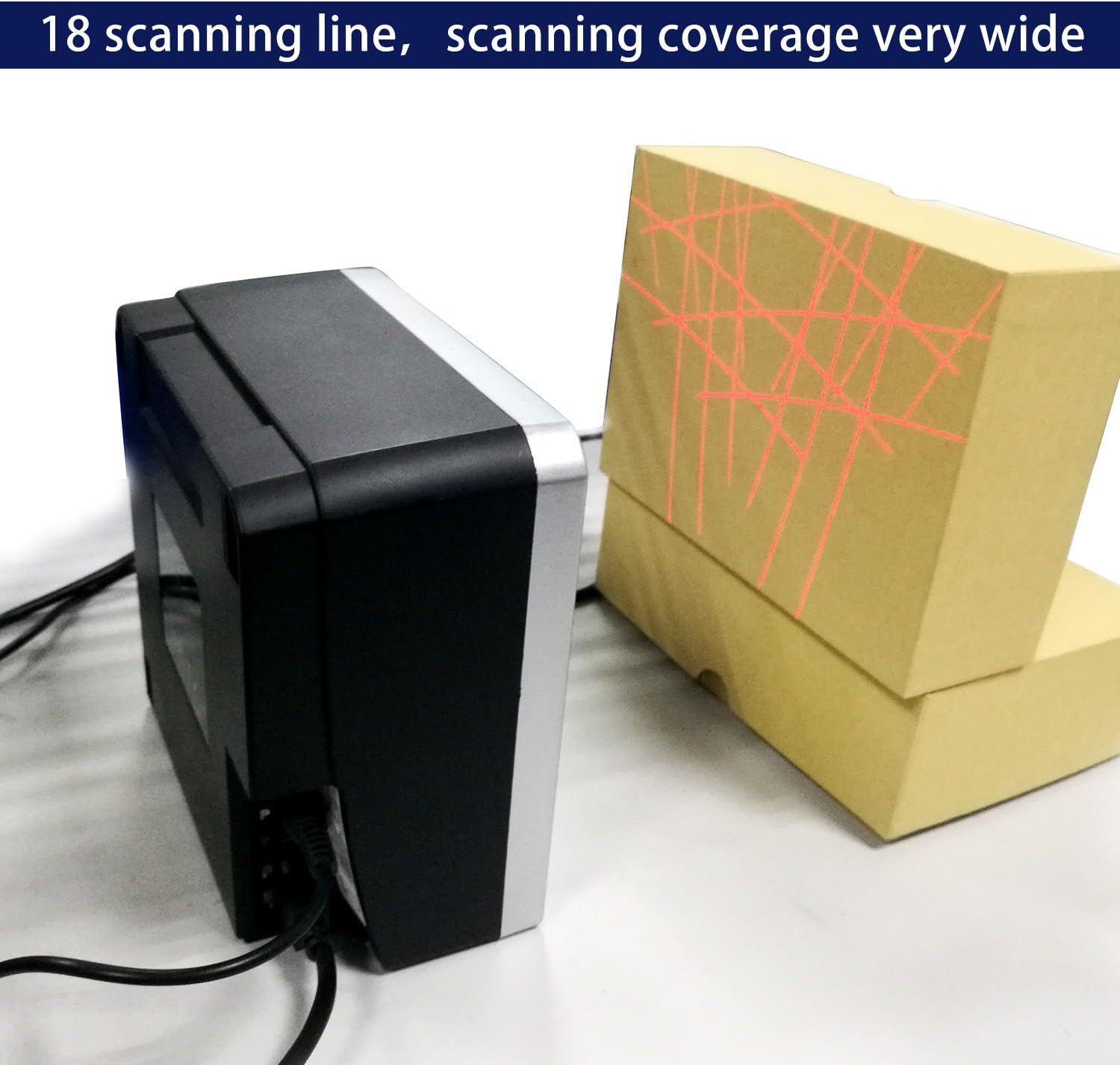
- ఓమ్నిడైరెక్షనల్ స్కానింగ్: Features an 18-laser layout for reliable first-pass read rates from various angles, with scan speeds up to 1500 scans per second.
- ప్లగ్ అండ్ ప్లే కనెక్టివిటీ: Simple installation via USB port for immediate use with compatible systems.
- అధిక సున్నితత్వం: Optimal scanning performance within a reading range of 0 to 7.9 inches (0-200mm). For best results, position barcodes within this range.
- బహుముఖ కనెక్టివిటీ: Connects via USB cable to computers or other host systems for data transmission. RS232 and PS2 keyboard interfaces are also supported.
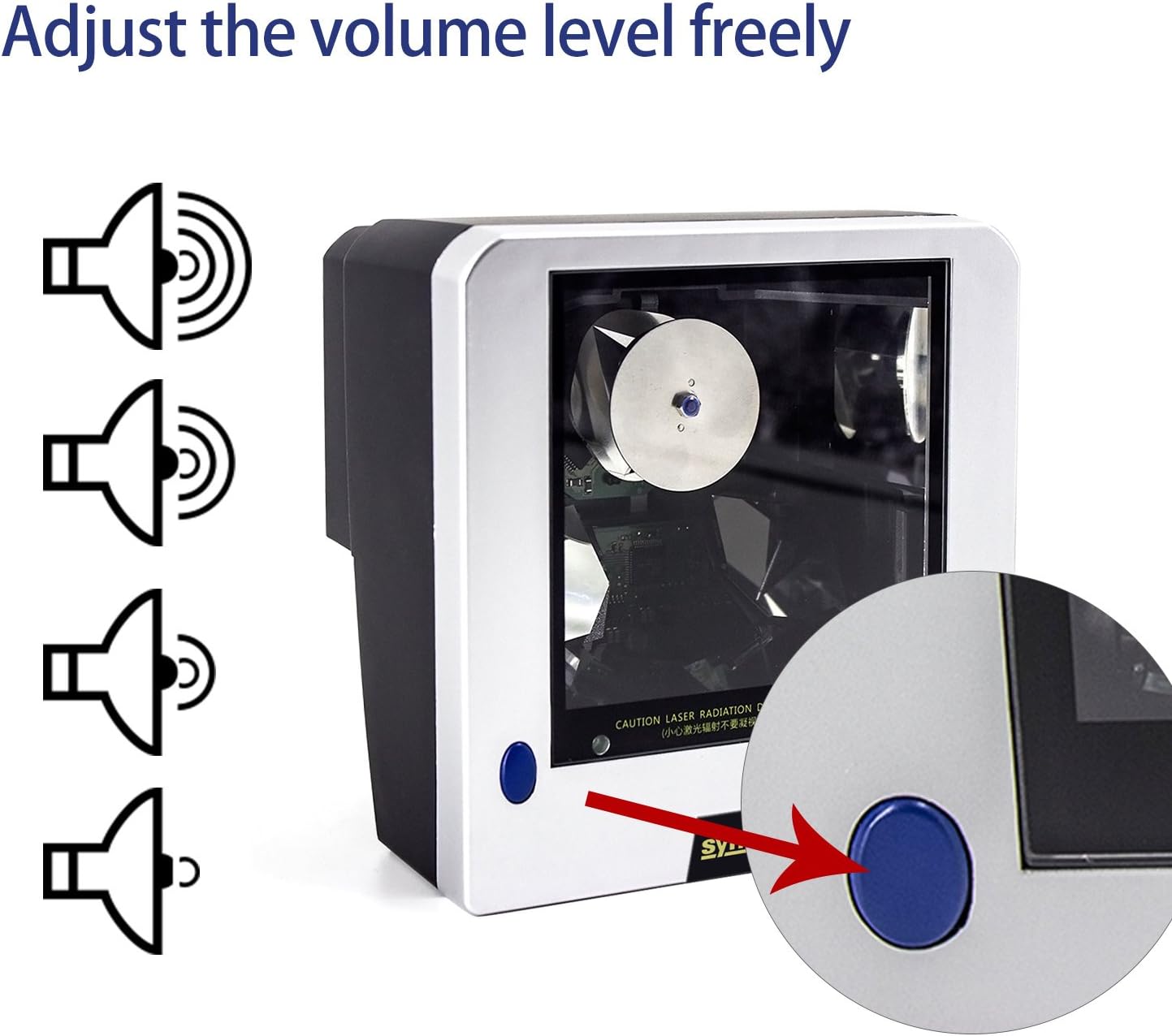
- సర్దుబాటు చేయగల వాల్యూమ్: Features a blue button for adjusting the scanner's beep tone with three available settings. A mute option is also available; contact support for assistance with this specific setting.
- మన్నికైన నిర్మాణం: Built with ABS + PC material, designed to withstand a 2-meter free fall.
- Clear Indication: Equipped with a green LED indicator for operational status.
3. సెటప్ గైడ్
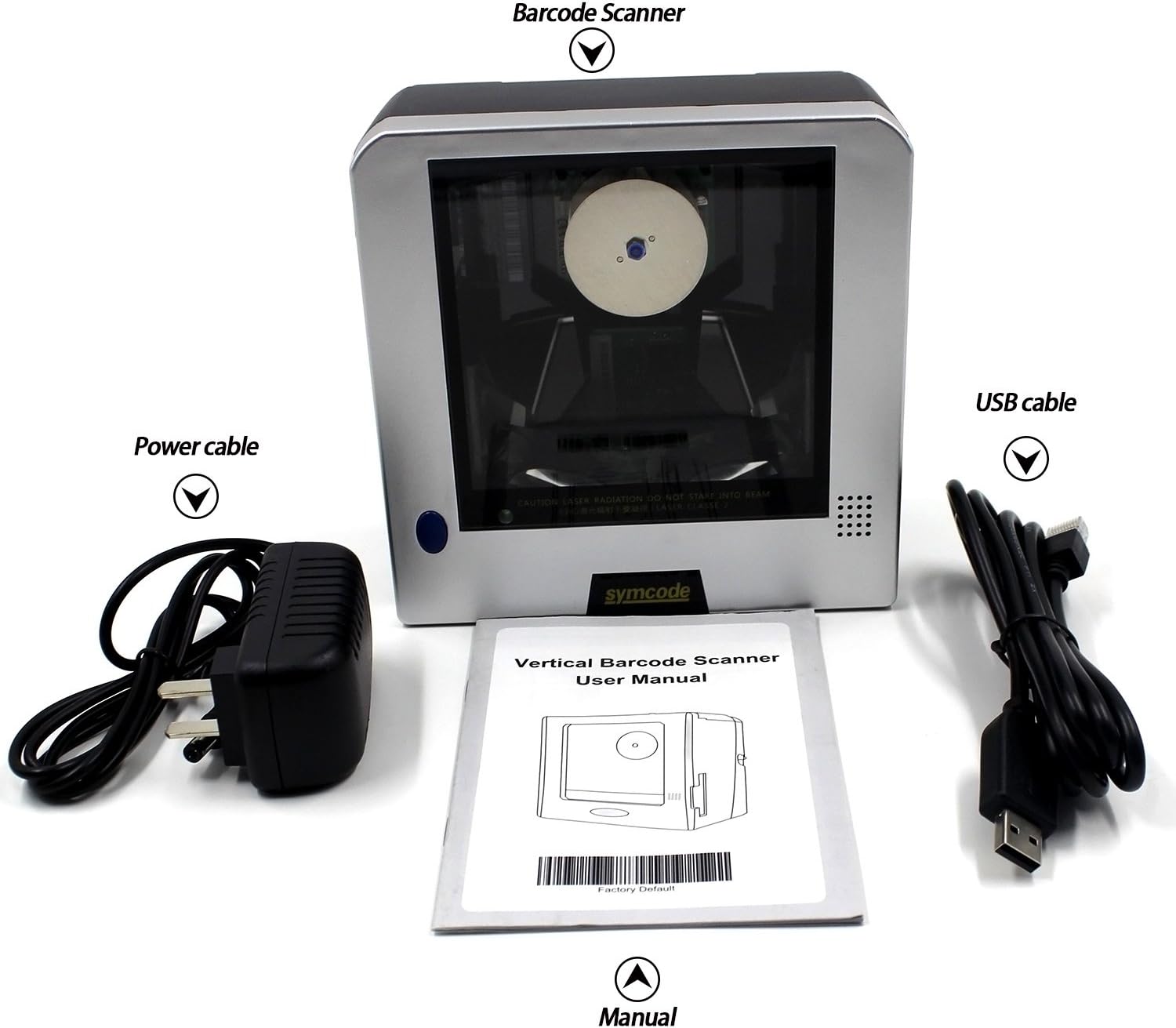
3.1 ప్యాకేజీ విషయాలు
సెటప్తో కొనసాగడానికి ముందు, దయచేసి అన్ని అంశాలు ప్యాకేజీలో ఉన్నాయని ధృవీకరించండి:
- 1D Desktop Barcode Scanner Unit
- USB కేబుల్
- పవర్ కేబుల్ / అడాప్టర్
- వినియోగదారు మాన్యువల్ (ఈ పత్రం)
3.2 స్కానర్ను కనెక్ట్ చేయడం
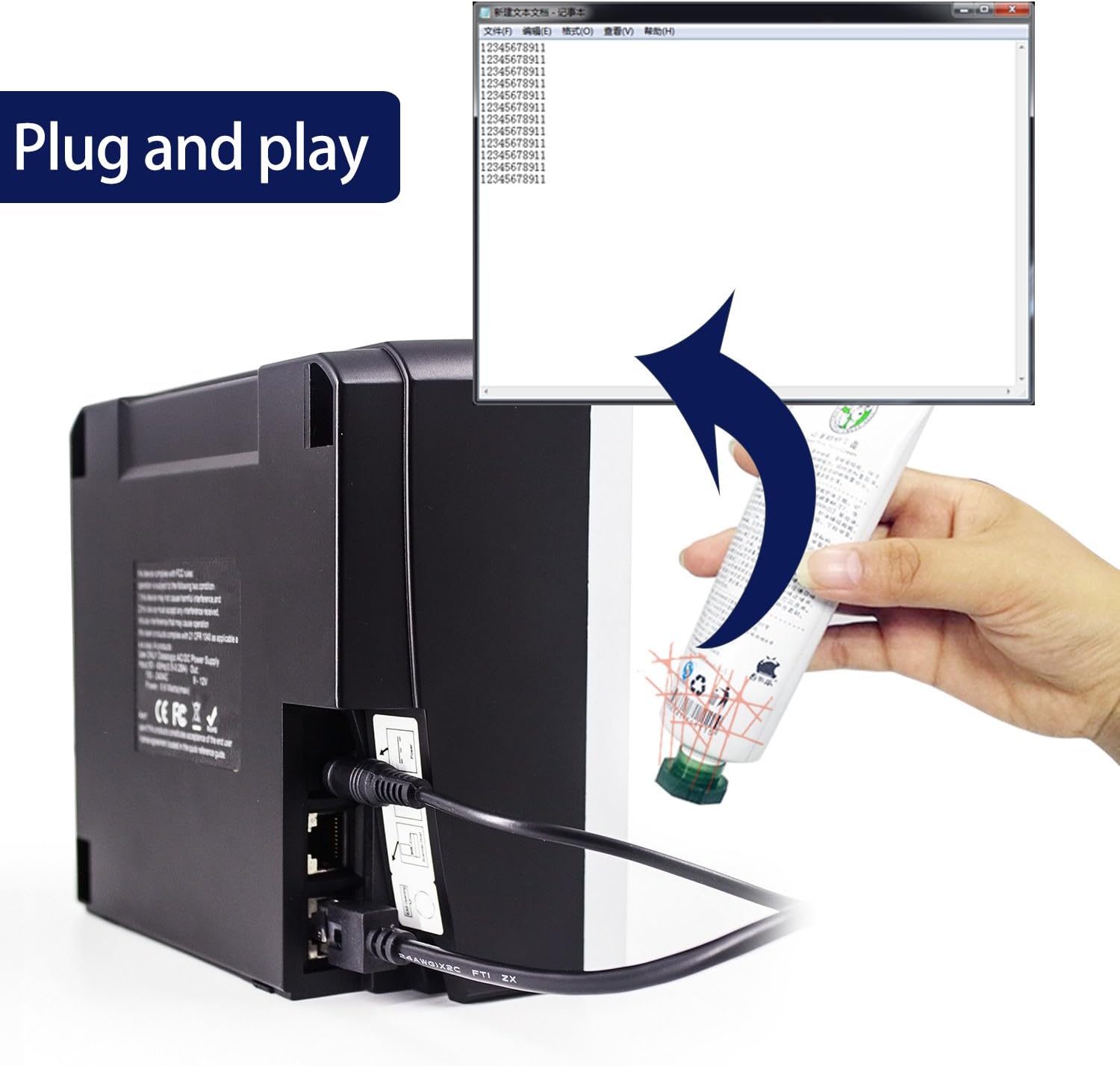
- Connect the power cable to the scanner's power input port and then to a suitable power outlet.
- Connect the USB cable to the scanner's USB port.
- Plug the other end of the USB cable into an available USB port on your computer or host system.
- The scanner is designed for plug-and-play operation. Your operating system should automatically detect and install the necessary drivers.
4. ఆపరేటింగ్ సూచనలు
4.1 బార్కోడ్లను స్కాన్ చేయడం
The Symcode MJ-2300-1D scanner features omnidirectional scanning, allowing for efficient reading of 1D barcodes from various orientations. Simply present the barcode to the scanner's window within the optimal reading range of 0 to 7.9 inches (0-200mm). The scanner will automatically detect and decode the barcode.
4.2 వాల్యూమ్ సర్దుబాటు
The scanner's beep tone volume can be adjusted. Locate the blue button on the scanner unit. Pressing this button will cycle through three different volume levels. For a mute setting, please contact technical support for specific instructions.
4.3 మద్దతు ఉన్న బార్కోడ్ రకాలు
The Symcode MJ-2300-1D scanner supports a wide range of 1D barcode symbologies, including but not limited to:
- EAN-8
- EAN-13
- UPC-A
- UPC-E
- కోడ్ 39
- కోడ్ 93
- కోడ్ 128
- EAN128
- కోడాబార్
- 2లో పారిశ్రామిక 5
- 2లో 5 ఇంటర్లీవ్
- 2లో 5వ మాతృక
- MSI
- China postal code
5. నిర్వహణ
5.1 స్కానర్ను శుభ్రపరచడం
To maintain optimal scanning performance, keep the scanner's window clean. Use a soft, lint-free cloth lightly dampened with water or a mild, non-abrasive cleaning solution. Avoid using harsh chemicals or abrasive materials that could scratch the scanning window.
5.2 Stability and Placement
The scanner is equipped with fixed bottom rubber non-slip mats to ensure stability on various desktop surfaces. Ensure the scanner is placed on a flat, stable surface to prevent accidental movement or falls.

6. ట్రబుల్షూటింగ్
- కంప్యూటర్ స్కానర్ను గుర్తించలేదు: Ensure the USB cable is securely connected to both the scanner and the computer. Try connecting to a different USB port. Restart your computer.
- Difficulty scanning specific barcodes:
- Ensure the barcode is within the optimal scanning range (0-7.9 inches / 0-200mm).
- Verify the barcode is clean, undamaged, and has sufficient contrast (minimum 30% PCS).
- Confirm that the barcode type is supported by the scanner (refer to Section 4.3).
- If using specific application software, check its settings as some applications may require particular scanner configurations.
- Scanner beeps but no data is transmitted: Ensure the application or text field you are scanning into is active and ready to receive input. The scanner acts as a keyboard input device.
- USB cable overheating: Disconnect the scanner immediately. Check the power source and ensure it meets the scanner's power requirements (DC5V). Contact customer support if the issue persists.
- మ్యూట్ సెట్టింగ్: If you require the scanner to operate silently, contact Symcode technical support for instructions on enabling the mute function.
7. సాంకేతిక లక్షణాలు
| ఫీచర్ | స్పెసిఫికేషన్ |
|---|---|
| మోడల్ సంఖ్య | MJ-2300-1D |
| కాంతి మూలం | Visible Lasing Diode (650nm) |
| స్కానింగ్ మోడ్ | 20-line Omnidirectional |
| స్కానింగ్ రేటు | 1500 స్కాన్లు / సెకను |
| స్కానింగ్ దూరం | 0 ~ 200mm (0 ~ 7.9 inches) |
| స్కానింగ్ కోణం | 5 దిశలు |
| కనిష్ట రిజల్యూషన్ | 0.10mm (PCS0.9) |
| ఇంటర్ఫేస్లకు మద్దతు ఉంది | RS232, PS2 Keyboard, USB |
| ప్రింట్ కాంట్రాస్ట్ సిగ్నల్ (PCS) | కనిష్టంగా 30% |
| లోపం రేటు | 1/5,000,000 |
| LED సూచిక | Green Color LED |
| శక్తి మూలం | DC5V (Corded Electric, USB Cable) |
| విద్యుత్ వినియోగం | 10W |
| ప్రస్తుత | 200mA |
| లేజర్ భద్రత | National Safety Standard Class 2 |
| విద్యుదయస్కాంత అనుకూలత | CE, FCC, DocCompliance |
| ఆపరేటింగ్ ఉష్ణోగ్రత | -20 ~ 45 డిగ్రీల సెల్సియస్ |
| నిల్వ ఉష్ణోగ్రత | -20 ~ 60 డిగ్రీల సెల్సియస్ |
| తేమ | 5% ~ 95% Relative Humidity (Non-condensing) |
| పరిసర ప్రకాశం | Max. 4,000 lux (sunlight) |
| Anti-knock Resistance | Withstands 2m free fall |
| మెటీరియల్ | ABS + PC |
| కేబుల్ పొడవు | 200cm / 6.56ft |
| ఉత్పత్తి కొలతలు | 5.9 x 1.9 x 5.9 అంగుళాలు (15.1 x 5 x 15.1 సెం.మీ.) |
| వస్తువు బరువు | 2.2 పౌండ్లు |

8. వారంటీ మరియు మద్దతు
8.1 ఉత్పత్తి వారంటీ
Symcode products are manufactured to high-quality standards. For specific warranty terms and conditions applicable to your MJ-2300-1D scanner, please refer to the warranty card included with your purchase or contact Symcode customer service.
8.2 కస్టమర్ మద్దతు
If you encounter any issues or have questions regarding the operation, maintenance, or troubleshooting of your Symcode MJ-2300-1D barcode scanner, please contact Symcode customer support. Contact information can typically be found on the product packaging, the official Symcode webసైట్, లేదా మీ కొనుగోలు స్థానం ద్వారా.