
1. పరిచయం
This document provides comprehensive instructions for the setup, operation, and maintenance of your Raspberry Pi 3 Model B+ Motherboard. The Raspberry Pi 3 Model B+ is a versatile single-board computer designed for a wide range of applications, from educational projects to home automation and server tasks.
Please read this manual thoroughly before using your device to ensure optimal performance and longevity.
2. ఉత్పత్తి ముగిసిందిview
The Raspberry Pi 3 Model B+ features enhanced processing power and connectivity options compared to previous models. Key features include:
- ప్రాసెసర్: 1.4GHz 64-bit quad-core ARMv8 CPU (Broadcom BCM2837B0)
- RAM: 1 GB LPDDR2 SDRAM
- వైర్లెస్ కనెక్టివిటీ: Dual-band 2.4GHz and 5GHz IEEE 802.11.b/g/n/ac Wireless LAN, Bluetooth 4.2/BLE
- ఈథర్నెట్: Faster Gigabit Ethernet (via USB 2.0 bridge, max 300 Mbps)
- పవర్ ఓవర్ ఈథర్నెట్ (PoE): Capability via a separate PoE HAT (Power over Ethernet Hardware Attached on Top)
- GPIO: 40-pin GPIO header for interfacing with external hardware
- వీడియో & ఆడియో: Full-size HDMI port, DSI display port, 3.5mm audio/video jack, CSI camera port
- USB: 4 USB 2.0 పోర్ట్లు
- నిల్వ: Micro SD card slot for operating system and data storage
- పవర్ ఇన్పుట్: Micro USB power input (5.1V / 2.5A recommended)
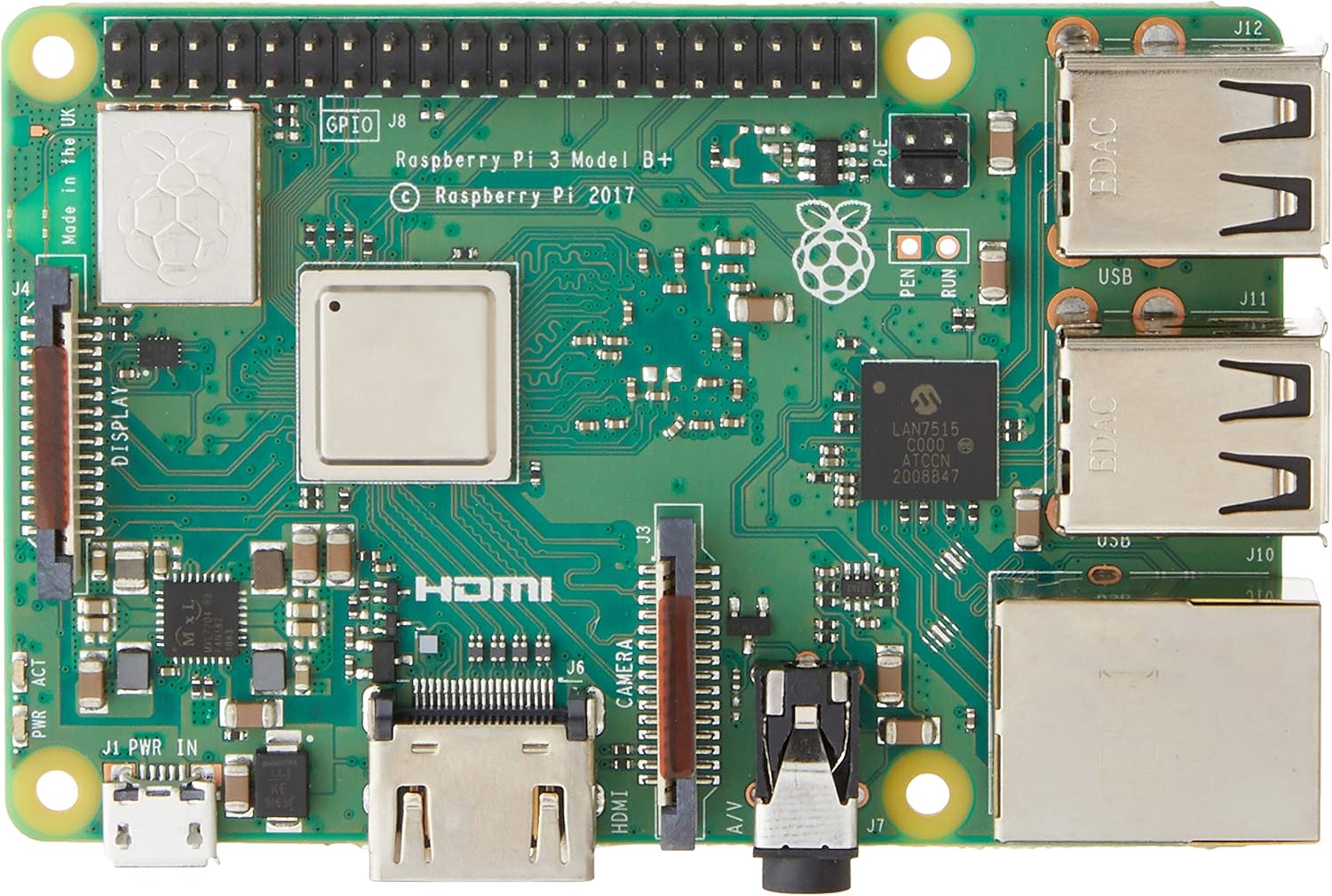
మూర్తి 2.1: టాప్ view of the Raspberry Pi 3 Model B+ Motherboard, showing the processor, RAM, GPIO pins, HDMI, USB ports, and Ethernet port.

చిత్రం 2.2: దిగువ view of the Raspberry Pi 3 Model B+ Motherboard, highlighting the Micro SD card slot and various components.

మూర్తి 2.3: వైపు view of the Raspberry Pi 3 Model B+ Motherboard, detailing the Ethernet port and four USB ports.

చిత్రం 2.4: కోణీయ view of the Raspberry Pi 3 Model B+ Motherboard, showcasing the various input/output ports including HDMI, Micro USB, and audio jack.
3. సెటప్
3.1 Required Components (Not Included)
- విద్యుత్ సరఫరా: 2.5A Micro USB Power Supply (recommended for stable operation).
- నిల్వ: Class 10 Micro SD Card (minimum 8GB, pre-loaded with Pi 3 B+ compatible software).
- ఇన్పుట్ పరికరాలు (ఐచ్ఛికం): USB or Bluetooth keyboard/mouse.
- ప్రదర్శన (ఐచ్ఛికం): HDMI or DSI compatible display.
3.2 ప్రారంభ సెటప్ దశలు
- Prepare Micro SD Card: Download a compatible operating system image (e.g., Raspberry Pi OS) from the official Raspberry Pi website. Use an imaging tool (like Raspberry Pi Imager) to write the OS image to your Class 10 Micro SD card.
- మైక్రో SD కార్డ్ని చొప్పించండి: Gently insert the prepared Micro SD card into the card slot on the underside of the Raspberry Pi board.
- పెరిఫెరల్స్ కనెక్ట్ చేయండి:
- Connect your HDMI display to the HDMI port on the Raspberry Pi.
- మీ USB కీబోర్డ్ మరియు మౌస్ను అందుబాటులో ఉన్న USB పోర్ట్లకు కనెక్ట్ చేయండి.
- (Optional) Connect an Ethernet cable to the Ethernet port for wired network access.
- శక్తిని వర్తింపజేయండి: Connect the 2.5A Micro USB power supply to the Micro USB power port on the Raspberry Pi. The device will automatically power on and begin booting.
- మొదటి బూట్: Follow the on-screen instructions to complete the initial setup of the operating system, including setting up Wi-Fi, language, and user accounts.
4. ఆపరేటింగ్
4.1 ప్రాథమిక ఆపరేషన్
Once the operating system is installed and configured, your Raspberry Pi is ready for use. You can interact with it via the connected keyboard, mouse, and display, similar to a traditional desktop computer. The Raspberry Pi OS provides a graphical user interface (GUI) for ease of use.
4.2 సాఫ్ట్వేర్ ఇన్స్టాలేషన్ మరియు అప్డేట్లు
Software can be installed via the graphical "Add/Remove Software" utility or through the command line using `apt` commands (e.g., `sudo apt update`, `sudo apt install [package_name]`). Regular updates are recommended to ensure system stability and security.
4.3 GPIO Usage
The 40-pin GPIO header allows for advanced projects involving physical computing. You can connect various sensors, actuators, and other electronic components to control them programmatically using languages like Python.
Refer to the official Raspberry Pi documentation for detailed guides on GPIO programming and hardware interfacing.
5. నిర్వహణ
- సాఫ్ట్వేర్ అప్డేట్లు: Regularly update your operating system and installed software packages to receive the latest features, bug fixes, and security patches. This can typically be done via the terminal using `sudo apt update` followed by `sudo apt upgrade`.
- విద్యుత్పరివ్యేక్షణ: Always use a stable and sufficient power supply (5.1V / 2.5A) to prevent unexpected shutdowns or data corruption. Avoid disconnecting power without properly shutting down the operating system first.
- SD కార్డ్ సంరక్షణ: Micro SD cards can wear out over time. Regularly back up your data and consider using high-quality, durable cards. Avoid frequent power cuts to minimize the risk of SD card corruption.
- భౌతిక పర్యావరణం: Keep the Raspberry Pi in a cool, dry, and well-ventilated area. Avoid exposing it to extreme temperatures, humidity, or dust. Consider using a protective case.
6. ట్రబుల్షూటింగ్
- No Power/Boot:
- Ensure the power supply is correctly connected and meets the 5.1V / 2.5A specification.
- Check the Micro SD card for proper insertion and ensure it has a valid operating system image.
- Look for the red power LED (PWR) to be steadily lit and the green activity LED (ACT) to flash during boot.
- ప్రదర్శన సమస్యలు:
- Verify the HDMI cable is securely connected to both the Raspberry Pi and the display.
- మీ డిస్ప్లే సరైన ఇన్పుట్ సోర్స్కు సెట్ చేయబడిందని నిర్ధారించుకోండి.
- నెట్వర్క్ కనెక్టివిటీ సమస్యలు:
- For wired Ethernet, check the cable connection and router status.
- For Wi-Fi, ensure the correct network name (SSID) and password are entered in the OS settings.
- Restart your router and the Raspberry Pi.
- పెరిఫెరల్ స్పందించడం లేదు:
- Try connecting USB devices to different USB ports.
- For Bluetooth devices, ensure they are in pairing mode and correctly configured in the OS.
7. స్పెసిఫికేషన్లు
| ఫీచర్ | స్పెసిఫికేషన్ |
|---|---|
| ప్రాసెసర్ | 1.4 GHz Broadcom BCM2837B0, Cortex-A53 (ARMv8) 64-bit SoC |
| RAM | 1GB LPDDR2 SDRAM |
| వైర్లెస్ LAN | Dual-band 2.4GHz and 5GHz IEEE 802.11.b/g/n/ac |
| బ్లూటూత్ | బ్లూటూత్ 4.2, బ్లూటూత్ తక్కువ శక్తి (BLE) |
| ఈథర్నెట్ | గిగాబిట్ ఈథర్నెట్ (USB 2.0 ద్వారా, గరిష్టంగా 300 Mbps) |
| USB పోర్ట్లు | 4 x USB 2.0 పోర్ట్లు |
| GPIO | 40-పిన్ GPIO హెడర్ |
| వీడియో అవుట్పుట్ | Full-size HDMI, DSI display port |
| కెమెరా ఇంటర్ఫేస్ | CSI camera port |
| ఆడియో అవుట్పుట్ | 3.5mm 4-pole stereo audio and composite video port |
| నిల్వ | మీ ఆపరేటింగ్ సిస్టమ్ మరియు డేటా నిల్వను లోడ్ చేయడానికి మైక్రో SD పోర్ట్ |
| పవర్ ఇన్పుట్ | 5.1V / 2.5A DC via Micro USB connector |
| కొలతలు | 4.33 x 2.76 x 1.18 అంగుళాలు |
| బరువు | 2.82 ఔన్సులు |
| ఆపరేటింగ్ సిస్టమ్ | Linux (ఉదా., రాస్ప్బెర్రీ పై OS) |
8. వారంటీ మరియు మద్దతు
వారంటీ సమాచారం మరియు సాంకేతిక మద్దతు కోసం, దయచేసి అధికారిక రాస్ప్బెర్రీ పై ని చూడండి. webమీ రిటైలర్ను సైట్లో సంప్రదించండి లేదా సంప్రదించండి. ఏవైనా వారంటీ క్లెయిమ్ల కోసం మీ కొనుగోలు రుజువును ఉంచండి.
అధికారిక రాస్ప్బెర్రీ పై Webసైట్: www.raspberrypi.org