
1. పరిచయం
This manual provides detailed instructions for the installation, configuration, operation, and maintenance of the TP-Link CPE610 5GHz 300Mbps 23dBi Outdoor CPE/Access Point. The CPE610 is designed for outdoor wireless networking applications, offering excellent beam directivity, improved latency, and noise immunity with its high-gain directional 2x2 MIMO cassegrain antenna and dedicated metal reflector.
Proper setup, grounding, and cable shielding are essential for protection against lightning and electrostatic discharge. Consult an IT professional for assistance if needed.
2. ప్యాకేజీ విషయాలు
Verify that all items listed below are included in your package. If any item is missing or damaged, contact your vendor.
- TP-Link CPE610 Outdoor CPE Unit
- 24V 0.5A పాసివ్ PoE అడాప్టర్
- AC పవర్ కార్డ్
- పోల్ మౌంటు పట్టీలు
- ఇన్స్టాలేషన్ గైడ్
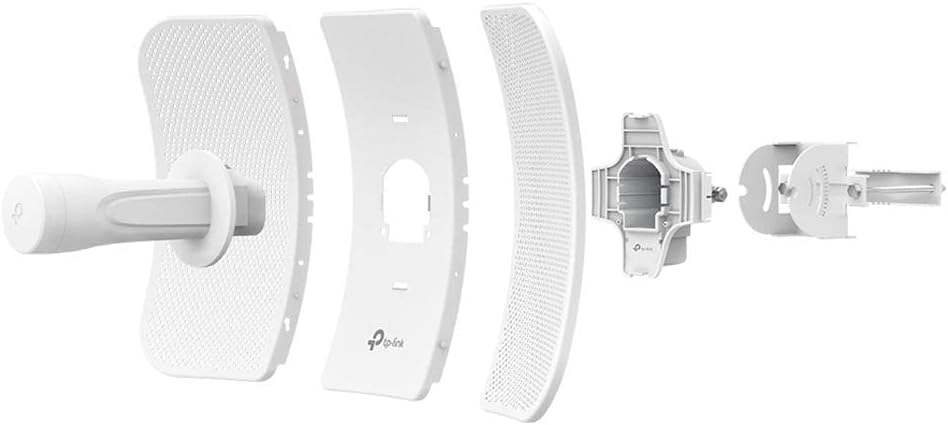
This image displays the individual components of the TP-Link CPE610, including the main antenna unit, the reflector panels, and the mounting bracket with its associated hardware.
3. సెటప్ మరియు ఇన్స్టాలేషన్
Follow these steps for proper installation and initial setup of your CPE610.
3.1 హార్డ్వేర్ ఇన్స్టాలేషన్
- Assemble the CPE Unit: Attach the reflector panels to the main CPE unit. Ensure all parts are securely fastened.
- మౌంటు: Use the provided pole mounting straps to secure the CPE610 to a pole or mast. Ensure the device is positioned for clear line-of-sight to the target area.
- PoE అడాప్టర్ను కనెక్ట్ చేయండి: Connect an Ethernet cable from the CPE610's Ethernet port to the "PoE" port on the 24V 0.5A Passive PoE Adapter.
- నెట్వర్క్కు కనెక్ట్ చేయండి: Connect another Ethernet cable from the "LAN" port on the PoE Adapter to your computer or network switch/router.
- పవర్ ఆన్: Connect the AC power cord to the PoE Adapter and then to a power outlet. The device will power on.

This image shows the TP-Link CPE610 with its adjustable mounting bracket, illustrating how it attaches to a pole for outdoor deployment.
3.2 Initial Configuration (PharOS Web ఇంటర్ఫేస్)
The CPE610 is managed via the PharOS web ఇంటర్ఫేస్.
- మీ కంప్యూటర్ను సిద్ధం చేయండి: Before connecting, set your computer's IP address manually to
192.168.0.10యొక్క సబ్నెట్ ముసుగుతో255.255.255.0. - Access PharOS: తెరవండి a web బ్రౌజర్ మరియు నావిగేట్ చేయండి
http://192.168.0.254. - లాగిన్: డిఫాల్ట్ యూజర్నేమ్ మరియు పాస్వర్డ్
admin. You will be prompted to change the password upon first login. - త్వరిత సెటప్: Use the Quick Setup wizard to configure the device.
- Select the desired operating mode (e.g., Access Point, Client, Repeater, Bridge).
- Configure wireless settings such as SSID, security type (WPA2-PSK recommended), and password.
- Adjust network settings, including IP address, subnet mask, and gateway, to match your network infrastructure.
- సెట్టింగ్లను సేవ్ చేయండి: Apply and save all configurations.
- Restore Computer IP: Change your computer's IP address back to DHCP (automatic) or its original static IP.
గమనిక: For client mode setup, especially with mesh networks like Google Wifi, it may be necessary to disable WDS (Wireless Distribution System) in the CPE610's settings for proper connectivity.
4. Operating the CPE610
Once configured, the CPE610 operates autonomously. You can monitor its status and adjust settings via the PharOS web ఇంటర్ఫేస్.
4.1 Monitoring Status
- స్థితి పేజీ: The PharOS Status page provides real-time information on wireless connection, network traffic, and system logs.
- సిగ్నల్ బలం: Regularly check the signal strength indicators to ensure optimal performance, especially after initial installation or environmental changes.
4.2 అధునాతన సెట్టింగ్లు
The PharOS interface offers advanced options for fine-tuning performance:
- ప్రసార శక్తి: Adjust the transmission power (0 to 27dBm/500mW) to comply with local regulations and optimize range.
- Pharos MAXtream TDMA: Enable this technology for improved throughput, capacity, and reduced latency in Point-to-MultiPoint (PtMP) applications.
- ఛానెల్ ఎంపిక: Select appropriate 5GHz channels to avoid interference.
- ఫర్మ్వేర్ అప్గ్రేడ్: Periodically check for and install firmware updates from the TP-Link website to enhance features and security.
5. నిర్వహణ
Regular maintenance ensures the longevity and optimal performance of your CPE610.
- భౌతిక తనిఖీ: Periodically inspect the device and cabling for any signs of wear, damage, or corrosion, especially in harsh outdoor environments.
- శుభ్రపరచడం: Gently clean the exterior of the unit with a soft, dry cloth. Do not use liquid cleaners or aerosols.
- ఫర్మ్వేర్ నవీకరణలు: Keep the device firmware updated to the latest version available from the official TP-Link website. This can improve stability, performance, and security.
- గ్రౌండింగ్: Ensure proper grounding and cable shielding are maintained to protect against lightning and electrostatic discharge.
- రిమోట్ రీసెట్: The Passive PoE adapter allows for remote resetting of the device. Refer to the installation guide for specific instructions.
6. ట్రబుల్షూటింగ్
This section addresses common issues you might encounter with the CPE610.
6.1 No Power/Device Not Responding
- విద్యుత్ కనెక్షన్లను తనిఖీ చేయండి: Ensure the AC power cord is securely connected to the PoE adapter and a working power outlet.
- ఈథర్నెట్ కేబుల్ను ధృవీకరించండి: Confirm the Ethernet cable from the CPE to the PoE adapter's "PoE" port is properly connected and undamaged.
- PoE Adapter Functionality: Test the PoE adapter with another compatible device if possible, or try a different PoE adapter.
6.2 Cannot Access PharOS Web ఇంటర్ఫేస్
- IP చిరునామా కాన్ఫిగరేషన్: Ensure your computer's IP address is set manually to
192.168.0.10(or within the same subnet as the CPE's default192.168.0.254) before attempting to access the interface. - కేబుల్ కనెక్షన్: Verify the Ethernet cable from the PoE adapter's "LAN" port to your computer is secure.
- బ్రౌజర్ సమస్యలు: వేరొక దానిని ప్రయత్నించండి web బ్రౌజర్ చేయండి లేదా మీ బ్రౌజర్ కాష్ను క్లియర్ చేయండి.
- ఫైర్వాల్/యాంటీవైరస్: యాక్సెస్ను బ్లాక్ చేస్తున్న ఏదైనా ఫైర్వాల్ లేదా యాంటీవైరస్ సాఫ్ట్వేర్ను తాత్కాలికంగా నిలిపివేయండి.
6.3 Poor Wireless Performance/Connection Drops
- దృష్టి రేఖను: Ensure there is a clear line of sight between the CPE610 and the target device/access point. Obstructions can severely degrade performance.
- యాంటెన్నా అమరిక: Precisely align the directional antenna for optimal signal strength. Use the signal strength indicators in the PharOS interface.
- జోక్యం: Check for potential sources of interference (e.g., other 5GHz devices, physical obstacles). Try changing the wireless channel.
- ఫర్మ్వేర్: తాజా ఫర్మ్వేర్ ఇన్స్టాల్ చేయబడిందని నిర్ధారించుకోండి.
- WDS Setting: If operating in client mode, ensure WDS is disabled if experiencing connectivity issues, especially with mesh networks.
7. స్పెసిఫికేషన్లు
| ఫీచర్ | వివరాలు |
|---|---|
| బ్రాండ్ | TP-లింక్ |
| మోడల్ | CPE610 |
| యాంటెన్నా | High-gain directional 2x2 MIMO antenna with 23dBi gain |
| ఫ్రీక్వెన్సీ | 5GHz |
| వైర్లెస్ స్టాండర్డ్ | 802.11n/a |
| Maximum Wireless Rate | 300Mbps |
| ట్రాన్స్మిషన్ పవర్ | Adjustable from 0 to 27dBm/500mW |
| PoE మద్దతు | Passive PoE (24V 0.5A adapter included) |
| PoE Range | 60 మీటర్లు (200 అడుగులు) వరకు |
| నిర్వహణ | Centralized management system - Pharos Control |
| రంగు | తెలుపు |
| వస్తువు బరువు | 0.46 కిలోలు |
| UPC | 845973081027 |
8. వారంటీ సమాచారం
The TP-Link CPE610 comes with a 2 సంవత్సరాల వారంటీ from the date of purchase. This warranty covers defects in materials and workmanship under normal use. It does not cover damage caused by accidents, misuse, unauthorized modifications, or external factors such as lightning strikes or power surges not mitigated by proper grounding.
For warranty claims, please retain your proof of purchase and contact TP-Link customer support.
9. సాంకేతిక మద్దతు
For further assistance, technical support, or to download the latest firmware and documentation, please visit the official TP-Link webసైట్.
- TP-లింక్ అధికారికం Webసైట్: www.tp-link.com
- మద్దతు పేజీ: Locate the support section for your specific model (CPE610) for FAQs, troubleshooting guides, and contact information.
It is recommended to consult the online resources before contacting technical support, as many common issues can be resolved through available documentation.