
1. పరిచయం
This manual provides instructions for the StarTech.com USB C Multiport Adapter, model DKT30CSDHPD3. This portable 6-in-1 USB-C docking station is designed to expand the connectivity of your USB Type-C or Thunderbolt 3 laptop, such as MacBook Pro or Dell XPS. It allows you to connect a 4K HDMI monitor, access wired network via Gigabit Ethernet, connect USB 3.0 peripheral devices, and utilize an SD card reader. The adapter also supports USB Power Delivery 3.0 for charging your laptop and powering peripherals.
2. ఉత్పత్తి లక్షణాలు
- 4K HDMI అవుట్పుట్: Connect an external display for Ultra HD video at 30Hz.
- USB-A 3.0 పోర్ట్లు (x2): Two USB-A ports (5Gbps) for connecting standard USB peripherals like mice, keyboards, or flash drives.
- USB-C Port (Data or Power Delivery 3.0 Pass-Through): One USB-C port for data transfer or for connecting a USB-C power adapter to charge your laptop (up to 48W) and power the dock (12W). Features Fast Role Swap to prevent USB data disruption.
- SD / SDHC / SDXC Card Reader: Integrated slot for accessing multimedia content from SD cards.
- గిగాబిట్ ఈథర్నెట్ పోర్ట్: Provides reliable wired network access, ideal for environments with limited Wi-Fi.
- కాంపాక్ట్ మరియు తేలికపాటి డిజైన్: Portable form factor suitable for mobile use and travel.
- విస్తృత అనుకూలత: Works with Thunderbolt 3 (TB3) laptops/ultrabooks, USB-C laptops, Chromebooks, tablets, and phones across various operating systems including Windows, macOS, Chrome OS, and Android.

చిత్రం: ముందు భాగం view of the StarTech.com USB C Multiport Adapter, highlighting its various ports including USB Type-C, SD Card Reader, two USB Type-A (USB 3.0), and HDMI.
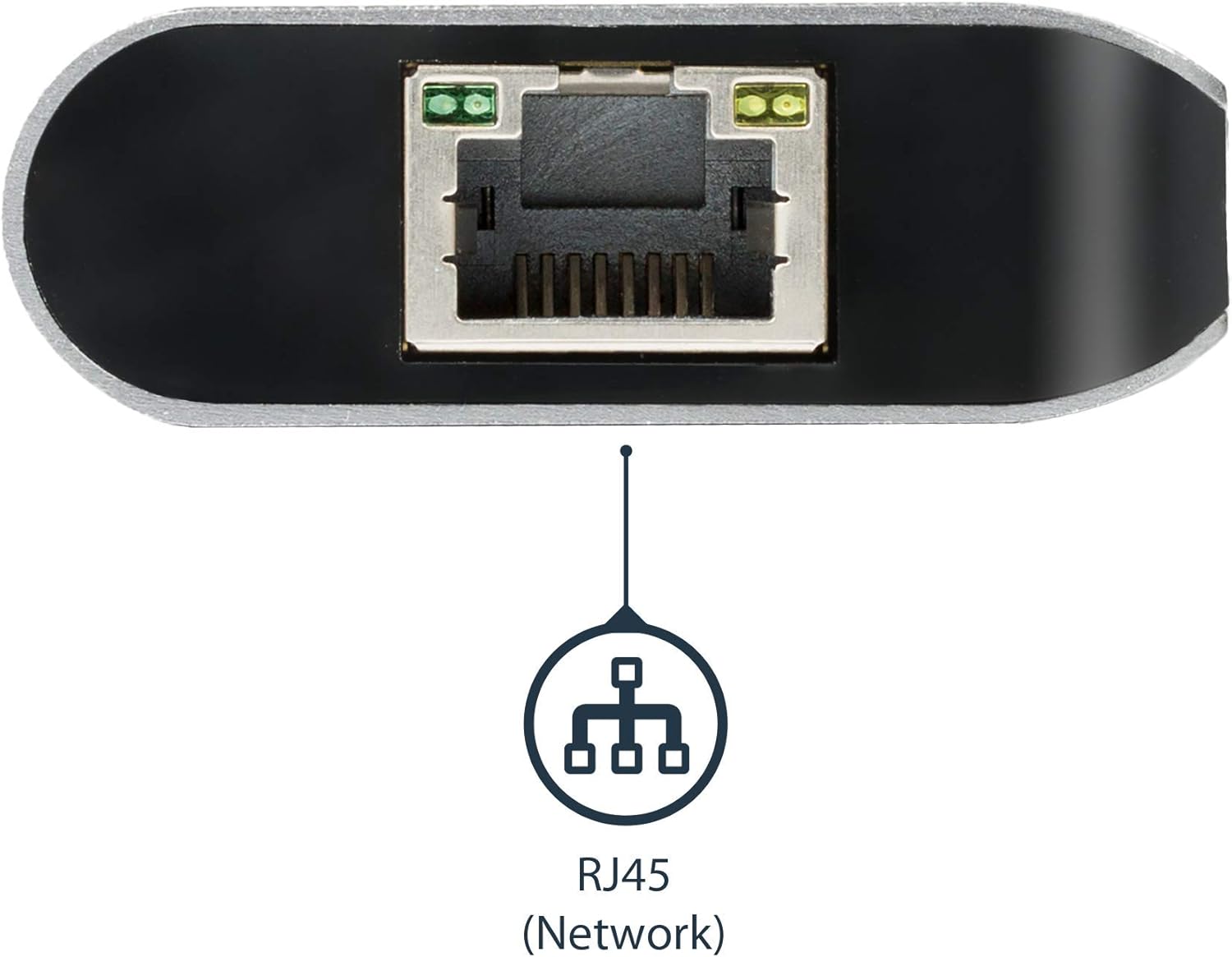
చిత్రం: వైపు view of the StarTech.com USB C Multiport Adapter, showing the RJ45 Ethernet port for network connectivity.
3. సెటప్ సూచనలు
Follow these steps to set up your StarTech.com USB C Multiport Adapter:
- హోస్ట్ పరికరానికి కనెక్ట్ చేయండి: Plug the integrated USB-C cable from the multiport adapter into an available USB-C or Thunderbolt 3 port on your laptop or compatible device.
- HDMI డిస్ప్లేను కనెక్ట్ చేయండి: Connect an HDMI cable from your monitor to the HDMI port on the multiport adapter. Ensure your monitor is powered on and set to the correct input source.
- USB పెరిఫెరల్స్ కనెక్ట్ చేయండి: Plug your USB-A devices (e.g., keyboard, mouse, external hard drive) into the two USB 3.0 Type-A ports on the adapter.
- SD కార్డ్ని చొప్పించండి: If needed, insert your SD, SDHC, or SDXC card into the designated card reader slot.
- నెట్వర్క్కు కనెక్ట్ అవ్వండి (ఐచ్ఛికం): For wired internet access, connect an Ethernet cable from your router or network switch to the RJ45 Gigabit Ethernet port on the adapter.
- Connect Power Adapter (Optional, for charging): If your laptop requires charging through the adapter, connect your laptop's USB-C power adapter to the USB-C Power Delivery port on the multiport adapter. This will charge your laptop and provide power to the adapter and connected peripherals.

Image: The USB Type-C connector that connects the adapter to your host device.
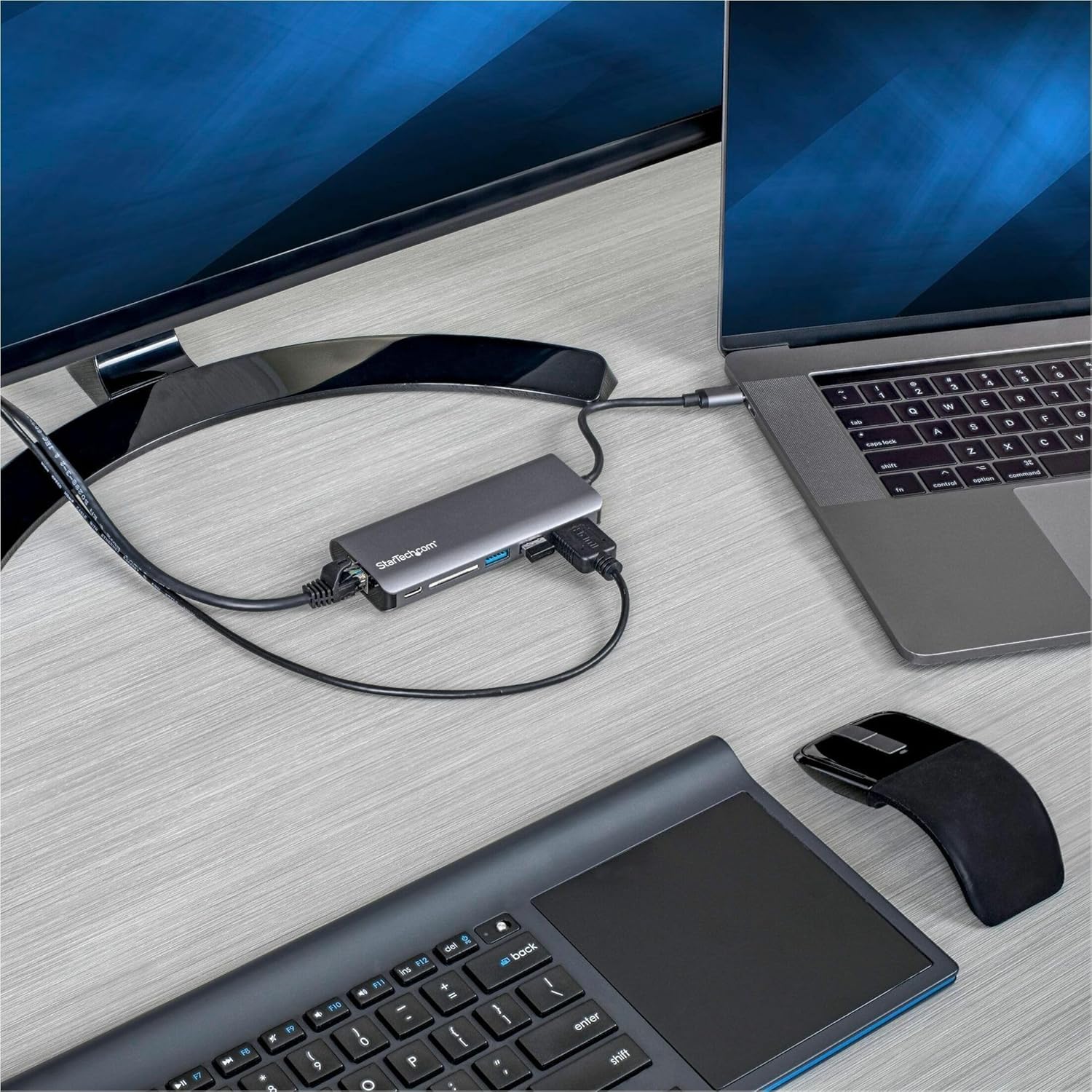
Image: The multiport adapter connected to a laptop, extending to an external monitor, and with a phone charging via a USB port.
4. ఆపరేటింగ్ సూచనలు
Once the adapter is set up, it operates automatically with most compatible devices and operating systems. Drivers are typically installed automatically upon first connection.
- ప్రదర్శన అవుట్పుట్: Your connected HDMI monitor should automatically extend or mirror your laptop's display. You may need to adjust display settings in your operating system (e.g., Windows Display Settings, macOS System Preferences > Displays) to configure resolution, refresh rate, and display arrangement.
- USB పెరిఫెరల్స్: Connected USB devices will function as if directly connected to your laptop.
- SD కార్డ్ రీడర్: The SD card will appear as a removable drive in your file explorer, allowing you to transfer files.
- ఈథర్నెట్ కనెక్షన్: The wired network connection will be active. Verify network status in your operating system's network settings.
- పవర్ డెలివరీ: When a USB-C power adapter is connected to the adapter's PD port, your laptop will charge, and the adapter will draw power to operate all its functions. The Power Delivery 3.0 with Fast Role Swap ensures stable USB data connections even when the power source is connected or disconnected.
5. నిర్వహణ
To ensure the longevity and optimal performance of your multiport adapter, follow these maintenance guidelines:
- శుభ్రపరచడం: Use a soft, dry, lint-free cloth to clean the adapter. Avoid using abrasive cleaners, solvents, or aerosol sprays.
- నిల్వ: అడాప్టర్ను ప్రత్యక్ష సూర్యకాంతి మరియు తీవ్రమైన ఉష్ణోగ్రతలకు దూరంగా చల్లని, పొడి ప్రదేశంలో నిల్వ చేయండి.
- నిర్వహణ: Avoid dropping the adapter or subjecting it to strong impacts. Do not pull on the cable to disconnect it from your laptop; always grasp the connector.
- వెంటిలేషన్: Ensure the adapter has adequate ventilation and is not covered, especially during extended use, to prevent overheating.
6. ట్రబుల్షూటింగ్
If you encounter issues with your StarTech.com USB C Multiport Adapter, refer to the following troubleshooting tips:
- బాహ్య మానిటర్లో డిస్ప్లే లేదు:
- Ensure the HDMI cable is securely connected to both the adapter and the monitor.
- Verify the monitor is powered on and set to the correct HDMI input source.
- Check your laptop's display settings to ensure the external monitor is detected and configured (e.g., extended, mirrored).
- అందుబాటులో ఉంటే వేరే HDMI కేబుల్ లేదా మానిటర్ను ప్రయత్నించండి.
- USB పెరిఫెరల్స్ పనిచేయడం లేదు:
- Ensure USB devices are properly plugged into the adapter's USB-A ports.
- USB పరికరం స్వతంత్రంగా పనిచేస్తుందని నిర్ధారించుకోవడానికి దాన్ని మీ ల్యాప్టాప్కు నేరుగా కనెక్ట్ చేయడానికి ప్రయత్నించండి.
- If using high-power USB devices, ensure a USB-C power adapter is connected to the multiport adapter's PD port.
- ల్యాప్టాప్ ఛార్జింగ్ కావడం లేదు:
- Confirm your laptop's USB-C power adapter is connected to the multiport adapter's USB-C PD port.
- Ensure the power adapter is functioning correctly and providing sufficient wattage for your laptop and the adapter.
- నెట్వర్క్ కనెక్షన్ లేదు:
- Verify the Ethernet cable is securely connected to both the adapter and your router/switch.
- Check your laptop's network settings to ensure the wired connection is recognized and active.
- వేరే ఈథర్నెట్ కేబుల్ని ప్రయత్నించండి.
- SD కార్డ్ గుర్తించబడలేదు:
- Ensure the SD card is fully and correctly inserted into the card reader slot.
- Test the SD card with another device to confirm it is not corrupted.
7. స్పెసిఫికేషన్లు
| బ్రాండ్ | స్టార్టెక్.కామ్ |
| మోడల్ సంఖ్య | DKT30CSDHPD3 |
| సిరీస్ | USB-C Multiport Adapter with HDMI, SD Reader, 2xA 1xC, PD 3.0 |
| రంగు | స్పేస్ గ్రే |
| ఉత్పత్తి కొలతలు | 10.6 x 1.8 x 0.6 అంగుళాలు (26.9 x 4.6 x 1.5 సెం.మీ.) |
| వస్తువు బరువు | 3.04 ఔన్సులు (86.2 గ్రాములు) |
| హార్డ్వేర్ ఇంటర్ఫేస్ | SDHC, SDXC, Secure Digital Card, USB, USB 3.0, USB Docking Station, microSDHC |
| అనుకూల పరికరాలు | Notebooks (USB-C or Thunderbolt 3 enabled) |
| ఆపరేటింగ్ సిస్టమ్ | Chrome OS, Windows 10, Windows 7, macOS, Android |
| మొత్తం USB పోర్ట్లు | 3 (2x USB-A 3.0, 1x USB-C for Data/PD) |
| మొత్తం HDMI పోర్ట్లు | 1 |
| వాట్tage | 60 watts (Power Delivery 3.0) |
8. వారంటీ మరియు మద్దతు
StarTech.com products are backed by a comprehensive warranty and free lifetime technical support. For specific warranty details and to access technical support resources, please visit the official StarTech.com website or refer to the Quick-start Guide included with your product.
ఆన్లైన్ వనరులు:
- For product manuals, drivers, and FAQs, visit: StarTech.com Official Webసైట్
- For direct support, contact StarTech.com customer service.