
1. పరిచయం
The FIYAPOO 4K Wireless Miracast Dongle is designed to wirelessly mirror content from your smartphone, tablet, or laptop to a larger display such as a TV or projector. This device supports multiple screen interaction protocols including AirPlay, DLNA, Miracast, and Chromecast, offering a versatile solution for both personal entertainment and professional presentations. This manual provides essential information for setup, operation, and maintenance of your device.
2. ఉత్పత్తి ముగిసిందిview
The FIYAPOO 4K Wireless Miracast Dongle features a compact and portable design, making it easy to carry. It is equipped with a dual-core processor for efficient performance and supports 4K HDR resolution for a crisp and detailed picture quality.

Dual Core Processor: The dongle features a dual-core CPU, designed for faster processing and to minimize issues like splash screens or freezing during operation.
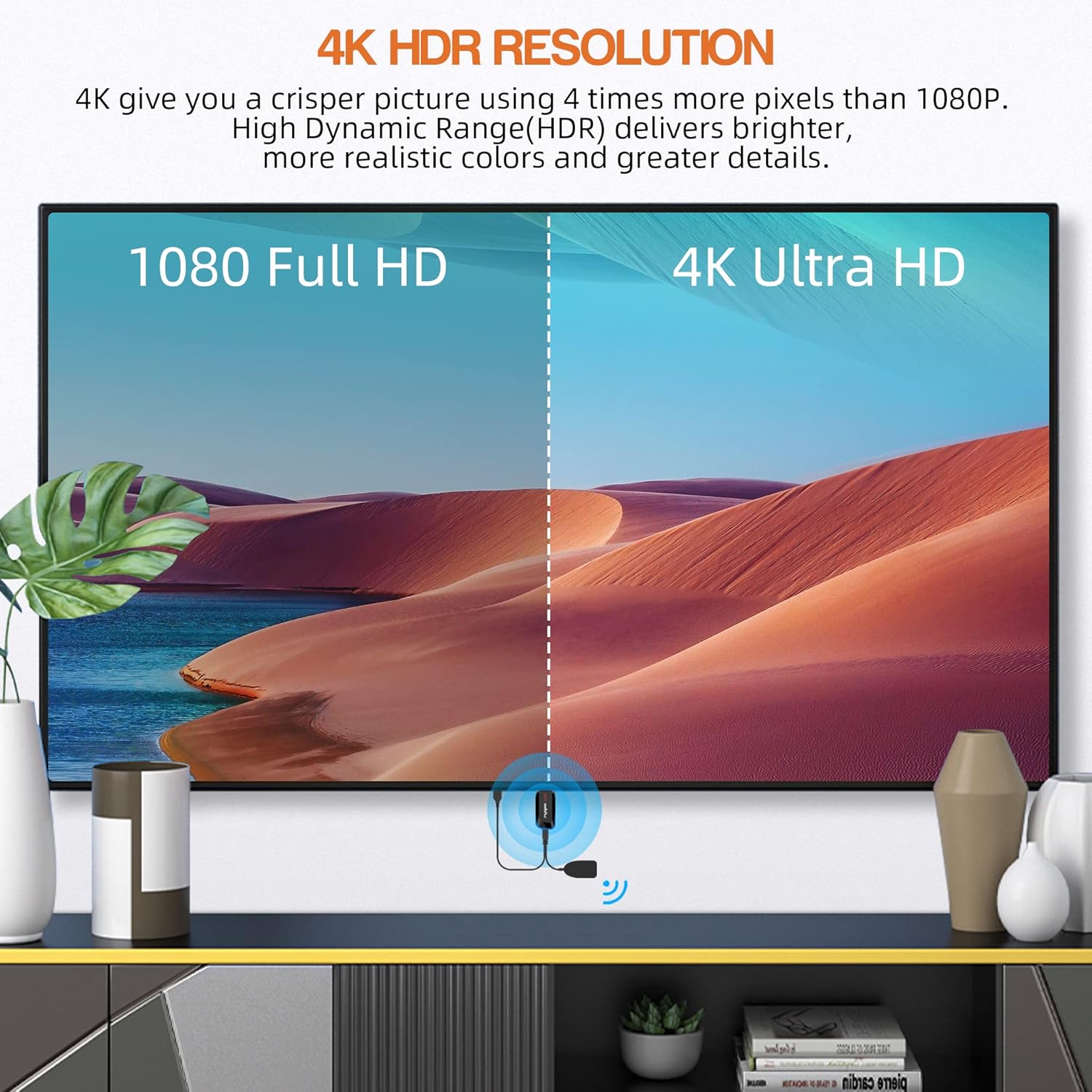
4K HDR రిజల్యూషన్: Experience a crisper picture with four times more pixels than 1080p. High Dynamic Range (HDR) delivers brighter, more realistic colors and greater detail.

తక్కువ జాప్యం: Connect your mobile phone to the TV with minimal delay, ensuring a smooth and enjoyable experience for gaming and video playback on a large screen.
3. ప్యాకేజీ విషయాలు
దయచేసి అన్ని అంశాలు ప్యాకేజీలో ఉన్నాయని ధృవీకరించండి:
- 1 x WiFi Display Receiver (Miracast Dongle)
- 1 x Micro USB WiFi Cable
- 1 x వినియోగదారు మాన్యువల్
- 1 x HDMI కేబుల్
4. స్పెసిఫికేషన్లు
| బ్రాండ్ | ఫియాపూ |
| మోడల్ సంఖ్య | 9.0 |
| రంగు | నలుపు |
| ఉత్పత్తి రకం | టీవీ స్టిక్ |
| కనెక్టివిటీ టెక్నాలజీ | HDMI, USB, Wi-Fi |
| కనెక్టర్ రకం | HDMI |
| ప్రత్యేక ఫీచర్ | వైర్లెస్ |
| రిజల్యూషన్ | 4K |
| మద్దతు ఉన్న ఇంటర్నెట్ సేవలు | Amazon Instant Video, Netflix (Android only) |
| అనుకూల పరికరాలు | Android smartphones (6.0+), iOS devices (9.0+), iPhone, iPad, MacBook, Microsoft Surface Series, Miracast-compatible devices |
| వస్తువు బరువు | 10 గ్రాములు |
5. సెటప్ సూచనలు
Follow these steps to connect your FIYAPOO Miracast Dongle to your display:
- డాంగిల్ను కనెక్ట్ చేయండి: Plug the Miracast dongle into an available HDMI port on your TV or projector.
- శక్తిని అందించండి: Connect the Micro USB WiFi cable to the dongle and then to a 5V/1A (minimum) USB power adapter or a USB port on your TV that provides sufficient power.
- ఇన్పుట్ని ఎంచుకోండి: Switch your TV or projector's input source to the corresponding HDMI port where the dongle is connected. You should see the dongle's setup screen.
- Connect to Dongle WiFi: On your mobile device (phone/tablet), go to your WiFi settings and connect to the dongle's WiFi network. The SSID and password will be displayed on your TV screen (e.g., SSID: Fiyapoo-xxxxxx, Password: 12345678).
- యాక్సెస్ సెటప్ పేజీ: తెరవండి a web browser on your mobile device and navigate to the IP address displayed on the TV screen (e.g., http://192.168.203.1). This page allows you to connect the dongle to your home WiFi network for internet access and firmware updates.
- Start Mirroring: Once connected, activate the screen mirroring function on your device (e.g., AirPlay for iOS, Smart View/Miracast for Android) and select the dongle from the list of available devices.

సులభమైన కనెక్షన్: The dongle is designed for simple plug-and-play setup, making it easy to connect to wall-mounted TVs or displays.
6. ఆపరేటింగ్ సూచనలు
The dongle supports various screen projection modes:
6.1 Screen Mirroring Modes

డ్యూయల్ మోడ్ కార్యాచరణ: The dongle supports both 'Same Screen Mode' for synchronized display and 'Extended Mode' for displaying different content on your device and the large screen (requires specific settings on your device).
- Same Screen Mode: The content on your mobile device is synchronized and displayed identically on the large screen. This is ideal for watching videos, playing games, or sharing photos directly.
- విస్తరించిన మోడ్: (Requires device support and specific settings) In this mode, your mobile device can display different content than the large screen, allowing for multitasking. For example, you can watch a video on the TV while browsing on your phone.
6.2 కాస్టింగ్ కంటెంట్
Once connected, you can cast various types of content:
- వీడియో ప్లేబ్యాక్: Stream videos from your device. For encrypted content like Netflix and Amazon Prime Video, only Android smartphones are supported. iOS devices do not support mirroring these services due to copyright protection.
- గేమింగ్: Play mobile games on a larger screen with low latency.
- ప్రదర్శనలు: Display PowerPoint, Excel, Word, PDF files, and images from your smartphone or tablet for business meetings or educational purposes.
- ఆడియో: Stream audio content to your connected display.

Wide Content Support: The dongle supports a variety of third-party video playback software and content platforms. Note that Netflix and Hulu support is primarily for Android devices, and some video apps may not be supported due to copyright restrictions.
7. నిర్వహణ
To ensure the longevity and optimal performance of your Miracast dongle, follow these maintenance guidelines:
- శుభ్రముగా ఉంచు: Regularly wipe the dongle with a soft, dry cloth to remove dust and debris. Avoid using liquid cleaners.
- నిల్వ: డాంగిల్ను ప్రత్యక్ష సూర్యకాంతి మరియు తీవ్రమైన ఉష్ణోగ్రతలకు దూరంగా చల్లని, పొడి ప్రదేశంలో నిల్వ చేయండి.
- జాగ్రత్తగా నిర్వహించండి: Avoid dropping or subjecting the dongle to strong impacts.
- విద్యుత్ సరఫరా: Always use a stable 5V/1A power supply to prevent damage.
8. ట్రబుల్షూటింగ్
If you encounter issues with your FIYAPOO Miracast Dongle, refer to the following common solutions:
- టీవీలో డిస్ప్లే లేదు:
- డాంగిల్ HDMI పోర్ట్కి సురక్షితంగా ప్లగ్ చేయబడిందని నిర్ధారించుకోండి.
- Verify that the TV input source is set to the correct HDMI port.
- Check if the dongle is receiving adequate power (5V/1A minimum).
- Cannot Connect to Dongle WiFi:
- Confirm the SSID and password displayed on the TV screen are entered correctly.
- Move your mobile device closer to the dongle.
- Lag or Choppy Playback:
- Ensure your home WiFi network is stable and has good signal strength.
- Reduce the distance between your mobile device, the dongle, and your WiFi router.
- Close unnecessary applications on your mobile device to free up resources.
- Netflix/Amazon Prime Video Not Working on iOS:
- This is a known limitation due to copyright protection. Encrypted video services like Netflix and Amazon Prime Video are generally only supported for mirroring from Android devices.
- ఫ్యాక్టరీ రీసెట్: If the dongle does not function correctly or you experience persistent issues, you can press the Fn బటన్ on the side of the dongle to restore factory settings. This will erase all custom configurations.
9. వారంటీ మరియు మద్దతు
FIYAPOO is committed to providing quality products and customer satisfaction.
- 30-రోజుల రిటర్న్ పాలసీ: You may return the product within 30 days without justification.
- 365-రోజుల భర్తీ: In case of any quality issues, a replacement will be provided within 365 days of purchase.
- కస్టమర్ మద్దతు: For technical assistance, warranty claims, or any other inquiries, please contact FIYAPOO customer service through the platform where you purchased the product. Please have your purchase details and model number ready for faster service.