
1. పరిచయం
Thank you for choosing the Targus W620 Wireless Optical Mouse. This manual provides detailed instructions for setting up, operating, and maintaining your mouse to ensure optimal performance and longevity. The Targus W620 offers reliable 2.4 GHz wireless connectivity, a precise 1600 DPI optical sensor, and a compact design suitable for both office and mobile use.
2. ప్యాకేజీ విషయాలు
దయచేసి ఈ క్రింది అంశాల కోసం ప్యాకేజీని తనిఖీ చేయండి:
- Targus W620 Wireless Optical Mouse
- USB రిసీవర్
- 2 x AAA బ్యాటరీలు
3. ఉత్పత్తి ముగిసిందిview
Familiarize yourself with the components of your Targus W620 Wireless Optical Mouse.
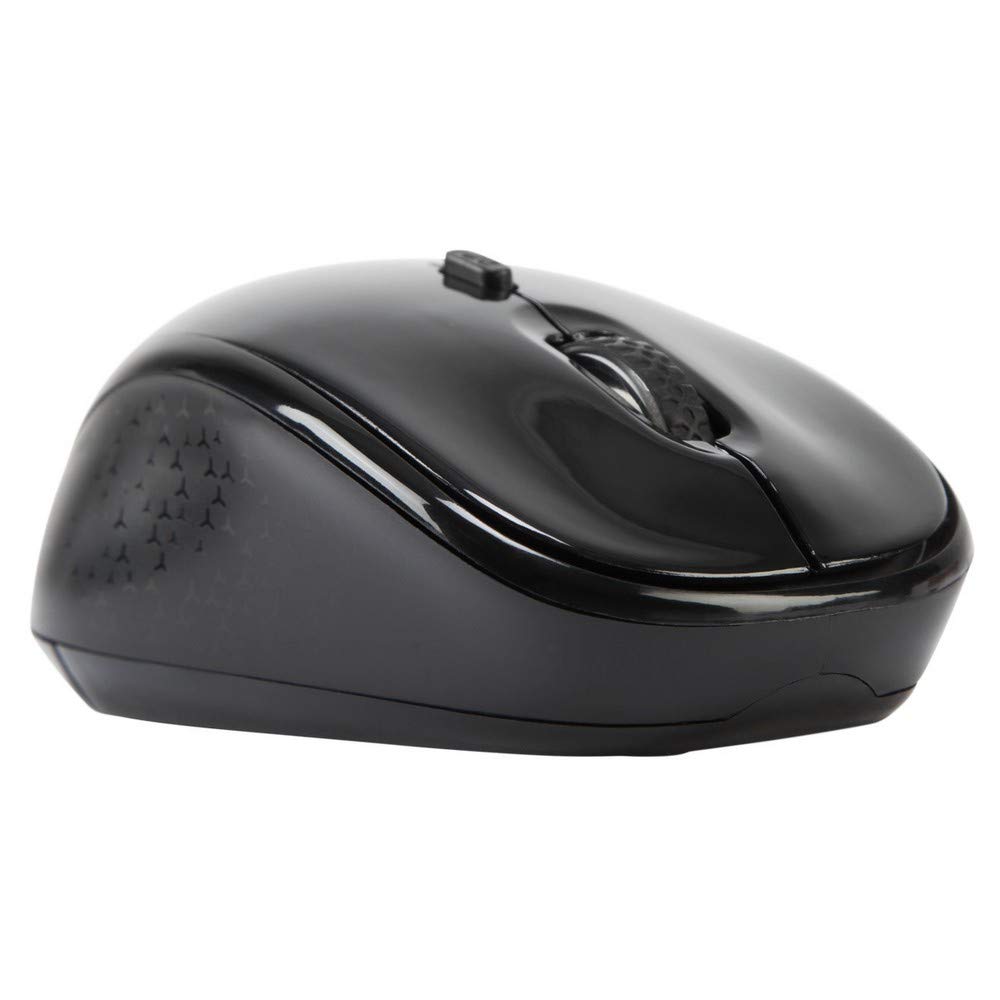
చిత్రం 3.1: టాప్ view of the Targus W620 Wireless Optical Mouse. This image displays the primary buttons and scroll wheel.
- ఎడమ క్లిక్ బటన్: ప్రామాణిక ప్రాథమిక క్లిక్ ఫంక్షన్.
- కుడి క్లిక్ బటన్: ప్రామాణిక ద్వితీయ క్లిక్ ఫంక్షన్.
- స్క్రోల్ వీల్: నిలువు స్క్రోలింగ్ మరియు మధ్య-క్లిక్ ఫంక్షన్ కోసం.
- DPI బటన్: మౌస్ సెన్సిటివిటీ (DPI)ని సర్దుబాటు చేస్తుంది.
- ఆప్టికల్ సెన్సార్: Located on the bottom, detects mouse movement.
- బ్యాటరీ కంపార్ట్మెంట్: Located on the bottom, holds two AAA batteries.
- USB రిసీవర్ నిల్వ: A dedicated slot on the bottom for storing the USB receiver when not in use.

చిత్రం 3.2: దిగువన view of the mouse, highlighting the battery compartment and optical sensor.
4. సెటప్ సూచనలు
Follow these steps to set up your Targus W620 Wireless Optical Mouse:
- బ్యాటరీలను వ్యవస్థాపించండి:
- మౌస్ దిగువన బ్యాటరీ కంపార్ట్మెంట్ కవర్ను గుర్తించండి.
- కవర్ని స్లైడ్ చేయండి.
- రెండు AAA బ్యాటరీలను చొప్పించండి, సరైన ధ్రువణతను (+/-) నిర్ధారించుకోండి.
- బ్యాటరీ కంపార్ట్మెంట్ కవర్ను సురక్షితంగా మూసివేయండి.
- USB రిసీవర్ని కనెక్ట్ చేయండి:
- The USB receiver is typically stored in a slot on the bottom of the mouse for transport. Gently remove it.
- మీ కంప్యూటర్లో అందుబాటులో ఉన్న USB పోర్ట్కి USB రిసీవర్ని ప్లగ్ చేయండి.

చిత్రం 4.1: The mouse with its USB receiver, ready for connection.
- పవర్ ఆన్:
- There is no explicit power switch on this model; the mouse activates upon movement and connection.
- మీ కంప్యూటర్ అవసరమైన డ్రైవర్లను స్వయంచాలకంగా గుర్తించి ఇన్స్టాల్ చేయాలి. దీనికి కొన్ని క్షణాలు పట్టవచ్చు.
- Once drivers are installed, the mouse is ready for use.
5. ఆపరేటింగ్ సూచనలు
The Targus W620 Wireless Optical Mouse is designed for intuitive use. Here are its primary functions:
- ప్రాథమిక నావిగేషన్: మీ స్క్రీన్పై కర్సర్ను నియంత్రించడానికి మౌస్ను చదునైన ఉపరితలంపైకి తరలించండి.
- ఎడమ క్లిక్ చేయండి: వస్తువులను ఎంచుకోవడానికి, తెరవడానికి ఉపయోగించండి files, లేదా ఫంక్షన్లను యాక్టివేట్ చేయడం.
- కుడి క్లిక్ చేయండి: సందర్భ మెనులు లేదా ద్వితీయ ఫంక్షన్లను యాక్సెస్ చేయడానికి ఉపయోగించండి.
- స్క్రోల్ వీల్: Rotate the wheel to scroll vertically through documents and web pages. Press the scroll wheel for a middle-click function, often used for opening links in new tabs or auto-scrolling.
- DPI సర్దుబాటు: Press the DPI button (located behind the scroll wheel) to cycle through the available DPI settings (800, 1200, 1600 DPI). This changes the sensitivity of the mouse cursor. A higher DPI means the cursor moves further with less physical mouse movement.
6. నిర్వహణ
Proper maintenance ensures the longevity and performance of your mouse.
- శుభ్రపరచడం: మౌస్ బాహ్య భాగాన్ని శుభ్రం చేయడానికి మృదువైన, పొడి, మెత్తటి బట్టను ఉపయోగించండి. మొండి ధూళి కోసం, కొద్దిగా dampen గుడ్డను నీటితో తడిపివేయండి. కఠినమైన రసాయనాలు లేదా రాపిడి క్లీనర్లను ఉపయోగించకుండా ఉండండి.
- ఆప్టికల్ సెన్సార్: ఖచ్చితమైన ట్రాకింగ్ను నిర్ధారించడానికి మౌస్ దిగువన ఉన్న ఆప్టికల్ సెన్సార్ ప్రాంతాన్ని శుభ్రంగా మరియు దుమ్ము లేదా చెత్త లేకుండా ఉంచండి.
- బ్యాటరీ భర్తీ: When the mouse performance degrades or stops responding, it is likely time to replace the batteries. Follow the steps in Section 4.1 to replace the two AAA batteries.
- నిల్వ: When transporting or storing the mouse, always place the USB receiver back into its dedicated storage slot on the bottom of the mouse to prevent loss.
7. ట్రబుల్షూటింగ్
If you encounter issues with your Targus W620 mouse, try the following solutions:
| సమస్య | సాధ్యమైన పరిష్కారం |
|---|---|
| Mouse not responding or cursor not moving. |
|
| కర్సర్ కదలిక అస్తవ్యస్తంగా లేదా దూకుతూ ఉంటుంది. |
|
| DPI బటన్ సున్నితత్వాన్ని మార్చడం లేదు. |
|
| వైర్లెస్ కనెక్షన్ సమస్యలు. |
|
8. స్పెసిఫికేషన్లు
| బ్రాండ్ | టార్గస్ |
| మోడల్ సంఖ్య | AMW620AP |
| కనెక్టివిటీ టెక్నాలజీ | 2.4 GHz Wireless (Radio Frequency) |
| మూవ్మెంట్ డిటెక్షన్ టెక్నాలజీ | Optical (BlueTrace Technology) |
| DPI స్థాయిలు | 800 / 1200 / 1600 DPI (సర్దుబాటు) |
| బటన్ల సంఖ్య | 4 (Left, Right, Scroll Wheel, DPI) |
| చేతి ధోరణి | Right (Comfortable for ambidextrous use) |
| శక్తి మూలం | 2 x AAA బ్యాటరీలు (చేర్చబడినవి) |
| వస్తువు బరువు | 26 గ్రాములు |
| ఆపరేటింగ్ సిస్టమ్ అనుకూలత | Linux, Windows XP (Compatible with modern Windows and macOS) |
| హార్డ్వేర్ ప్లాట్ఫారమ్ | మాక్, పిసి |
| రంగు | నలుపు |
9. వారంటీ మరియు మద్దతు
వారంటీ సమాచారం: The Targus W620 Wireless Optical Mouse comes with a 3-సంవత్సరం తయారీదారు వారంటీ కొనుగోలు చేసిన తేదీ నుండి. ఈ వారంటీ సాధారణ ఉపయోగంలో మెటీరియల్స్ మరియు పనితనంలో లోపాలను కవర్ చేస్తుంది. వారంటీ క్లెయిమ్ల కోసం దయచేసి మీ కొనుగోలు రుజువును ఉంచుకోండి.
కస్టమర్ మద్దతు: For technical assistance, troubleshooting beyond this manual, or warranty inquiries, please visit the official Targus website or contact their customer support service. Refer to the contact information provided with your product packaging or on the Targus official webసైట్.