
DIGITNOW BR605-111
DIGITNOW! USB 2.0 Digital Audio Capture Card (Model BR605-111) User Manual
Convert your analog audio to digital format with ease.
1. పరిచయం
The DIGITNOW! USB 2.0 Digital Audio Capture Card is designed to convert analog audio sources into digital formats such as MP3 or WAV. This device allows you to preserve your old vinyl records, cassette tapes, and other audio media by digitizing them on your computer. It is compatible with Windows and Mac operating systems.

Image 1: The DIGITNOW! USB 2.0 Digital Audio Capture Card, including the main unit, RCA cables, 3.5mm audio cable, and software installation CD.
2. భద్రతా సమాచారం
- పరికరాన్ని నీరు మరియు తేమ నుండి దూరంగా ఉంచండి.
- పరికరాన్ని తెరవడానికి లేదా సవరించడానికి ప్రయత్నించవద్దు.
- Use only with compatible audio sources and computer systems.
- తీవ్రమైన ఉష్ణోగ్రతలు మరియు ప్రత్యక్ష సూర్యకాంతి నివారించండి.
- Disconnect the device from your computer when not in use.
3. ప్యాకేజీ విషయాలు
మీ ప్యాకేజీలో అన్ని అంశాలు ఉన్నాయని ధృవీకరించండి:
- DIGITNOW! USB 2.0 Digital Audio Capture Card
- USB కేబుల్ (ఇంటిగ్రేటెడ్)
- RCA Audio Cables (Red/White)
- 3.5mm ఆడియో కేబుల్
- త్వరిత సంస్థాపన గైడ్
- Software Installation CD (Audacity)
- Additional Adapters (e.g., RCA to 3.5mm, 3.5mm to 3.5mm)
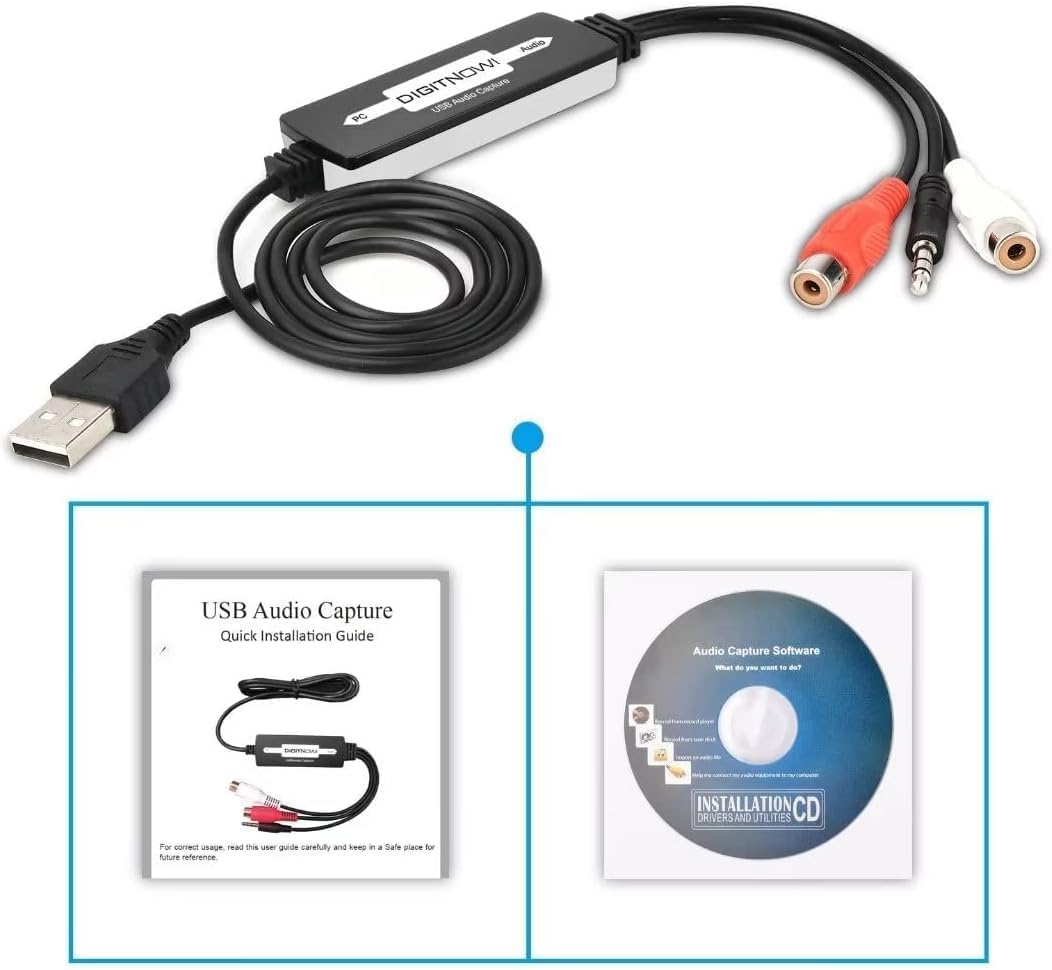
Image 2: The Quick Installation Guide and the included software installation CD.
4. ఉత్పత్తి ముగిసిందిview
The audio capture card features a USB connector for your computer and various audio input options for your analog devices. It is a compact, plug-and-play device designed for ease of use.
4.1 పరికర భాగాలు
- USB కనెక్టర్: Connects to your computer's USB port.
- RCA Input (Red/White): For connecting audio sources with RCA output (e.g., record players, CD players).
- 3.5mm ఆడియో ఇన్పుట్: For connecting audio sources with a 3.5mm jack (e.g., cassette players, MP3 players).
5. సెటప్ గైడ్
5.1 సాఫ్ట్వేర్ ఇన్స్టాలేషన్
- Insert the provided software installation CD into your computer's CD/DVD drive.
- Follow the on-screen instructions to install the Audacity audio capture and editing software.
- Alternatively, you can download the latest version of Audacity from its official website for updated features and compatibility.
5.2 మీ కంప్యూటర్కు కనెక్ట్ చేయడం
- మీ కంప్యూటర్లో (డెస్క్టాప్ లేదా ల్యాప్టాప్) అందుబాటులో ఉన్న USB పోర్ట్ను గుర్తించండి.
- Plug the USB connector of the audio capture card into the USB port. Your computer should automatically detect the device.

Image 3: Illustration of connecting various audio sources like a radio, cassette player, or record player to the DIGITNOW! audio capture card, which then connects to a computer.
5.3 ఆడియో మూలాలను కనెక్ట్ చేయడం
The audio capture card supports various analog audio devices. Choose the appropriate connection method for your source:
- For devices with RCA output (e.g., Record Players, CD Players, Receivers):
- Connect the red RCA plug from your audio source to the red RCA input on the capture card.
- Connect the white RCA plug from your audio source to the white RCA input on the capture card.
- Ensure your record player has a built-in pre-amplifier or is connected to a receiver with a phono input, as the capture card does not provide phono pre-ampలిఫికేషన్.
- For devices with 3.5mm audio output (e.g., Cassette Players, MP3 Players, Portable Radios):
- Connect the 3.5mm audio cable from your audio source's headphone or line-out jack to the 3.5mm input on the capture card.
- Use the provided adapters if necessary (e.g., a 3.5mm female to female adapter if your source has a male 3.5mm plug).

Image 4: A record player connected to a laptop using the DIGITNOW! USB audio capture card.

Image 5: Detailed diagram illustrating both 3.5mm audio cable and RCA (left and right channel) cable connections from various audio devices to a laptop via the USB audio capture card.
6. ఆపరేటింగ్ సూచనలు
6.1 Recording Audio with Audacity
- Open the Audacity software on your computer.
- In Audacity, go to Edit > Preferences (లేదా Audacity > Preferences on Mac).
- కింద పరికరాలు tab, select the DIGITNOW! USB Audio Capture Card as your recording device.
- Adjust the recording volume levels within Audacity to prevent clipping or distortion. Start with a lower volume and gradually increase it while monitoring the input levels.
- Start playback on your analog audio source (e.g., play a record or cassette).
- క్లిక్ చేయండి రికార్డ్ చేయండి button (red circle) in Audacity to begin capturing the audio.
- Once the audio has finished playing, click the ఆపు button (yellow square) in Audacity.
6.2 Editing and Exporting Audio
- Use Audacity's editing tools to trim silence, remove noise, or split tracks as needed.
- To save your recording, go to File > Export.
- Choose your desired format (e.g., MP3, WAV) and select a destination folder on your computer.
- Fill in any metadata (artist, title, etc.) if prompted, then click సేవ్ చేయండి.
Video 1: An instructional video demonstrating the setup and basic operation of the DIGITNOW! USB 2.0 Digital Audio Capture Card.
7. నిర్వహణ
- మెత్తటి, పొడి గుడ్డతో పరికరాన్ని శుభ్రం చేయండి. లిక్విడ్ క్లీనర్లను ఉపయోగించవద్దు.
- ఉపయోగంలో లేనప్పుడు పరికరాన్ని చల్లని, పొడి ప్రదేశంలో నిల్వ చేయండి.
- Regularly check for and install updates for the Audacity software to ensure optimal performance and compatibility.
8. ట్రబుల్షూటింగ్
| సమస్య | సాధ్యమైన కారణం | పరిష్కారం |
|---|---|---|
| No audio input detected by computer/software. | Incorrect device selection in software; loose connections; faulty cable; audio source not playing. |
|
| Low recording volume. | Input volume too low in software; audio source volume too low; no pre-amplifier for phono. |
|
| వక్రీకరించిన లేదా క్లిప్ చేయబడిన ఆడియో. | Input volume too high in software or on source. |
|
| Software CD not readable. | Mini CD incompatibility; drive issue. |
|
9. స్పెసిఫికేషన్లు
| ఫీచర్ | వివరాలు |
|---|---|
| మోడల్ సంఖ్య | BR605-111 |
| హార్డ్వేర్ ఇంటర్ఫేస్ | USB 2.0, 3.5mm Audio, RCA Audio (L/R) |
| ఆపరేటింగ్ సిస్టమ్ అనుకూలత | Windows 10 / 8.1 / 8 / 7 / Vista / XP, Mac OS 10.7-10.14 (Not compatible with Mac OS 10.15 and above) |
| సిఫార్సు ఉపయోగం | Audio Recording (Analog to Digital Conversion) |
| ఉత్పత్తి కొలతలు | 3.54 x 0.98 x 0.43 అంగుళాలు |
| వస్తువు బరువు | 1.92 ఔన్సులు |
| ప్రత్యేక ఫీచర్ | Analog-to-digital audio conversion and broad operating system compatibility |

Image 6: Technical diagram illustrating the dimensions of the audio capture card and its cable, along with icons indicating compatibility with Linux, Windows, and Mac OS systems.
10. వారంటీ మరియు మద్దతు
For warranty information and technical support, please refer to the DIGITNOW! official webసైట్ లేదా వారి కస్టమర్ సర్వీస్ను నేరుగా సంప్రదించండి. వారంటీ క్లెయిమ్ల కోసం మీ కొనుగోలు రసీదును ఉంచండి.
For software-related issues with Audacity, please visit the official Audacity support forums or documentation.
Ask a question about this manual
Ask about setup, troubleshooting, compatibility, parts, safety, or missing instructions. Manuals+ will review the question and use this page’s manual context to help answer it.