
Hohem iSteady Pro 3-Axis Handheld Gimbal Stabilizer User Manual
Model: iSteady Pro
పరిచయం
The Hohem iSteady Pro is a 3-axis handheld gimbal stabilizer designed to capture smooth, professional-grade footage with your action camera. This device is compatible with various sports cameras, including DJI OSMO Action, GoPro Hero 7/6/5/4/3, YI, and SJCAM models. This manual provides detailed instructions for proper setup, operation, maintenance, and troubleshooting to ensure optimal performance and longevity of your gimbal.
1. సెటప్
1.1 అన్బాక్సింగ్ మరియు భాగాలు
పెట్టెలోని అన్ని భాగాలను జాగ్రత్తగా అన్ప్యాక్ చేయండి. కింది అంశాలు ఉన్నాయని నిర్ధారించుకోండి:
- Hohem iSteady Pro Gimbal
- మినీ ట్రైపాడ్
- USB ఛార్జింగ్ కేబుల్
- Camera Charging Cables (various types)
- క్యారీయింగ్ కేసు
- వినియోగదారు మాన్యువల్ (ఈ పత్రం)
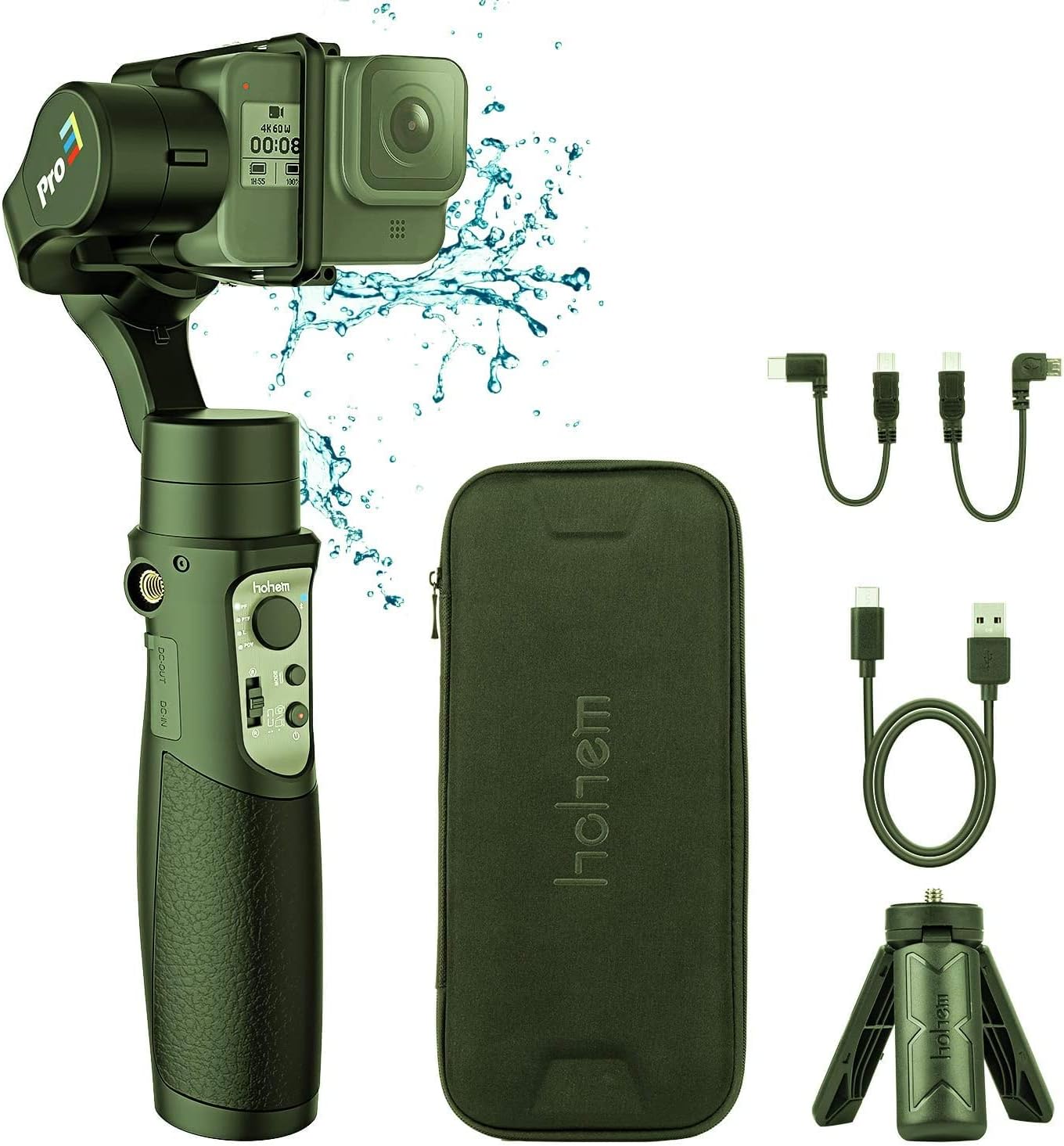
Image: Hohem iSteady Pro Gimbal, carrying case, mini tripod, and various charging cables.
1.2 గింబాల్ను ఛార్జ్ చేయడం
Before initial use, fully charge the gimbal. Connect the USB charging cable to the gimbal's DC-IN port and a 5V/2A power adapter (not included). The indicator light will show charging status and turn solid when fully charged.
గమనిక:
- The gimbal can also act as a power bank to charge your action camera via the DC-OUT port.
1.3 Mounting Your Action Camera
Mount your action camera securely onto the gimbal. Ensure the camera is balanced to prevent motor strain and ensure optimal stabilization. Adjust the sliding arm until the camera remains level when the gimbal is powered off.
ముఖ్యమైన:
- Always balance the camera before powering on the gimbal.
- Some cameras, like the GoPro Hero 7 Black, may have limited access to buttons or ports depending on mounting orientation.
2. ఆపరేటింగ్ సూచనలు
2.1 పవర్ ఆన్/ఆఫ్
Press and hold the power button for 3 seconds to power on or off the gimbal.
2.2 గింబాల్ మోడ్లు
The iSteady Pro features multiple operating modes for various shooting scenarios:
- Pan Following (PF) Mode: మీ చేతి కదలికలను అనుసరించి కెమెరా ఎడమ/కుడి వైపుకు ప్యాన్ అవుతుంది, అయితే టిల్ట్ మరియు రోల్ అక్షాలు లాక్ చేయబడతాయి.
- Pan & Tilt Following (PTF) Mode: The camera pans left/right and tilts up/down following your hand movements, while the roll axis is locked.
- All Lock (AL) Mode: మూడు అక్షాలు (పాన్, టిల్ట్, రోల్) లాక్ చేయబడ్డాయి, కెమెరా స్థిరమైన దిశలో చూపబడుతుంది.
- All Following (AF) Mode: మూడు అక్షాలు మీ చేతి కదలికలను అనుసరిస్తాయి.
- స్పోర్ట్ మోడ్: Provides faster response and stronger motor torque for dynamic shots.
Switch between modes using the mode button on the handle.
2.3 జాయ్ స్టిక్ కంట్రోల్
Use the joystick to manually control the pan and tilt direction of the camera.
2.4 బ్లూటూత్ కనెక్షన్
Connect the gimbal to your smartphone via Bluetooth to use the Hohem Gimbal App for advanced controls, parameter adjustments, and firmware updates. Refer to the app's instructions for detailed usage.
2.5 క్రమాంకనం
If the gimbal is not level or drifts, perform a calibration. This can usually be done via the Hohem Gimbal App or by following a specific button sequence on the gimbal itself (refer to the quick start guide for specific button combinations).
3. నిర్వహణ
3.1 శుభ్రపరచడం
Wipe the gimbal with a soft, dry cloth. Avoid using harsh chemicals or abrasive materials. Ensure no dust or debris enters the motor joints.
3.2 నిల్వ
Store the gimbal in its carrying case in a cool, dry place when not in use. Avoid extreme temperatures and direct sunlight. For long-term storage, ensure the battery is charged to approximately 50%.
3.3 ఫర్మ్వేర్ నవీకరణలు
Regularly check for firmware updates via the Hohem Gimbal App to ensure optimal performance and access to new features. Follow the app's instructions carefully during the update process.
4. ట్రబుల్షూటింగ్
| సమస్య | సాధ్యమైన కారణం | పరిష్కారం |
|---|---|---|
| గింబాల్ ఆన్ చేయడం లేదు. | తక్కువ బ్యాటరీ. | గింబాల్ను పూర్తిగా ఛార్జ్ చేయండి. |
| Gimbal vibrates or makes noise. | Camera not balanced correctly. | Re-balance the camera on the gimbal. |
| Gimbal drifts or is not level. | Needs calibration. | Perform a gimbal calibration via the app or button sequence. |
| బ్లూటూత్ కనెక్షన్ సమస్యలు. | App or device issues. | Ensure Bluetooth is enabled on your phone. Restart the gimbal and phone. Reinstall the Hohem Gimbal App. |
5. స్పెసిఫికేషన్లు
- మోడల్: ఐస్టేడీ ప్రో
- అక్షాలు: 3-Axis Stabilization
- అనుకూలత: DJI OSMO Action, GoPro Hero 7/6/5/4/3, YI, SJCAM Sports Cams
- నీటి నిరోధక స్థాయి: జలనిరోధిత
- తయారీదారు: హోహెమ్
Note: Specific battery life and charging times may vary. Refer to product packaging or the official Hohem website for the most up-to-date specifications.
6. వారంటీ మరియు మద్దతు
The Hohem iSteady Pro comes with a limited warranty. For detailed warranty terms and conditions, please refer to the warranty card included with your product or visit the official Hohem website. For technical support, troubleshooting assistance, or service inquiries, please contact Hohem customer service through their official channels.
Official Hohem Webసైట్: www.hohem.com