
లెనోవా ZA4G0000US
Lenovo Tab M10 HD (ZA4G0000US) 10.1-inch Tablet User Manual
Model: ZA4G0000US
పరిచయం
This manual provides essential information for setting up, operating, maintaining, and troubleshooting your Lenovo Tab M10 HD tablet. The Lenovo Tab M10 HD is a 10.1-inch Android tablet designed for general use, featuring an HD display, dual front speakers with Dolby Audio, and a Qualcomm Snapdragon 429 quad-core processor. It operates on Android 9.0 Pie and includes features like facial recognition and a dedicated Kids Mode.
1. సెటప్
1.1 అన్బాక్సింగ్ మరియు ప్రారంభ తనిఖీ
Carefully remove all items from the packaging. The box should contain the following:
- Lenovo Tab M10 HD Tablet
- ట్రావెల్ అడాప్టర్
- మైక్రో USB కేబుల్
- త్వరిత ప్రారంభ గైడ్ (QSG)
- వారంటీ సమాచారం
- సేఫ్టీ గైడ్
- SIM PIN (if applicable for cellular models, though this model is WiFi only)
Inspect the tablet for any physical damage before proceeding.
1.2 టాబ్లెట్ను ఛార్జ్ చేయడం
Before first use, fully charge your tablet. Connect the Micro USB cable to the tablet's Micro USB port and the travel adapter. Plug the adapter into a power outlet. The battery indicator on the screen will show charging status.
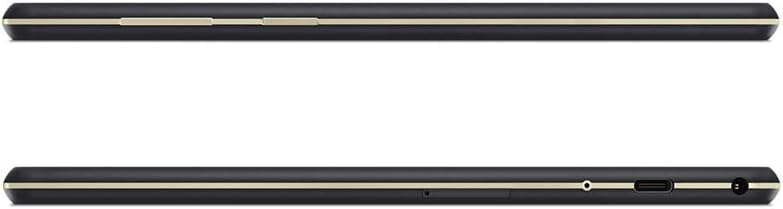
చిత్రం: వైపు view of the Lenovo Tab M10 HD tablet, highlighting the Micro USB charging port and power button.
1.3 పవర్ చేయడం ఆన్/ఆఫ్
- పవర్ ఆన్ చేయడానికి: లెనోవా లోగో కనిపించే వరకు పవర్ బటన్ (వైపున ఉన్నది) నొక్కి పట్టుకోండి.
- పవర్ ఆఫ్ చేయడానికి: పవర్ ఆప్షన్స్ మెను కనిపించే వరకు పవర్ బటన్ను నొక్కి పట్టుకోండి, ఆపై "పవర్ ఆఫ్" ఎంచుకోండి.
- పునఃప్రారంభించడానికి: Press and hold the Power button until the power options menu appears, then select "Restart".
1.4 ప్రారంభ సెటప్ విజార్డ్
Upon first power-on, the tablet will guide you through an initial setup process:
- మీకు ఇష్టమైన భాషను ఎంచుకోండి.
- Wi-Fi నెట్వర్క్కి కనెక్ట్ చేయండి.
- Sign in with your Google Account or create a new one. This is necessary for downloading apps from the Google Play Store.
- Review మరియు నిబంధనలు మరియు షరతులను అంగీకరించండి.
- Set up screen lock (PIN, pattern, password, or facial recognition).
- ప్రాంప్ట్ చేయబడిన విధంగా ఇతర సెట్టింగ్లను కాన్ఫిగర్ చేయండి.
1.5 మైక్రో SD కార్డ్ని చొప్పించడం
To expand storage, you can insert a microSD card (up to 256GB). Locate the card slot on the side of the tablet. Use the provided SIM PIN tool to gently eject the tray. Place the microSD card into the tray with the gold contacts facing down, then reinsert the tray into the tablet.

చిత్రం: దిగువన view of the Lenovo Tab M10 HD tablet, indicating the location of the microSD card slot.
2. ఆపరేటింగ్ సూచనలు
2.1 ప్రాథమిక నావిగేషన్
The Lenovo Tab M10 HD uses a touchscreen for interaction:
- నొక్కండి: ఒక అంశాన్ని ఎంచుకోండి లేదా యాప్ను తెరవండి.
- తాకి మరియు పట్టుకోండి: సందర్భోచిత మెనూలను యాక్సెస్ చేయండి లేదా చిహ్నాలను తరలించండి.
- స్వైప్: Scroll through screens, lists, or dismiss notifications.
- పించ్-టు-జూమ్: Enlarge or reduce content on screen.

చిత్రం: ముందు భాగం view of the Lenovo Tab M10 HD tablet, showing the Android home screen with various app icons.
2.2 నెట్వర్క్లకు కనెక్ట్ చేయడం
- Wi-Fi: వెళ్ళండి సెట్టింగ్లు > నెట్వర్క్ & ఇంటర్నెట్ > Wi-Fi. Turn Wi-Fi on and select your desired network. Enter the password if prompted. The tablet supports 2.4 GHz and 5 GHz Wi-Fi bands.
- బ్లూటూత్: వెళ్ళండి సెట్టింగ్లు > కనెక్ట్ చేయబడిన పరికరాలు > బ్లూటూత్. Turn Bluetooth on and pair with compatible devices like headphones or speakers.
2.3 కెమెరా వినియోగం
The tablet features both front and rear cameras. Open the Camera app to take photos or record videos. Tap the screen to focus, and press the shutter button to capture. You can switch between front and rear cameras within the app.

చిత్రం: ముందు మరియు వెనుక views of the Lenovo Tab M10 HD tablet, showing the placement of both front and rear cameras.
2.4 ఆడియో ఫీచర్లు
The Tab M10 HD is equipped with dual front speakers and Dolby Audio for enhanced sound. A 3.5 mm audio jack is available for connecting headphones or external speakers.
2.5 కిడ్స్ మోడ్
The tablet includes a special Kids Mode with custom content and parental control features. Access this mode to create a safe environment for children to use the tablet. Configuration options are available within the Kids Mode application.
3. నిర్వహణ
3.1 టాబ్లెట్ను శుభ్రపరచడం
టాబ్లెట్ స్క్రీన్ మరియు బాడీని శుభ్రం చేయడానికి మృదువైన, మెత్తటి బట్టను ఉపయోగించండి. మొండి మరకల కోసం, కొద్దిగా dampనీటితో లేదా స్క్రీన్-క్లీనింగ్ ద్రావణంతో వస్త్రాన్ని తుడవండి. కఠినమైన రసాయనాలు లేదా రాపిడి పదార్థాలను నివారించండి.
3.2 బ్యాటరీ సంరక్షణ
To maximize battery life (up to 8 hours of video playback):
- తీవ్రమైన ఉష్ణోగ్రతలను నివారించండి.
- బ్యాటరీని తరచుగా పూర్తిగా డిశ్చార్జ్ చేయనివ్వకండి.
- Unplug the charger once the tablet is fully charged.
- Reduce screen brightness and disable unnecessary features (e.g., Bluetooth, Wi-Fi) when not in use.
3.3 సాఫ్ట్వేర్ నవీకరణలు
సరైన పనితీరు మరియు భద్రతను నిర్ధారించుకోవడానికి సిస్టమ్ నవీకరణలను క్రమం తప్పకుండా తనిఖీ చేసి, ఇన్స్టాల్ చేయండి. వెళ్ళండి సెట్టింగ్లు > సిస్టమ్ > సిస్టమ్ అప్డేట్.
3.4 నిల్వ నిర్వహణ
The tablet has 16GB of internal storage. To manage storage and improve performance:
- Regularly delete unused apps and files.
- Move photos and videos to a microSD card or cloud storage.
- Clear app cache in సెట్టింగ్లు > యాప్లు & నోటిఫికేషన్లు > [యాప్ పేరు] > నిల్వ & కాష్.
4. ట్రబుల్షూటింగ్
4.1 పరికరం ఆన్ కావడం లేదు
- Ensure the battery is charged. Connect the tablet to its charger and wait a few minutes before attempting to power on again.
- Perform a forced restart: Press and hold the Power button for approximately 10-15 seconds.
4.2 Wi-Fi కనెక్టివిటీ సమస్యలు
- Toggle Wi-Fi off and on in సెట్టింగ్లు > నెట్వర్క్ & ఇంటర్నెట్ > Wi-Fi.
- మీ Wi-Fi రూటర్ను పునఃప్రారంభించండి.
- Forget the network and reconnect: Tap on the network name in Wi-Fi settings, then select "Forget". Re-enter the password.
- Ensure the tablet is within range of the Wi-Fi signal.
4.3 నెమ్మది పనితీరు
- నేపథ్యంలో నడుస్తున్న ఉపయోగించని అప్లికేషన్లను మూసివేయండి.
- Clear app caches and manage storage as described in Section 3.4.
- టాబ్లెట్ను క్రమం తప్పకుండా పునఃప్రారంభించండి.
- Consider performing a factory reset as a last resort (see Section 4.5).
4.4 MicroSD Card Not Recognized
- Ensure the microSD card is correctly inserted into the tray.
- Try reinserting the card.
- Test the microSD card in another device to check if the card itself is faulty.
- Ensure the card is formatted correctly (FAT32 or exFAT are generally compatible).
4.5 ఫ్యాక్టరీ రీసెట్
హెచ్చరిక: A factory reset will erase all data on your tablet. Back up important data before proceeding.
ఫ్యాక్టరీ రీసెట్ చేయడానికి: వెళ్ళండి సెట్టింగ్లు > సిస్టమ్ > రీసెట్ ఎంపికలు > మొత్తం డేటాను తొలగించండి (ఫ్యాక్టరీ రీసెట్). స్క్రీన్ పై కనిపించే ప్రాంప్ట్లను అనుసరించండి.
5. స్పెసిఫికేషన్లు
| బ్రాండ్ | లెనోవో |
| మోడల్ పేరు | TB-X505F |
| మోడల్ సంఖ్య | ZA4G0000US పరిచయం |
| ఆపరేటింగ్ సిస్టమ్ | ఆండ్రాయిడ్ 9.0 పై |
| ప్రాసెసర్ | Qualcomm Snapdragon 429, Quad-Core, 2.0 GHz |
| గ్రాఫిక్స్ కోప్రాసెసర్ | Integrated Qualcomm Adreno 504 GPU |
| స్క్రీన్ పరిమాణం | 10.1 అంగుళాలు |
| డిస్ప్లే రిజల్యూషన్ | 1280 x 800 పిక్సెల్స్ (HD) |
| RAM పరిమాణం | 2 GB |
| అంతర్గత నిల్వ | 16 GB |
| విస్తరించదగిన నిల్వ | మైక్రో SD (256 GB వరకు) |
| వైర్లెస్ టెక్నాలజీ | Wi-Fi (802.11a/b/g/n/ac, 2.4 GHz/5 GHz), Bluetooth 4.2 |
| కనెక్టివిటీ | Micro USB 2.0, 3.5 mm Headphone Jack |
| కెమెరాలు | Front, Rear (Photo Sensor Resolution: 5 Pixels) |
| బ్యాటరీ లైఫ్ (సగటు) | 9 Hours (Video Playback: 8 Hours) |
| బ్యాటరీ కెపాసిటీ | 4850 మిల్లీamp గంటలు (mAh) |
| బరువు | 1.1 పౌండ్లు |
| రంగు | స్లేట్ నలుపు |
| ప్రత్యేక లక్షణాలు | Dual Front Speakers with Dolby Audio, Facial Recognition |
6. వారంటీ సమాచారం
The Lenovo Tab M10 HD (ZA4G0000US) comes with a 1-సంవత్సరం తయారీదారు వారంటీ. This warranty covers defects in materials and workmanship under normal use. For specific terms and conditions, please refer to the warranty documentation included in your product packaging or visit the official Lenovo support webసైట్.
వారంటీ క్లెయిమ్ల కోసం మీ కొనుగోలు రుజువును ఉంచండి.
7. మద్దతు
For further assistance, technical support, or to download updated drivers and manuals, please visit the official Lenovo support website. You can typically find support resources by searching for your product model number (ZA4G0000US) on their webసైట్.
ఆన్లైన్ మద్దతు: Refer to the Lenovo official webతరచుగా అడిగే ప్రశ్నలు, ట్రబుల్షూటింగ్ గైడ్లు మరియు సంప్రదింపు సమాచారం కోసం సైట్.
కస్టమర్ సేవ: Contact Lenovo customer service for direct assistance with product issues or warranty inquiries.
Ask a question about this manual
Ask about setup, troubleshooting, compatibility, parts, safety, or missing instructions. Manuals+ will review the question and use this page’s manual context to help answer it.