
1. పరిచయం
This manual provides essential information for the proper setup, operation, and maintenance of your VIOTEK GNV34DB 34-inch Ultrawide Gaming Monitor. Please read this manual thoroughly before using the product to ensure optimal performance and longevity. Keep this manual for future reference.

Image: The VIOTEK GNV34DB monitor from a front-right angle, showcasing its curved display.
2. ప్యాకేజీ విషయాలు
Verify that all items listed below are present and in good condition upon opening the package. If any items are missing or damaged, please contact customer support.
- VIOTEK GNV34DB 34-Inch Ultrawide Gaming Monitor
- AC అడాప్టర్
- HDMI కేబుల్
- డిస్ప్లేపోర్ట్ కేబుల్
- వినియోగదారు మాన్యువల్ (ఈ పత్రం)
3. సెటప్
3.1 స్టాండ్ అసెంబ్లీ
- ప్యాకేజింగ్ నుండి మానిటర్ మరియు స్టాండ్ భాగాలను జాగ్రత్తగా తొలగించండి.
- అందించిన స్క్రూలను ఉపయోగించి స్టాండ్ బేస్ను స్టాండ్ మెడకు అటాచ్ చేయండి.
- Secure the assembled stand to the back of the monitor. Ensure all connections are firm.
3.2 వెసా మౌంటు
The monitor supports VESA mounting (75x75mm) for alternative mounting solutions. Remove the stand before attaching a VESA-compatible mount.
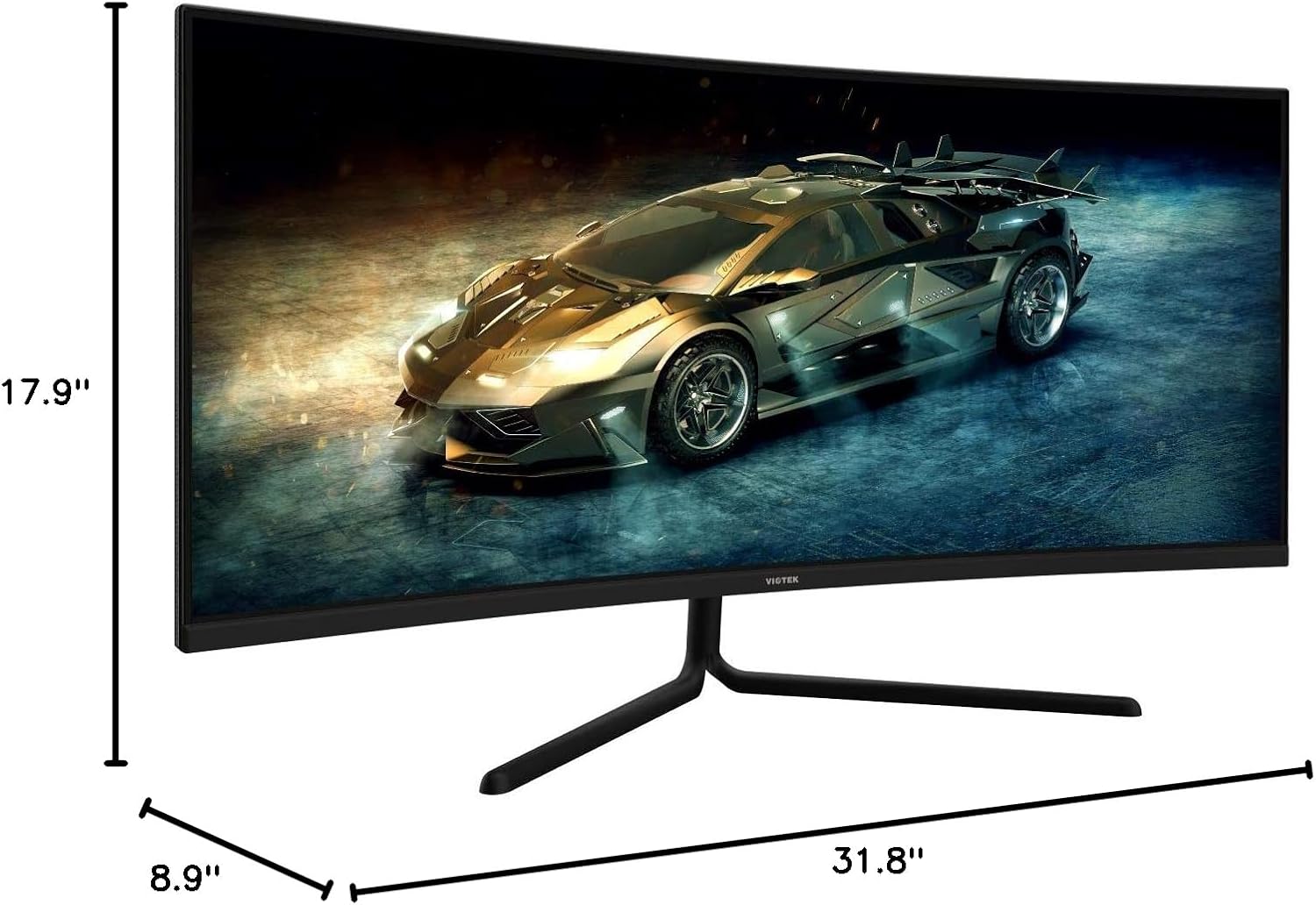
Image: Monitor dimensions are shown as 31.8 inches wide, 17.9 inches high, and 8.9 inches deep, indicating the physical size for placement and VESA compatibility.
3.3 పరికరానికి కనెక్ట్ చేస్తోంది
Connect your computer or other devices to the monitor using the appropriate ports. Ensure the monitor is powered off before making connections.
- డిస్ప్లేపోర్ట్ (DP 1.2): For optimal performance, use the included DisplayPort cable to connect to your graphics card.
- HDMI (HDMI 1.4 / HDMI 2.0): HDMI అవుట్పుట్కు మద్దతు ఇచ్చే పరికరాలకు కనెక్ట్ చేయడానికి HDMI కేబుల్ను ఉపయోగించండి.
- 3.5mm ఆడియో అవుట్: Connect external speakers or headphones to this port for audio output.

చిత్రం: వెనుక భాగం view of the monitor highlighting the available input ports: DisplayPort 1.2, 3.5mm Audio Out, two HDMI 1.4 ports, and one HDMI 2.0 port.
4. ఆపరేటింగ్ సూచనలు
4.1 పవర్ ఆన్/ఆఫ్
మానిటర్ను ఆన్ లేదా ఆఫ్ చేయడానికి దానిపై ఉన్న పవర్ బటన్ను నొక్కండి. మానిటర్ యాక్టివ్గా ఉన్నప్పుడు పవర్ ఇండికేటర్ లైట్ వెలుగుతుంది.
4.2 ఆన్-స్క్రీన్ డిస్ప్లే (OSD) మెనూ
The OSD menu allows you to adjust various monitor settings. Use the control buttons (typically located on the back or bottom of the monitor) to navigate the menu.
- ప్రకాశం/కాంట్రాస్ట్: Adjust display luminance and contrast levels.
- రంగు సెట్టింగ్లు: రంగు ఉష్ణోగ్రత, గామా మరియు వ్యక్తిగత RGB విలువలను సవరించండి.
- ఇన్పుట్ మూలం: Manually select the active input (DP, HDMI 1, HDMI 2, HDMI 3).
- చిత్ర మోడ్: Select from preset display modes optimized for different content types (e.g., Standard, Movie, Game).
- ఓవర్డ్రైవ్: తగ్గిన మోషన్ బ్లర్ కోసం ప్రతిస్పందన సమయాన్ని సర్దుబాటు చేయండి.
4.3 ముఖ్య లక్షణాలు
- AMD ఫ్రీసింక్: This technology synchronizes the monitor's refresh rate with your graphics card's frame rate to eliminate screen tearing and stuttering during gaming. Enable FreeSync in the OSD menu and in your graphics card's control panel.

Image: A visual comparison demonstrating the effect of AMD FreeSync, showing a distorted image when FreeSync is off and a smooth image when FreeSync is on.
- GAMEPLUS: Activate on-screen crosshairs for enhanced aiming accuracy in games.

Image: A gaming scene on the monitor with three different GAMEPLUS crosshair options displayed at the bottom, indicating enhanced aiming features.
- FPS/RTS Optimization: Specific display modes designed to enhance visibility in First-Person Shooter (FPS) and Real-Time Strategy (RTS) games, often by adjusting gamma and contrast in dark areas.
- 1500R వక్రత: The monitor's 1500R curve provides a more immersive viewing experience by matching the natural curvature of the human eye, reducing eye strain and expanding the perceived field of view.

చిత్రం: ఒక ఓవర్ హెడ్ view of the curved monitor on a desk, illustrating the 1500R curvature and its benefit of providing full field of view కవరేజ్.
- UWQHD (3440x1440) Resolution & 21:9 Aspect Ratio: Offers a wide workspace and immersive cinematic experience.

Image: The monitor displaying a vibrant game scene, with an overlay highlighting its 34-inch size, 21:9 aspect ratio, and 3440x1440p UWQHD resolution.
5. స్పెసిఫికేషన్లు
| ఫీచర్ | స్పెసిఫికేషన్ |
|---|---|
| ప్రదర్శన పరిమాణం | 34 అంగుళాలు |
| ప్యానెల్ రకం | VA ప్యానెల్ |
| వక్రత | 1500R |
| రిజల్యూషన్ | 3440x1440p (UWQHD) |
| కారక నిష్పత్తి | 21:9 |
| రిఫ్రెష్ రేట్ | 100Hz |
| ప్రతిస్పందన సమయం | 6ms GTG (5ms Overdrive) |
| Viewing యాంగిల్ | H178° / V178° |
| ప్రదర్శన రంగులు | 16.7 మిలియన్ |
| రంగు స్వరసప్తకం | sRGB: 99%, NTSC: 85% |
| కాంట్రాస్ట్ రేషియో | 3000:1 (Static), 1M:1 (Dynamic) |
| ప్రకాశం | 300 cd/m² |
| VESA అనుకూలత | 75x75mm |
| ఓడరేవులు | 1x DP 1.2, 2x HDMI 1.4, 1x HDMI 2.0, 1x 3.5mm Audio Out |
| టిల్ట్ సర్దుబాటు | -5° ~ 15° |
| కొలతలు (స్టాండ్తో) | 31.8 x 17.9 x 8.9 అంగుళాలు (808.65 x 454.19 x 225.58 మిమీ) |
| బరువు | 15.5 పౌండ్లు (7.02 కిలోలు) |
6. ట్రబుల్షూటింగ్
మీ మానిటర్తో మీకు సమస్యలు ఎదురైతే, ఈ క్రింది సాధారణ సమస్యలు మరియు పరిష్కారాలను చూడండి:
- శక్తి లేదు:
- పవర్ కేబుల్ మానిటర్ మరియు పనిచేసే పవర్ అవుట్లెట్కి సురక్షితంగా కనెక్ట్ చేయబడిందని నిర్ధారించుకోండి.
- పవర్ అడాప్టర్ సరిగ్గా పనిచేస్తుందో లేదో ధృవీకరించండి.
- సంకేతం లేదు:
- Check that the video cable (DP or HDMI) is firmly connected to both the monitor and your computer.
- OSD మెను ద్వారా సరైన ఇన్పుట్ మూలాన్ని ఎంచుకోండి.
- Ensure your computer's graphics card is properly installed and drivers are up to date.
- మినుకుమినుకుమనే తెర:
- Ensure the video cable is not damaged and is properly connected.
- మీ కంప్యూటర్ డిస్ప్లే సెట్టింగ్లలో రిఫ్రెష్ రేట్ను సర్దుబాటు చేయండి.
- Disable or enable FreeSync in the OSD menu and graphics card settings to see if it resolves the issue.
- డెడ్ పిక్సెల్లు:
- Refer to the warranty section for information on Viotek's Zero-Tolerance Dead Pixel Policy.
7. నిర్వహణ
Follow these guidelines to maintain your monitor's performance and appearance:
- స్క్రీన్ క్లీనింగ్: స్క్రీన్ను మృదువైన, మెత్తటి బట్టతో సున్నితంగా తుడవండి. మొండి మచ్చల కోసం, స్క్రీన్కు నేరుగా కాకుండా, వస్త్రానికి వర్తించే మానిటర్-నిర్దిష్ట శుభ్రపరిచే ద్రావణాన్ని ఉపయోగించండి.
- సి ని శుభ్రపరచడంasing: మానిటర్ యొక్క సి ని శుభ్రం చేయడానికి మృదువైన, పొడి వస్త్రాన్ని ఉపయోగించండి.asing. రాపిడి క్లీనర్లు లేదా ద్రావకాలను నివారించండి.
- వెంటిలేషన్: మానిటర్ యొక్క వెంటిలేషన్ ఓపెనింగ్లు వేడెక్కకుండా నిరోధించడానికి మూసుకుపోకుండా చూసుకోండి.
- నిల్వ: ఎక్కువ కాలం ఉపయోగంలో లేనప్పుడు, మానిటర్ను చల్లని, పొడి ప్రదేశంలో, ఆదర్శంగా దాని అసలు ప్యాకేజింగ్లో నిల్వ చేయండి.
8. వారంటీ మరియు మద్దతు
Your VIOTEK GNV34DB monitor is covered by a 3-సంవత్సరం పరిమిత వారంటీ. This warranty includes Viotek's Zero-Tolerance Dead Pixel Policy, ensuring that your display is free from dead pixels upon purchase.

Image: A graphic highlighting the 3-year warranty and Zero Dead Pixel policy for parts and labor.
For warranty claims, technical support, or any inquiries, please contact Viotek customer service. Details can typically be found on the official Viotek webసైట్ లేదా మీ కొనుగోలు డాక్యుమెంటేషన్ ద్వారా.