
1. పరిచయం
This manual provides essential information for setting up, operating, and maintaining your ViewSonic VX2776-SH 27-inch Full HD IPS monitor. Please read these instructions carefully before using the product.
ది ViewSonic VX2776-SH monitor features a 27-inch (68.58 cm) Full HD (1920x1080) IPS display, offering vibrant colors and wide viewing angles. It includes SuperClear IPS Technology, a sleek frameless design, and a 75Hz refresh rate for smooth visuals. Eye-care technologies such as Flicker-Free and a Blue Light Filter are integrated to reduce eye strain. Connectivity options include HDMI and VGA inputs.

మూర్తి 1: ViewSonic VX2776-SH Monitor Overview ముఖ్య లక్షణాలతో
2. ప్యాకేజీ విషయాలు
ప్యాకేజీలో అన్ని అంశాలు ఉన్నాయని నిర్ధారించుకోండి:
- ViewSonic VX2776-SH Monitor x1
- 3-pin Power Plug (IEC C13 / CEE22) x1
- HDMI కేబుల్ (v1.4; పురుష-పురుష) x1
3. సెటప్ సూచనలు
3.1. స్టాండ్ అసెంబ్లీ
మానిటర్ స్టాండ్ను సమీకరించడానికి:
- గీతలు పడకుండా ఉండటానికి మానిటర్ ముఖాన్ని మృదువైన, శుభ్రమైన ఉపరితలంపై జాగ్రత్తగా ఉంచండి.
- Align the triangular base with the stand neck.
- Secure the base to the neck using the provided screw.
- Attach the assembled stand to the back of the monitor by aligning the mounting points and securing it firmly.
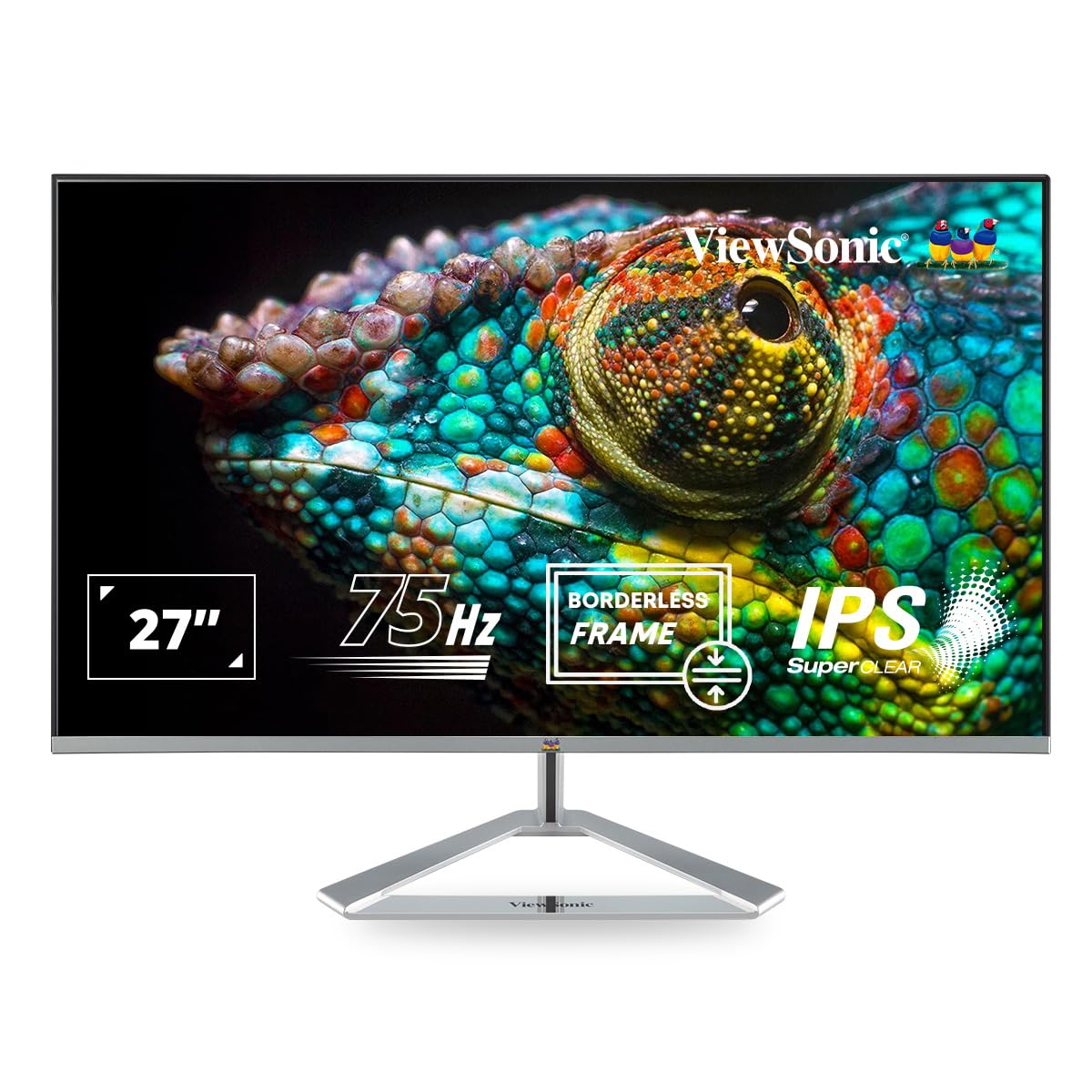
Figure 2: Monitor with Assembled Triangular Stand
3.2. మానిటర్ను కనెక్ట్ చేస్తోంది
ఏదైనా కనెక్షన్లు చేయడానికి ముందు మానిటర్ మరియు మీ కంప్యూటర్ పవర్ ఆఫ్ చేయబడిందని నిర్ధారించుకోండి.
- పవర్ కనెక్షన్: పవర్ కేబుల్ను మానిటర్ యొక్క పవర్ ఇన్పుట్కు మరియు తరువాత పవర్ అవుట్లెట్కు కనెక్ట్ చేయండి.
- వీడియో కనెక్షన్: Connect one end of the HDMI cable (or VGA cable) to the corresponding port on your computer's graphics card and the other end to an HDMI or VGA input port on the monitor. The monitor supports dual HDMI inputs.
- ఆడియో అవుట్పుట్ (ఐచ్ఛికం): If you are using external speakers or headphones, connect them to the monitor's audio out port.

Figure 3: Monitor Connectivity Ports (HDMI, VGA)
3.3. VESA Wall Mount (Optional)
The monitor is VESA mount compatible (100x100mm). To mount the monitor on a wall or monitor arm, remove the stand and attach the VESA-compatible bracket (not included) to the mounting holes on the back of the monitor.

Figure 4: VESA Mounting Area on Monitor Back
4. ఆపరేటింగ్ సూచనలు
4.1. పవర్ ఆన్/ఆఫ్
మానిటర్ను ఆన్ లేదా ఆఫ్ చేయడానికి దాని కుడి దిగువన ఉన్న పవర్ బటన్ను నొక్కండి. మానిటర్ ఆన్లో ఉన్నప్పుడు పవర్ ఇండికేటర్ లైట్ వెలుగుతుంది.
4.2. ఆన్-స్క్రీన్ డిస్ప్లే (OSD) మెనూ
The OSD menu allows you to adjust various display settings. Use the buttons located on the bottom right of the monitor to navigate the menu:
- OSD మెనూను యాక్టివేట్ చేయడానికి ఒక బటన్ను నొక్కండి.
- ఎంపికల ద్వారా కదలడానికి నావిగేషన్ బటన్లను ఉపయోగించండి.
- ఎంపికను నిర్ధారించడానికి ఎంపిక బటన్ను నొక్కండి.
- OSD మెనూను మూసివేయడానికి నిష్క్రమణ బటన్ను నొక్కండి.
4.3 Viewమోడ్ సెట్టింగ్లు
ViewMode provides optimized presets for different screen applications. These presets adjust gamma curve, color temperature, contrast, and brightness to enhance your viewing అనుభవం.
- ఆట: Optimized for gaming visuals.
- సినిమా: Enhanced for video playback.
- Web: Suitable for general web బ్రౌజింగ్.
- వచనం: Ideal for reading documents, reducing eye strain.
- మోనో: Displays content in grayscale.

మూర్తి 5: ViewMode Optimized Settings
4.4. Eye-Care Technology
The monitor incorporates eye-care features to promote comfortable viewing during extended use:
- ఫ్లికర్-ఫ్రీ: Eliminates screen flickering, which can cause eye strain and fatigue.
- బ్లూ లైట్ ఫిల్టర్: Reduces harmful blue light emissions, helping to protect your eyes.

Figure 6: Flicker-Free Technology

Figure 7: Blue Light Filter
4.5. ఎకో మోడ్
Eco Mode helps reduce power consumption and prolong the monitor's lifespan. You can enable or disable this feature through the OSD menu.

Figure 8: Eco Mode Functionality
5. నిర్వహణ
To ensure optimal performance and longevity of your monitor:
- స్క్రీన్ క్లీనింగ్: మెత్తటి, మెత్తటి బట్టతో స్క్రీన్ను సున్నితంగా తుడవండి. మొండి మరకల కోసం, dampస్క్రీన్ క్లీనర్ను తేలికపాటి, రాపిడి లేని వస్త్రంతో తుడవండి. క్లీనర్ను నేరుగా స్క్రీన్పై స్ప్రే చేయవద్దు.
- సి ని శుభ్రపరచడంasing: మానిటర్ను శుభ్రం చేయడానికి మృదువైన, పొడి వస్త్రాన్ని ఉపయోగించండి casing. బలమైన డిటర్జెంట్లు లేదా రాపిడి క్లీనర్లను ఉపయోగించడం మానుకోండి.
- వెంటిలేషన్: మానిటర్లోని వెంటిలేషన్ ఓపెనింగ్లు వేడెక్కకుండా నిరోధించడానికి మూసుకుపోకుండా చూసుకోండి.
- పవర్ ఆఫ్: ఎక్కువసేపు మానిటర్ వాడకంలో లేనప్పుడు ఎల్లప్పుడూ పవర్ ఆఫ్ చేయండి.
6. ట్రబుల్షూటింగ్
మీ మానిటర్తో మీకు సమస్యలు ఎదురైతే, ఈ క్రింది సాధారణ పరిష్కారాలను చూడండి:
| సమస్య | సాధ్యమైన పరిష్కారం |
|---|---|
| తెరపై చిత్రం లేదు |
|
| చిత్రం అస్పష్టంగా లేదా వక్రీకరించబడింది |
|
| బాహ్య స్పీకర్లు/హెడ్ఫోన్ల నుండి శబ్దం లేదు |
|
| Monitor power LED is off |
|
7. స్పెసిఫికేషన్లు
| ఫీచర్ | వివరాలు |
|---|---|
| మోడల్ సంఖ్య | VX2776-SH |
| స్క్రీన్ పరిమాణం | 27 అంగుళాలు (68.58 సెం.మీ.) |
| ప్యానెల్ రకం | IPS |
| స్థానిక రిజల్యూషన్ | 1920 x 1080 (పూర్తి HD) |
| రిఫ్రెష్ రేట్ | 75Hz |
| కారక నిష్పత్తి | 16:9 |
| కనెక్టివిటీ | 2x HDMI (v1.4), 1x VGA |
| కంటి సంరక్షణ లక్షణాలు | Flicker-Free, Blue Light Filter |
| VESA మౌంట్ అనుకూలమైనది | 100x100mm |
| ఉత్పత్తి కొలతలు (LxWxH) | 61.4 x 18.4 x 44.3 సెం.మీ |
| వస్తువు బరువు | 4 కిలోలు |
8. వారంటీ మరియు మద్దతు
For warranty information and technical support, please refer to the warranty card included with your product or visit the official Viewసోనిక్ webసైట్. మీరు కూడా సంప్రదించవచ్చు ViewSonic customer service for assistance with product registration, troubleshooting, and service inquiries.