
Xiaomi XM800010
Xiaomi Mi Dual Mode Wireless Mouse Silent Edition User Manual
మోడల్: XM800010
పరిచయం
The Xiaomi Mi Dual Mode Wireless Mouse Silent Edition is designed for seamless connectivity and quiet operation. This manual provides detailed instructions to help you set up, operate, maintain, and troubleshoot your mouse, ensuring optimal performance and user experience.
ఉత్పత్తి ముగిసిందిview
Familiarize yourself with the components and features of your Xiaomi Mi Dual Mode Wireless Mouse.

మూర్తి 1: కోణీయ view of the Xiaomi Mi Dual Mode Wireless Mouse Silent Edition, showcasing its ergonomic design and black finish.

మూర్తి 2: పై నుండి క్రిందికి view of the mouse, highlighting the scroll wheel and the mode switch button.

మూర్తి 3: దిగువన view of the mouse, showing the power switch, mode switch button, and the battery compartment cover.

మూర్తి 4: The mouse positioned next to a laptop, illustrating its compact size and suitability for various workspaces.
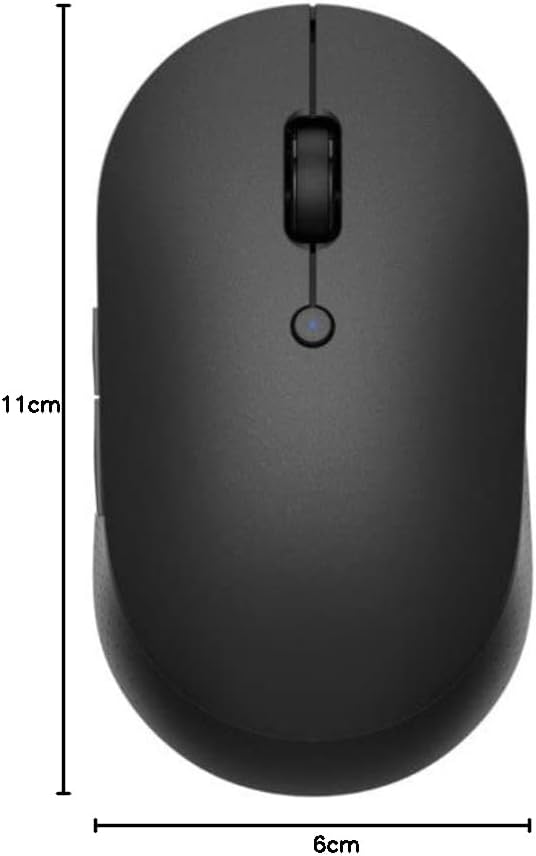
మూర్తి 5: Visual representation of the mouse dimensions, approximately 11 cm in length and 6 cm in width.
సెటప్
1. బ్యాటరీ ఇన్స్టాలేషన్
The mouse requires two AAA batteries (not included). Follow these steps to install them:
- Locate the battery compartment cover on the bottom of the mouse (refer to Figure 3).
- కవర్ని స్లైడ్ చేయండి.
- Insert two AAA batteries, ensuring correct polarity (+ మరియు −) కంపార్ట్మెంట్ లోపల సూచించినట్లు.
- బ్యాటరీ కంపార్ట్మెంట్ కవర్ను సురక్షితంగా మూసివేయండి.
2. పవర్ చేయడం
On the bottom of the mouse, slide the power switch to the "ON" position.
3. మీ పరికరానికి కనెక్ట్ చేస్తోంది
The Xiaomi Mi Dual Mode Wireless Mouse supports two connection modes: 2.4GHz RF (via USB receiver) and Bluetooth LE 4.0.
3.1. 2.4GHz RF Connection (USB Receiver)
- Locate the USB receiver inside the battery compartment.
- USB రిసీవర్ను తొలగించండి.
- మీ కంప్యూటర్లో అందుబాటులో ఉన్న USB పోర్ట్కి USB రిసీవర్ని ప్లగ్ చేయండి.
- Ensure the mouse is in 2.4GHz mode. Press the mode switch button on the bottom of the mouse until the indicator light turns green (refer to Figure 3 for button location).
- Your computer should automatically detect and install the necessary drivers. The mouse is ready for use.
3.2. బ్లూటూత్ కనెక్షన్
- మీ కంప్యూటర్లో బ్లూటూత్ ప్రారంభించబడిందని నిర్ధారించుకోండి.
- Press the mode switch button on the bottom of the mouse until the indicator light turns blue (refer to Figure 3 for button location).
- Press and hold the mode switch button for 3 seconds until the blue light starts blinking rapidly. This indicates pairing mode.
- మీ కంప్యూటర్లో, బ్లూటూత్ సెట్టింగ్లకు వెళ్లి కొత్త పరికరాల కోసం శోధించండి.
- Select "Mi Mouse Silent Edition" (or similar) from the list of available devices and click "Pair" or "Connect".
- Once paired, the blue light on the mouse will stop blinking and remain solid for a few seconds before turning off. The mouse is now connected.
ఆపరేటింగ్ సూచనలు
ప్రాథమిక విధులు
- ఎడమ క్లిక్ చేయండి: ప్రాథమిక ఎంపిక మరియు క్రియాశీలత.
- కుడి క్లిక్ చేయండి: సందర్భ మెనులను తెరుస్తుంది.
- స్క్రోల్ వీల్: Scrolls content vertically. Pressing the scroll wheel acts as a middle click.
- సైడ్ బటన్లు: The mouse features two side buttons, typically configured for "Forward" and "Back" navigation in web బ్రౌజర్లు మరియు file అన్వేషకులు.
Switching Between Devices (Dual Mode)
The dual-mode feature allows you to seamlessly switch between two connected devices (one via 2.4GHz RF and one via Bluetooth). Simply press the mode switch button on the bottom of the mouse to toggle between the green (2.4GHz) and blue (Bluetooth) connection modes.
DPI (అంగుళానికి చుక్కలు)
The mouse operates at a resolution of 1200 DPI, providing precise and smooth cursor movement for most tasks.
నిర్వహణ
క్లీనింగ్
- To clean the mouse, use a soft, dry, lint-free cloth.
- మొండి ధూళికి, కొద్దిగా dampen the cloth with water or a mild, non-abrasive cleaner. Do not spray cleaner directly onto the mouse.
- Avoid using harsh chemicals, solvents, or abrasive materials, as these can damage the surface.
- Regularly clean the optical sensor on the bottom of the mouse to ensure accurate tracking.
బ్యాటరీ భర్తీ
When the mouse performance degrades or the indicator light flashes, it may be time to replace the batteries. Follow the "Battery Installation" steps in the Setup section to replace the two AAA batteries.
నిల్వ
When not in use for extended periods, turn off the mouse using the power switch on the bottom to conserve battery life. Store the mouse in a cool, dry place away from direct sunlight and extreme temperatures.
ట్రబుల్షూటింగ్
| సమస్య | సాధ్యమైన కారణం | పరిష్కారం |
|---|---|---|
| మౌస్ స్పందించడం లేదు | Low battery; Mouse is off; Incorrect connection mode; USB receiver not plugged in (for 2.4GHz); Bluetooth not paired. | Replace batteries; Turn on the mouse; Switch to correct mode (green for 2.4GHz, blue for Bluetooth); Plug in USB receiver; Re-pair Bluetooth. |
| కర్సర్ కదలిక అస్తవ్యస్తంగా లేదా దూకుతూ ఉంది | మురికి ఆప్టికల్ సెన్సార్; అనుచితమైన ఉపరితలం; జోక్యం. | Clean the optical sensor; Use on a clean, non-reflective surface (e.g., mouse pad); Move mouse closer to receiver/device; Reduce other wireless interference. |
| పరికరాల మధ్య మారలేరు | Mode switch button not pressed correctly; One mode not properly connected. | Ensure a firm press on the mode switch button; Verify both 2.4GHz and Bluetooth connections are established. |
| తక్కువ బ్యాటరీ జీవితం | Frequent usage; Low-quality batteries; Mouse left on when not in use. | Use high-quality alkaline batteries; Turn off mouse when not in use. |
స్పెసిఫికేషన్లు
- మోడల్: XM800010
- కనెక్టివిటీ: Dual Mode (2.4GHz RF via USB receiver, Bluetooth LE 4.0)
- DPI: 1200 dpi
- బటన్లు: 4 (Left, Right, Scroll Wheel/Middle, Side 1, Side 2)
- పరిధి: 10 మీటర్ల వరకు (బ్లూటూత్)
- శక్తి: 2 x AAA బ్యాటరీలు
- కొలతలు: సుమారు 11 x 6 x 3.5 సెం.మీ
- బరువు: సుమారు 56 గ్రా (బ్యాటరీలు లేకుండా)
- మెటీరియల్: ABS plastic, aluminum alloy (scroll wheel)
- ఆపరేటింగ్ సిస్టమ్ అనుకూలత: Windows, macOS, Linux, Android, iPadOS (Bluetooth dependent)
వారంటీ మరియు మద్దతు
వారంటీ సమాచారం మరియు సాంకేతిక మద్దతు కోసం, దయచేసి అధికారిక Xiaomi వెబ్సైట్ను చూడండి. webమీ స్థానిక Xiaomi అధీకృత సేవా కేంద్రాన్ని సంప్రదించండి లేదా సంప్రదించండి. వారంటీ క్లెయిమ్ల కోసం కొనుగోలు రుజువుగా మీ కొనుగోలు రసీదును ఉంచండి.
ఆన్లైన్ మద్దతు: Visit Xiaomi Global Support
Ask a question about this manual
Ask about setup, troubleshooting, compatibility, parts, safety, or missing instructions. Manuals+ will review the question and use this page’s manual context to help answer it.