
ముఖ్యమైన భద్రతా సమాచారం
Please read these safety instructions carefully before using your GIGABYTE G27QC monitor. Keep this manual for future reference.
- అగ్ని లేదా షాక్ ప్రమాదాలను నివారించడానికి మానిటర్ను వర్షం లేదా తేమకు గురిచేయవద్దు.
- మానిటర్ తెరవవద్దు casing. లోపల వినియోగదారు-సేవ చేయగల భాగాలు లేవు. అన్ని సర్వీసింగ్లను అర్హత కలిగిన సేవా సిబ్బందికి సూచించండి.
- సరైన వెంటిలేషన్ ఉండేలా చూసుకోండి. వెంటిలేషన్ ఓపెనింగ్లను బ్లాక్ చేయవద్దు.
- Use only the power adapter and cables provided by GIGABYTE.
- పడిపోకుండా నిరోధించడానికి మానిటర్ను స్థిరమైన, చదునైన ఉపరితలంపై ఉంచండి.
- మెరుపు తుఫానుల సమయంలో లేదా ఎక్కువసేపు ఉపయోగించనప్పుడు పవర్ అవుట్లెట్ నుండి మానిటర్ను అన్ప్లగ్ చేయండి.
- Clean the screen with a soft, lint-free cloth. Avoid using liquid cleaners directly on the screen.
సెటప్ గైడ్
ప్యాకేజీ విషయాలు
ప్యాకేజీలో అన్ని అంశాలు ఉన్నాయని నిర్ధారించుకోండి:
- GIGABYTE G27QC Monitor
- పవర్ కేబుల్
- HDMI కేబుల్
- డిస్ప్లేపోర్ట్ (DP) కేబుల్
- USB cable (Type-B to Type-A)
- త్వరిత ప్రారంభ గైడ్ (QSG)
- వారంటీ కార్డ్
అసెంబ్లీ సూచనలు
Follow these steps to assemble the monitor stand and base:
- మానిటర్ను దాని ప్యాకేజింగ్ నుండి జాగ్రత్తగా తీసివేయండి, దానిని సురక్షితంగా ఉంచండి.
- స్టాండ్ మెడను మానిటర్ ప్యానెల్కు అటాచ్ చేయండి. అది సురక్షితంగా క్లిక్ అయ్యేలా చూసుకోండి.
- Attach the base to the stand neck and tighten the screws to secure it.
- అమర్చబడిన మానిటర్ను స్థిరమైన, చదునైన ఉపరితలంపై ఉంచండి.

చిత్రం: వెనుక view of the GIGABYTE G27QC monitor showing the stand attachment.

చిత్రం: సైడ్ ప్రోfile of the GIGABYTE G27QC monitor, illustrating its slim design and stand.
మానిటర్ను కనెక్ట్ చేస్తోంది
మానిటర్ను మీ కంప్యూటర్ మరియు పవర్ సోర్స్కు కనెక్ట్ చేయండి:
- పవర్ కేబుల్ను మానిటర్ యొక్క పవర్ ఇన్పుట్కు మరియు తరువాత పవర్ అవుట్లెట్కు కనెక్ట్ చేయండి.
- For video input, connect either the DisplayPort cable (for 165Hz at 1440p) or an HDMI cable (for up to 144Hz at 1440p) from your computer's graphics card to the corresponding port on the monitor.
- Connect the USB cable (Type-B end to the monitor, Type-A end to your computer) to enable the monitor's USB 3.0 hub and OSD Sidekick software functionality.

చిత్రం: వెనుక view of the GIGABYTE G27QC monitor, highlighting the various input ports for connectivity.
మానిటర్ ఆపరేటింగ్
పవర్ ఆన్/ఆఫ్
మానిటర్ను ఆన్ లేదా ఆఫ్ చేయడానికి దానిపై ఉన్న పవర్ బటన్ను నొక్కండి. మానిటర్ యాక్టివ్గా ఉన్నప్పుడు పవర్ ఇండికేటర్ లైట్ వెలుగుతుంది.
ఆన్-స్క్రీన్ డిస్ప్లే (OSD) నావిగేషన్
The monitor features an intuitive OSD menu for adjusting settings. Use the joystick/buttons on the back or bottom of the monitor to navigate the menu. Alternatively, install the GIGABYTE OSD Sidekick software on your PC for convenient adjustments via your mouse and keyboard.

Image: Screenshot of the GIGABYTE OSD Sidekick software interface, allowing PC-based control of monitor settings.
డిస్ప్లే సెట్టింగ్లను సర్దుబాటు చేస్తోంది
Key settings to adjust for optimal performance:
- రిజల్యూషన్: Set to 2560x1440 for native QHD display.
- రిఫ్రెష్ రేట్: Ensure your graphics card output is set to 165Hz for the smoothest experience.
- AMD ఫ్రీసింక్ ప్రీమియం ప్రో: Enable this feature in both the monitor OSD and your graphics card control panel for tear-free gaming.
- రంగు సెట్టింగ్లు: Adjust brightness, contrast, gamma, and color temperature to your preference. The monitor supports 92% DCI-P3 (120% sRGB) color gamut.
- HDR: Enable HDR in your operating system and monitor settings for compatible content.
- Tactical Features: Explore features like Aim Stabilizer, Black Equalizer, and Dashboard through the OSD or OSD Sidekick for enhanced gaming.

Image: Illustration of the Aim Stabilizer feature, designed to reduce motion blur in fast-paced games.

Image: Visual representation of the Black Equalizer feature, enhancing visibility in dark areas without overexposing bright ones.

Image: Display of the Dashboard feature, showing real-time hardware information on screen.
ఎర్గోనామిక్ సర్దుబాట్లు
మానిటర్ స్టాండ్ ఎర్గోనామిక్ సర్దుబాట్లను అనుమతిస్తుంది:
- వంపు: సౌకర్యవంతంగా ఉండటానికి స్క్రీన్ యొక్క నిలువు కోణాన్ని సర్దుబాటు చేయండి viewing.
- ఎత్తు: Raise or lower the monitor to eye level to reduce neck strain.
- వెసా మౌంట్: The monitor is compatible with 100x100mm VESA mounts for alternative mounting solutions.
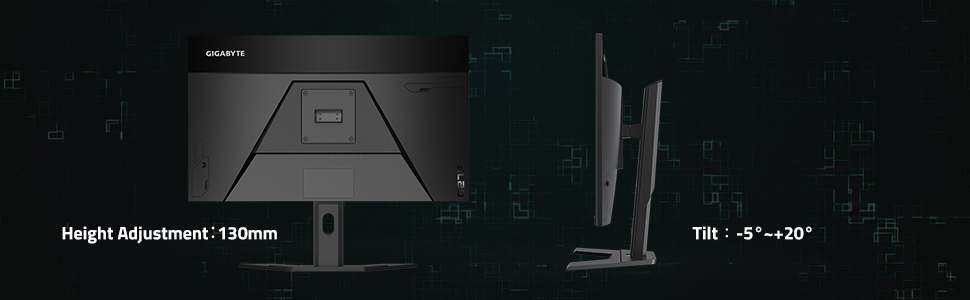
Image: Diagram illustrating the ergonomic tilt and height adjustment capabilities of the monitor stand.
నిర్వహణ
మానిటర్ శుభ్రపరచడం
మానిటర్ స్క్రీన్ను శుభ్రం చేయడానికి మరియు సిasing:
- శుభ్రపరిచే ముందు మానిటర్ను ఎల్లప్పుడూ అన్ప్లగ్ చేయండి.
- కొద్దిగా మెత్తని, మెత్తని బట్టను ఉపయోగించండి dampనీరు లేదా రాపిడి లేని స్క్రీన్ క్లీనర్తో శుభ్రం చేయండి.
- స్క్రీన్పై లేదా ఏదైనా రంధ్రాలలోకి నేరుగా ద్రవాన్ని పిచికారీ చేయవద్దు.
- Avoid using benzene, thinner, ammonia-based cleaners, or abrasive pads.
నిల్వ
When storing the monitor for an extended period, ensure it is powered off, unplugged, and stored in a cool, dry place away from direct sunlight and extreme temperatures. Use original packaging if available for best protection.
ట్రబుల్షూటింగ్
మీ మానిటర్తో మీకు సమస్యలు ఎదురైతే, ఈ క్రింది సాధారణ సమస్యలు మరియు పరిష్కారాలను చూడండి:
పవర్ లేదు
- పవర్ కేబుల్ మానిటర్ మరియు పవర్ అవుట్లెట్ రెండింటికి సురక్షితంగా కనెక్ట్ చేయబడిందో లేదో తనిఖీ చేయండి.
- పవర్ అవుట్లెట్ సరిగ్గా పని చేస్తుందో లేదో తనిఖీ చేయండి.
- మానిటర్ యొక్క పవర్ బటన్ నొక్కినట్లు నిర్ధారించుకోండి.
సిగ్నల్ లేదు / ఖాళీ స్క్రీన్
- Confirm that the video cable (DisplayPort or HDMI) is securely connected to both the monitor and your computer's graphics card.
- మీ కంప్యూటర్ ఆన్ చేయబడి ఉందని మరియు స్లీప్ మోడ్లో లేదని నిర్ధారించుకోండి.
- Try a different video input port on the monitor and select it via the OSD menu.
- Test with a different video cable if possible.
Flickering or Distorted Image
- వీడియో కేబుల్ దెబ్బతింటుందో లేదా వదులుగా ఉందో లేదో తనిఖీ చేయండి.
- మీ గ్రాఫిక్స్ కార్డ్ డ్రైవర్లు తాజాగా ఉన్నాయని నిర్ధారించుకోండి.
- Adjust the refresh rate in your operating system display settings.
- Disable AMD FreeSync Premium Pro temporarily to see if it resolves the issue.
Ghosting or Motion Blur
- Adjust the "Overdrive" or "Response Time" setting in the monitor's OSD menu. Experiment with different levels (e.g., "Balanced") to find the optimal setting for your usage.
- Ensure the refresh rate is set correctly.
సాంకేతిక లక్షణాలు
| ఫీచర్ | స్పెసిఫికేషన్ |
|---|---|
| మోడల్ | G27QC |
| స్క్రీన్ పరిమాణం | 27 అంగుళాలు |
| ప్యానెల్ రకం | VA డిస్ప్లే |
| రిజల్యూషన్ | 2560 x 1440 (QHD) |
| రిఫ్రెష్ రేట్ | 165Hz |
| ప్రతిస్పందన సమయం | 1ms (MPRT) |
| వక్రత | Native 1500R |
| రంగు స్వరసప్తకం | 92% DCI-P3 / 120% sRGB |
| HDR మద్దతు | HDR సిద్ధంగా ఉంది |
| అనుకూల సమకాలీకరణ | AMD ఫ్రీసింక్ ప్రీమియం ప్రో |
| వీడియో ఇన్పుట్లు | 1x డిస్ప్లేపోర్ట్ 1.4, 2x HDMI 2.0 |
| USB పోర్ట్లు | 2x USB 3.0 |
| వక్తలు | 2 x 2W |
| వెసా మౌంట్ | 100x100mm |
| కొలతలు (LxWxH) | 14.54 x 24.17 x 2.89 అంగుళాలు (స్టాండ్ లేకుండా) |
| బరువు | 20.9 పౌండ్లు |

Image: Diagram showing the physical dimensions of the GIGABYTE G27QC monitor.
వారంటీ మరియు మద్దతు
వారంటీ సమాచారం
The GIGABYTE G27QC monitor typically comes with a 3 సంవత్సరాల వారంటీ covering both labor and parts. Please refer to the included warranty card for specific terms, conditions, and registration details applicable to your region.
కస్టమర్ మద్దతు
For further assistance, technical support, or to download the latest drivers and OSD Sidekick software, please visit the official GIGABYTE webసైట్:
You may also find helpful resources and FAQs on the product support page for your specific model.