
పరిచయం
This manual provides instructions for the MICROWARE HDMI USB Audio Game Capture Card. This device allows you to capture HDMI video and audio signals from various sources and transfer them to your computer via USB 2.0 for recording, streaming, or live broadcasting. It supports input resolutions up to 3840x2160@30Hz and output resolutions up to 1920x1080@30Hz.

Image: The MICROWARE HDMI USB Audio Game Capture Card, a compact black device with HDMI input and USB output ports.

Image: The capture card highlighting its features: pure hardware, small size, easy to carry, and suitability for game live broadcasts. Icons indicate HDMI cable, USB port, HD resolution, and wide applicability.
సెటప్ గైడ్
The MICROWARE HDMI USB Audio Game Capture Card is designed for plug-and-play operation, requiring no driver installation for most operating systems.

Image: A diagram illustrating the 'plug and play' nature of the capture card, showing it connected to a laptop and various use cases like webcam, gaming, and video conferencing.
ప్యాకేజీ విషయాలు
- 1 x MICROWARE HDMI USB Audio Game Capture Card
కనెక్షన్ దశలు
- Connect your HDMI source device (e.g., camcorder, game console, TV box, phone, DSLR) to the HDMI input port of the capture card using an HDMI cable.
- Connect the USB output port of the capture card to a USB 2.0 port on your computer (Windows, macOS, or Linux).
- Your computer should automatically recognize the capture card as a video and audio input device.
- Open your preferred video acquisition software (e.g., OBS Studio, VLC, Amcap) and select the capture card as your video and audio input source.

Image: Diagram illustrating how to connect various HDMI input devices (Video Recorder, Webcam, TV Box, Game Player, Phone) to the capture card's HDMI input, and the capture card's USB output to a computer.
Supported Operating Systems and Software
The capture card supports Windows (WIN10, WIN8.1, WIN8, WIN7), macOS, and Linux operating systems. It is compatible with most acquisition software that supports USB Video Class (UVC) and USB Audio Class (UAC) standards, including:
- OBS స్టూడియో
- VLC మీడియా ప్లేయర్
- ఆమ్కాప్
- Zoom (for video conferencing)
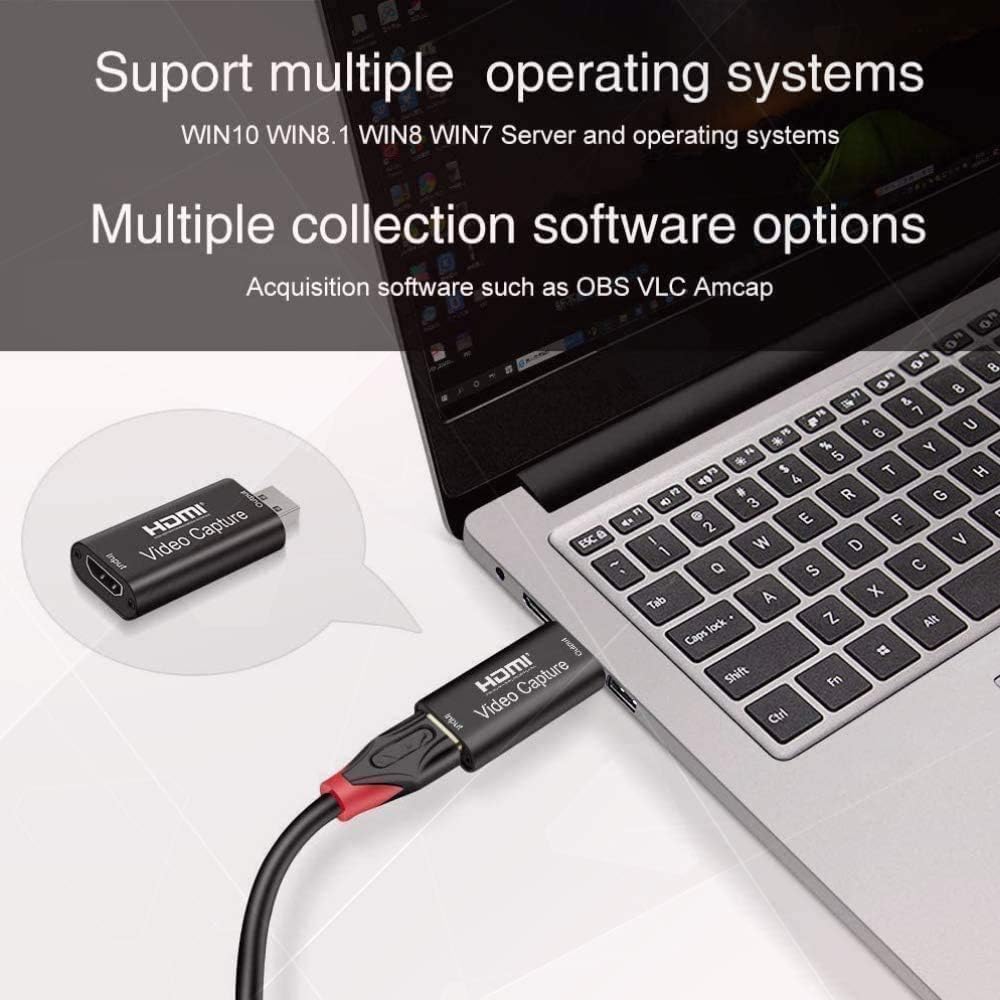
Image: The capture card connected to a laptop, with text indicating support for multiple operating systems (Windows, Mac, Linux) and acquisition software like OBS, VLC, and Amcap.
ఆపరేటింగ్ సూచనలు
Once connected, the capture card functions as a bridge between your HDMI source and your computer.
a గా ఉపయోగించడం Webకెమెరా
You can use a DSLR camera, camcorder, or action camera as a professional webcam for your PC or Mac. Connect the camera's HDMI output to the capture card's HDMI input, then connect the capture card to your computer's USB port. In your video conferencing or streaming software, select the capture card as your camera source.
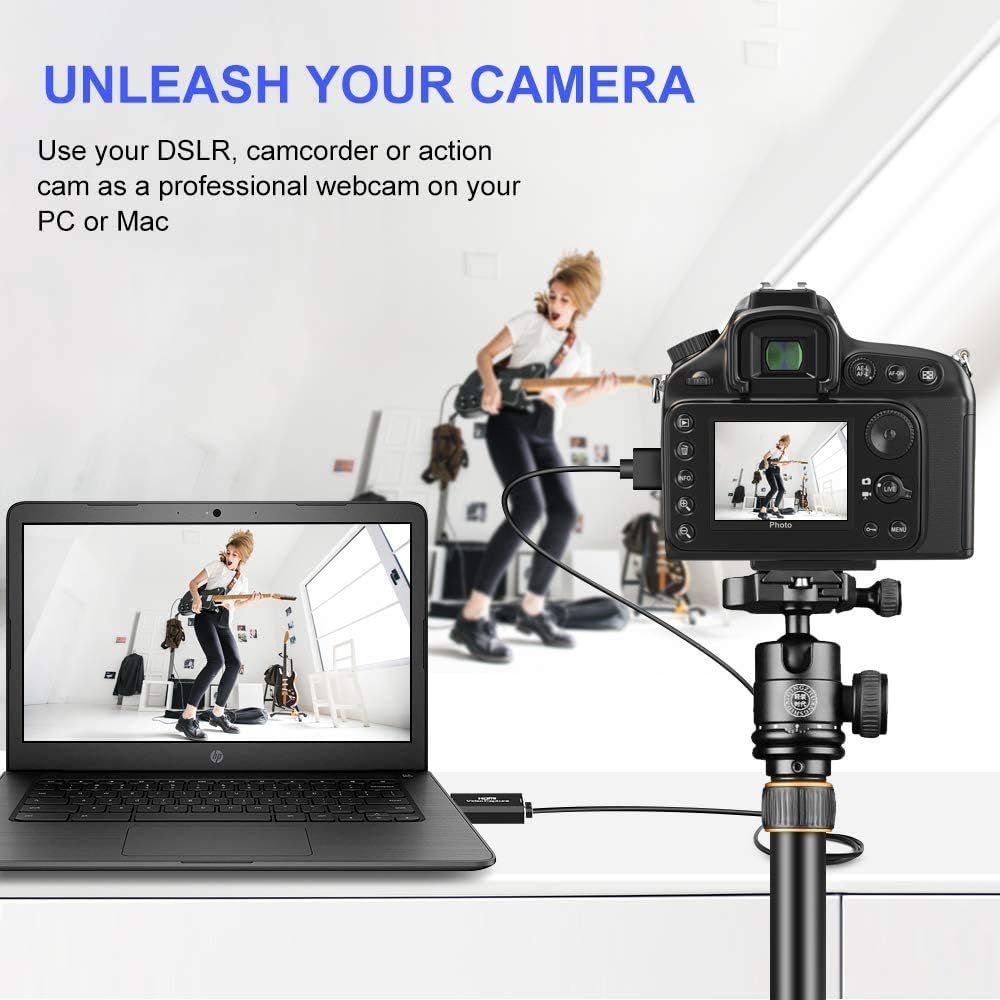
Image: A DSLR camera mounted on a tripod, connected via HDMI to the capture card, which is then connected to a laptop, demonstrating its use as a professional webకామ్.
గేమింగ్ మరియు స్ట్రీమింగ్
Connect your game console (e.g., Xbox) to the HDMI input of the capture card. The card will transfer the game's video and audio to your computer, allowing you to record gameplay or stream live through compatible software. The USB 2.0 interface ensures smooth transfer for online and standalone games.

Image: A visual depicting the capture card's use in gaming, with a focus on smooth effects and HD capture quality.
వీడియో మరియు ఆడియో స్పెసిఫికేషన్లు
- ఇన్పుట్ రిజల్యూషన్: Supports a maximum input resolution of 3840x2160 at 30Hz.
- అవుట్పుట్ రిజల్యూషన్: Supports a maximum output resolution of 1920x1080 at 30Hz.
- రంగు లోతు: 8/10/12-బిట్ లోతైన రంగుకు మద్దతు ఇస్తుంది.
- HDMI కేబుల్ పొడవు: Supports AWG26 HDMI standard cable up to 15 meters (for 1080P and lower resolutions).
- విద్యుత్ సరఫరా: Operates without an external power supply.
నిర్వహణ
To ensure the longevity and optimal performance of your capture card, follow these general maintenance guidelines:
- పరికరాన్ని శుభ్రంగా మరియు దుమ్ము లేకుండా ఉంచండి. శుభ్రం చేయడానికి మృదువైన, పొడి వస్త్రాన్ని ఉపయోగించండి.
- పరికరాన్ని తీవ్రమైన ఉష్ణోగ్రతలు, తేమ లేదా ప్రత్యక్ష సూర్యకాంతికి బహిర్గతం చేయకుండా ఉండండి.
- Do not drop or subject the device to physical shock.
- ఉపయోగంలో లేనప్పుడు పరికరాన్ని చల్లని, పొడి ప్రదేశంలో నిల్వ చేయండి.
- పరికరం వేడెక్కకుండా నిరోధించడానికి ఆపరేషన్ సమయంలో దాని చుట్టూ సరైన వెంటిలేషన్ ఉండేలా చూసుకోండి.
ట్రబుల్షూటింగ్
If you encounter issues with your MICROWARE HDMI USB Audio Game Capture Card, refer to the following common problems and solutions:
- No Signal/Device Not Recognized:
- అన్ని HDMI మరియు USB కేబుల్లు సురక్షితంగా కనెక్ట్ చేయబడ్డాయని నిర్ధారించుకోండి.
- మీ కంప్యూటర్లో వేరే USB పోర్ట్ని ప్రయత్నించండి.
- Test with a different HDMI cable or source device to rule out cable/source issues.
- మీ కంప్యూటర్ మరియు సోర్స్ పరికరాన్ని పునఃప్రారంభించండి.
- Verify that your operating system and software are up to date.
- Video Lag or Choppy Playback:
- వీడియో క్యాప్చర్ మరియు స్ట్రీమింగ్ కోసం మీ కంప్యూటర్ కనీస సిస్టమ్ అవసరాలను తీరుస్తుందని నిర్ధారించుకోండి.
- Close unnecessary applications running in the background to free up system resources.
- Check the USB port. While the device is USB 2.0, using a higher bandwidth port (if available) or a different USB 2.0 port might help.
- Reduce the output resolution or frame rate in your capture software settings.
- వేడెక్కడం:
- పరికరానికి తగినంత వెంటిలేషన్ ఉందని మరియు దానిని కప్పి ఉంచలేదని నిర్ధారించుకోండి.
- Avoid prolonged continuous use if overheating is a persistent issue.
- Consider using a USB extender if the device is tightly packed with other USB peripherals, as mentioned in some user feedback.
- ఆడియో లేదు:
- Check audio settings in your capture software to ensure the capture card's audio input is selected.
- Verify that the HDMI source device is outputting audio.
- మీ కంప్యూటర్ ఆడియో డ్రైవర్లు తాజాగా ఉన్నాయని నిర్ధారించుకోండి.
స్పెసిఫికేషన్లు
| బ్రాండ్ | మైక్రోవేర్ |
| మోడల్ సంఖ్య | MMPL-HDMITOUSB3.0VDOCAPTURE |
| హార్డ్వేర్ ఇంటర్ఫేస్ | యుఎస్బి 2.0, హెచ్డిఎంఐ |
| ఇన్పుట్ రిజల్యూషన్ | Up to 3840x2160@30Hz |
| అవుట్పుట్ రిజల్యూషన్ | Up to 1920x1080@30Hz |
| రంగు లోతు | 8/10/12-బిట్ డీప్ కలర్ |
| మద్దతు ఉన్న ఆపరేటింగ్ సిస్టమ్స్ | Windows (WIN10, WIN8.1, WIN8, WIN7), macOS, Linux |
| సిఫార్సు చేసిన ఉపయోగాలు | Video Recording, Live Streaming, Video Conferencing |
| వస్తువు బరువు | 0.634 ఔన్సులు (సుమారు 18 గ్రాములు) |
| ఉత్పత్తి కొలతలు (LxWxH) | 2.36 x 3.15 x 1.18 అంగుళాలు (సుమారు 6 x 8 x 3 సెం.మీ) |
| విద్యుత్ సరఫరా | బాహ్య శక్తి అవసరం లేదు |
| మొదటి తేదీ అందుబాటులో ఉంది | జూలై 7, 2020 |

Image: A summary of the capture card's features including supported resolutions, deep color, cable length, software compatibility, and compact design.
వారంటీ మరియు మద్దతు
For specific warranty information, please refer to the documentation provided at the time of purchase or contact your retailer.
For technical support or further assistance, please contact MICROWARE customer service through the platform where the product was purchased.