
పరిచయం
Thank you for choosing the iClever BK10 Bluetooth Wireless Keyboard. This manual provides detailed instructions on how to set up, operate, and maintain your keyboard to ensure optimal performance. Please read this manual carefully before use and retain it for future reference.
ప్యాకేజీ విషయాలు
- iClever BK10 బ్లూటూత్ వైర్లెస్ కీబోర్డ్
- USB ఛార్జింగ్ కేబుల్
- వినియోగదారు మాన్యువల్
స్పెసిఫికేషన్లు
| బ్రాండ్ | iClever |
| మోడల్ సంఖ్య | BK10 |
| కనెక్టివిటీ టెక్నాలజీ | బ్లూటూత్ |
| అనుకూల పరికరాలు | Android 9+, ChromeOS (BT 4.0+), Windows 10/11, iPadOS 13.4+, macOS 10.15+ |
| కీబోర్డ్ లేఅవుట్ | అజర్టీ |
| కీల సంఖ్య | 78 |
| స్విచ్ రకం | కత్తెర స్విచ్ |
| శక్తి మూలం | బ్యాటరీ ఆధారితమైనది |
| ఉత్పత్తి కొలతలు | 43L x 14W x 2.5H సెంటీమీటర్లు |
| అంతర్గత పదార్థం | యాక్రిలోనిట్రైల్ బుటాడిన్ స్టైరిన్, స్టెయిన్లెస్ స్టీల్ |
సెటప్
1. ప్రారంభ ఛార్జింగ్
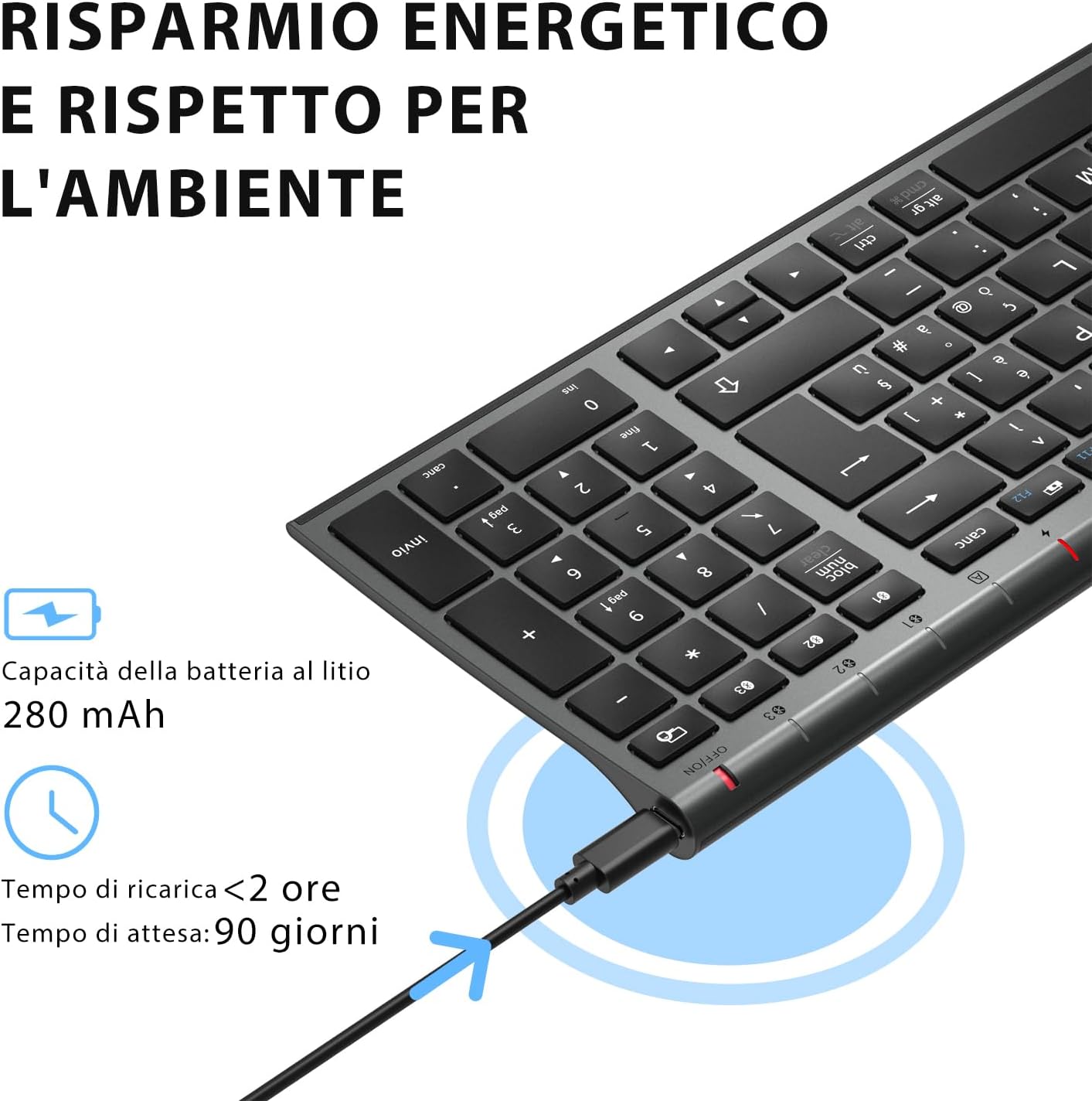
Before first use, fully charge the keyboard. Connect the provided USB charging cable to the keyboard's USB-C port and the other end to a USB power source (e.g., computer, wall adapter). The charging indicator light will show charging status and turn off when fully charged.

The iClever BK10 keyboard connected via USB-C for charging. This image details the 280 mAh lithium battery capacity, a charging time of less than 2 hours, and a standby time of 90 days.
2. పవర్ ఆన్/ఆఫ్
Locate the power switch on the keyboard. Slide the switch to the 'ON' position to power on the keyboard. Slide it to the 'OFF' position when not in use to conserve battery.
3. బ్లూటూత్ పెయిరింగ్
The iClever BK10 keyboard supports connection to up to three devices simultaneously.
- పవర్ స్విచ్ ఉపయోగించి కీబోర్డ్ను ఆన్ చేయండి.
- నొక్కండి Fn బ్లూటూత్ ఛానల్ కీలలో ఒకదానితో ఏకకాలంలో కీ (BT1, BT2, లేదా BT3) to select a channel.
- Press and hold the selected Bluetooth channel key (e.g., BT1) for 3-5 seconds until the indicator light for that channel starts blinking rapidly. This indicates the keyboard is in pairing mode.
- On your device (computer, tablet, smartphone), enable Bluetooth and search for available devices.
- Select "iClever BK10" (or similar name) from the list of found devices.
- Follow any on-screen prompts to complete the pairing process. The indicator light will stop blinking and remain solid for a few seconds, then turn off, indicating a successful connection.

The iClever BK10 keyboard demonstrating its ability to connect to an iPad, MacBook, and iPhone via three distinct Bluetooth channels. The image also illustrates key mapping for Windows/Android (Alt/Cmd) and iPad/Mac (Alt/Cmd) operating systems.
కీబోర్డ్ను నిర్వహించడం
1. Switching Between Paired Devices
మీ జత చేసిన పరికరాల మధ్య మారడానికి, కేవలం నొక్కండి Fn సంబంధిత బ్లూటూత్ ఛానల్ కీతో పాటు కీ (BT1, BT2, లేదా BT3) that your device is paired to. The keyboard will automatically connect to the selected device.
2. Function Keys (Fn)
The keyboard features a row of function keys (F1-F12) that also serve as multimedia and shortcut keys. To use the secondary function of these keys, press and hold the Fn key while pressing the desired function key.
3. ఆపరేటింగ్ సిస్టమ్ అనుకూలత
The iClever BK10 keyboard is designed to be compatible with various operating systems. Key functions may adapt slightly depending on the connected OS. For optimal performance, ensure your device's Bluetooth version is 4.0 or higher.

Close-up of the iClever BK10 keyboard with a hand typing, highlighting the low-profile keys and scissor switch mechanism designed for quiet and comfortable typing.
నిర్వహణ
1. శుభ్రపరచడం
To clean your keyboard, power it off and disconnect it from any devices. Use a soft, lint-free cloth slightly dampened with water or a mild cleaning solution. Avoid using harsh chemicals, abrasives, or excessive moisture. Do not spray cleaners directly onto the keyboard.
2. బ్యాటరీ సంరక్షణ
To prolong the battery life of your keyboard:
- Charge the keyboard fully before its first use.
- బ్యాటరీని తరచుగా పూర్తిగా ఖాళీ చేయడాన్ని నివారించండి.
- కీబోర్డ్ను ఎక్కువసేపు ఉపయోగించనప్పుడు చల్లని, పొడి ప్రదేశంలో నిల్వ చేయండి.
- Turn off the keyboard when transporting it or when not in use to prevent accidental key presses and battery drain.
ట్రబుల్షూటింగ్
1. Keyboard Not Connecting/Pairing
- కీబోర్డ్ ఆన్ చేయబడిందని మరియు పూర్తిగా ఛార్జ్ చేయబడిందని నిర్ధారించుకోండి.
- మీ పరికరంలో బ్లూటూత్ ప్రారంభించబడిందని నిర్ధారించుకోండి.
- కీబోర్డ్ జత చేసే మోడ్లో ఉందని నిర్ధారించుకోండి (సూచిక కాంతి మెరిసిపోతోంది).
- మీ పరికరం బ్లూటూత్ సెట్టింగ్ల నుండి కీబోర్డ్ను అన్పెయిర్ చేసి, తిరిగి జత చేయడానికి ప్రయత్నించండి.
- కీబోర్డ్ మరియు మీ పరికరం రెండింటినీ పునఃప్రారంభించండి.
- Ensure your device's Bluetooth version is compatible (BT 4.0+ recommended).
2. కీలు స్పందించడం లేదు
- Check if the keyboard is connected to the correct device.
- Ensure the battery is not low. Charge the keyboard if necessary.
- కీబోర్డ్ మరియు కనెక్ట్ చేయబడిన పరికరాన్ని పునఃప్రారంభించండి.
- కీల చుట్టూ ఉన్న చెత్తను శుభ్రం చేయండి.
3. Connection Drops Frequently
- సమీపంలో బలమైన జోక్య వనరులు (ఉదా. Wi-Fi రూటర్లు, ఇతర బ్లూటూత్ పరికరాలు) లేవని నిర్ధారించుకోండి.
- Keep the keyboard within the recommended operating range of your device.
- కీబోర్డ్ పూర్తిగా ఛార్జ్ అయ్యిందని నిర్ధారించుకోండి.
వారంటీ మరియు మద్దతు
iClever products come with a standard warranty. For detailed warranty information, technical support, or customer service, please refer to the warranty card included with your product or visit the official iClever website. Please have your product model number (BK10) and purchase information ready when contacting support.
ఉత్పత్తి ముగిసిందిview చిత్రాలు

ఒక టాప్-డౌన్ view of the iClever BK10 Bluetooth Wireless Keyboard, showcasing its full layout including the numeric keypad and function keys.
ఒక వైపు view of the iClever BK10 keyboard, illustrating its ultra-thin profile with a thickness ranging from 0.16 inches to 0.45 inches.

The iClever BK10 keyboard positioned on a desk in an office environment, alongside a computer monitor, laptop, tablet, and smartphone, illustrating its versatile use in various professional and personal setups.