
పరిచయం
This manual provides detailed instructions for the setup, operation, and maintenance of your FANGOR 15.6" Portable Monitor, model DH112222. Please read this manual thoroughly before using the product to ensure proper functionality and to prevent damage.
The FANGOR DH112222 is a versatile 15.6-inch Full HD 1080P IPS display designed for various applications, including extending laptop screens, gaming, and multimedia consumption. It features USB Type-C and HDMI connectivity, built-in speakers, and a smart cover for portability and protection.
ప్యాకేజీ విషయాలు
అన్బాక్సింగ్ తర్వాత ప్యాకేజీ కంటెంట్లను తనిఖీ చేయండి. ఏవైనా వస్తువులు తప్పిపోయినా లేదా దెబ్బతిన్నా, కస్టమర్ సపోర్ట్ను సంప్రదించండి.
- FANGOR 15.6" Portable Monitor (DH112222)
- Smart Cover / Stand
- USB-C to USB-C Cable (for power and video/data)
- HDMI to Mini HDMI Cable (for video)
- USB-A నుండి USB-C కేబుల్ (పవర్ కోసం)
- పవర్ అడాప్టర్ (చేర్చబడితే)
- వినియోగదారు మాన్యువల్ (ఈ పత్రం)
ఉత్పత్తి ముగిసిందిview
Familiarize yourself with the monitor's components and ports.
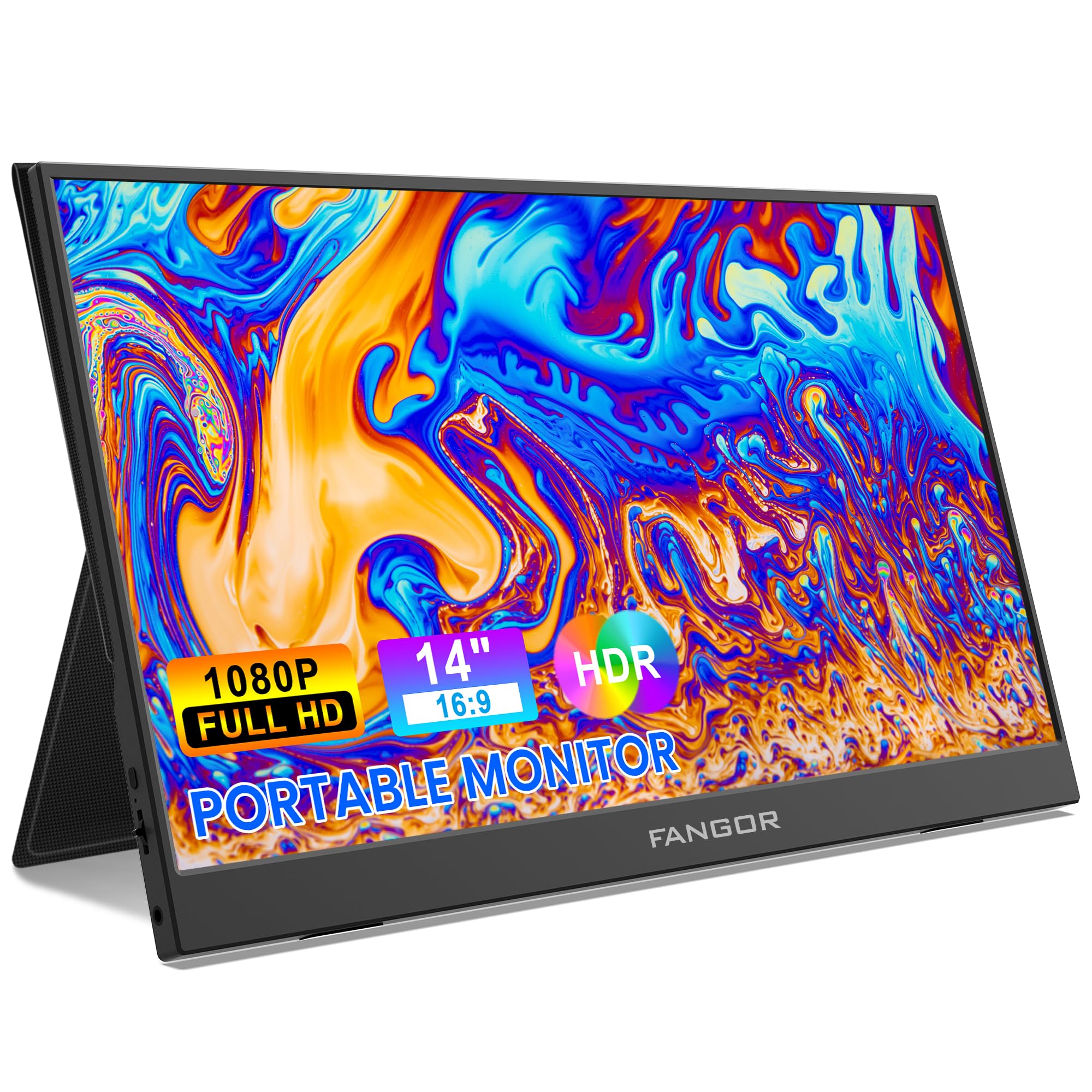
Image: FANGOR 15.6" Portable Monitor DH112222. This image displays the monitor with its smart cover, showcasing ఇది స్లిమ్ ప్రోfile మరియు స్క్రీన్.
పోర్ట్లు మరియు బటన్లు:
- USB-C Port (Full-featured): For power, video, and data transmission from compatible devices.
- మినీ HDMI పోర్ట్: For video input from devices using an HDMI cable.
- 3.5mm ఆడియో జాక్: బాహ్య హెడ్ఫోన్లు లేదా స్పీకర్లను కనెక్ట్ చేయడానికి.
- Power Button / OSD Menu Button: Press and hold to power on/off. Press to access the On-Screen Display (OSD) menu.
- Volume / Navigation Buttons: Used to adjust volume or navigate through the OSD menu.
- అంతర్నిర్మిత స్పీకర్లు: Located on the sides or rear of the monitor.
Note: A visual diagram showing the exact location of each port and button would typically be included here.
సెటప్ సూచనలు
1. Setting up the Smart Cover:
- Unfold the smart cover to form a triangular stand.
- Place the monitor into the grooves of the stand to achieve the desired viewing కోణం.
Note: An illustration demonstrating how to fold the smart cover into a stand would be beneficial here.
2. Connecting to a Power Source:
The monitor requires power to operate. It can be powered via USB-C.
- Connect one end of the USB-C to USB-C cable to the monitor's full-featured USB-C port.
- Connect the other end to a power adapter (5V/3A or higher recommended) or a compatible device's USB-C port that supports power delivery.
- Alternatively, use the USB-A to USB-C cable with a power adapter.
Note: A diagram showing power connection options would be helpful.
ఆపరేటింగ్ సూచనలు
పరికరాలకు కనెక్ట్ చేస్తోంది:
The FANGOR DH112222 supports various devices via USB-C and HDMI.
1. Connecting to a Laptop/PC (USB-C):
For laptops/PCs with a full-featured USB-C port (supporting DisplayPort Alternate Mode and Power Delivery):
- Connect one end of the USB-C to USB-C cable to the monitor's full-featured USB-C port.
- Connect the other end to the laptop's full-featured USB-C port.
- The monitor should automatically detect the signal and display the screen. If not, ensure the laptop's display settings are configured for an external monitor (e.g., Extend, Duplicate).
Note: Some laptops may require an external power source for the monitor if their USB-C port does not provide sufficient power.
2. Connecting to a Laptop/PC (HDMI):
For laptops/PCs with an HDMI port:
- Connect one end of the HDMI to Mini HDMI cable to the monitor's Mini HDMI port.
- Connect the other end (HDMI) to the laptop's HDMI port.
- Ensure the monitor is powered via its USB-C port (using a USB-A to USB-C cable connected to a power adapter or a USB-C to USB-C cable connected to a power source).
- The monitor should automatically detect the signal. Adjust display settings on your PC if necessary.
3. Connecting to Gaming Consoles (PS4, Xbox, Switch):
Use the HDMI to Mini HDMI cable for video and a USB-C cable for power.
- Connect the monitor to a power source via USB-C.
- Connect the HDMI to Mini HDMI cable from the console's HDMI output to the monitor's Mini HDMI input.
- Power on the console and the monitor.
4. Connecting to Smartphones (USB-C):
For smartphones with a full-featured USB-C port (supporting DisplayPort Alternate Mode and Power Delivery):
- Connect one end of the USB-C to USB-C cable to the monitor's full-featured USB-C port.
- Connect the other end to the smartphone's USB-C port.
- The monitor will display the phone's screen. Some phones may offer a desktop mode.
Note: Not all smartphones support video output via USB-C. Check your phone's specifications.
ఆన్-స్క్రీన్ డిస్ప్లే (OSD) మెను:
OSD మెను వివిధ డిస్ప్లే సెట్టింగ్లను సర్దుబాటు చేయడానికి మిమ్మల్ని అనుమతిస్తుంది.
- Press the Power/OSD button to open the OSD menu.
- Use the Volume/Navigation buttons to move up/down or left/right through the menu options.
- Press the Power/OSD button again to select an option or confirm a setting.
- To exit the OSD menu, navigate to the 'Exit' option or wait for the menu to time out.
Common OSD Menu Options: Brightness, Contrast, Color Temperature, Aspect Ratio, Input Source, Volume.
నిర్వహణ
- స్క్రీన్ క్లీనింగ్: కొద్దిగా మెత్తని, మెత్తని బట్టను ఉపయోగించండి dampనీటితో లేదా రాపిడి లేని స్క్రీన్ క్లీనర్తో నింపండి. స్క్రీన్పై నేరుగా ద్రవాన్ని పిచికారీ చేయవద్దు.
- సి ని శుభ్రపరచడంasing: Use a soft, dry cloth. Avoid harsh chemicals or abrasive materials.
- నిల్వ: When not in use, store the monitor in its smart cover to protect the screen from scratches and dust. Avoid extreme temperatures and humidity.
- నిర్వహణ: మానిటర్ను ఎల్లప్పుడూ దాని అంచుల ద్వారా నిర్వహించండి. స్క్రీన్పై ఒత్తిడిని కలిగించకుండా ఉండండి.
ట్రబుల్షూటింగ్
| సమస్య | సాధ్యమైన పరిష్కారం |
|---|---|
| సిగ్నల్ లేదు / బ్లాక్ స్క్రీన్ |
|
| స్పీకర్ల నుండి శబ్దం లేదు |
|
| స్క్రీన్ మిణుకుమిణుకుమంటున్నది లేదా అస్థిరమైన చిత్రం |
|
| మానిటర్ పవర్ ఆన్ చేయడం లేదు |
|
స్పెసిఫికేషన్లు
| ఫీచర్ | వివరాలు |
|---|---|
| మోడల్ సంఖ్య | DH112222 |
| స్క్రీన్ పరిమాణం | 15.6 అంగుళాలు |
| రిజల్యూషన్ | FHD 1080p (1920 x 1080) |
| ప్రదర్శన రకం | LCD, IPS |
| కారక నిష్పత్తి | 16:9 |
| రిఫ్రెష్ రేట్ | 60 Hz |
| కాంట్రాస్ట్ రేషియో | 1000:1 |
| Viewing యాంగిల్ | 160 డిగ్రీలు |
| Screen Finish | నిగనిగలాడే |
| కనెక్టివిటీ | HDMI, USB-C (full-featured), Mini HDMI |
| ఆడియో | Built-In Speakers, 3.5mm Audio Jack |
| ఉత్పత్తి కొలతలు | 38 x 28.5 x 45 సెం.మీ |
| వస్తువు బరువు | 612.35 గ్రా (1.35 పౌండ్లు) |
| అనుకూల పరికరాలు | Laptop, PC, Smartphone, XBOX, Switch, PS4 |
భద్రతా సమాచారం
- అగ్ని లేదా షాక్ ప్రమాదాలను నివారించడానికి మానిటర్ను వర్షం లేదా తేమకు గురిచేయవద్దు.
- మానిటర్ తెరవవద్దు casing. అన్ని సర్వీసింగ్లను అర్హత కలిగిన సేవా సిబ్బందికి సూచించండి.
- మానిటర్ను ఉష్ణ వనరుల దగ్గర లేదా ప్రత్యక్ష సూర్యకాంతిలో ఉంచకుండా ఉండండి.
- తయారీదారు అందించిన లేదా సిఫార్సు చేసిన పవర్ అడాప్టర్ మరియు కేబుల్లను మాత్రమే ఉపయోగించండి.
- బలమైన అయస్కాంత క్షేత్రాల నుండి మానిటర్ను దూరంగా ఉంచండి.
వారంటీ మరియు మద్దతు
For warranty information and technical support, please refer to the warranty card included with your product or visit the official FANGOR webవారంటీ క్లెయిమ్ల కోసం కొనుగోలు రుజువుగా మీ కొనుగోలు రసీదును ఉంచండి.
For further assistance, contact FANGOR customer support through their official channels.