
OWC W125947845
OWC Thunderbolt Hub (Thunderbolt 4) Instruction Manual
మోడల్: W125947845
1. పరిచయం
This manual provides essential information for the proper setup, operation, and maintenance of your OWC Thunderbolt Hub. Please read this manual thoroughly before using the device to ensure optimal performance and safety.
The OWC Thunderbolt Hub is designed to expand the connectivity of your computer, offering multiple Thunderbolt 4 ports and a USB-A port for various peripherals. It is compatible with Thunderbolt 4, Thunderbolt 3, USB-C, and USB4 machines.

మూర్తి 1: ముందు view of the OWC Thunderbolt Hub, showcasing దాని కాంపాక్ట్ డిజైన్ మరియు పోర్ట్ లేఅవుట్.
2. ప్యాకేజీ విషయాలు
మీ ప్యాకేజీలో అన్ని అంశాలు ఉన్నాయని ధృవీకరించండి:
- OWC Thunderbolt Hub
- విద్యుత్ సరఫరా
- థండర్ బోల్ట్ కేబుల్
- త్వరిత ప్రారంభ గైడ్
3. సెటప్ సూచనలు
3.1 పవర్ అడాప్టర్ను కనెక్ట్ చేస్తోంది
- Connect the power supply cable to the DC IN port on the rear of the OWC Thunderbolt Hub.
- పవర్ అడాప్టర్ను ప్రామాణిక ఎలక్ట్రికల్ అవుట్లెట్లోకి ప్లగ్ చేయండి.
3.2 మీ కంప్యూటర్కు కనెక్ట్ చేయడం
- Using the provided Thunderbolt cable, connect one end to the upstream Thunderbolt 4 port on the OWC Thunderbolt Hub. This port is typically labeled with a computer icon and a lightning bolt.
- Connect the other end of the Thunderbolt cable to a Thunderbolt 4, Thunderbolt 3, USB-C, or USB4 port on your computer.
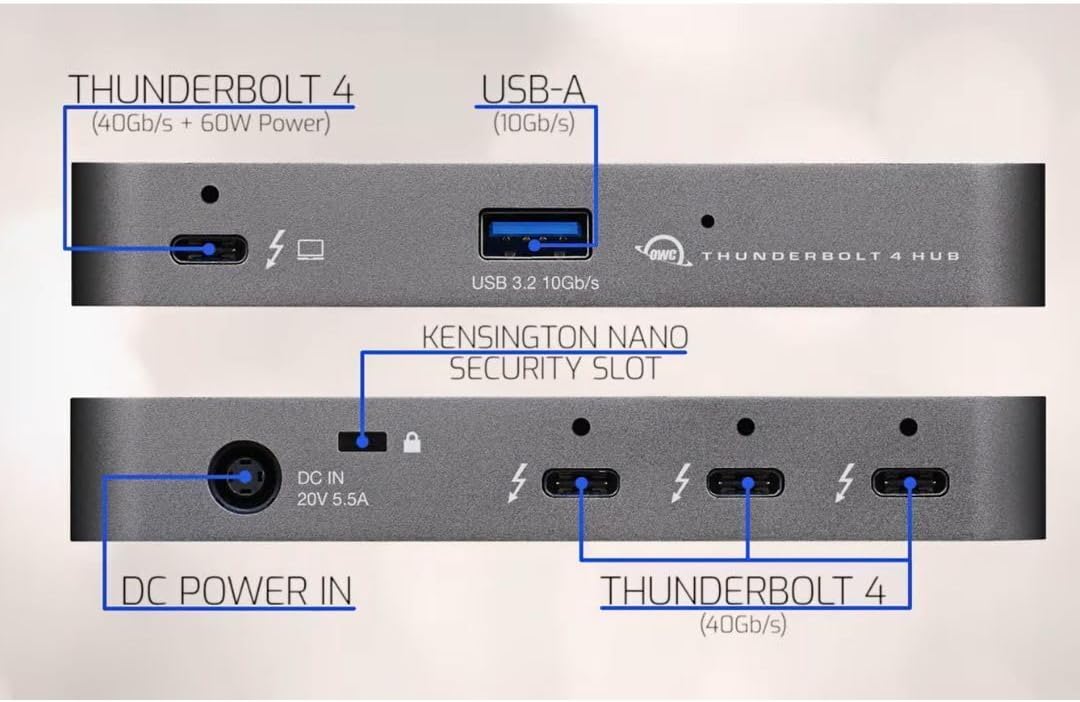
Figure 2: Diagram illustrating the ports on the OWC Thunderbolt Hub, including the Thunderbolt 4 (40Gb/s + 60W Power) upstream port, USB 3.2 10Gb/s Type-A port, DC Power In (20V 5.5A), Kensington Nano Security Slot, and three downstream Thunderbolt 4 (40Gb/s) ports.
3.3 కనెక్ట్ పెరిఫెరల్స్
Once the hub is connected to your computer and powered on, you can connect your peripherals:
- Thunderbolt Devices: Use the three downstream Thunderbolt 4 ports for connecting Thunderbolt devices such as external drives, displays, or other Thunderbolt hubs.
- USB-A పరికరాలు: Use the USB 3.2 10Gb/s Type-A port for connecting standard USB-A peripherals like keyboards, mice, or external storage.

Figure 3: An OWC Thunderbolt Hub connected to a laptop, tablet, and various external storage devices, demonstrating its multi-device connectivity capabilities.
4. ఆపరేటింగ్ సూచనలు
4.1 పవర్ ఆన్ మరియు ఆఫ్
The OWC Thunderbolt Hub powers on automatically when connected to a power source and a host computer. There is no separate power button. To power off, disconnect the power supply or the Thunderbolt cable from the host computer.
4.2 పరికరం ఛార్జింగ్
The upstream Thunderbolt 4 port provides up to 60W of power delivery to charge your connected laptop or host device. The USB-A port also supports charging for compatible devices.

Figure 4: The OWC Thunderbolt Hub connected to a laptop, illustrating its ability to charge devices while in use.
4.3 Daisy-Chaining Thunderbolt Devices
The OWC Thunderbolt Hub supports daisy-chaining, allowing you to connect multiple Thunderbolt devices in a series. This creates an expanded workflow without compromising performance. You can connect up to three bus-powered Thunderbolt devices directly to the hub's downstream ports.
4.4 Display Connectivity
The Thunderbolt 4 ports support various display configurations, including single and dual displays at resolutions up to 8K, depending on your host computer's capabilities. Refer to the specifications section for detailed display support.
5. స్పెసిఫికేషన్లు
| ఫీచర్ | వివరాలు |
|---|---|
| మోడల్ సంఖ్య | W125947845 |
| ఉత్పత్తి కొలతలు | 2.95 x 9.25 x 5.71 అంగుళాలు |
| వస్తువు బరువు | 2.11 పౌండ్లు |
| రంగు | బూడిద/నలుపు |
| హార్డ్వేర్ ఇంటర్ఫేస్ | పిడుగు |
| ఓడరేవులు |
|
| ప్రదర్శన మద్దతు | Up to 8K resolution (single display), Dual 4K displays (host dependent) |
| అనుకూల పరికరాలు | Desktops, Laptops, Smartphones, Tablets with Thunderbolt 4, Thunderbolt 3, USB-C, or USB4 ports. |
6. ట్రబుల్షూటింగ్
If you encounter issues with your OWC Thunderbolt Hub, refer to the following common problems and solutions:
6.1 No Power or Device Not Recognized
- పవర్ కనెక్షన్ని తనిఖీ చేయండి: Ensure the power adapter is securely connected to both the hub and a working electrical outlet.
- Verify Thunderbolt Cable: Confirm that the Thunderbolt cable is properly connected to both the hub and your computer. Try using a different Thunderbolt cable if available.
- కంప్యూటర్ పునఃప్రారంభించండి: Sometimes a simple restart of your host computer can resolve connectivity issues.
- డ్రైవర్ నవీకరణలు: Ensure your computer's Thunderbolt drivers are up to date. Visit your computer manufacturer's webతాజా డ్రైవర్ల కోసం సైట్.
6.2 Peripherals Not Functioning
- Test Directly: Connect the peripheral directly to your computer to confirm it is functional.
- వేరే పోర్టును ప్రయత్నించండి: Connect the peripheral to a different port on the OWC Thunderbolt Hub.
- శక్తి అవసరాలు: Ensure that bus-powered devices are not exceeding the power output capabilities of the hub. Some high-power devices may require their own power supply.
6.3 ప్రదర్శన సమస్యలు
- కేబుల్ నాణ్యత: Use high-quality, certified Thunderbolt or USB-C display cables.
- రిజల్యూషన్ మద్దతు: Verify that your computer and display support the desired resolution and refresh rate.
- డిస్ ప్లే సెట్టింగులు: Check your computer's display settings to ensure the external monitor is detected and configured correctly.
7. నిర్వహణ
To ensure the longevity and optimal performance of your OWC Thunderbolt Hub, follow these maintenance guidelines:
- శుభ్రపరచడం: Use a soft, dry, lint-free cloth to clean the exterior of the hub. Avoid using liquid cleaners or aerosols, which can damage the device.
- వెంటిలేషన్: వేడెక్కకుండా నిరోధించడానికి హబ్ బాగా వెంటిలేషన్ ఉన్న ప్రదేశంలో ఉంచబడిందని నిర్ధారించుకోండి. వెంటిలేషన్ ఓపెనింగ్లను నిరోధించవద్దు.
- నిల్వ: When not in use for extended periods, store the hub in a cool, dry place away from direct sunlight and extreme temperatures.
- కేబుల్ నిర్వహణ: Avoid bending or crimping cables excessively, as this can lead to damage and connectivity issues.
8. వారంటీ మరియు మద్దతు
OWC products are designed for reliability and performance. For warranty information and technical support, please refer to the official OWC webసైట్ లేదా మీ ఉత్పత్తితో చేర్చబడిన డాక్యుమెంటేషన్.
ఆన్లైన్ మద్దతు: Visit the OWC support page for FAQs, driver downloads, and contact information.
సంప్రదింపు సమాచారం: For direct assistance, contact OWC customer service. Details can be found on the OWC webసైట్.
Ask a question about this manual
Ask about setup, troubleshooting, compatibility, parts, safety, or missing instructions. Manuals+ will review the question and use this page’s manual context to help answer it.