
పరిచయం
This manual provides comprehensive instructions for the Docooler T-Wolf V11 Wired Gaming Mouse. It covers setup, operation, maintenance, and troubleshooting to ensure optimal performance and longevity of your device. The T-Wolf V11 is designed for both gaming and office use, featuring adjustable DPI, ergonomic design, and customizable RGB lighting.
ఉత్పత్తి లక్షణాలు
- 8-బటన్ డిజైన్: Equipped with 8 programmable buttons suitable for various tasks in gaming and office applications.
- సర్దుబాటు చేయగల DPI: Offers 6 levels of DPI adjustment (1000/1600/2400/3200/4800/6400) for precise cursor control and sensitive operation.
- Ergonomic Arc Design: Engineered for a comfortable grip, fitting closely to your palm to reduce fatigue during extended use.
- Integrated Weights: Features independent weights within the mouse, allowing customization for improved stability and precision to suit individual preferences.
- RGB Colorful Backlight: Provides 6 types of colorful RGB streaming light effects, enhancing the visual experience.
- మన్నికైన నిర్మాణం: Includes a lightweight aluminum alloy anti-skid roller for comfortable and reliable use.
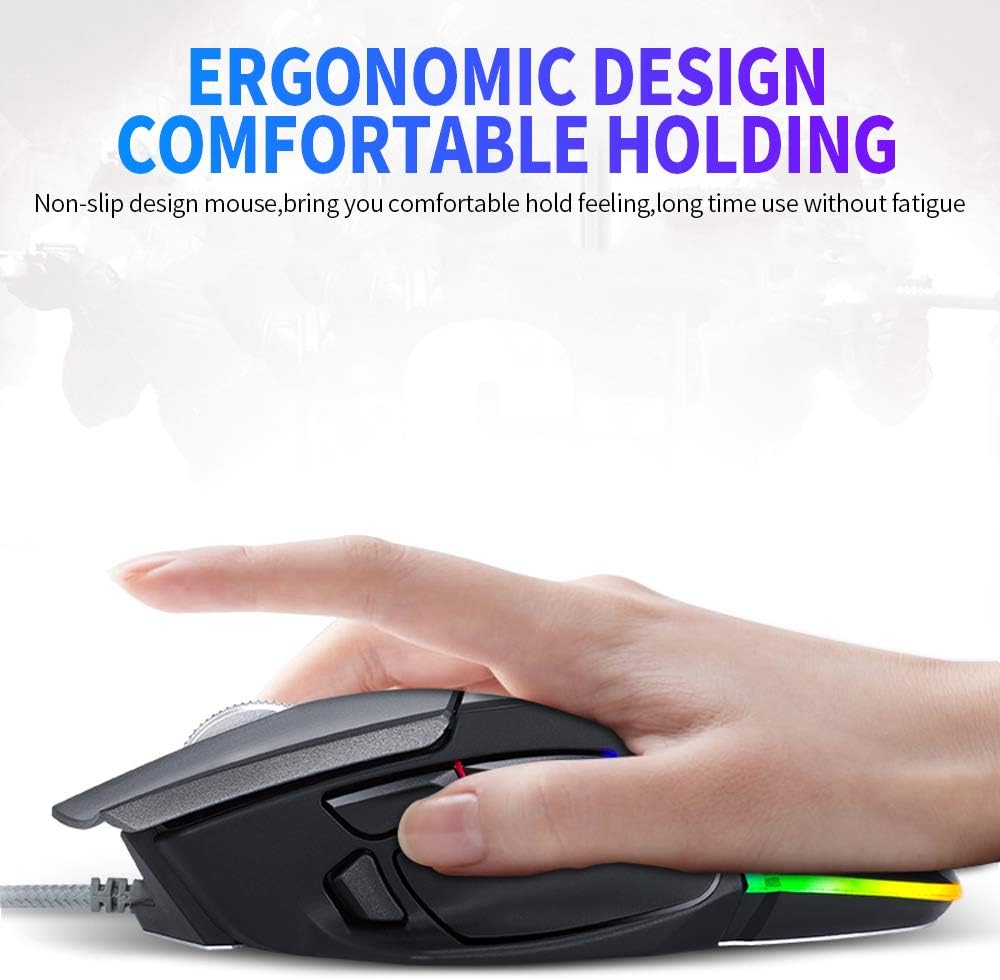
Image: The ergonomic design of the T-Wolf V11 mouse, demonstrating how it comfortably fits the hand to reduce strain during prolonged use.

Image: The T-Wolf V11 mouse illuminated with its dynamic RGB streaming light effects, showcasing the customizable lighting options.
సెటప్ సూచనలు
- మౌస్ను విప్పండి: Carefully remove the T-Wolf V11 mouse from its packaging.
- కంప్యూటర్కు కనెక్ట్ చేయండి: Plug the USB connector of the mouse's cable into an available USB port on your computer (desktop or laptop).
- డ్రైవర్ ఇన్స్టాలేషన్: The mouse is typically plug-and-play. Your operating system (Windows, macOS, Linux) should automatically detect and install the necessary drivers. No additional software installation is usually required for basic functionality.
- కార్యాచరణను ధృవీకరించండి: Once connected, move the mouse to check cursor movement and click the left and right buttons to ensure they are responsive.

Image: The Docooler T-Wolf V11 gaming mouse connected to a laptop, illustrating a typical setup scenario.
ఆపరేటింగ్ సూచనలు
బటన్ విధులు
- ఎడమ క్లిక్ (బటన్ 1): ప్రామాణిక ప్రాథమిక క్లిక్ ఫంక్షన్.
- కుడి క్లిక్ (బటన్ 2): ప్రామాణిక ద్వితీయ క్లిక్ ఫంక్షన్.
- Scroll Wheel (Button 3): Scrolls content up/down. Can also be pressed for middle-click functionality.
- DPI Cycle Button (Button 4): Located near the scroll wheel, press to cycle through DPI settings (1000/1600/2400/3200/4800/6400).
- Forward/Backward Buttons (Buttons 5 & 6): Typically located on the side, used for navigation in web బ్రౌజర్లు లేదా file అన్వేషకులు.
- Additional Programmable Buttons (Buttons 7 & 8): These buttons can often be customized using third-party software or operating system settings for specific functions or macros.
DPI సర్దుబాటు
Press the DPI cycle button (usually located behind the scroll wheel) to switch between the available DPI settings. Each press will change the sensitivity, allowing you to adapt to different tasks, from precise aiming in games to fast navigation in desktop environments. The RGB lighting may change color to indicate the current DPI level.
RGB లైటింగ్ ప్రభావాలు
The T-Wolf V11 features 6 types of colorful RGB streaming light effects. These effects are pre-programmed and cycle automatically, providing a dynamic visual experience. There is no specific button to change RGB modes on the mouse itself; the lighting patterns are typically fixed or cycle through automatically.

చిత్రం: వివరణాత్మక view of the T-Wolf V11 mouse, illustrating its DPI adjustment capabilities and RGB streamer marquee lighting.
నిర్వహణ
- శుభ్రపరచడం: మౌస్ ఉపరితలాన్ని తుడవడానికి మృదువైన, పొడి వస్త్రాన్ని ఉపయోగించండి. మొండి ధూళి కోసం, కొద్దిగా dampen గుడ్డను నీటితో లేదా తేలికపాటి, రాపిడి లేని క్లీనర్తో తుడవండి. కఠినమైన రసాయనాలు లేదా అధిక తేమను ఉపయోగించకుండా ఉండండి.
- సెన్సార్ క్లీనింగ్: ఖచ్చితమైన ట్రాకింగ్ను నిర్ధారించడానికి మౌస్ దిగువ భాగంలో ఉన్న ఆప్టికల్ సెన్సార్ను క్రమానుగతంగా కాటన్ శుభ్రముపరచుతో శుభ్రం చేయండి.
- కేబుల్ కేర్: Avoid sharply bending or twisting the mouse cable to prevent internal damage. Store the cable neatly when not in use.
- నిల్వ: ఎక్కువ కాలం ఉపయోగంలో లేనప్పుడు, మౌస్ను ప్రత్యక్ష సూర్యకాంతి మరియు తీవ్రమైన ఉష్ణోగ్రతలకు దూరంగా శుభ్రమైన, పొడి వాతావరణంలో నిల్వ చేయండి.
ట్రబుల్షూటింగ్
- మౌస్ స్పందించడం లేదు:
- మీ కంప్యూటర్లోని పనిచేసే USB పోర్ట్లోకి USB కేబుల్ సురక్షితంగా ప్లగ్ చేయబడిందని నిర్ధారించుకోండి.
- మౌస్ని వేరే USB పోర్ట్లోకి ప్లగ్ చేసి ప్రయత్నించండి.
- మీ కంప్యూటర్ని పునఃప్రారంభించండి.
- కర్సర్ కదలిక అనియత లేదా దూకడం:
- మౌస్ అడుగున ఉన్న ఆప్టికల్ సెన్సార్ను శుభ్రం చేయండి.
- మీరు మౌస్ను శుభ్రమైన, ప్రతిబింబించని మరియు ఏకరీతి ఉపరితలంపై (ఉదా. మౌస్ ప్యాడ్) ఉపయోగిస్తున్నారని నిర్ధారించుకోండి.
- DPI మారదు:
- Press the DPI cycle button firmly.
- మౌస్ సరిగ్గా కనెక్ట్ చేయబడిందని మరియు మీ సిస్టమ్ ద్వారా గుర్తించబడిందని నిర్ధారించుకోండి.
- RGB లైట్లు పనిచేయడం లేదు:
- USB కనెక్షన్ని తనిఖీ చేయండి.
- The RGB lighting is typically automatic; if it's not illuminating, ensure the mouse is receiving power.
స్పెసిఫికేషన్లు
| బ్రాండ్ | డోకూలర్ |
| మోడల్ | V11 |
| రంగు | నలుపు |
| కనెక్టివిటీ టెక్నాలజీ | వైర్డు |
| బటన్ల సంఖ్య | 8 |
| DPI సెట్టింగులు | 1000/1600/2400/3200/4800/6400 (Adjustable) |
| బ్యాక్లైట్ రకం | RGB కలర్ఫుల్ |
| కేబుల్ పొడవు | 1.9 మీటర్లు |
| అంశం పరిమాణం | 13 x 8.5 x 4.5 సెం.మీ (5.1 x 3.3 x 1.8 అంగుళాలు) |
| వస్తువు బరువు | 177 గ్రా (6.24 ఔన్సులు) |
| అనుకూల పరికరాలు | ల్యాప్టాప్, PC |
| హార్డ్వేర్ ప్లాట్ఫారమ్ | PC |
| శక్తి మూలం | Cable Electric (USB) |
వారంటీ మరియు మద్దతు
For warranty information and technical support, please refer to the documentation provided with your purchase or contact Docooler customer service directly. Keep your proof of purchase for any warranty claims. Support contact details can typically be found on the manufacturer's official webసైట్.