
పరిచయం
Thank you for choosing the Konix FFF Wired Controller. This controller is designed to enhance your gaming experience on Nintendo Switch, Switch 2, and PC, offering an ergonomic design, vibration feedback, and a convenient screenshot button. Please read this manual carefully before use to ensure proper setup and operation.

Figure 1: Konix FFF Wired Controller (White)
కీ ఫీచర్లు
- ఎర్గోనామిక్ గ్రిప్: Crafted with quality materials and anti-slip grips for comfortable extended gaming sessions, reducing hand fatigue.
- వైర్డు కనెక్షన్: Features a 3-meter cable, providing ample length for flexible gameplay without battery concerns.
- వైబ్రేషన్ ఫంక్షన్: Enhances immersion during gameplay with responsive vibration feedback.
- స్క్రీన్షాట్ బటన్: Capture and share your in-game moments with a dedicated screenshot button, similar to official Nintendo Switch controllers.
- బహుళ-ప్లాట్ఫారమ్ అనుకూలత: Fully compatible with Nintendo Switch, Switch 2, and PC.

Figure 2: Controller features overview
సెటప్ సూచనలు
Connecting to Nintendo Switch / Switch 2
- Enable Pro Controller Wired Communication:
Before connecting the controller for the first time, you must enable the "Pro Controller Wired Communication" option on your Nintendo Switch console.
- హోమ్ మెనూ నుండి, ఎంచుకోండి "సిస్టమ్ సెట్టింగ్లు".
- Scroll down the left-hand menu and select "నియంత్రికలు మరియు సెన్సార్లు".
- ఎంచుకోండి "ప్రో కంట్రోలర్ వైర్డ్ కమ్యూనికేషన్" to enable this feature. (Select it again to disable if needed).
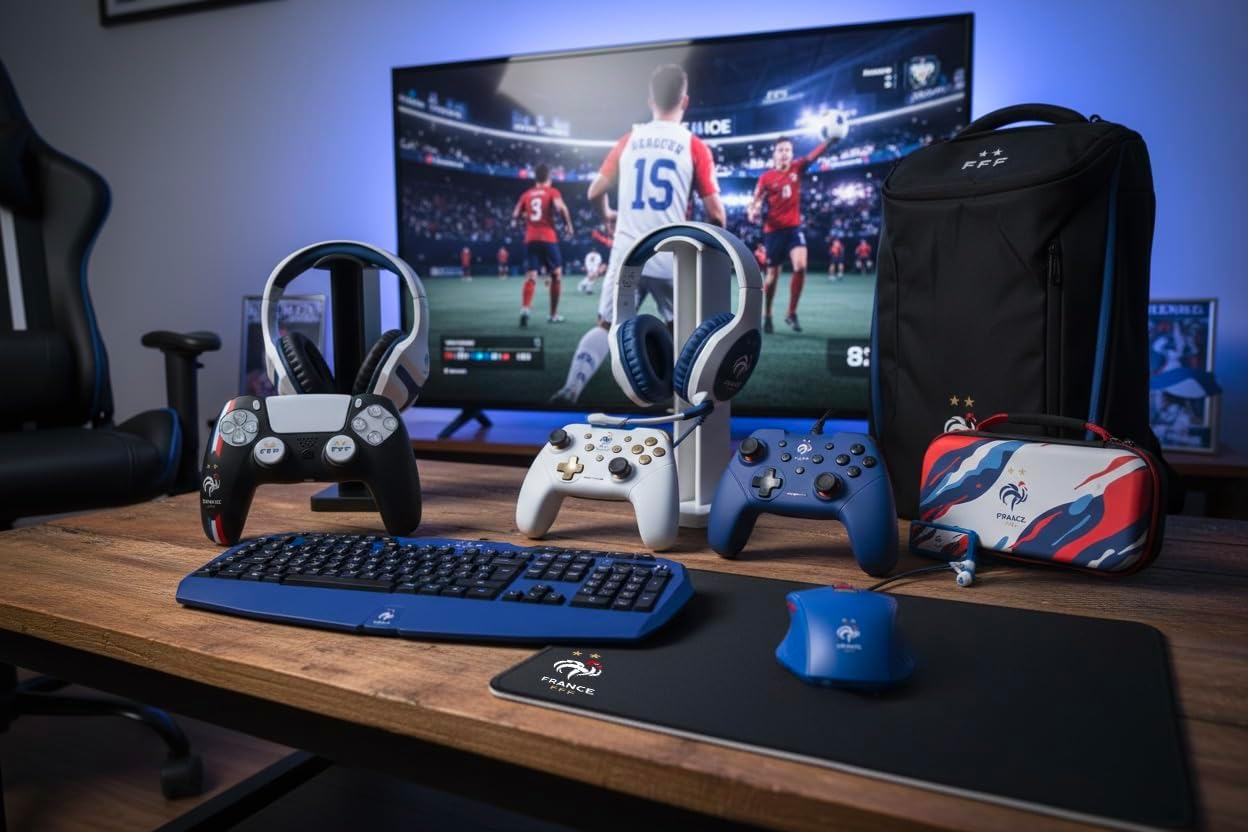
Figure 3: Enabling Pro Controller Wired Communication on Nintendo Switch
- కంట్రోలర్ను కనెక్ట్ చేయండి:
Plug the USB-A end of the controller's cable into an available USB port on your Nintendo Switch dock. The controller will automatically connect and be ready for use.

Figure 4: USB cable connection point
PCకి కనెక్ట్ చేస్తోంది
- ప్లగ్ మరియు ప్లే:
Connect the USB-A end of the controller's cable to an available USB port on your PC. The operating system should automatically detect and install the necessary drivers. The controller will then be ready for use with compatible PC games.
ఆపరేటింగ్ సూచనలు
The Konix FFF Wired Controller functions similarly to standard gamepads. Refer to your game's specific control scheme for button assignments.
బటన్ లేఅవుట్
The controller features standard buttons including A/B/X/Y, directional pad, left and right analog sticks, L/R shoulder buttons, ZL/ZR triggers, Home button, Plus (+), Minus (-), and a dedicated Screenshot button.
Figure 5: Controller button layout (front view)
Using the Screenshot Button
- నొక్కండి స్క్రీన్ షాట్ బటన్ (located below the directional pad) during gameplay to capture an image of your screen.
- On Nintendo Switch, captured images can be accessed and managed from the Album on the HOME Menu.
వైబ్రేషన్ ఫంక్షన్
- The controller's vibration function provides tactile feedback during compatible games.
- Vibration intensity may be adjustable within individual game settings or console system settings.
నిర్వహణ
- శుభ్రపరచడం: Use a soft, dry cloth to clean the controller. Do not use abrasive cleaners or solvents.
- నిల్వ: నియంత్రికను ప్రత్యక్ష సూర్యకాంతి మరియు తీవ్రమైన ఉష్ణోగ్రతలకు దూరంగా చల్లని, పొడి ప్రదేశంలో నిల్వ చేయండి.
- కేబుల్ కేర్: కేబుల్ దెబ్బతినకుండా ఉండటానికి పదునైన వంపులు లేదా ఎక్కువగా లాగడం మానుకోండి.
ట్రబుల్షూటింగ్
| సమస్య | సాధ్యమైన కారణం / పరిష్కారం |
|---|---|
| Controller not recognized by Nintendo Switch. |
|
| Controller not recognized by PC. |
|
| Vibration function not working. |
|
| బటన్లు స్పందించడం లేదు లేదా జిగటగా ఉంటాయి. |
|
స్పెసిఫికేషన్లు
- మోడల్ సంఖ్య: 3328170282925
- అనుకూలత: Nintendo Switch, Nintendo Switch 2, PC
- కనెక్షన్ రకం: వైర్డు USB
- కేబుల్ పొడవు: 3 మీటర్లు
- ఫీచర్లు: Vibration function, Screenshot button, Ergonomic design
- కొలతలు (L x W x H): 7 x 21.5 x 17.5 సెం.మీ
- బరువు: 390 గ్రాములు
- సిఫార్సు చేసిన వయస్సు: 3 సంవత్సరాలు మరియు అంతకంటే ఎక్కువ
వారంటీ సమాచారం
Konix products are covered by a limited warranty against defects in materials and workmanship. For specific warranty terms and conditions, please refer to the documentation included with your purchase or visit the official Konix webవారంటీ క్లెయిమ్ల కోసం మీ కొనుగోలు రుజువును ఉంచండి.
కస్టమర్ మద్దతు
If you encounter any issues or have questions regarding your Konix FFF Wired Controller, please contact Konix customer support through their official webసైట్ లేదా మీ ఉత్పత్తి ప్యాకేజింగ్తో అందించబడిన సంప్రదింపు సమాచారం.
మరింత సమాచారం కోసం, సందర్శించండి Konix Store on Amazon.