
Q LINK WIRELESS Scepter 8
Q LINK WIRELESS Scepter 8 User Manual
Model: Scepter 8
పరిచయం
Welcome to the user manual for your Q LINK WIRELESS Scepter 8 tablet. This guide provides essential information on setting up, operating, maintaining, and troubleshooting your device. The Scepter 8 is an 8-inch Android 11 tablet designed for everyday use, featuring 1GB RAM and 16GB ROM.
ఉత్పత్తి ముగిసిందిview
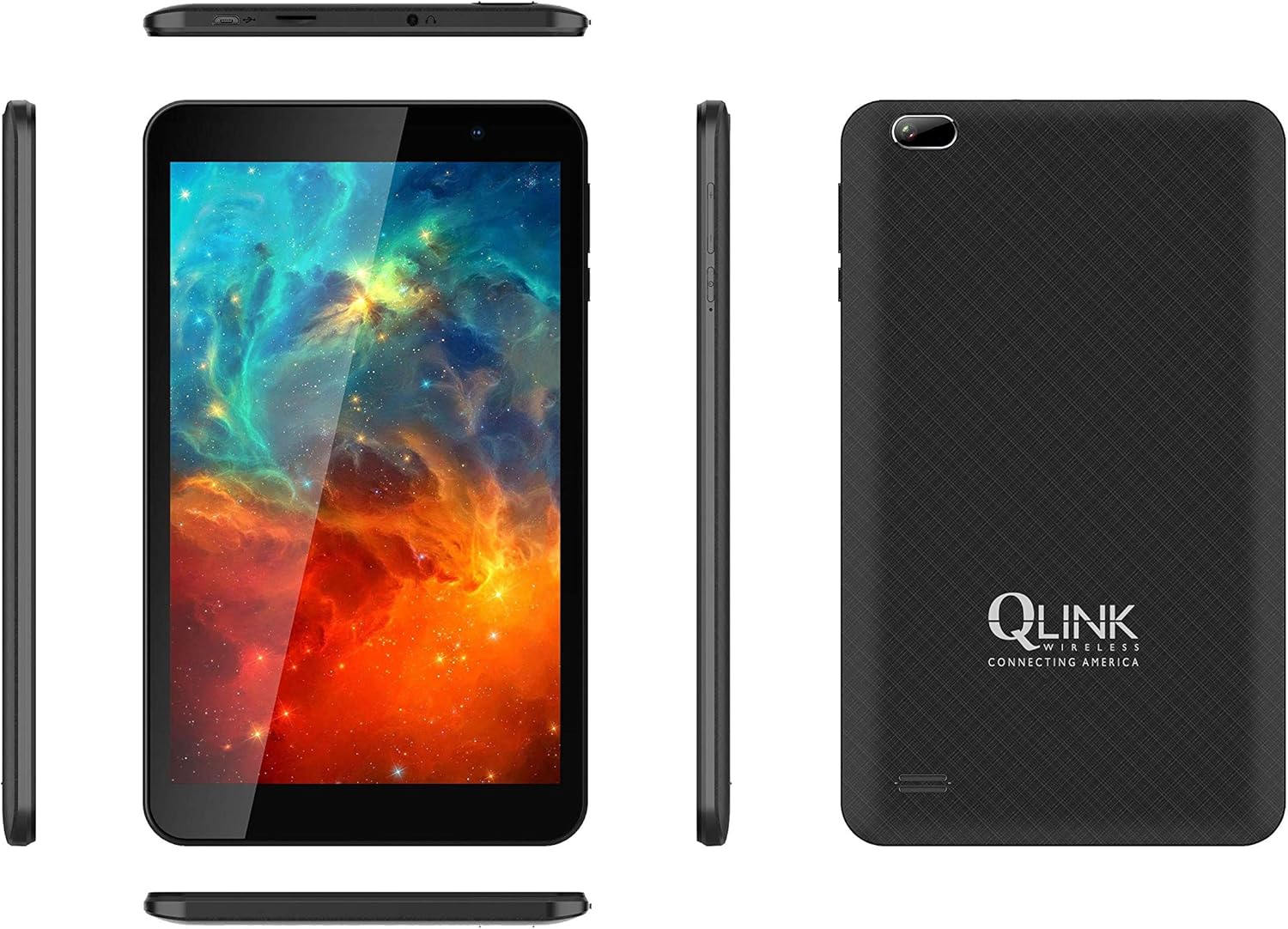
This image displays multiple views of the Q LINK WIRELESS Scepter 8 tablet, including the front with its display, the textured back panel featuring the Q LINK WIRELESS logo, and the slim side profiles showing button and port placements.

స్పష్టమైన ముందు భాగం view of the Q LINK WIRELESS Scepter 8 tablet, highlighting its 8-inch IPS display. The screen shows a vibrant, colorful abstract image.

వెనుక view of the Q LINK WIRELESS Scepter 8 tablet, showcasing its textured finish and the Q LINK WIRELESS logo. The rear camera is visible in the upper left corner.
సెటప్
1. ప్రారంభ ఛార్జింగ్
Before first use, fully charge your Scepter 8 tablet. Connect the included charger to the tablet's charging port and plug it into a power outlet. The battery indicator on the screen will show charging progress.
2. పవర్ చేయడం ఆన్/ఆఫ్
- To power on: Press and hold the Power button until the Q LINK WIRELESS logo appears.
- పవర్ ఆఫ్ చేయడానికి: పవర్ బటన్ను నొక్కి పట్టుకోండి, ఆపై ఎంపికల నుండి "పవర్ ఆఫ్" ఎంచుకోండి.
3. ప్రారంభ సెటప్ విజార్డ్
Upon first power-on, the tablet will guide you through an initial setup process. This includes selecting your language, connecting to a Wi-Fi network, setting up your Google account, and configuring basic device settings.
4. మైక్రో SD కార్డ్ చొప్పించడం (ఐచ్ఛికం)
To expand storage, locate the MicroSD card slot (usually on the side or top edge). Gently insert a compatible MicroSD card until it clicks into place. Ensure the tablet is powered off before inserting or removing the card.
టాబ్లెట్ని ఆపరేట్ చేస్తోంది
నావిగేషన్ బేసిక్స్
- స్పర్శ సంజ్ఞలు: ఎంచుకోవడానికి నొక్కండి, స్క్రోల్ చేయడానికి స్వైప్ చేయండి, జూమ్ చేయడానికి పించ్ చేయండి.
- హోమ్ స్క్రీన్: యాప్లు, విడ్జెట్లు మరియు నోటిఫికేషన్లను యాక్సెస్ చేయండి.
- నోటిఫికేషన్ ప్యానెల్: స్క్రీన్ పై నుండి క్రిందికి స్వైప్ చేయండి view నోటిఫికేషన్లు మరియు త్వరిత సెట్టింగ్లు.
- యాప్ డ్రాయర్: ఇన్స్టాల్ చేయబడిన అన్ని అప్లికేషన్లను యాక్సెస్ చేయడానికి స్క్రీన్ దిగువ నుండి పైకి స్వైప్ చేయండి.
Wi-Fiకి కనెక్ట్ చేస్తోంది
- వెళ్ళండి సెట్టింగ్లు > నెట్వర్క్ & ఇంటర్నెట్ > Wi-Fi.
- Wi-Fiని టోగుల్ చేయి On.
- జాబితా నుండి మీకు కావలసిన నెట్వర్క్ను ఎంచుకుని, ప్రాంప్ట్ చేయబడితే పాస్వర్డ్ను నమోదు చేయండి.
అప్లికేషన్లను నిర్వహించడం
- యాప్లను ఇన్స్టాల్ చేస్తోంది: Google Play Store నుండి యాప్లను డౌన్లోడ్ చేసుకోండి.
- యాప్లను అన్ఇన్స్టాల్ చేయడం: Press and hold an app icon on the home screen or in the app drawer, then drag it to "Uninstall" or select "App info" and choose "Uninstall".
- Closing Apps: స్క్రీన్ కింది నుండి పైకి స్వైప్ చేసి, పట్టుకోండి view recent apps, then swipe up on an app to close it.
కెమెరా వినియోగం
The Scepter 8 features a 5 MP rear camera. Open the Camera app from your home screen or app drawer. Tap the shutter button to take photos. You can switch between front and rear cameras using the icon on the screen.
నిర్వహణ
- శుభ్రపరచడం: స్క్రీన్ మరియు బాడీని శుభ్రం చేయడానికి మృదువైన, మెత్తటి బట్టను ఉపయోగించండి. రాపిడి క్లీనర్లు లేదా ద్రావకాలను నివారించండి.
- బ్యాటరీ సంరక్షణ: To prolong battery life, avoid extreme temperatures. Do not let the battery fully drain frequently.
- సాఫ్ట్వేర్ అప్డేట్లు: సిస్టమ్ నవీకరణల కోసం కాలానుగుణంగా తనిఖీ చేయండి సెట్టింగ్లు > వ్యవస్థ > సిస్టమ్ నవీకరణ సరైన పనితీరు మరియు భద్రతను నిర్ధారించడానికి.
- నిల్వ నిర్వహణ: అనవసరమైన వాటిని క్రమం తప్పకుండా క్లియర్ చేయండి fileనిల్వ స్థలాన్ని ఖాళీ చేయడానికి ఉపయోగించని యాప్లను అన్ఇన్స్టాల్ చేయండి. వెళ్ళండి సెట్టింగ్లు > నిల్వ నిర్వహించడానికి.
ట్రబుల్షూటింగ్
| సమస్య | పరిష్కారం |
|---|---|
| Tablet is slow or unresponsive. |
|
| Wi-Fiకి కనెక్ట్ చేయడం సాధ్యపడదు. |
|
| బ్యాటరీ త్వరగా అయిపోతుంది. |
|
| Apps crashing frequently. |
|
స్పెసిఫికేషన్లు
| ఫీచర్ | వివరాలు |
|---|---|
| బ్రాండ్ | Q లింక్ వైర్లెస్ |
| మోడల్ పేరు | రాజదండం 8 |
| ఆపరేటింగ్ సిస్టమ్ | ఆండ్రాయిడ్ 11 |
| స్క్రీన్ పరిమాణం | 8 అంగుళాలు |
| స్క్రీన్ రిజల్యూషన్ | 1280 x 800 పిక్సెల్లు |
| RAM | 1 GB |
| ఫ్లాష్ మెమరీ పరిమాణం | 16 GB |
| ప్రాసెసర్ బ్రాండ్ | Qualcomm |
| వెనుక Webకెమెరా రిజల్యూషన్ | 5 ఎంపీ |
| వైర్లెస్ రకం | 802.11ac |
| సగటు బ్యాటరీ జీవితం | 12 గంటలు |
| వస్తువు బరువు | 1.06 పౌండ్లు |
| ఉత్పత్తి కొలతలు | 8.2 x 4.9 x 0.36 అంగుళాలు |
వారంటీ మరియు మద్దతు
For warranty information and technical support, please refer to the documentation included with your purchase or visit the official Q LINK WIRELESS webవారంటీ క్లెయిమ్ల కోసం మీ కొనుగోలు రుజువును ఉంచండి.
ఆన్లైన్ వనరులు: For additional support, FAQs, and software downloads, please visit the Q LINK WIRELESS support page.
Ask a question about this manual
Ask about setup, troubleshooting, compatibility, parts, safety, or missing instructions. Manuals+ will review the question and use this page’s manual context to help answer it.