
డెల్టాకో గేమింగ్ DM210
DELTACO GAMING DM210 అల్ట్రాలైట్ RGB గేమింగ్ మౌస్ యూజర్ మాన్యువల్
మోడల్: DM210 (GAM-108)
1. పరిచయం
Thank you for choosing the DELTACO GAMING DM210 Ultralight RGB Gaming Mouse. This manual provides essential information for setting up, operating, and maintaining your new gaming mouse. The DM210 is designed for performance, featuring an ultralight construction, customizable RGB lighting, and programmable buttons to enhance your gaming experience.
2. ప్యాకేజీ విషయాలు
- 1x DELTACO GAMING DM210 Ultralight RGB Gaming Mouse
- 1x వినియోగదారు మాన్యువల్
3. ఉత్పత్తి ముగిసిందిview
The DELTACO GAMING DM210 mouse features an ergonomic design with a honeycomb shell for reduced weight and improved airflow. It includes 7 buttons for versatile control and customizable RGB lighting.
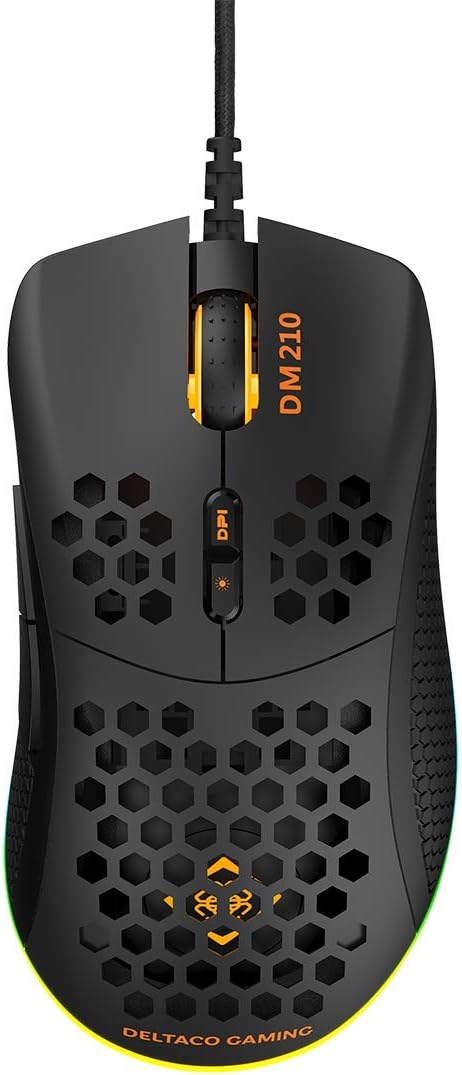
చిత్రం 3.1: టాప్ view of the DM210 mouse. This image displays the left and right click buttons, the scroll wheel, and the two DPI adjustment buttons located below the scroll wheel. The ultralight honeycomb shell design is visible across the top surface of the mouse.
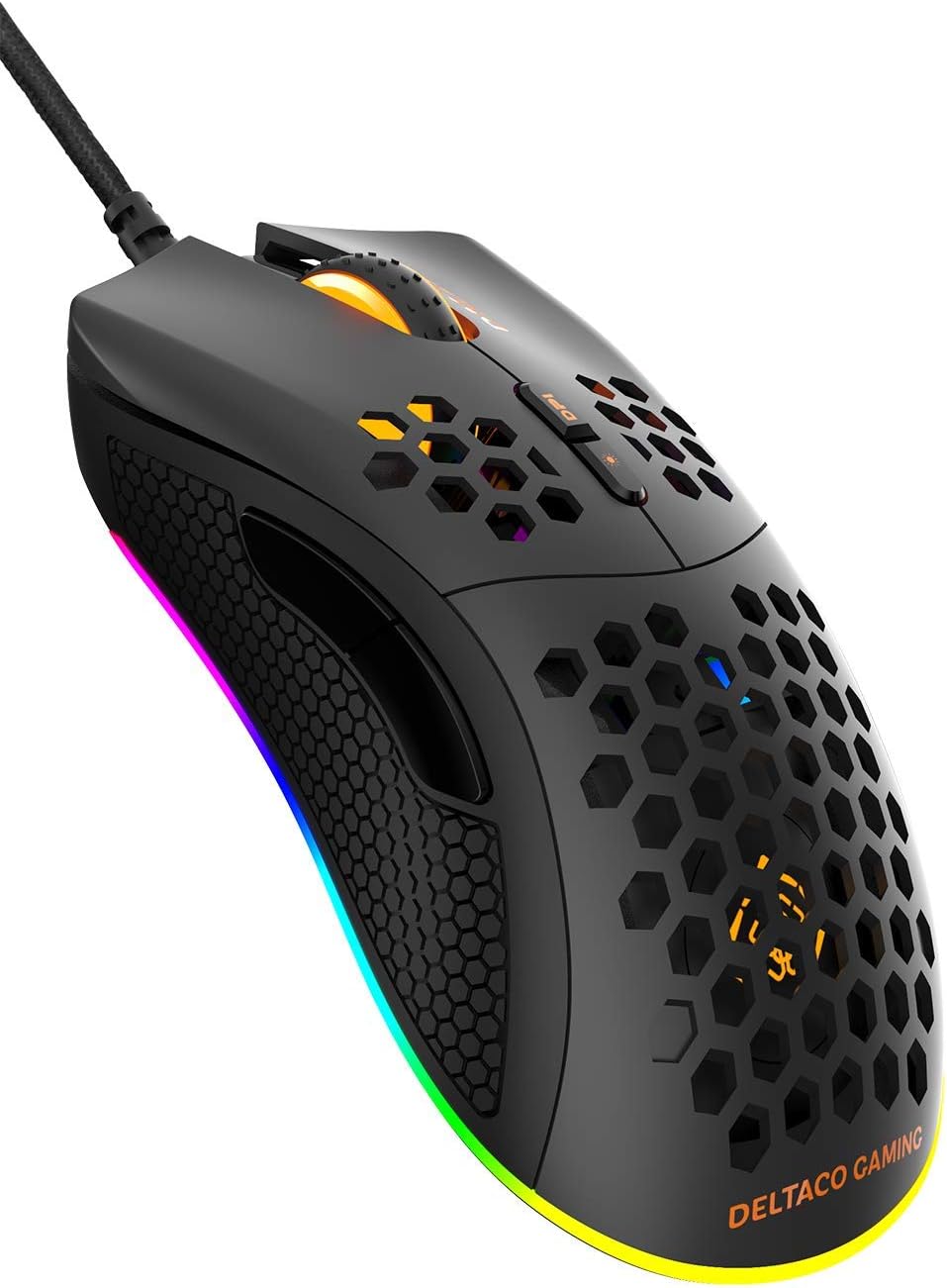
చిత్రం 3.2: కోణీయ view of the DM210 mouse from the front-right. This image highlights the two side buttons (forward and back) located on the left side of the mouse, designed for easy thumb access. The RGB lighting strip along the base of the mouse is also visible.
బటన్ విధులు:
- ఎడమ క్లిక్ బటన్: ప్రామాణిక ప్రాథమిక క్లిక్ ఫంక్షన్.
- కుడి క్లిక్ బటన్: ప్రామాణిక ద్వితీయ క్లిక్ ఫంక్షన్.
- స్క్రోల్ వీల్: For scrolling through documents and web పేజీలు. మిడిల్ క్లిక్ బటన్గా కూడా పనిచేస్తుంది.
- DPI+ బటన్: Increases the DPI sensitivity.
- DPI- బటన్: Decreases the DPI sensitivity. (Note: The product description mentions a single DPI button and a separate LED button. For this model, the two buttons below the scroll wheel are typically for DPI adjustment.)
- ఫార్వర్డ్ బటన్: ముందుకు నావిగేట్ చేస్తుంది web బ్రౌజర్లు లేదా అప్లికేషన్లు.
- వెనుక బటన్: వెనుకకు నావిగేట్ చేస్తుంది web బ్రౌజర్లు లేదా అప్లికేషన్లు.
4. సెటప్
- మౌస్ని కనెక్ట్ చేయండి: Plug the USB connector of the DELTACO GAMING DM210 mouse into an available USB port on your computer.
- డ్రైవర్ ఇన్స్టాలేషన్: Your operating system (Windows 7/8/10) will automatically detect and install the necessary drivers. This process may take a few moments.
- సాఫ్ట్వేర్ ఇన్స్టాలేషన్ (ఐచ్ఛికం): For advanced customization, including programmable buttons and RGB lighting effects, download the DELTACO GAMING software. Refer to the product packaging or the official DELTACO GAMING website for the software download link.
5. ఆపరేటింగ్ సూచనలు
5.1. DPI సర్దుబాటు
The DM210 mouse features multiple DPI (Dots Per Inch) settings, allowing you to adjust cursor sensitivity on the fly. Use the DPI buttons (located below the scroll wheel) to cycle through the available DPI levels:
- 400 DPI
- 800 DPI
- 1200 DPI
- 1600 DPI
- 3200 DPI
- 6400 DPI
Each DPI level may be indicated by a specific LED color or pattern, depending on the current RGB settings.
5.2. RGB లైటింగ్ నియంత్రణ
The mouse features dynamic RGB lighting. While some basic lighting modes might be accessible via a dedicated button (if present, often combined with DPI control), full customization of the RGB loop and logo lighting is achieved through the DELTACO GAMING software. The software allows you to select from 16 million colors and various lighting effects.
5.3. ప్రోగ్రామబుల్ బటన్లు మరియు సాఫ్ట్వేర్
The 7 buttons on the DM210 mouse are programmable using the DELTACO GAMING software. This software allows you to:
- Remap button functions to suit your preferences.
- Create macros for complex in-game actions.
- Adjust polling rate (up to 1000 Hz).
- RGB లైటింగ్ ప్రభావాలు మరియు రంగులను అనుకూలీకరించండి.
Install the software from the official DELTACO GAMING website for access to these advanced features.
6. నిర్వహణ
To ensure the longevity and optimal performance of your DELTACO GAMING DM210 mouse, follow these maintenance guidelines:
- శుభ్రపరచడం: మృదువైన, కొద్దిగా d ఉపయోగించండిamp cloth to clean the surface of the mouse. Avoid using harsh chemicals, abrasive cleaners, or solvents, as these can damage the finish and internal components.
- కేబుల్ కేర్: Avoid sharp bends or excessive pulling on the USB cable. Store the cable neatly when not in use to prevent tangling and damage.
- పర్యావరణం: Keep the mouse away from extreme temperatures, direct sunlight, and excessive moisture.
7. ట్రబుల్షూటింగ్
If you encounter issues with your DELTACO GAMING DM210 mouse, refer to the following common solutions:
- మౌస్ స్పందించడం లేదు:
- మీ కంప్యూటర్లోని పనిచేసే USB పోర్ట్లోకి USB కేబుల్ సురక్షితంగా ప్లగ్ చేయబడిందని నిర్ధారించుకోండి.
- మౌస్ని వేరే USB పోర్ట్లోకి ప్లగ్ చేసి ప్రయత్నించండి.
- మీ కంప్యూటర్ని పునఃప్రారంభించండి.
- సమస్య మౌస్తోనా లేదా మీ సిస్టమ్తోనా అని తెలుసుకోవడానికి మరొక కంప్యూటర్లో మౌస్ను పరీక్షించండి.
- DPI మారదు:
- మీరు సరైన DPI సర్దుబాటు బటన్లను నొక్కినట్లు నిర్ధారించుకోండి.
- If using the software, check if DPI settings have been reconfigured or if a specific profile చురుకుగా ఉంది.
- RGB లైటింగ్ పనిచేయడం లేదు/తప్పు:
- మౌస్ సరిగ్గా కనెక్ట్ చేయబడిందో లేదో ధృవీకరించండి.
- Check the DELTACO GAMING software for lighting settings and ensure they are configured as desired.
- సాఫ్ట్వేర్ తాజాగా ఉందని నిర్ధారించుకోండి.
- బటన్లు సరిగ్గా పనిచేయకపోవడం:
- If using the DELTACO GAMING software, check button assignments to ensure they haven't been accidentally remapped.
- Test the mouse on another computer to rule out software conflicts on your primary system.
8. స్పెసిఫికేషన్లు
| బ్రాండ్ | డెల్టాకో గేమింగ్ |
| మోడల్ | DM210 (GAM-108) |
| కనెక్టివిటీ | USB |
| DPI సెట్టింగులు | 400 / 800 / 1200 / 1600 / 3200 / 6400 |
| పోలింగ్ రేటు | 1000 Hz |
| బటన్లు | 7 (ప్రోగ్రామబుల్) |
| బరువు | 70గ్రా |
| లైటింగ్ | RGB (16 మిలియన్ రంగులు) |
| అనుకూలత | విండోస్ 7/8/10 |
| రంగు | నలుపు |
9. వారంటీ సమాచారం
The DELTACO GAMING DM210 Ultralight RGB Gaming Mouse comes with a 5 సంవత్సరాల వారంటీ from the date of purchase. This warranty covers manufacturing defects and ensures the product meets its specified performance. Please retain your proof of purchase for warranty claims. For detailed warranty terms and conditions, refer to the official DELTACO GAMING webసైట్ లేదా కస్టమర్ సపోర్ట్ని సంప్రదించండి.
10. మద్దతు
For further assistance, software downloads, frequently asked questions (FAQs), and the latest product information, please visit the official DELTACO GAMING website. You can also contact DELTACO GAMING customer support for technical issues or warranty inquiries.
Ask a question about this manual
Ask about setup, troubleshooting, compatibility, parts, safety, or missing instructions. Manuals+ will review the question and use this page’s manual context to help answer it.