
Andoer KB1
Andoer GMK KB1 Mini PC User Manual
Model: KB1 | Brand: Andoer
పరిచయం
This manual provides comprehensive instructions for the setup, operation, and maintenance of your Andoer GMK KB1 Mini PC. Please read this manual thoroughly before using the device to ensure proper functionality and longevity. The GMK KB1 is a compact, high-performance mini PC designed for various applications, from daily computing to 4K entertainment.
ఉత్పత్తి ముగిసిందిview
The Andoer GMK KB1 Mini PC is a small form factor computer featuring an Intel Celeron J4125 processor, Intel UHD Graphics 600, 8GB of LPDDR4 RAM, and 512GB SSD storage. It supports dual-band Wi-Fi and Bluetooth connectivity, offering versatile usage options.

మూర్తి 1: ముందు view of the Andoer GMK KB1 Mini PC, showcasing its compact design and power button.

Figure 2: The GMK KB1 Mini PC integrated into a typical desk environment, highlighting its small footprint and suitability for productivity and entertainment.

Figure 3: Diagram illustrating the core features including Palm-Size & Lightweight, Intel Celeron J4125 Processor, Intel UHD Graphics 600, 8GB RAM, 512GB SSD Storage, Multiple I/O Interfaces, 4K UHD Video Output, 867Mb/s Dual Band WiFi, Stable BT Connection, Quiet Thermal Engineering, Textured Metal Design, Supports Multiple Systems, and Compact USB-C Charger.

చిత్రం 4: అంతర్గత view highlighting the 8GB LPDDR4 memory and 512GB SSD storage, emphasizing fast boot-up and app launch times. It also shows dual-channel 8GB LPDDR4 Controller, Up to 512GB High-Speed SSD, and 5 times Faster than eMMC Storage.

Figure 5: Illustration of the built-in Bluetooth feature, enabling pairing with various BT-enabled devices such as mice, keyboards, and speakers. Also indicates WiFi 2x2 AC 867Mbps.

Figure 6: The GMK KB1 Mini PC connected to various display devices: a TV, a monitor, and a projector, demonstrating its versatility for different setups.
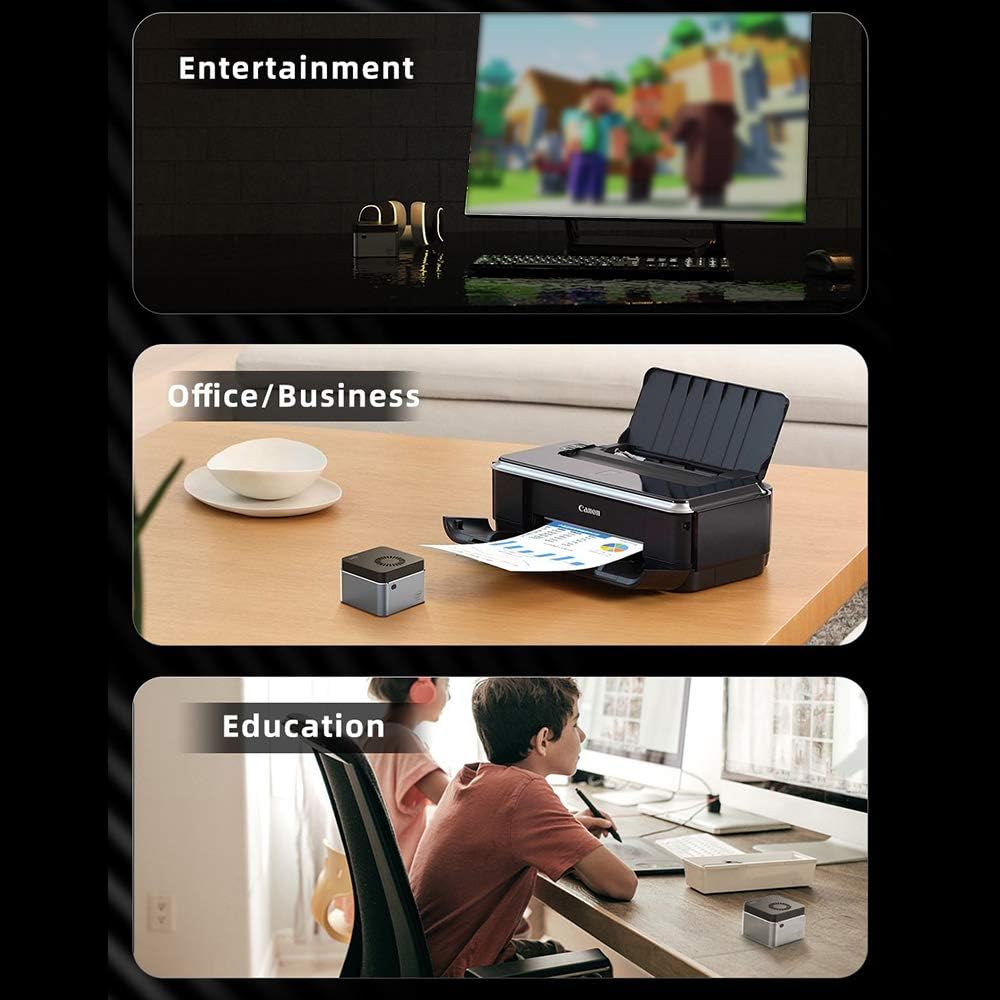
చిత్రం 7: ఉదాamples of the Mini PC's application in different environments: for entertainment (watching movies), office/business tasks (printing documents), and educational purposes (studying).

Figure 8: Visual representation of the compact and lightweight design, showing dimensions (2.4x2.4x1.6 inches) and weight (0.27 lbs), highlighting its portability and premium textured metal design.

మూర్తి 9: వివరంగా view of the Intel Celeron J4125 CPU, emphasizing its 4-core, 4-thread architecture with up to 2.7GHz frequency, contributing to fluent and quick response performance.
సెటప్ గైడ్
- పరికరాన్ని అన్ప్యాక్ చేయండి: ప్యాకేజింగ్ నుండి మినీ పిసి మరియు అన్ని ఉపకరణాలను జాగ్రత్తగా తొలగించండి.
- డిస్ప్లేకి కనెక్ట్ చేయండి: Connect your monitor, TV, or projector to the Mini PC using an HDMI cable. Ensure the display device is set to the correct input source.
- పెరిఫెరల్స్ కనెక్ట్ చేయండి: Plug in your USB keyboard and mouse into the available USB ports. For Bluetooth peripherals, refer to the "Operating Instructions" section for pairing.
- పవర్ అడాప్టర్ను కనెక్ట్ చేయండి: Insert the power adapter into the DC-in port on the Mini PC, then plug the adapter into a power outlet.
- పవర్ ఆన్: మినీ PC ముందు భాగంలో ఉన్న పవర్ బటన్ను నొక్కండి. పవర్ ఇండికేటర్ లైట్ వెలుగుతుంది.
- మొదటి ఏర్పాటు: Follow the on-screen instructions to complete the Windows 10 Home operating system setup, including language, region, network connection, and user account creation.
ఆపరేటింగ్ సూచనలు
పవర్ ఆన్/ఆఫ్
- పవర్ ఆన్ చేయడానికి: పవర్ బటన్ను ఒకసారి నొక్కండి.
- షట్ డౌన్ చేయడానికి: విండోస్లో స్టార్ట్ బటన్ను క్లిక్ చేసి, ఆపై పవర్ > షట్ డౌన్ ఎంచుకోండి.
- పునఃప్రారంభించడానికి: విండోస్లో స్టార్ట్ బటన్ను క్లిక్ చేసి, ఆపై పవర్ > రీస్టార్ట్ ఎంచుకోండి.
- నిద్రించడానికి: విండోస్లో స్టార్ట్ బటన్ను క్లిక్ చేసి, ఆపై పవర్ > స్లీప్ ఎంచుకోండి.
నెట్వర్క్కు కనెక్ట్ అవుతోంది
- Wi-Fi: After initial setup, click the Wi-Fi icon in the system tray, select your network, enter the password, and click Connect.
- ఈథర్నెట్: Connect an Ethernet cable from your router or modem to the LAN port on the Mini PC. The connection will be established automatically.
బ్లూటూత్ పెయిరింగ్
- విండోస్ సెట్టింగ్లు > పరికరాలు > బ్లూటూత్ & ఇతర పరికరాలకు వెళ్లండి.
- బ్లూటూత్ ఆన్ చేయబడిందని నిర్ధారించుకోండి.
- "బ్లూటూత్ లేదా ఇతర పరికరాన్ని జోడించు" క్లిక్ చేసి, "బ్లూటూత్" ఎంచుకోండి.
- మీ బ్లూటూత్ పరికరాన్ని జత చేసే విధానంలో ఉంచండి.
- Select your device from the list and follow the on-screen prompts to complete pairing.
నిర్వహణ
- శుభ్రపరచడం: Use a soft, dry cloth to clean the exterior of the Mini PC. Do not use liquid cleaners or aerosols. For dust accumulation in vents, use compressed air. Ensure the device is powered off and unplugged before cleaning.
- సాఫ్ట్వేర్ అప్డేట్లు: Regularly check for and install Windows updates to ensure system stability, security, and performance. Go to Settings > Update & Security > Windows Update.
- డ్రైవర్ నవీకరణలు: తయారీదారుని కాలానుగుణంగా తనిఖీ చేయండి website for updated drivers for components like graphics and Wi-Fi.
- నిల్వ నిర్వహణ: Regularly clear temporary files and unnecessary programs to maintain optimal storage performance.
ట్రబుల్షూటింగ్
| సమస్య | సాధ్యమైన కారణం | పరిష్కారం |
|---|---|---|
| పవర్ లేదు / పరికరం ఆన్ అవ్వదు. | పవర్ అడాప్టర్ సరిగ్గా కనెక్ట్ కాలేదు; పవర్ అవుట్లెట్ సమస్య; తప్పు పవర్ అడాప్టర్. | Ensure power adapter is securely connected to both the Mini PC and a working power outlet. Try a different outlet. |
| మానిటర్ పై డిస్ప్లే లేదు. | HDMI cable loose or faulty; Incorrect display input selected on monitor; Monitor not powered on. | Check HDMI cable connections. Ensure monitor is powered on and set to the correct input source (e.g., HDMI 1, HDMI 2). |
| Wi-Fi కనెక్షన్ లేదు. | Wi-Fi disabled; Incorrect password; Router issue; Driver issue. | Ensure Wi-Fi is enabled in Windows settings. Verify Wi-Fi password. Restart your router. Check for updated Wi-Fi drivers. |
| బ్లూటూత్ పరికరం జత కావడం లేదు. | Bluetooth disabled; Device not in pairing mode; Interference. | Ensure Bluetooth is enabled in Windows settings. Put the Bluetooth device into pairing mode. Move closer to the Mini PC and away from other wireless devices. |
| సిస్టమ్ నెమ్మదిగా ఉంది లేదా స్పందించడం లేదు. | Too many applications running; Low disk space; Malware; Outdated drivers. | అనవసరమైన అప్లికేషన్లను మూసివేయండి. డిస్క్ స్థలాన్ని ఖాళీ చేయండి. మాల్వేర్ స్కాన్ను అమలు చేయండి. డ్రైవర్లు మరియు విండోస్ను నవీకరించండి. |
స్పెసిఫికేషన్లు
| ఫీచర్ | వివరాలు |
|---|---|
| బ్రాండ్ | అండోయర్ |
| సిరీస్ | KB1 |
| ఫారమ్ ఫ్యాక్టర్ | చిన్న ఫారమ్ ఫ్యాక్టర్ |
| ప్రాసెసర్ బ్రాండ్ | ఇంటెల్ |
| ప్రాసెసర్ రకం | Celeron J4125 |
| ప్రాసెసర్ వేగం | 2.7 GHz (Max Burst) |
| RAM పరిమాణం | 8 GB |
| మెమరీ టెక్నాలజీ | LPDDR4 |
| హార్డ్ డిస్క్ వివరణ | SSD |
| మెమరీ స్టోరేజ్ కెపాసిటీ | 512 GB |
| గ్రాఫిక్స్ కోప్రాసెసర్ | ఇంటెల్ UHD గ్రాఫిక్స్ 600 |
| గ్రాఫిక్స్ RAM రకం | DDR4 SDRAM |
| కనెక్టివిటీ రకం | Wi-Fi (802.11a/b/g/n/ac, 5 GHz), Bluetooth |
| ఆపరేటింగ్ సిస్టమ్ | Windows 10 హోమ్ |
| కొలతలు | సుమారుగా. 2.4 x 2.4 x 1.6 అంగుళాలు |
| బరువు | సుమారు 0.27 పౌండ్లు |
వారంటీ మరియు మద్దతు
For warranty information and technical support, please refer to the documentation provided with your purchase or contact the seller directly. Additional protection plans may be available for purchase, such as extended warranty or accidental damage protection plans. Please consult your retailer for details on these options.
For general inquiries or troubleshooting not covered in this manual, please visit the official Andoer support webసైట్ లేదా వారి కస్టమర్ సేవను సంప్రదించండి.
Ask a question about this manual
Ask about setup, troubleshooting, compatibility, parts, safety, or missing instructions. Manuals+ will review the question and use this page’s manual context to help answer it.