
1. పరిచయం
Thank you for choosing the Dacom K6H Pro Bluetooth 5.0 Earphones. This manual provides detailed instructions on how to set up, operate, and maintain your earphones to ensure optimal performance and longevity. Please read this manual thoroughly before using the product.
2. ప్యాకేజీ విషయాలు
- Dacom K6H Pro Wireless Earbuds (Left and Right)
- ఛార్జింగ్ కేసు
- వినియోగదారు మాన్యువల్
3. ఉత్పత్తి ముగిసిందిview
Familiarize yourself with the components of your Dacom K6H Pro earphones and charging case.
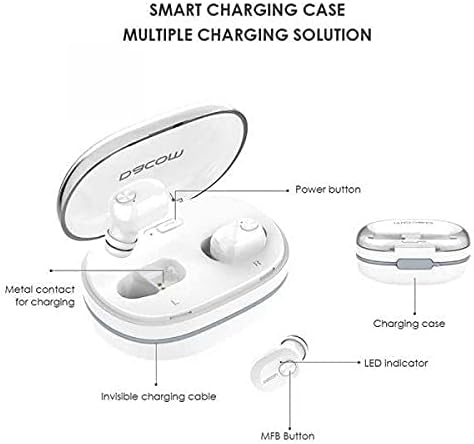
చిత్రం 3.1: Diagram illustrating the Dacom K6H Pro earphones and charging case components. The image highlights the power button, metal contacts for charging, invisible charging cable, LED indicator, and Multi-Function Button (MFB) on the earbud.
ముఖ్య భాగాలు:
- ఛార్జింగ్ కేసు: Stores and charges the earbuds. Features a power button and metal contacts for earbud charging.
- Invisible Charging Cable: Integrated USB charging cable for convenient power replenishment.
- Earbuds (Left & Right): Each earbud has an LED indicator and a Multi-Function Button (MFB) for control.

చిత్రం 3.2: The Dacom K6H Pro wireless earphones, showing both the charging case with one earbud inserted and the other earbud removed, ready for use. The case is open, revealing the earbud compartments.
4. ఛార్జింగ్
Ensure your Dacom K6H Pro earphones and charging case are fully charged before first use.
4.1 ఇయర్బడ్లను ఛార్జ్ చేస్తోంది
- ఛార్జింగ్ కేస్లో ఇయర్బడ్లను వాటి సంబంధిత స్లాట్లలో ఉంచండి.
- ఛార్జింగ్ కేస్ మూతను మూసివేయండి. ఇయర్బడ్లు ఆటోమేటిక్గా ఛార్జ్ అవ్వడం ప్రారంభిస్తాయి.
- The LED indicator on the earbuds will show charging status (refer to LED indicator section for details).
4.2 కేసును ఛార్జ్ చేయడం
The charging case features a hidden, integrated USB charging cable for convenience.
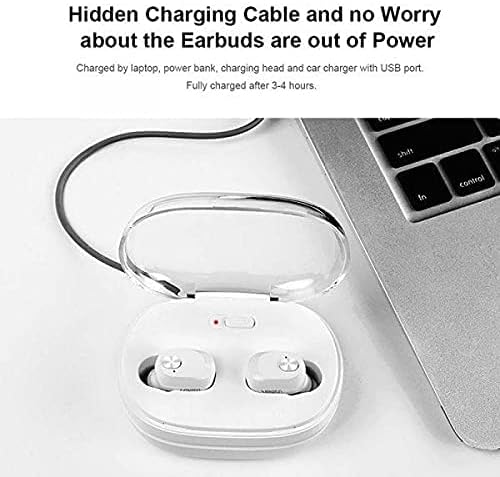
చిత్రం 4.1: The Dacom K6H Pro charging case connected to a laptop via its integrated USB charging cable. The earbuds are inside the case, and a red LED indicator on the case is visible, signifying charging in progress.
- Locate the integrated USB charging cable on the charging case.
- Connect the USB cable to a power source such as a laptop, power bank, charging head, or car charger with a USB port.
- The charging case LED indicator will illuminate to show charging status.
- పూర్తిగా ఛార్జ్ కావడానికి సాధారణంగా 3-4 గంటలు పడుతుంది.
5. సెటప్ & జత చేయడం
Follow these steps to pair your Dacom K6H Pro earphones with your device.
5.1 ప్రారంభ జత చేయడం
- ఇయర్బడ్లు ఛార్జ్ అయ్యాయని నిర్ధారించుకోండి.
- ఛార్జింగ్ కేస్ను తెరవండి. ఇయర్బడ్లు ఆటోమేటిక్గా పవర్ ఆన్ అయి, జత చేసే మోడ్లోకి ప్రవేశిస్తాయి.
- On your smartphone (iPhone or Android) or other Bluetooth-enabled device, go to the Bluetooth settings.
- కోసం వెతకండి available devices and select "Dacom K6H Pro" from the list.
- కనెక్ట్ అయిన తర్వాత, వాయిస్ ప్రాంప్ట్ విజయవంతమైన జతను నిర్ధారిస్తుంది.
5.2 తిరిగి కనెక్ట్ చేస్తోంది
After initial pairing, the earbuds will automatically reconnect to the last paired device when removed from the charging case and the device's Bluetooth is active.
6. ఆపరేటింగ్ నియంత్రణలు
The Dacom K6H Pro earphones feature touch controls via the Multi-Function Button (MFB) on each earbud.
- ప్లే/పాజ్: Single tap on either MFB.
- తదుపరి ట్రాక్: Double tap the MFB on the right earbud.
- మునుపటి ట్రాక్: Double tap the MFB on the left earbud.
- సమాధానం/ముగింపు కాల్: Single tap on either MFB during an incoming call.
- కాల్ని తిరస్కరించండి: Press and hold either MFB for 2 seconds during an incoming call.
- వాయిస్ అసిస్టెంట్ను సక్రియం చేయండి: Triple tap on either MFB.
- వాల్యూమ్ నియంత్రణ: Volume is typically controlled via the connected device.
7. నిర్వహణ
Proper maintenance ensures the longevity and performance of your earphones.
- శుభ్రపరచడం: ఇయర్బడ్లు మరియు ఛార్జింగ్ కేసును మృదువైన, పొడి, మెత్తటి బట్టతో క్రమం తప్పకుండా శుభ్రం చేయండి. కఠినమైన రసాయనాలు లేదా రాపిడి పదార్థాలను ఉపయోగించవద్దు.
- నిల్వ: ఉపయోగంలో లేనప్పుడు, ఇయర్ఫోన్లను దుమ్ము మరియు నష్టం నుండి రక్షించడానికి వాటి ఛార్జింగ్ కేసులో నిల్వ చేయండి.
- నీటిని నివారించండి: ఇయర్ఫోన్లు వాటర్ప్రూఫ్ కాదు. నీరు, తేమ లేదా తీవ్రమైన ఉష్ణోగ్రతలకు గురికాకుండా ఉండండి.
- ఛార్జింగ్ పరిచయాలు: Ensure the metal charging contacts on both the earbuds and the case are clean and free of debris for effective charging.
8. ట్రబుల్షూటింగ్
If you encounter issues with your Dacom K6H Pro earphones, refer to the following common solutions.
- ఇయర్బడ్లు జత కావడం లేదు:
- రెండు ఇయర్బడ్లు ఛార్జ్ అయ్యాయని నిర్ధారించుకోండి.
- మీ పరికరంలో బ్లూటూత్ను ఆఫ్ చేసి, ఆపై దాన్ని తిరిగి ఆన్ చేయండి.
- Forget/delete "Dacom K6H Pro" from your device's Bluetooth list and attempt to pair again.
- ఇయర్బడ్లను తిరిగి కేస్లో ఉంచండి, మూత మూసివేసి, కొన్ని సెకన్లు వేచి ఉండండి, ఆపై జత చేసే మోడ్లోకి తిరిగి ప్రవేశించడానికి తెరవండి.
- ఒకే ఒక ఇయర్బడ్ పనిచేస్తోంది:
- రెండు ఇయర్బడ్లు ఛార్జ్ అయ్యాయని నిర్ధారించుకోండి.
- Try resetting the earbuds (refer to manufacturer's specific reset instructions if available, otherwise try placing both in case, closing, and reopening).
- ఇయర్బడ్లు మరియు కేస్ రెండింటిలోనూ ఛార్జింగ్ కాంటాక్ట్లను శుభ్రం చేయండి.
- ఇయర్బడ్లు ఛార్జ్ కావడం లేదు:
- ఛార్జింగ్ కేసు కూడా ఛార్జ్ అయ్యిందని నిర్ధారించుకోండి.
- ఛార్జింగ్ కేసులో ఇయర్బడ్లు సరిగ్గా అమర్చబడ్డాయని ధృవీకరించండి.
- ఇయర్బడ్లు మరియు కేస్ రెండింటిలోనూ ఛార్జింగ్ కాంటాక్ట్లను శుభ్రం చేయండి.
- Try a different USB power source for the charging case.
- పేలవమైన ధ్వని నాణ్యత:
- ఇయర్బడ్లు మీ చెవుల్లో సరిగ్గా అమర్చబడ్డాయని నిర్ధారించుకోండి.
- Check the audio source and volume levels on your connected device.
- జోక్యాన్ని నివారించడానికి మీ కనెక్ట్ చేయబడిన పరికరానికి దగ్గరగా వెళ్లండి.
9. స్పెసిఫికేషన్లు
| బ్రాండ్ | Dacom |
| మోడల్ సంఖ్య | K6H Pro |
| కనెక్టివిటీ | వైర్లెస్, బ్లూటూత్ 5.0 |
| ఇయర్ఫోన్ రకం | ఇన్-ఇయర్ |
| మైక్రోఫోన్ | చేర్చబడింది |
| నాయిస్ కంట్రోల్ | యాక్టివ్ నాయిస్ రద్దు |
| నియంత్రణ రకం | మీడియా నియంత్రణ, టచ్ |
| కేబుల్ ఫీచర్ | Without Cable (integrated USB for case) |
| అనుకూల పరికరాలు | Multi (iPhone & Android) |
| రంగు | తెలుపు |
| ప్యాకేజీ కొలతలు | 17.2 x 10.2 x 3.8 సెం.మీ |
| వస్తువు బరువు | 120 గ్రా |
10. వారంటీ మరియు మద్దతు
Dacom products are designed for reliability and performance. For warranty information, please refer to the warranty card included in your product packaging or visit the official Dacom website. For technical support or further assistance, please contact Dacom customer service through the channels provided on their official webసైట్.