
1. పరిచయం
Welcome to your new HAOVM 10-inch Android 11 Tablet. This manual provides essential information to help you set up, operate, maintain, and troubleshoot your device. Please read it carefully to ensure optimal performance and longevity of your tablet.

Image: The HAOVM 10-inch Android 11 Tablet, showcasing దాని సొగసైన డిజైన్ మరియు ప్రదర్శన.
2. ప్రారంభించడం (సెటప్)
2.1 టాబ్లెట్ను ఛార్జ్ చేయడం
Before first use, ensure your tablet is fully charged.
- Connect the USB Type-C cable to the tablet's charging port.
- Connect the other end of the cable to a compatible power adapter and plug it into a wall outlet.
- The battery icon on the screen will indicate the charging status.
2.2 పవర్ ఆన్/ఆఫ్
- పవర్ ఆన్ చేయడానికి: Press and hold the Power Button (located on the side) until the HAOVM logo appears on the screen.
- పవర్ ఆఫ్ చేయడానికి: Press and hold the Power Button until a power options menu appears. Select "Power off" and confirm.
2.3 ప్రారంభ సెటప్
మొదటిసారి పవర్-ఆన్ చేసిన తర్వాత, మీరు ప్రారంభ సెటప్ ప్రక్రియ ద్వారా మార్గనిర్దేశం చేయబడతారు:
- మీకు ఇష్టమైన భాషను ఎంచుకోండి.
- ఇంటర్నెట్ని యాక్సెస్ చేయడానికి Wi-Fi నెట్వర్క్కి కనెక్ట్ చేయండి.
- మీ Google ఖాతాతో సైన్ ఇన్ చేయండి లేదా కొత్తదాన్ని సృష్టించండి.
- Follow the remaining prompts to complete the setup.

Image: Close-up of the tablet's USB Type-C port, highlighting its modern connectivity.
3. మీ టాబ్లెట్ను ఆపరేట్ చేయడం
3.1 డిస్ప్లే మరియు నావిగేషన్
The HAOVM tablet features a vibrant 10.1-inch IPS FHD display with a resolution of 1920x1200 pixels, providing clear and crisp visuals. The capacitive touchscreen allows for smooth and responsive navigation.
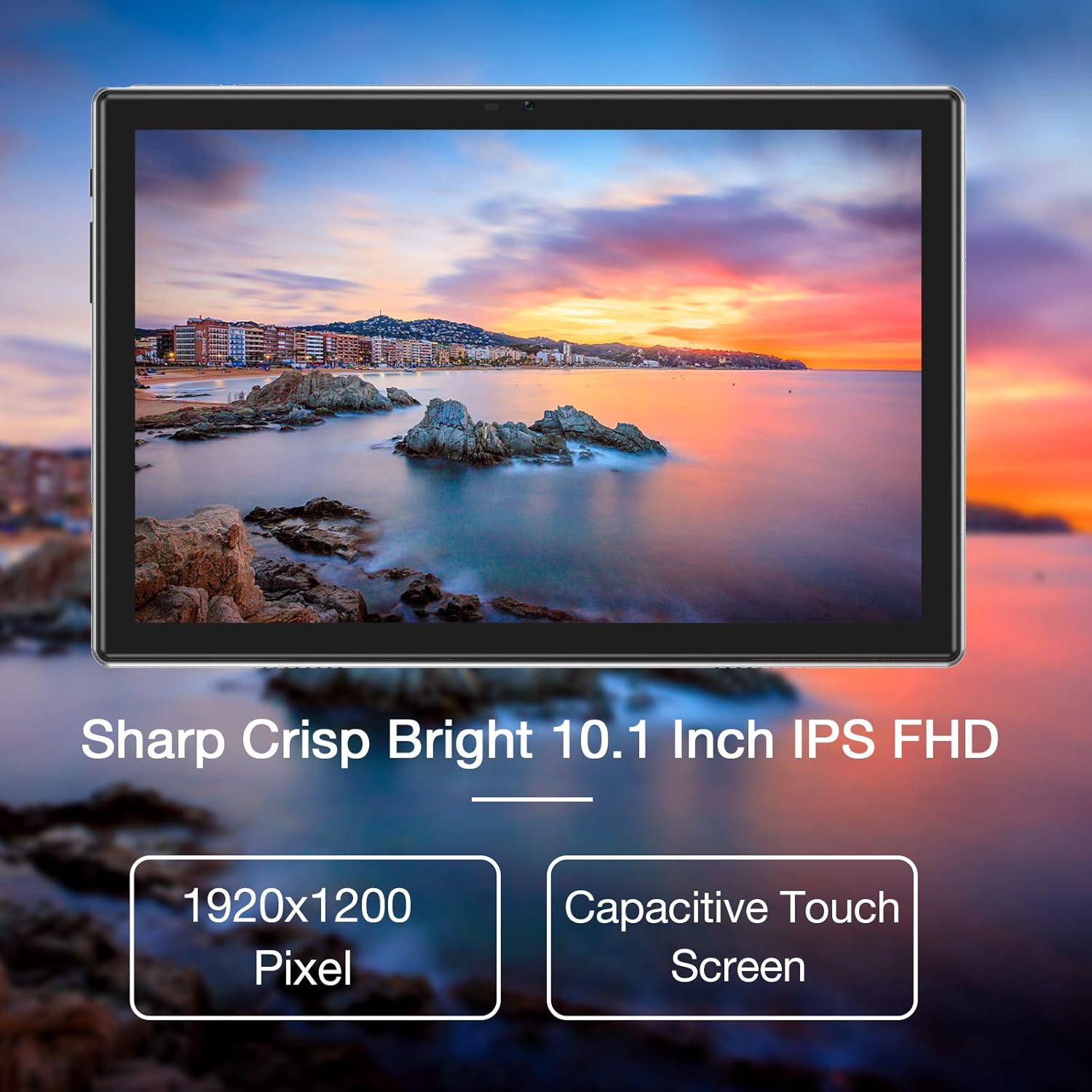
Image: The tablet's 10.1-inch IPS FHD display showcasing its sharp and bright visual quality.
3.2 కనెక్టివిటీ
Your tablet offers robust connectivity options:
- Wi-Fi: Supports 5G WiFi (802.11ac) for high-speed internet access. To connect, go to సెట్టింగ్లు > నెట్వర్క్ & ఇంటర్నెట్ > Wi-Fi, మీ నెట్వర్క్ను ఎంచుకుని, పాస్వర్డ్ను నమోదు చేయండి.
- బ్లూటూత్: Equipped with Bluetooth 5.0 for connecting to wireless headphones, speakers, and other compatible devices. Enable it via సెట్టింగ్లు> కనెక్ట్ చేయబడిన పరికరాలు> కనెక్షన్ ప్రాధాన్యతలు> బ్లూటూత్.
3.3 కెమెరాలు
Capture moments and make video calls with the tablet's dual cameras:
- ముందు కెమెరా: 5 Megapixels, ideal for video conferencing and selfies.
- వెనుక కెమెరా: 13 Megapixels, suitable for taking photos and recording videos.

Image: Illustration showing the tablet's 5.0MP front camera and 13.0MP back camera capabilities.
3.4 నిల్వ మరియు పనితీరు
The tablet is designed for efficient multitasking and ample నిల్వ:
- RAM: 3GB of RAM ensures smooth operation and efficient multitasking.
- అంతర్గత నిల్వ: 64GB of internal storage for your apps, photos, and files.
- విస్తరించదగిన నిల్వ: Storage can be expanded up to 128GB using a microSD card (not included).
- ప్రాసెసర్: Powered by a 1.6 GHz Octa-Core processor, providing fast and fluid performance for various applications.

Image: Diagram illustrating the tablet's powerful internal configuration, including the Octa-Core CPU, 3GB RAM, and 64GB storage.
3.5 GPS పనితనం
The integrated GPS system allows for accurate navigation and location-based services, making it a useful tool for travel and exploration.

Image: The tablet being used for navigation, demonstrating its GPS capabilities and long-lasting 6000mAh battery.
4. నిర్వహణ
4.1 శుభ్రపరచడం
- టాబ్లెట్ స్క్రీన్ మరియు బాడీని సున్నితంగా తుడవడానికి మృదువైన, మెత్తటి బట్టను ఉపయోగించండి.
- Avoid using abrasive cleaners, alcohol, or chemical solvents, as they may damage the surface.
4.2 బ్యాటరీ సంరక్షణ
- To prolong battery life, avoid exposing the tablet to extreme temperatures (hot or cold).
- బ్యాటరీని తరచుగా 0% వరకు పూర్తిగా డిశ్చార్జ్ అవ్వనివ్వకండి.
- టాబ్లెట్ను ఎక్కువసేపు నిల్వ చేయాలనుకుంటే, దాన్ని ఆపివేయడానికి ముందు దాదాపు 50% వరకు ఛార్జ్ చేయండి.
4.3 సాఫ్ట్వేర్ నవీకరణలు
- Regularly check for system updates to ensure your tablet has the latest features, performance improvements, and security patches.
- You can usually find update options in సెట్టింగ్లు > సిస్టమ్ > సిస్టమ్ అప్డేట్.
5. ట్రబుల్షూటింగ్
5.1 సాధారణ సమస్యలు మరియు పరిష్కారాలు
| సమస్య | పరిష్కారం |
|---|---|
| టాబ్లెట్ ఆన్ అవ్వడం లేదు | Ensure the battery is charged. Connect to a power source for at least 30 minutes. Press and hold the power button for 10-15 seconds to force a restart. |
| Wi-Fi కనెక్షన్ సమస్యలు | Restart the tablet and your Wi-Fi router. Go to Wi-Fi settings, forget the network, and then reconnect. Ensure you are within range of the Wi-Fi signal. |
| యాప్లు క్రాష్ అవుతున్నాయి లేదా స్తంభించిపోతున్నాయి | యాప్ను మూసివేసి తిరిగి తెరవండి. యాప్ కాష్ మరియు డేటాను క్లియర్ చేయండి సెట్టింగ్లు > యాప్లు > [యాప్ పేరు] > స్టోరేజ్ > కాష్ క్లియర్ చేయండి/డేటాను క్లియర్ చేయండి. Ensure sufficient storage space is available. |
| నెమ్మదిగా పనితీరు | Close unused background apps. Clear system cache (if option available). Uninstall unnecessary apps. If issues persist, consider a factory reset (backup all data first). |
| స్క్రీన్ స్పందించడం లేదు | Restart the tablet by holding the power button. If unresponsive, let the battery drain completely and then recharge and power on. |
6. స్పెసిఫికేషన్లు
6.1 సాంకేతిక లక్షణాలు
| ఫీచర్ | వివరాలు |
|---|---|
| బ్రాండ్ | HAOVM |
| మోడల్ సంఖ్య | Tablet (HP20) |
| ఆపరేటింగ్ సిస్టమ్ | ఆండ్రాయిడ్ 11 |
| ప్రాసెసర్ | ఆక్టా-కోర్ 1.6 GHz |
| RAM | 3 GB |
| అంతర్గత నిల్వ | 64 GB |
| విస్తరించదగిన నిల్వ | 128 GB వరకు (MicroSD) |
| స్క్రీన్ పరిమాణం | 10.1 అంగుళాలు |
| డిస్ప్లే రిజల్యూషన్ | 1920 x 1200 పిక్సెల్స్ (FHD IPS) |
| ఫ్రంట్ కెమెరా | 5 ఎంపీ |
| వెనుక కెమెరా | 13 ఎంపీ |
| కనెక్టివిటీ | Wi-Fi (802.11ac), Bluetooth 5.0, GPS |
| ఇంటర్ఫేస్ | USB టైప్-C |
| బ్యాటరీ | 6000mAh |
| కొలతలు (L x W x H) | 27.2 x 18 x 6.1 సెం.మీ |
| బరువు | 5 గ్రాములు |
7. వారంటీ మరియు మద్దతు
7.1 వారంటీ సమాచారం
Your HAOVM tablet comes with a limited warranty. Please refer to the warranty card or documentation included in the product packaging for specific terms, conditions, and duration of the warranty. Keep your proof of purchase for warranty claims.
7.2 కస్టమర్ మద్దతు
For technical assistance, troubleshooting beyond this manual, or service inquiries, please contact HAOVM customer support. You can typically find contact information on the official HAOVM webసైట్ లేదా మీరు ఉత్పత్తిని కొనుగోలు చేసిన రిటైలర్ ద్వారా.