
DrayTek V2865AX-K
DrayTek Vigor 2865ax ఈథర్నెట్ రూటర్ యూజర్ మాన్యువల్
మోడల్: V2865AX-K
పరిచయం
Welcome to the user manual for your DrayTek Vigor 2865ax Ethernet Router. This document provides detailed instructions for setting up, operating, maintaining, and troubleshooting your device to ensure optimal performance and connectivity. The Vigor 2865ax is a high-performance router designed for Small to Medium Businesses (SMBs) and advanced home users, offering robust features like VDSL2/ADSL2+ and Ethernet WAN load balancing, Wi-Fi 6 (AX3000), VPN capabilities, and extensive LAN port options.
భద్రతా సమాచారం
Please read these safety instructions carefully before using the device.
- Place the router on a stable, flat surface away from direct sunlight, heat sources, and moisture.
- పరికరం వేడెక్కకుండా నిరోధించడానికి దాని చుట్టూ తగినంత వెంటిలేషన్ ఉండేలా చూసుకోండి.
- Use only the power adapter supplied with the router.
- రౌటర్ తెరవవద్దు casing; అన్ని సర్వీసింగ్లను అర్హత కలిగిన సిబ్బందికి సూచించండి.
- పరికరాన్ని పిల్లలు మరియు పెంపుడు జంతువుల నుండి దూరంగా ఉంచండి.
- విద్యుత్ తుఫానులు సంభవించినప్పుడు లేదా ఎక్కువ కాలం ఉపయోగించనప్పుడు విద్యుత్తును డిస్కనెక్ట్ చేయండి.
ప్యాకేజీ విషయాలు
క్రింద జాబితా చేయబడిన అన్ని వస్తువులు మీ ప్యాకేజీలో చేర్చబడ్డాయని ధృవీకరించండి:
- Vigor 2865 Series Router
- DC 12V Power Supply with UK Plug
- త్వరిత ప్రారంభ గైడ్
- Screws & wall plugs for wall mounting
- 2m Cat-5e RJ-45 Network Cable
- 2x Detachable Wireless LAN Antennas
ఉత్పత్తి ముగిసిందిview
Familiarize yourself with the physical components and ports of your DrayTek Vigor 2865ax router.
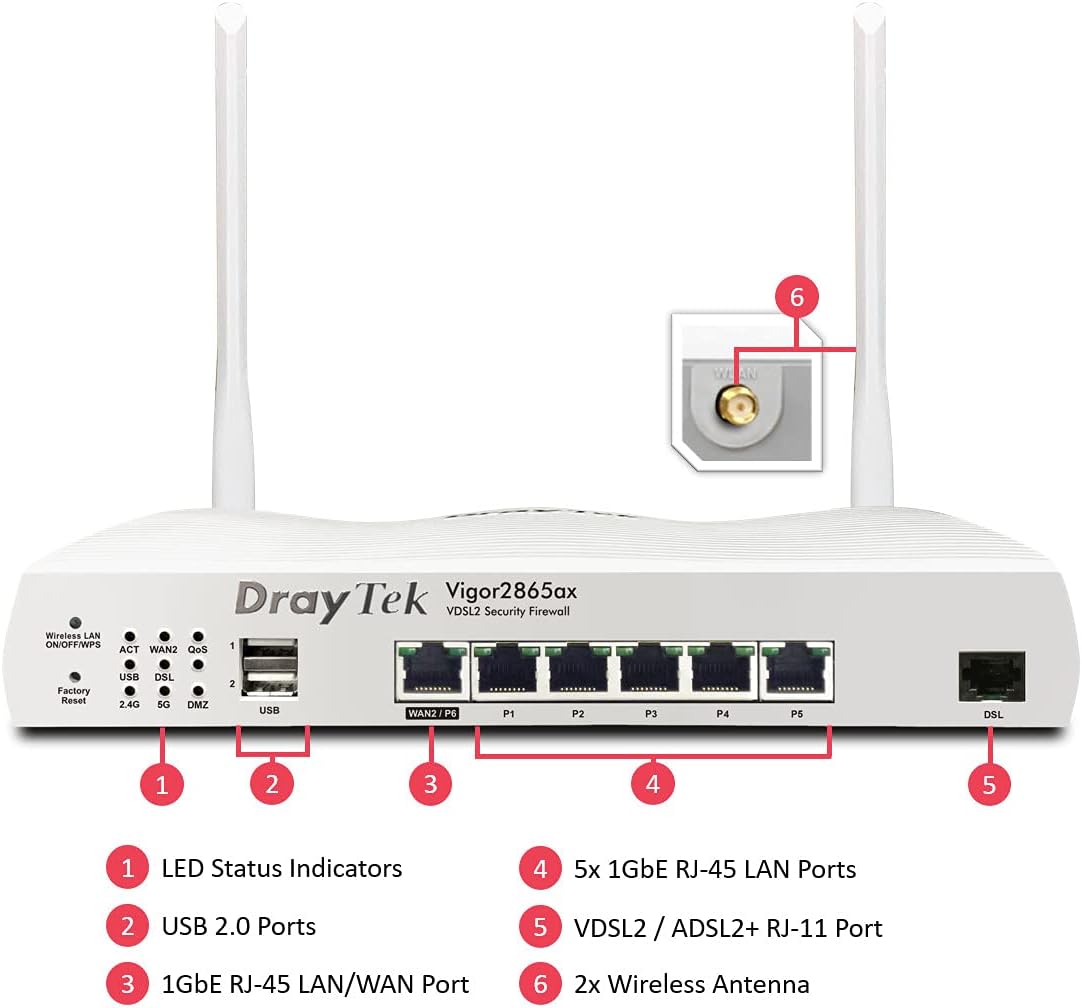
This image displays the front panel of the DrayTek Vigor 2865ax router, highlighting key components. Label 1 points to the LED Status Indicators, Label 2 to the USB 2.0 Ports, Label 3 to the 1GbE RJ-45 LAN/WAN Port (WAN2/P6), Label 4 to the 5x 1GbE RJ-45 LAN Ports (P1-P5), Label 5 to the VDSL2 / ADSL2+ RJ-11 Port (DSL), and Label 6 to the 2x Wireless Antenna connectors.
ముందు ప్యానెల్
- LED స్థితి సూచికలు: Provide visual feedback on the router's operational status, including power, internet connectivity, Wi-Fi activity, and LAN port status.
- USB 2.0 పోర్ట్లు: For connecting external devices such as 3G/4G USB modems for backup WAN or USB storage for network-attached storage (NAS) functionality.
- WAN2/P6 (1GbE RJ-45 LAN/WAN Port): Configurable as either a Gigabit Ethernet WAN port for connecting to a fiber modem or another internet source, or as an additional LAN port.
- P1-P5 (5x 1GbE RJ-45 LAN Ports): Gigabit Ethernet ports for connecting wired devices such as computers, servers, and network switches.
- DSL (VDSL2 / ADSL2+ RJ-11 Port): For connecting directly to your VDSL or ADSL broadband line.
వెనుక ప్యానెల్
- పవర్ ఇన్పుట్: Connects to the supplied DC 12V power adapter.
- పవర్ బటన్: రౌటర్ను ఆన్ లేదా ఆఫ్ చేయడానికి.
- యాంటెన్నా కనెక్టర్లు: For attaching the two detachable wireless LAN antennas.
సెటప్
దశ 1: హార్డ్వేర్ను కనెక్ట్ చేయండి
- యాంటెన్నాలను కనెక్ట్ చేయండి: Screw the two detachable wireless LAN antennas onto the connectors at the rear of the router.
- ఇంటర్నెట్ (WAN) కి కనెక్ట్ అవ్వండి:
- For VDSL/ADSL: Connect an RJ-11 cable from your telephone line's DSL filter/socket to the DSL port on the router.
- For Ethernet WAN (e.g., Fibre/Cable Modem): Connect an Ethernet cable from your fiber/cable modem to the WAN2/P6 port on the router.
- స్థానిక నెట్వర్క్ (LAN)కి కనెక్ట్ అవ్వండి: Connect an Ethernet cable from one of the LAN ports (P1-P5) on the router to your computer or network switch.
- పవర్ కనెక్ట్ చేయండి: Connect the supplied DC 12V power adapter to the router's power input and then plug it into a power outlet. Press the power button to turn on the router.
దశ X: ప్రారంభ ఆకృతీకరణ
- యాక్సెస్ Web ఇంటర్ఫేస్: తెరవండి a web browser on a connected computer and enter the default IP address: 192.168.1.1.
- లాగిన్: డిఫాల్ట్ యూజర్ పేరును నమోదు చేయండి (నిర్వాహకుడు) మరియు పాస్వర్డ్ (నిర్వాహకుడు). It is highly recommended to change the default password immediately after logging in for the first time.
- Run Quick Start Wizard: Follow the on-screen instructions of the Quick Start Wizard to configure your internet connection (WAN settings), Wi-Fi network name (SSID), and password.
- ఫర్మ్వేర్ నవీకరణ: After initial setup, navigate to సిస్టమ్ నిర్వహణ > ఫర్మ్వేర్ అప్గ్రేడ్ to check for and install the latest firmware. This ensures optimal performance and security.
ఆపరేటింగ్ సూచనలు
Multi-WAN Load Balancing and Failover
The Vigor 2865ax supports multiple WAN connections, allowing for load balancing to increase bandwidth or failover for connection redundancy.

This diagram shows the DrayTek Vigor 2865ax router connected to various internet sources: WiFi WAN, 1Gb Ethernet & FTTP, ADSL2+ & VDSL2 FTTC, and G.Fast FTTC. This illustrates the router's capability to utilize multiple WAN connections simultaneously for load balancing or failover.
Configure WAN settings under WAN > జనరల్ సెటప్. You can enable load balancing policies or set up failover rules to ensure continuous internet access.
Wi-Fi 6 (AX3000) Configuration
The router provides high-speed Wi-Fi 6 connectivity across dual bands (2.4GHz and 5GHz).

This image depicts the Wi-Fi coverage provided by the DrayTek Vigor 2865ax router, showing distinct coverage areas for the 2.4GHz (AX600) and 5GHz (AX2400) bands, with various devices connected within these zones.
దీని ద్వారా Wi-Fi సెట్టింగ్లను యాక్సెస్ చేయండి వైర్లెస్ LAN menu. Here you can:
- Change SSID (Wi-Fi network name) and password.
- Configure security settings (WPA2/WPA3).
- Set up multiple SSIDs for different networks (e.g., guest network).
- Adjust channel and bandwidth settings for optimal performance.
VPN (వర్చువల్ ప్రైవేట్ నెట్వర్క్)
The Vigor 2865ax supports up to 32 VPN tunnels, including SSL VPN and OpenVPN, for secure remote access and site-to-site connectivity.
నావిగేట్ చేయండి VPN మరియు రిమోట్ యాక్సెస్ to configure VPN profiles. Detailed guides for various VPN types are available on the DrayTek support webసైట్.
LAN Management and VLANs
The router features 5+1 Gigabit LAN ports and supports VLANs for network segmentation.
Manage LAN settings under LAN > General Setup. నువ్వు చేయగలవు:
- Configure IP addresses and DHCP server settings.
- Create VLANs (Virtual LANs) to isolate network segments for enhanced security and management (e.g., separating guest Wi-Fi from internal network).
- Set up port mirroring or link aggregation if supported.
నిర్వహణ
ఫర్మ్వేర్ నవీకరణలు
Regularly check for and install firmware updates to ensure your router has the latest features, security patches, and performance improvements.
- Visit the official DrayTek website and navigate to the support section for the Vigor 2865ax.
- తాజా ఫర్మ్వేర్ను డౌన్లోడ్ చేయండి file.
- రౌటర్లను యాక్సెస్ చేయండి web interface and go to సిస్టమ్ నిర్వహణ > ఫర్మ్వేర్ అప్గ్రేడ్.
- Follow the on-screen instructions to upload and install the firmware. Do not power off the router during this process.
బ్యాకప్ కాన్ఫిగరేషన్
It is advisable to back up your router's configuration settings before performing major changes or firmware updates.
వెళ్ళండి సిస్టమ్ నిర్వహణ > కాన్ఫిగరేషన్ బ్యాకప్ to save your settings to a file.
ఫ్యాక్టరీ రీసెట్
If you encounter persistent issues or wish to revert all settings to default, you can perform a factory reset.
హెచ్చరిక: A factory reset will erase all your custom configurations.
ఫ్యాక్టరీ రీసెట్ చేయడానికి:
- With the router powered on, use a paperclip or a thin object to press and hold the ఫ్యాక్టరీ రీసెట్ button (located on the front panel, often recessed) for about 5-10 seconds until the LEDs flash.
- Release the button and wait for the router to restart with default settings.
ట్రబుల్షూటింగ్
ఇంటర్నెట్ కనెక్షన్ లేదు
- కేబుల్లను తనిఖీ చేయండి: Ensure all Ethernet and DSL cables are securely connected to the correct ports.
- WAN LED ని తనిఖీ చేయండి: Verify that the WAN LED (DSL or WAN2) is lit and stable, indicating a connection to your ISP.
- ISP సెట్టింగ్లు: Confirm that your WAN settings (e.g., PPPoE username/password, static IP, DHCP) are correctly configured in the router's web interface, matching your ISP's requirements.
- మోడెమ్ స్థితి: If using an external modem, check its status lights to ensure it's online.
- రీబూట్: Power cycle both your modem (if applicable) and the DrayTek router.
Wi-Fi Not Working or Slow
- Check Wireless LAN LED: Ensure the Wireless LAN LED is active.
- SSID ప్రసారం: Verify that your Wi-Fi network (SSID) is being broadcast.
- పాస్వర్డ్: మీ Wi-Fi పాస్వర్డ్ను ఒకటికి రెండుసార్లు తనిఖీ చేయండి.
- ఛానెల్ జోక్యం: పొరుగు నెట్వర్క్ల నుండి జోక్యాన్ని నివారించడానికి రౌటర్ సెట్టింగ్లలో Wi-Fi ఛానెల్ని మార్చడానికి ప్రయత్నించండి.
- సిగ్నల్ బలం: Ensure the router is placed centrally and away from obstructions.
యాక్సెస్ చేయలేరు Web ఇంటర్ఫేస్
- IP చిరునామా: Confirm your computer's IP address is in the same subnet as the router (e.g., 192.168.1.x).
- కేబుల్ కనెక్షన్: Ensure your computer is directly connected to a LAN port on the router.
- బ్రౌజర్ కాష్: మీ బ్రౌజర్ కాష్ను క్లియర్ చేయండి లేదా వేరే బ్రౌజర్ను ప్రయత్నించండి.
- ఫైర్వాల్/యాంటీవైరస్: మీ కంప్యూటర్లో యాక్సెస్ను బ్లాక్ చేస్తున్న ఏవైనా సాఫ్ట్వేర్ ఫైర్వాల్లు లేదా యాంటీవైరస్ ప్రోగ్రామ్లను తాత్కాలికంగా నిలిపివేయండి.
- ఫ్యాక్టరీ రీసెట్: As a last resort, perform a factory reset (see Maintenance section).
స్పెసిఫికేషన్లు
| ఫీచర్ | వివరాలు |
|---|---|
| ఉత్పత్తి కొలతలు | 34.5 x 28.6 x 7.5 సెం.మీ; 1.6 కిలోలు |
| అంశం మోడల్ సంఖ్య | V2865AX-K పరిచయం |
| బ్రాండ్ | డ్రైటెక్ |
| మోడల్ పేరు | Vigor 2865ax |
| ప్రత్యేక ఫీచర్ | రిమోట్ యాక్సెస్ |
| ఫ్రీక్వెన్సీ బ్యాండ్ క్లాస్ | డ్యూయల్-బ్యాండ్ |
| వైర్లెస్ కమ్యూనికేషన్ స్టాండర్డ్ | 802.11a (Wi-Fi 6 AX3000) |
| అనుకూల పరికరాలు | ల్యాప్టాప్, పర్సనల్ కంప్యూటర్, టాబ్లెట్, స్మార్ట్ఫోన్ |
| ఫ్రీక్వెన్సీ | 2.4 GHz, 5 GHz |
| సిఫార్సు చేసిన ఉపయోగాలు | గేమింగ్, ఇల్లు, వ్యాపారం |
| కనెక్టివిటీ టెక్నాలజీ | Wi-Fi, Ethernet, VDSL2/ADSL2+ |
వారంటీ మరియు మద్దతు
DrayTek products typically come with a standard manufacturer's warranty. Please refer to the warranty card included in your product packaging or visit the official DrayTek webమీ ప్రాంతానికి సంబంధించిన వివరణాత్మక వారంటీ నిబంధనలు మరియు షరతుల కోసం సైట్ను చూడండి.
For technical support, firmware downloads, and additional documentation, please visit the official DrayTek support webసైట్: www.draytek.co.uk/support. You may also contact DrayTek customer service directly for assistance.
When contacting support, please have your router's model number (Vigor 2865ax) and serial number ready.
Ask a question about this manual
Ask about setup, troubleshooting, compatibility, parts, safety, or missing instructions. Manuals+ will review the question and use this page’s manual context to help answer it.