
1. పరిచయం
Thank you for choosing the Attoe Ergonomic Rechargeable Small Vertical Wireless Mouse. This mouse is designed to provide a more natural hand position, reducing strain on your wrist and hand during extended use. Its vertical design promotes comfort and efficiency.
This manual will guide you through the setup, operation, and maintenance of your new mouse to ensure optimal performance and longevity.
2. ప్యాకేజీ విషయాలు
- Vertical Mouse x 1
- USB రిసీవర్ x 1
- USB ఛార్జింగ్ కేబుల్ x 1
- Instructions x 1 (This document)
3. సిస్టమ్ అవసరాలు
- IBM లేదా అనుకూల కంప్యూటర్
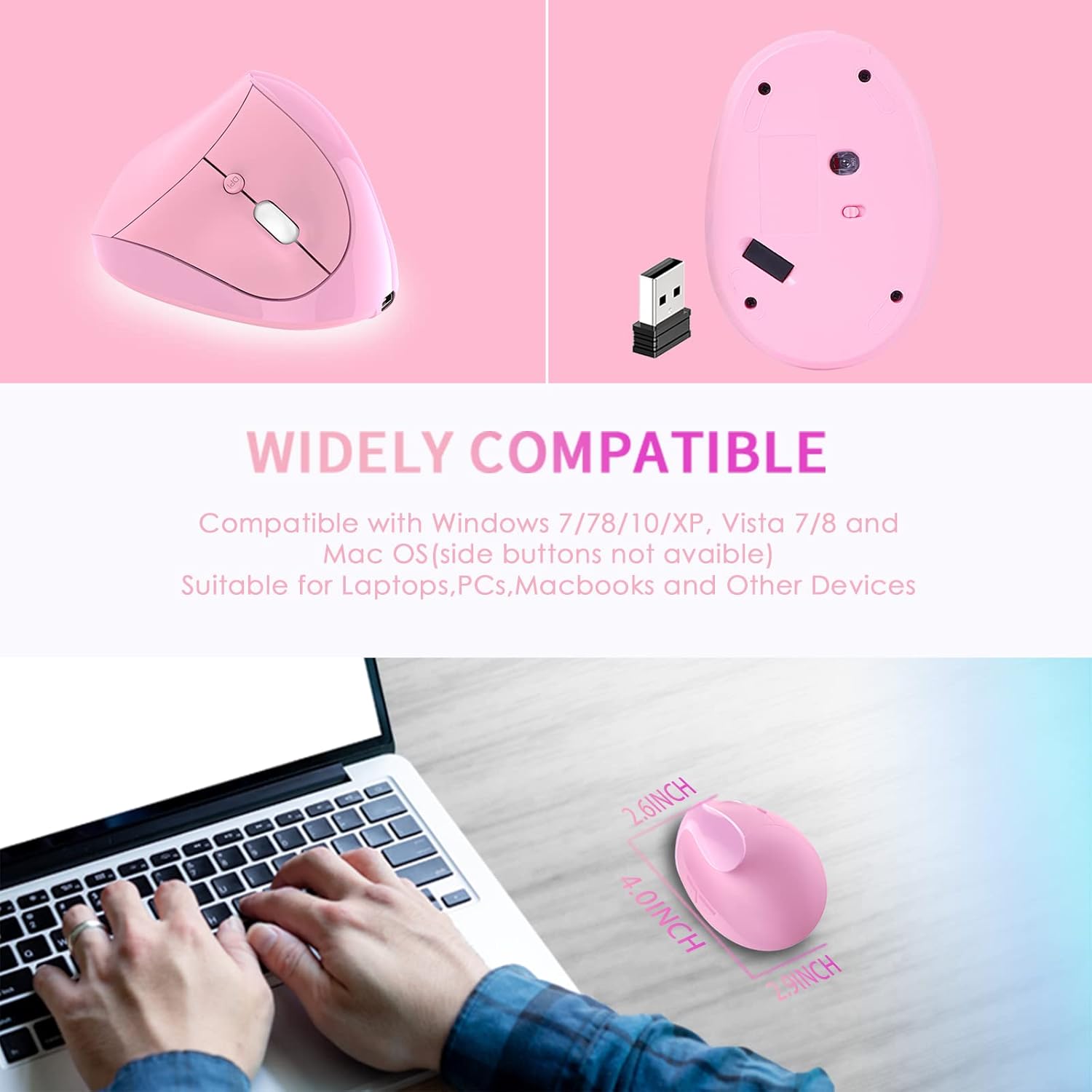
- Operating Systems: Windows 2000/ME/XP (x64)/Vista/7/8/10, Mac OS X (over V10.4), Linux
- అందుబాటులో ఉన్న USB పోర్ట్
4. సెటప్ గైడ్
- Install USB Receiver: మీ కంప్యూటర్లో అందుబాటులో ఉన్న USB పోర్ట్లో USB రిసీవర్ని చొప్పించండి.
- సిస్టమ్ గుర్తింపు: Wait for your computer to recognize and install the necessary drivers for the USB receiver. This usually happens automatically.
- మౌస్ను పవర్ ఆన్ చేయండి: Locate the power switch on the bottom of the mouse and slide it to the "ON" position.
- పరీక్ష కార్యాచరణ: The mouse should now be operational. Move the mouse and click buttons to confirm it is working correctly.

5. ఆపరేటింగ్ సూచనలు
The Attoe Ergonomic Vertical Wireless Mouse features 6 buttons for enhanced productivity:
- ఎడమ క్లిక్ బటన్: Standard selection function.
- కుడి క్లిక్ బటన్: సందర్భోచిత మెనూలను యాక్సెస్ చేస్తుంది.
- స్క్రోల్ వీల్: పత్రాలను స్క్రోల్ చేస్తుంది మరియు web పేజీలు. మిడిల్-క్లిక్ కార్యాచరణ కోసం కూడా క్లిక్ చేయవచ్చు.
- DPI సర్దుబాటు బటన్: Cycles through DPI settings (800/1200/1600).
- ఫార్వర్డ్ బటన్: ముందుకు నావిగేట్ చేస్తుంది web బ్రౌజర్లు లేదా file explorers. (Note: Not recognized on Mac OS.)
- బ్యాక్వర్డ్ బటన్: వెనుకకు నావిగేట్ చేస్తుంది web బ్రౌజర్లు లేదా file explorers. (Note: Not recognized on Mac OS.)

DPI సర్దుబాటు
Press the DPI button, usually located near the scroll wheel, to cycle through the available sensitivity settings: 800 DPI, 1200 DPI, and 1600 DPI. Choose the setting that best suits your preference and task.
Ergonomic Design Benefits
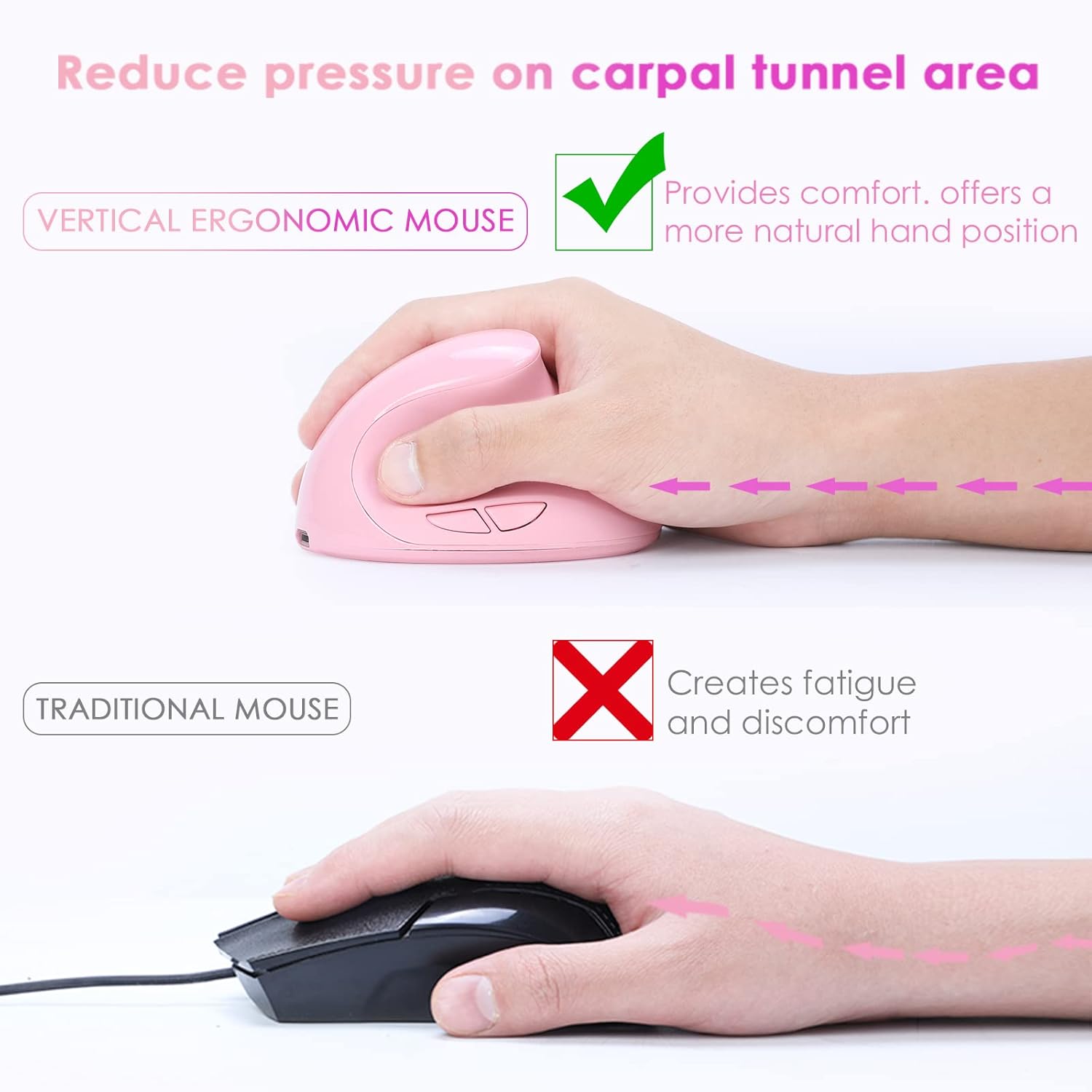
The vertical design of this mouse positions your hand in a natural handshake posture, which helps to alleviate wrist pronation and reduce pressure on the carpal tunnel area, promoting comfort during prolonged use.
నిశ్శబ్ద ఆపరేషన్
The mouse features whisper-quiet clicks, allowing you to work without disturbing others in quiet environments.

6. ఛార్జింగ్
This mouse is rechargeable. When the battery is low, connect the provided USB charging cable to the mouse's charging port and to a USB power source (e.g., computer USB port, USB wall adapter). The mouse can be used while charging.

7. నిర్వహణ
To ensure the longevity and appearance of your mouse, please note the following:
- The surface of the mouse's grip is sprayed with rubber oil. Prolonged use, especially with uncleaned hands or exposure to sweat, can cause this surface to blacken or corrode.
- Regularly clean the mouse with a soft, dry cloth. Avoid harsh chemicals or abrasive cleaners.
8. ట్రబుల్షూటింగ్
Mouse Has No Response
If your mouse is not responding, try the following steps:
- మౌస్ను ఛార్జ్ చేయండి: Connect the mouse to a power source using the USB charging cable.
- USB రిసీవర్ను తనిఖీ చేయండి: మీ కంప్యూటర్లోని USB రిసీవర్ను వేరే USB పోర్ట్లోకి ప్లగ్ చేసి ప్రయత్నించండి.
- పవర్ స్విచ్ని ధృవీకరించండి: Ensure the power switch on the bottom of the mouse is in the "ON" position.
- కంప్యూటర్ పునఃప్రారంభించండి: Restart your computer to refresh the USB connections and drivers.
If the issue persists after trying these steps, please contact customer support for technical assistance.
9. స్పెసిఫికేషన్లు
| ఫీచర్ | వివరాలు |
|---|---|
| బటన్ సంఖ్య | 6 బటన్లు |
| ట్రాకింగ్ సిస్టమ్ | ఆప్టికల్ |
| ఫ్రీక్వెన్సీ | 2405MHz-2476MHz |
| ప్రభావవంతమైన దూరం | 10 మీటర్లు (33 అడుగులు) |
| వర్కింగ్ వాల్యూమ్tagఇ/కరెంట్ | 3V/4mA |
| బటన్ లైఫ్ | 5 మిలియన్ సార్లు |
| రోలర్ లైఫ్ | 1.2 million turns |
| ఉత్పత్తి కొలతలు | 4.0 (L) * 2.9 (W) * 2.6 (H) inches |
| ఉత్పత్తి బరువు | 200 ± 5g (0.44 lbs) |
| రిజల్యూషన్ (DPI) | 800 / 1200 / 1600 (సర్దుబాటు) |
| రాబడి రేటు | 250Hz |
| చేతి ధోరణి | కుడి |
10. వారంటీ మరియు మద్దతు
The Attoe Ergonomic Rechargeable Small Vertical Wireless Mouse comes with a 1 సంవత్సరాల వారంటీ కొనుగోలు చేసిన తేదీ నుండి.
For technical assistance, troubleshooting, or warranty claims, please contact Attoe customer support. Refer to your purchase documentation or the official Attoe webసంప్రదింపు సమాచారం కోసం సైట్.