
1. పరిచయం
This manual provides instructions for the AITIAO CC2531 Sniffer USB Dongle, a wireless Zigbee analyzer module designed for protocol analysis and Bluetooth adapter functions. It is compatible with CC2531EMK and extends 8 IO ports for various firmware applications. This device is intended for use in industrial and scientific applications for electrical testing and circuit analysis.

మూర్తి 1: The AITIAO CC2531 Sniffer USB Dongle (left) and its external antenna (right).
2. ఉత్పత్తి లక్షణాలు
- Extended IO Ports: Features 8 extendable IO ports, allowing compatibility with various firmware for Bluetooth adapter and protocol analyzer functionalities.
- Wireless Sniffer Module: Functions as a CC2531 Sniffer Module USB Dongle, compatible with CC2531EMK for Zigbee protocol analysis.
- ఆపరేటింగ్ ఫ్రీక్వెన్సీ: Operates within the 2.405-2.485GHz frequency range for protocol analysis.
- Wireless Transmission Rate: Supports a wireless transmission rate of 250 Kbaud.
- తక్కువ విద్యుత్ వినియోగం: Consumes less than 20mA during reception and less than 25mA during transmission.
- కాంపాక్ట్ డిజైన్: Dimensions of 41mm x 16mm x 1.6mm for the main module.
3. ప్యాకేజీ విషయాలు
ప్యాకేజీ కింది అంశాలను కలిగి ఉంటుంది:
- 2 x AITIAO Wireless Zigbee CC2531 Sniffer USB Dongle
- 2 x బాహ్య యాంటెన్నా

మూర్తి 2: One AITIAO CC2531 Sniffer USB Dongle with its external antenna connected.
4. సెటప్ సూచనలు
- Attach the External Antenna: Carefully screw the external antenna onto the SMA connector located on the CC2531 Sniffer USB Dongle. Ensure it is finger-tight to establish a secure connection.
- కంప్యూటర్కు కనెక్ట్ చేయండి: Insert the USB dongle into an available USB port on your desktop computer.
- డ్రైవర్ ఇన్స్టాలేషన్: Your operating system may automatically install necessary drivers. If not, you may need to manually install drivers for the CC2531 device. Refer to the specific driver documentation for your operating system.
- సాఫ్ట్వేర్ ఇన్స్టాలేషన్: Install the required software for Zigbee protocol analysis or Bluetooth adapter functionality. This typically involves specific firmware (e.g., Sniffer or BTool) and associated applications. Follow the software provider's installation guidelines.
- గుర్తింపును ధృవీకరించండి: After installation, verify that the device is recognized by your computer and the installed software. Check device manager for proper enumeration.

మూర్తి 3: The CC2531 USB Dongle with its external antenna attached, viewఒక కోణం నుండి ed.
5. ఆపరేటింగ్ సూచనలు
The AITIAO CC2531 Sniffer USB Dongle can be configured for different operational modes based on the firmware loaded onto it. Common uses include Zigbee protocol sniffing and acting as a Bluetooth adapter.
5.1. Zigbee Protocol Sniffer Mode
- Load Sniffer Firmware: Ensure the appropriate Zigbee sniffer firmware is loaded onto the CC2531 dongle. This typically requires a programming tool and specific software.
- Launch Sniffer Software: Open your preferred Zigbee protocol analysis software (e.g., Wireshark with Zigbee dissectors, SmartRF Packet Sniffer).
- పరికరాన్ని ఎంచుకోండి: Within the software, select the CC2531 dongle as the capture interface.
- Configure Channel: Set the desired Zigbee channel for sniffing. The device operates in the 2.405-2.485GHz range.
- Start Capturing: Initiate packet capture to monitor Zigbee traffic. The software will display captured packets, allowing for detailed analysis of network communication.
5.2. Bluetooth Adapter Mode (BTool)
- Load BTool Firmware: If using the dongle as a Bluetooth adapter, ensure the BTool compatible firmware is loaded.
- Launch BTool Software: Open the BTool application or other compatible Bluetooth Low Energy (BLE) development tools.
- పరికరానికి కనెక్ట్ చేయండి: Establish a connection between the software and the CC2531 dongle.
- Perform BLE Operations: Use the software to perform various BLE operations such as scanning for devices, connecting to peripherals, sending/receiving data, and debugging BLE applications.

మూర్తి 4: టాప్ view of the CC2531 USB Dongle with its external antenna connected.
6. నిర్వహణ
- శుభ్రపరచడం: Use a soft, dry cloth to clean the exterior of the dongle. Avoid using liquid cleaners or solvents.
- నిల్వ: పరికరాన్ని ప్రత్యక్ష సూర్యకాంతి మరియు తీవ్రమైన ఉష్ణోగ్రతలు లేకుండా చల్లని, పొడి ప్రదేశంలో నిల్వ చేయండి.
- నిర్వహణ: Handle the dongle and antenna carefully to prevent physical damage to the connectors or circuit board.
- యాంటెన్నా కనెక్షన్: Periodically check that the external antenna is securely attached.
7. ట్రబుల్షూటింగ్
- పరికరం గుర్తించబడలేదు:
- Ensure the dongle is fully inserted into the USB port.
- మీ కంప్యూటర్లో వేరే USB పోర్ట్ని ప్రయత్నించండి.
- Check Device Manager (Windows) or System Information (macOS/Linux) to see if the device is listed, even with an error. Reinstall drivers if necessary.
- మీ కంప్యూటర్ని పునఃప్రారంభించండి.
- No Data Capture (Sniffer Mode):
- Verify that the correct sniffer firmware is loaded onto the dongle.
- Confirm that the sniffer software is configured to use the CC2531 device.
- Ensure the correct Zigbee channel is selected in the software, matching the network you intend to monitor.
- Check the proximity to the Zigbee network; signal strength can affect capture.
- Bluetooth Connection Issues (BTool Mode):
- Confirm BTool compatible firmware is loaded.
- Ensure the target Bluetooth device is discoverable and within range.
- ఇతర 2.4GHz పరికరాల నుండి జోక్యం కోసం తనిఖీ చేయండి.
8. స్పెసిఫికేషన్లు
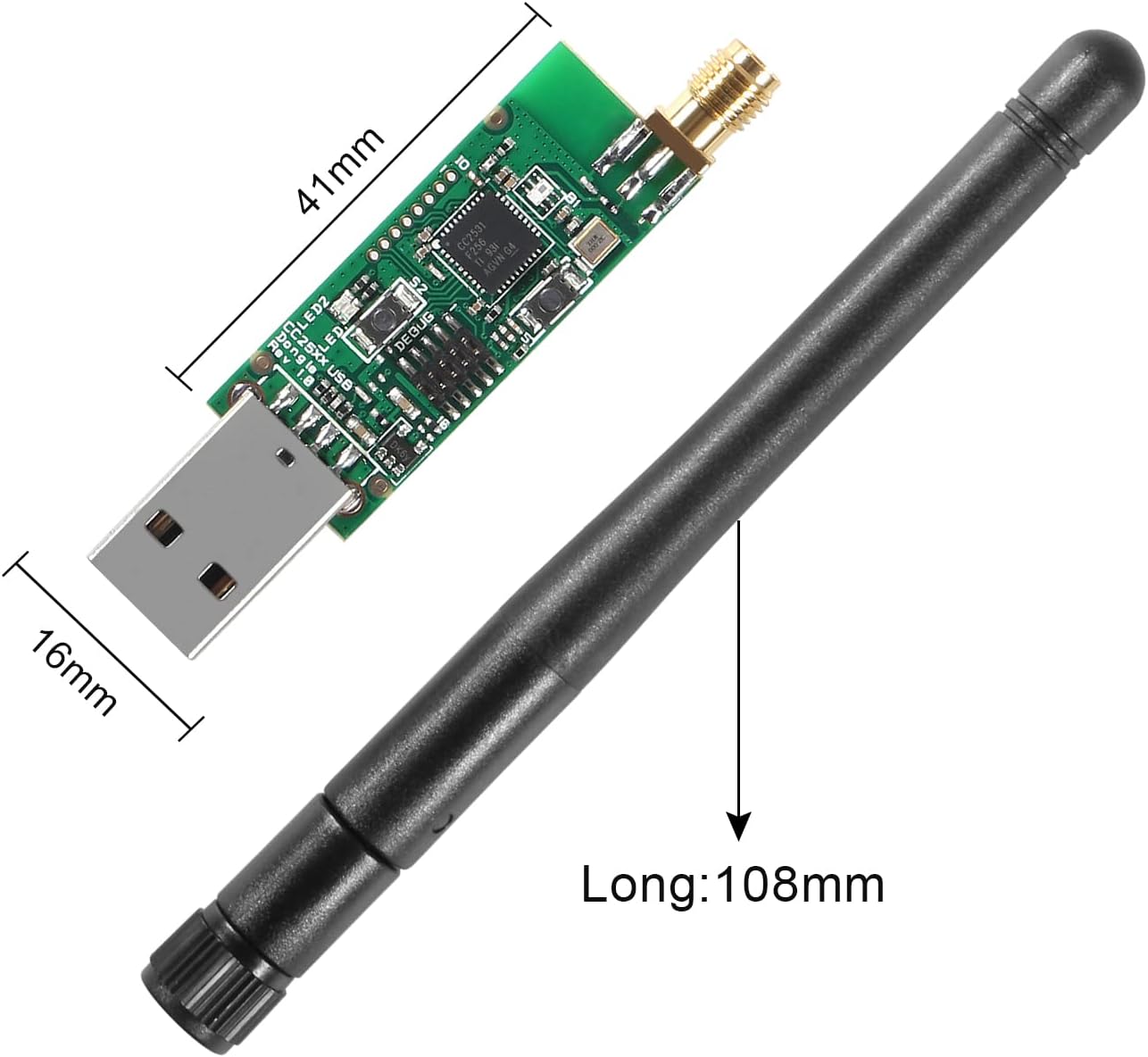
మూర్తి 5: Dimensions of the CC2531 USB Dongle (41mm x 16mm) and the external antenna (108mm long).
| ఫీచర్ | వివరాలు |
|---|---|
| బ్రాండ్ | AITIAO |
| మోడల్ | CC2531 Sniffer USB Dongle |
| హార్డ్వేర్ ఇంటర్ఫేస్ | USB, బ్లూటూత్ |
| ఆపరేటింగ్ ఫ్రీక్వెన్సీ | 2.405-2.485GHz |
| వైర్లెస్ ట్రాన్స్మిషన్ రేట్ | 250 Kbaud (250,000 Bits Per Second) |
| Power Consumption (Receiving) | <20mA |
| Power Consumption (Transmission) | <25mA |
| ఉత్పత్తి కొలతలు (L x W x H) | 41mm x 16mm x 1.6mm (1.61" x 0.63" x 0.06") |
| అనుకూల పరికరాలు | డెస్క్టాప్ కంప్యూటర్లు |
| రంగు | Black, Silver (referring to components) |
| యుపిసి/జిటిఐఎన్ | 701715496361 |
9. వారంటీ మరియు మద్దతు
For warranty information and technical support, please refer to the documentation provided with your purchase or contact AITIAO customer service directly. Keep your purchase receipt for warranty claims.