
1. పరిచయం
The C2G USB-C 9-in-1 Dual Display Docking Station expands the connectivity of your USB-C or Thunderbolt 3 enabled laptop. This docking station provides multiple ports for displays, peripherals, network access, and power delivery, enhancing productivity for various computing environments.
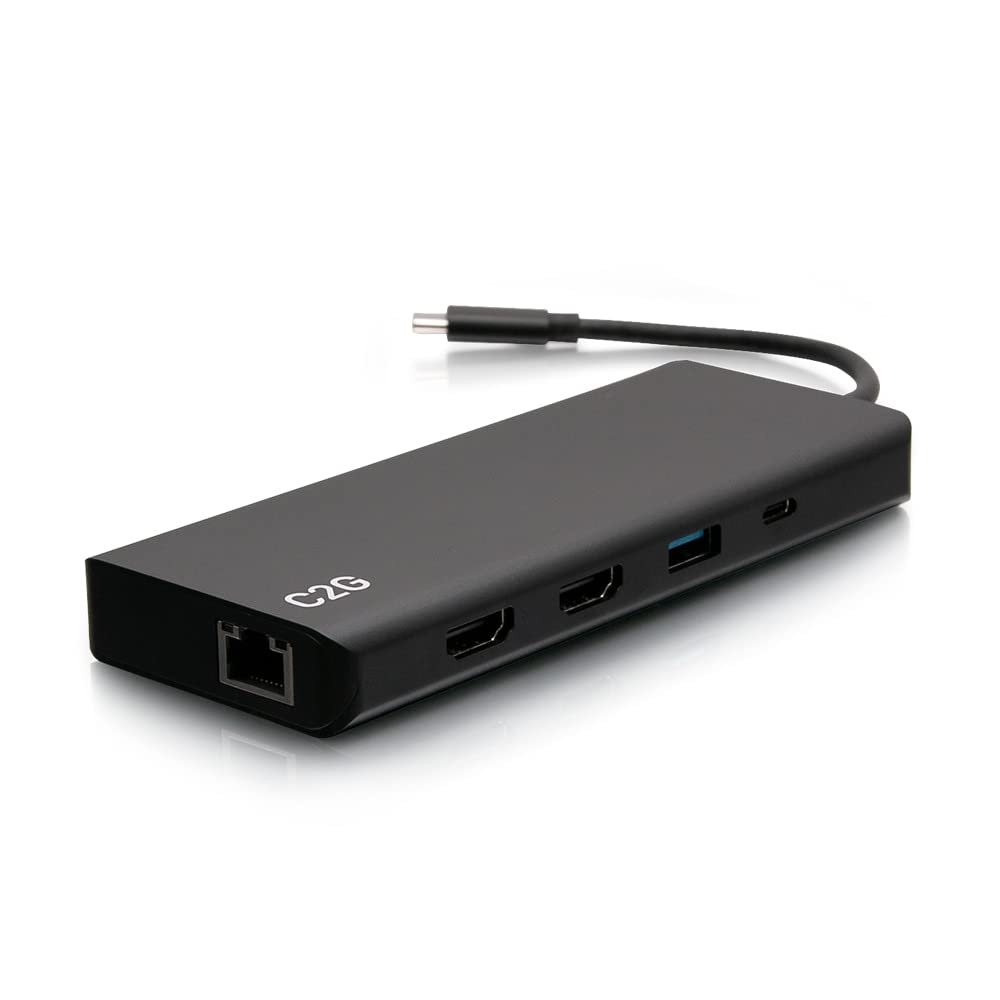
Figure 1: C2G USB-C 9-in-1 Dual Display Docking Station
ప్యాకేజీ విషయాలు
- C2G USB-C 9-in-1 Dual Display Docking Station
- 60W విద్యుత్ సరఫరా
2 ఫీచర్లు
- Supports single HDMI display resolutions up to 4K (3840 x 2160) at 30Hz.
- Supports dual HDMI display resolutions up to 1080p at 60Hz.
- Integrated Gigabit Ethernet port for wired network connectivity.
- Provides up to 60W of power delivery to charge connected laptops via USB-C.
- Includes multiple USB-A ports for data transfer (5Gbps and 480Mbps).
- Features a 3.5mm audio jack for headphone/microphone connection.
3. సెటప్ సూచనలు
3.1 Connecting to Your Host Device
- Connect the integrated USB-C cable from the docking station to an available USB-C or Thunderbolt 3 port on your laptop.

Figure 2: USB-C host cable and Ethernet port
3.2 Powering the Docking Station and Laptop
- Connect the included 60W power supply to the dedicated USB-C Power Delivery (PD) port on the docking station. This will power the docking station and provide up to 60W of power to your connected laptop.

Figure 3: HDMI, USB-A, and USB-C Power Delivery ports
3.3 డిస్ప్లే కనెక్షన్లు
- Connect your display(s) to the HDMI ports on the docking station using HDMI cables.
- For a single display, resolutions up to 4K (3840 x 2160) at 30Hz are supported.
- For dual displays, resolutions up to 1080p at 60Hz are supported simultaneously.
3.4 కనెక్ట్ పెరిఫెరల్స్
- Connect USB devices such as keyboards, mice, and external storage drives to the available USB-A ports. Three ports support SuperSpeed USB 5Gbps, and two ports support 480Mbps data transfers.
- For audio output, connect headphones or a microphone to the 3.5mm audio jack.
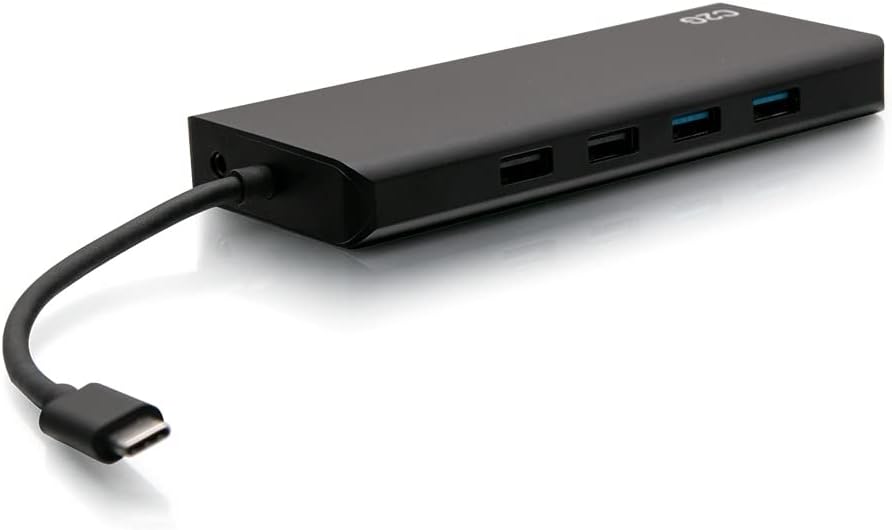
Figure 4: USB-A ports and 3.5mm audio jack
3.5 నెట్వర్క్ కనెక్షన్
- Connect an Ethernet cable from your network router or switch to the Gigabit Ethernet port on the docking station for wired internet access.
4. ఆపరేటింగ్ సూచనలు
Once all connections are made, your laptop should automatically detect the docking station and connected devices. Drivers are typically installed automatically by the operating system (Windows 10, Mac OS 12 Monterey or newer).
4.1 డిస్ప్లే కాన్ఫిగరేషన్
- విండోస్: Right-click on the desktop and select "Display settings" to configure your external monitors (extend, duplicate, or second screen only).
- MacOS: Go to "System Preferences" > "Displays" to arrange or mirror your displays.
4.2 USB Port Usage
The USB-A ports are for connecting various peripherals. For optimal performance with high-speed devices like external SSDs, use the USB-A ports supporting 5Gbps data transfer. The USB-C Power Delivery port is exclusively for connecting the power adapter to charge your laptop and power the docking station.
5. స్పెసిఫికేషన్లు
| ఫీచర్ | స్పెసిఫికేషన్ |
|---|---|
| మోడల్ సంఖ్య | C2G54488 |
| బ్రాండ్ | C2G |
| హార్డ్వేర్ ఇంటర్ఫేస్ | Ethernet, HDMI, USB 2.0, USB 3.0, USB-C |
| మొత్తం USB పోర్ట్లు | 6 (5x USB-A, 1x USB-C PD) |
| పోర్టుల సంఖ్య | 9 (2x HDMI, 1x USB-C PD, 5x USB-A, 1x Ethernet, 1x 3.5mm Audio) |
| డేటా బదిలీ రేటు | 5 Gigabits Per Second (USB-A) |
| Single Display Resolution | Up to 4K (3840 x 2160) at 30Hz |
| Dual Display Resolution | Up to 1080p at 60Hz |
| పవర్ డెలివరీ | 60W వరకు |
| అనుకూల పరికరాలు | Notebooks, Tablets, Monitors |
| ఆపరేటింగ్ సిస్టమ్ | Windows 10, Mac OS 12 Monterey (or newer) |
| కొలతలు (L x W x H) | 11.42" x 2.28" x 0.67" |
| వస్తువు బరువు | 0.6 పౌండ్లు |
| రంగు | నలుపు |
| మెటీరియల్ | ప్లాస్టిక్ |
6. ట్రబుల్షూటింగ్
- డిస్ప్లే అవుట్పుట్ లేదు:
- Ensure all HDMI cables are securely connected to both the docking station and the monitor.
- Verify that the docking station's USB-C host cable is firmly connected to your laptop.
- Check your laptop's display settings to ensure the external monitor is detected and configured correctly (e.g., extended or duplicated).
- Confirm the monitor is powered on and set to the correct input source (HDMI 1, HDMI 2, etc.).
- Peripherals (Keyboard/Mouse) Lagging or Freezing:
- Try connecting the affected peripheral directly to your laptop to rule out the docking station as the cause.
- Ensure the docking station is receiving adequate power from its power supply.
- Disconnect and reconnect the peripheral from the docking station.
- Update your laptop's USB drivers and operating system.
- ల్యాప్టాప్కు పవర్ డెలివరీ లేదు:
- Ensure the 60W power supply is correctly connected to the docking station's USB-C PD port and a working power outlet.
- Verify that your laptop supports USB-C Power Delivery through its USB-C port.
- Ethernet Connection Not Working:
- Check that the Ethernet cable is securely connected to both the docking station and your network device (router/switch).
- Confirm that your laptop's network settings recognize the wired connection.
- Update network drivers on your laptop if necessary.
7. నిర్వహణ
మీ డాకింగ్ స్టేషన్ యొక్క దీర్ఘాయువు మరియు సరైన పనితీరును నిర్ధారించడానికి, ఈ నిర్వహణ మార్గదర్శకాలను అనుసరించండి:
- Keep the device in a clean, dry environment, away from extreme temperatures and direct sunlight.
- Avoid exposing the docking station to water or other liquids.
- మెత్తటి, పొడి గుడ్డతో బయటి భాగాన్ని శుభ్రం చేయండి. కఠినమైన రసాయనాలు లేదా రాపిడి క్లీనర్లను ఉపయోగించవద్దు.
- వేడెక్కకుండా నిరోధించడానికి పరికరం చుట్టూ సరైన వెంటిలేషన్ ఉండేలా చూసుకోండి.
8. వారంటీ మరియు మద్దతు
This C2G USB-C 9-in-1 Dual Display Docking Station (Model C2G54488) comes with a 1 సంవత్సరాల వారంటీ కొనుగోలు తేదీ నుండి, తయారీ లోపాలను కవర్ చేస్తుంది.
For technical support, warranty claims, or additional product information, please visit the official C2G website or contact their customer service department. You can find more information and support resources on the C2G Store on Amazon.