
Rokid RA101
Rokid Air AR Glasses User Manual
మోడల్: RA101
బ్రాండ్: రోకిడ్
Setup and Initial Connection
This section guides you through the initial setup and connection of your Rokid Air AR Glasses to various devices.
ప్యాకేజీ విషయాలు
Upon unboxing your Rokid Air AR Glasses, you should find the following items:
- Rokid Air AR Glasses
- ప్రొటెక్టివ్ క్యారీయింగ్ కేస్
- USB-C నుండి USB-C కేబుల్
- క్లీనింగ్ క్లాత్
- వినియోగదారు మాన్యువల్ (ఈ పత్రం)

Image: Rokid Air AR Glasses and included accessories.
Connecting to Mac Computers
To connect your Rokid Air glasses to a Mac computer, ensure your Mac has a USB-C port that supports DisplayPort video output.
- Connect one end of the provided USB-C cable to the Rokid Air glasses.
- Connect the other end of the USB-C cable to a compatible USB-C port on your MacBook that supports video output.
- Wear the Rokid Air glasses. Your Mac desktop should now be visible through the glasses, indicating a successful connection in mirroring mode.
- For an extended display: Go to 'System Preferences' > 'Displays' > 'Arrangement'. Unselect 'Mirror Displays'. You will see two blue displays. Click and drag one of the blue displays (the one with a white stripe on top is the main display) to arrange them as desired for an extended desktop experience.
Video: This video demonstrates the process of connecting Rokid Air glasses to both Mac and Windows computers using a USB-C cable with DisplayPort support. It shows how to set up mirroring and extended display modes for an enhanced viewing అనుభవం.
Connecting to Windows Computers
For Windows laptops or desktop PCs, ensure your device has a USB-C port with DisplayPort support or an HDMI port (may require an adapter).
- Connect one end of the provided USB-C cable to the Rokid Air glasses.
- Connect the other end of the USB-C cable to a compatible USB-C port on your Windows laptop or the graphics card of your desktop computer.
- Wear the Rokid Air glasses. Initially, you may see a blank desktop as Windows identifies the glasses as another display.
- To configure display settings: Right-click on your desktop and select 'Display settings'.
- You will see the newly added display. Select the display and drag it to the desired location relative to your main screen.
- Under 'Multiple displays', select 'Duplicate these displays' for mirroring or 'Extend these displays' for a multi-screen experience. Click 'Keep Changes' to apply.
Video: This video demonstrates the process of connecting Rokid Air glasses to both Mac and Windows computers using a USB-C cable with DisplayPort support. It shows how to set up mirroring and extended display modes for an enhanced viewing అనుభవం.
Operating Your Rokid Air Glasses
Discover the various functionalities and modes of your Rokid Air AR Glasses.
Basic Operation (Android Devices)
For Android devices with DisplayPort (DP) support, you can leverage the Rokid Air app for an enhanced AR experience.
- Download and install the Rokid Air App (available for Android 10 and later version) on your compatible Android phone.
- Connect your Rokid Air glasses to your phone via the USB-C cable.
- Open the Rokid Air App and follow the prompts to connect your phone to the glasses.
- Once connected, you will see a large virtual screen. You can use touch gestures on your phone's screen to control the pointer: single finger to control, two fingers to scroll up/down, and three fingers to return to the Launcher.
- Utilize voice commands for hands-free control, such as "Open Cinema" or "Rokid play music."

Image: Rokid Air glasses with a smartphone displaying the Rokid AR app, illustrating AR mode control.
Video: This video provides a comprehensive user guide for Rokid Air glasses when connected to Android devices. It covers initial connection, adjusting for clear vision, using the Rokid Air app for AR mode, and navigating with touch gestures and voice commands for various applications like music, cinema, and gaming.
Myopia Correction
The Rokid Air glasses are designed to be myopia-friendly. You can adjust each lens to your prescription (0 to -5.00D) using the convenient knobs located on top of the glasses. This ensures a clear and comfortable viewing experience without needing to wear prescription glasses underneath.

Image: Rokid Air glasses highlighting myopia correction range (0.00 to -5.00D) and other display features.
Multi-Screen Experience
Leverage the extended display mode to expand your workspace or entertainment area. Drag programs and windows from your computer's main screen onto the virtual display provided by the Rokid Air glasses for a seamless multi-screen experience.
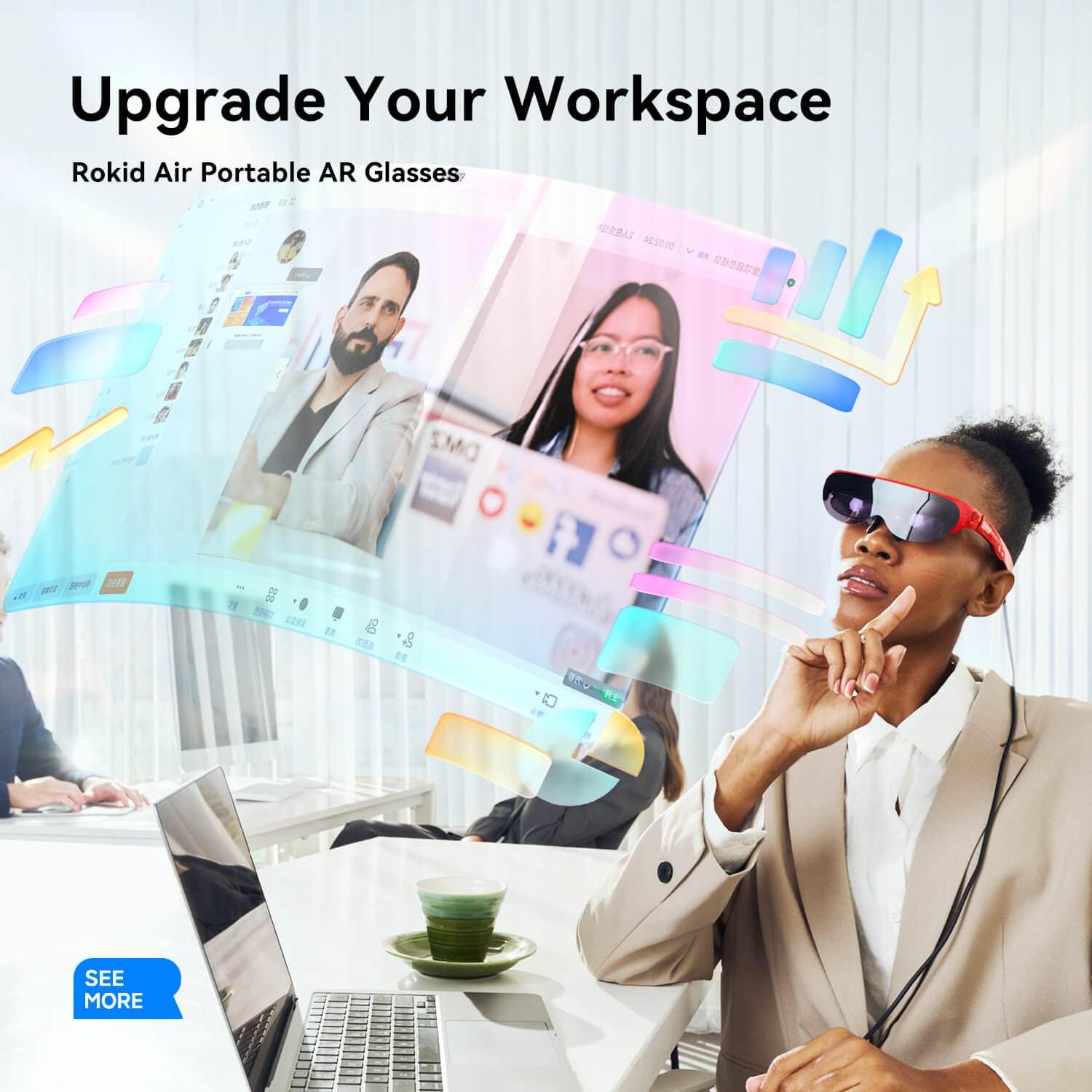
Image: Demonstrating the use of Rokid Air glasses to upgrade a workspace with virtual screens.

Image: A family enjoying a large virtual screen experience at home using Rokid Air glasses.
ఆడియో ఫీచర్లు
The Rokid Air glasses feature dual high-quality directional speakers, providing immersive surrounding sound effects for your content.
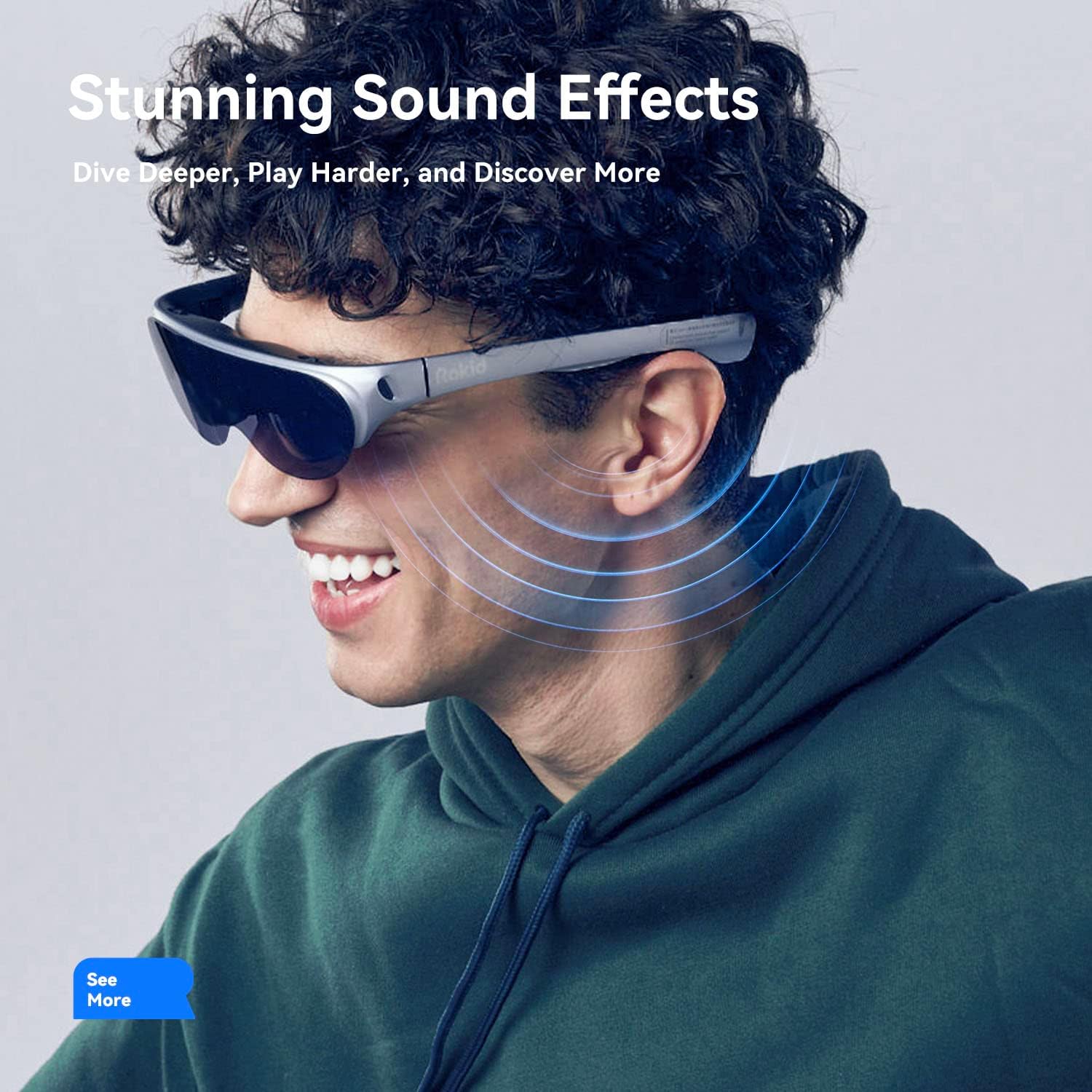
Image: Visual representation of stunning sound effects from the Rokid Air glasses.
గేమింగ్ మరియు వినోదం
Experience games and media on a massive 120-inch virtual screen. The glasses offer a wide 43° Field of View (FoV) and 1080P OLED dual display for crisp details and vivid colors, enhancing your entertainment anywhere.

Image: A person immersed in a virtual gaming experience with Rokid Air glasses.
సంరక్షణ మరియు నిర్వహణ
Proper care will ensure the longevity and optimal performance of your Rokid Air AR Glasses.
- శుభ్రపరచడం: Use the provided cleaning cloth to gently wipe the lenses and frame. Avoid using abrasive materials or harsh chemicals.
- నిల్వ: ఉపయోగంలో లేనప్పుడు, గీతలు మరియు దెబ్బతినకుండా ఉండటానికి అద్దాలను వాటి రక్షణాత్మక కేసులో నిల్వ చేయండి.
- నిర్వహణ: Avoid dropping the glasses or exposing them to extreme temperatures or humidity. Do not apply excessive force to the frames or lenses.
- కేబుల్ కేర్: Handle the USB-C cable carefully. Avoid sharp bends or kinks that could damage the internal wires.
సాధారణ సమస్యలను పరిష్కరించడం
If you encounter problems with your Rokid Air AR Glasses, refer to the solutions below.
అస్పష్టమైన దృష్టి
If the display appears blurry, it might be due to improper fit or myopia adjustment.
- Adjust Nose Pad: Ensure the nose pad is adjusted to a comfortable position so that the display is fully visible and centered in your field of view.
- Myopia Adjustment: Use the adjustment knobs on top of the glasses to fine-tune the focus for each eye, matching your eyesight (0 to -5.00D). Turn the knob until the image becomes clear.
కనెక్షన్ సమస్యలు
If the glasses do not display content after connecting:
- కేబుల్ తనిఖీ చేయండి: Ensure the USB-C cable is securely connected to both the glasses and your device's compatible port.
- పోర్ట్ అనుకూలత: Verify that your device's USB-C port supports DisplayPort (DP) video output. Not all USB-C ports support video.
- పరికరాలను పునఃప్రారంభించండి: Try restarting your computer or phone and reconnecting the glasses.
- డిస్ ప్లే సెట్టింగులు: For computers, check your display settings (as described in the 'Connecting' sections) to ensure the Rokid Air glasses are recognized and configured correctly (mirroring or extended display).
- సాఫ్ట్వేర్/డ్రైవర్లు: Ensure your operating system and any necessary drivers for your graphics card are up to date.
సాంకేతిక లక్షణాలు
| ఫీచర్ | స్పెసిఫికేషన్ |
|---|---|
| బ్రాండ్ | రోకిడ్ |
| తయారీదారు | Hangzhou Lingban Technology Co., Ltd |
| మోడల్ | RA101 |
| మోడల్ పేరు | రోకిడ్ ఎయిర్ |
| OS | ఆండ్రాయిడ్ |
| స్కానర్ రిజల్యూషన్ | 1920 × 1080 |
| అనుకూల పరికరాలు | PC, Tablet, Smartphone, Game Console |
| ప్రత్యేక లక్షణాలు | ఫోల్డబుల్ |
| మౌంటు హార్డ్వేర్ | కేబుల్ |
| ప్రదర్శన సాంకేతికత | OLED |
| స్క్రీన్ ప్రదర్శన పరిమాణం | 120 |
| ప్రదర్శన రకం | OLED |
| వాట్tage | 3 వాట్స్ |
| బ్యాటరీలు చేర్చబడ్డాయి | నం |
| బ్యాటరీలు అవసరం | నం |
| బ్యాటరీ సెల్ కంపోజిషన్ | లిథియం అయాన్ |
| వైర్లెస్ స్టాండర్డ్ | బ్లూటూత్ |
| కనెక్టర్ రకం | Type C with DP |
| మానవ ఇంటర్ఫేస్ ఇన్పుట్ | బటన్లు |
| శాఖ | పురుషులు |
| అంశం మోడల్ సంఖ్య | RA101 |
| ఉత్పత్తి కొలతలు | 18.14 x 15.63 x 5.5 సెం.మీ; 83 గ్రా |
| ASIN | B09P4VJ895 |
| మొదటి తేదీ అందుబాటులో ఉంది | మార్చి 5 2022 |
| కస్టమర్ రీviews | 4.0 5 నక్షత్రాలలో 4.0 4 రేటింగ్లు 5 నక్షత్రాలలో 4.0 |
| ఆపరేటింగ్ సిస్టమ్ | ఆండ్రాయిడ్ |
| ప్రత్యేక లక్షణం | ఫోల్డబుల్ |
| కనెక్టివిటీ టెక్నాలజీ | Type C with DP |
| Wireless communication standard | బ్లూటూత్ |
| బ్యాటరీ సెల్ కూర్పు | లిథియం అయాన్ |
| GPS | GPS లేదు |
| ఆకారం | దీర్ఘచతురస్రాకార |
| స్క్రీన్ పరిమాణం | 120 |
వారంటీ మరియు కస్టమర్ మద్దతు
For warranty information, technical support, or service inquiries, please refer to the official Rokid webసైట్ లేదా వారి కస్టమర్ సర్వీస్ను నేరుగా సంప్రదించండి. వారంటీ క్లెయిమ్ల కోసం మీ కొనుగోలు రుజువును ఉంచండి.
For the most up-to-date information and additional resources, visit the official Rokid support page.
Ask a question about this manual
Ask about setup, troubleshooting, compatibility, parts, safety, or missing instructions. Manuals+ will review the question and use this page’s manual context to help answer it.