
Perixx PERIBOARD-332
Perixx PERIBOARD-332 Wired Backlit USB Keyboard User Manual
పరిచయం
This manual provides detailed instructions for the setup, operation, maintenance, and troubleshooting of your Perixx PERIBOARD-332 Wired Backlit USB Keyboard. Please read this manual thoroughly before using the product to ensure optimal performance and longevity.

Image: The Perixx PERIBOARD-332 Wired Backlit USB Keyboard, showcasing దాని కాంపాక్ట్ డిజైన్.
ప్యాకేజీ విషయాలు
ప్యాకేజీలో అన్ని అంశాలు ఉన్నాయని నిర్ధారించుకోండి:
- Perixx PERIBOARD-332 Wired Backlit USB Keyboard
- ఇంటిగ్రేటెడ్ USB కేబుల్
- వినియోగదారు మాన్యువల్ (ఈ పత్రం)

Image: The Perixx PERIBOARD-332 keyboard, its integrated USB cable, the user manual, and the product packaging.
సెటప్ సూచనలు
కీబోర్డ్ను కనెక్ట్ చేయండి: Locate an available USB port on your computer (PC, laptop, tablet, or smartphone with appropriate adapter). Insert the USB cable from the PERIBOARD-332 into the USB port.
డ్రైవర్ ఇన్స్టాలేషన్: The keyboard is plug-and-play and typically does not require additional drivers for basic functionality on Windows, macOS, Linux, or Chrome OS. Your operating system should automatically detect and configure the device.
ప్లేస్మెంట్: Place the keyboard on a stable, flat surface. The compact design is ideal for small workspaces.

Image: A user typing on the Perixx PERIBOARD-332 keyboard, demonstrating its compact size and wired connection on a desk.
ఆపరేటింగ్ సూచనలు
సాధారణ ఉపయోగం
The Perixx PERIBOARD-332 features a standard US English QWERTY layout with 84 keys. Its low-profile scissor keys provide a quiet and comfortable typing experience, similar to laptop keyboards. The compact design helps optimize desk space.

Image: A user typing on the Perixx PERIBOARD-332 keyboard, highlighting its compact size and ergonomic placement in a workspace.

చిత్రం: క్లోజప్ view of the sculpted, low-profile scissor keys of the Perixx PERIBOARD-332, highlighting their design.
Function Keys (Fn Hotkeys)
The keyboard includes integrated Fn hotkeys for quick access to multimedia and system functions. These functions are primarily designed for Windows operating systems. For other operating systems (macOS, Linux, Chrome OS), their functionality may vary or require specific system settings/configurations.
- Fn+F1: FN లాక్
- Fn+F2: Backlight Brightness Adjustment (Cycle through levels)
- Fn+F3: మ్యూట్ చేయండి
- Fn+F4: వాల్యూమ్ డౌన్
- Fn+F5: వాల్యూమ్ అప్
- Fn+F6: మునుపటి ట్రాక్
- Fn+F7: ప్లే/పాజ్ చేయండి
- Fn+F8: తదుపరి ట్రాక్
- Fn+F9: పాజ్ చేయండి
- Fn+F10: స్క్రోల్ లాక్
- Fn+F11: చొప్పించు
- Fn+F12: ప్రింట్ స్క్రీన్
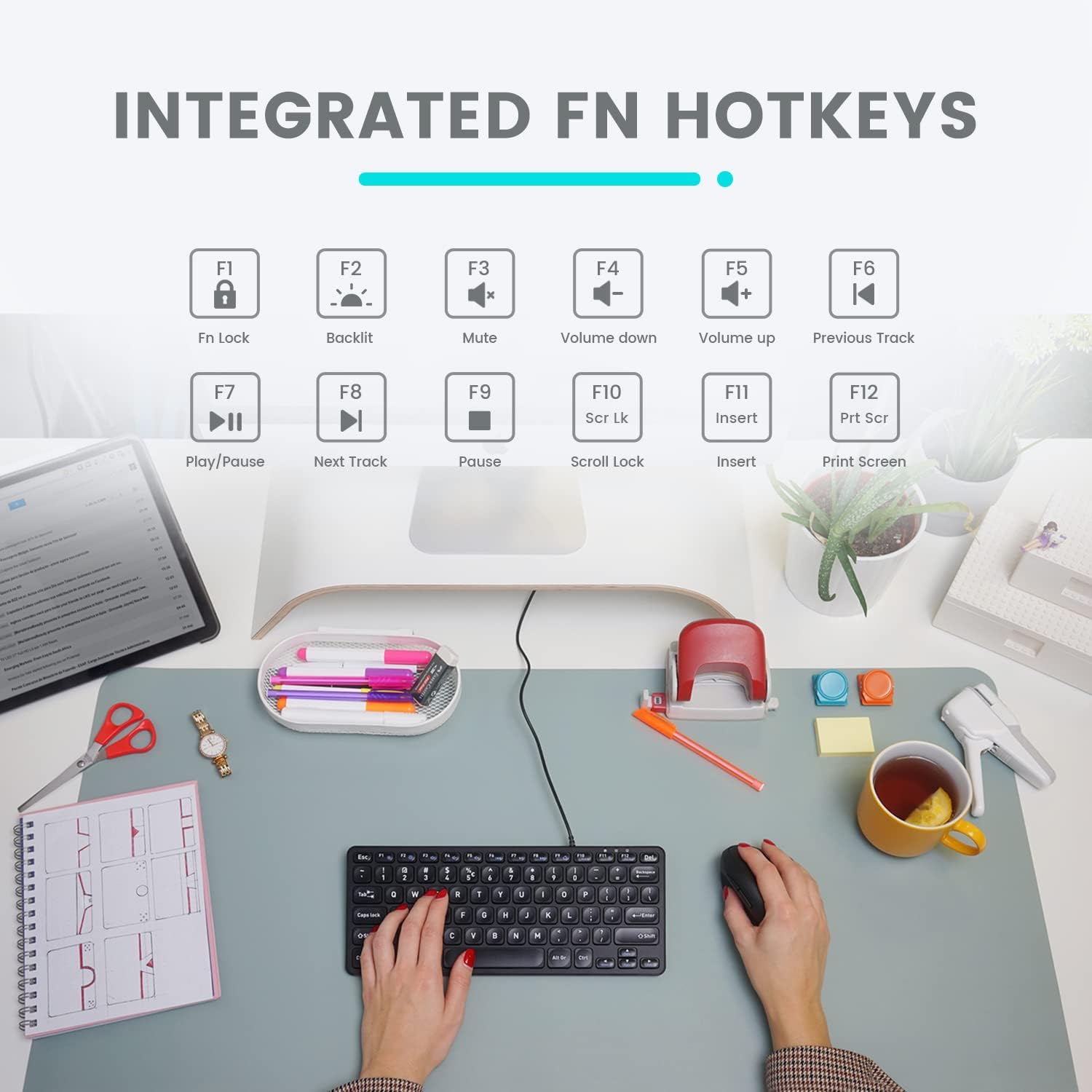
Image: Diagram illustrating the integrated Fn hotkeys on the Perixx PERIBOARD-332, showing the function of each F-key when pressed with the Fn key.
బ్యాక్లైట్ నియంత్రణ
The PERIBOARD-332 features white LED backlighting with adjustable brightness. To adjust the backlight brightness, press the Fn + F2 keys simultaneously. Repeatedly pressing this combination will cycle through different brightness levels (including off).
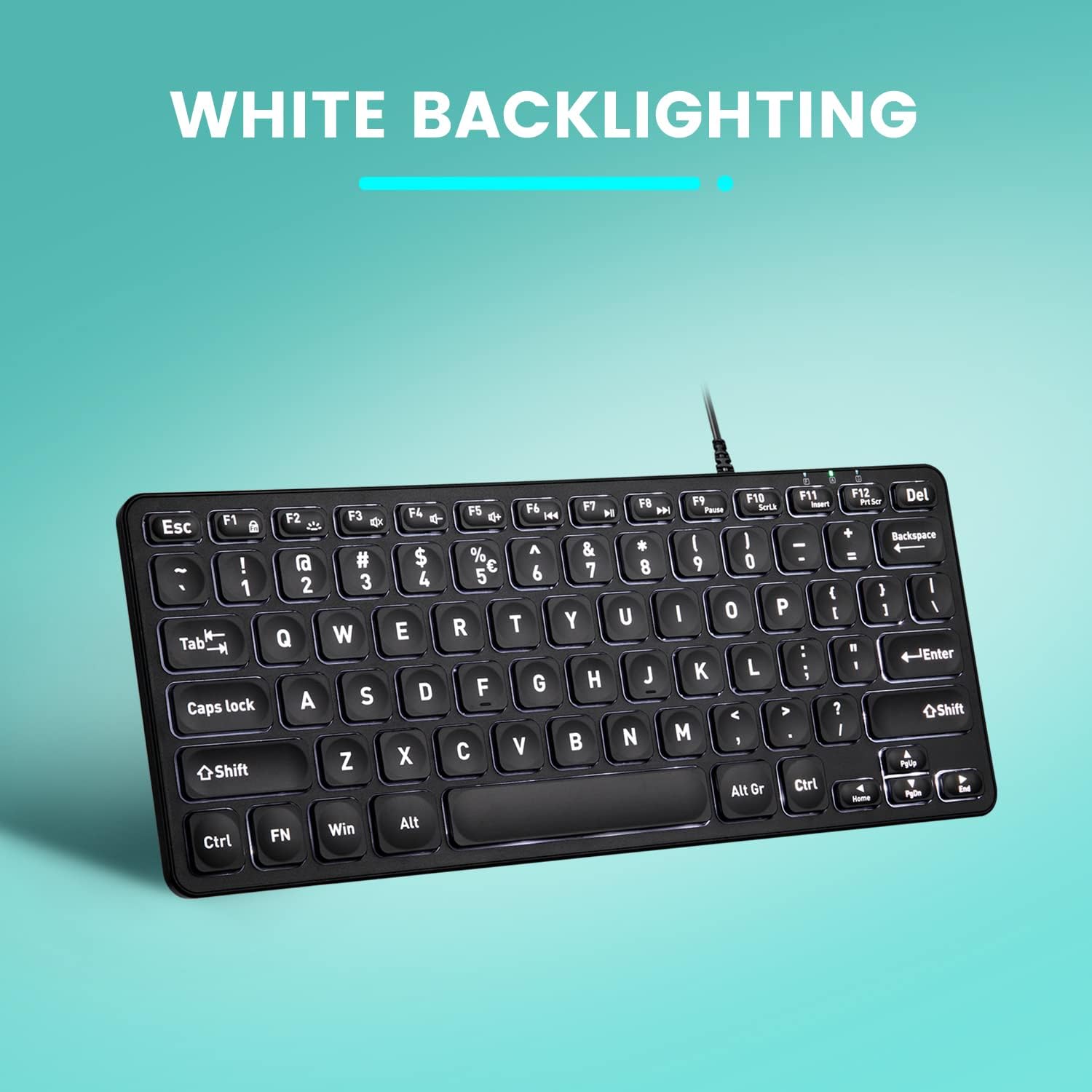
చిత్రం: పై నుండి క్రిందికి view of the Perixx PERIBOARD-332 keyboard with its white LED backlighting illuminated, showcasing the clear, large font on the keys.
నిర్వహణ
To ensure the longevity and proper functioning of your keyboard, follow these maintenance guidelines:
- శుభ్రపరచడం: కొద్దిగా మెత్తని, మెత్తని బట్టను ఉపయోగించండి dampened with water or a mild cleaning solution to wipe the surface of the keyboard. Avoid excessive moisture. Do not spray cleaners directly onto the keyboard.
- దుమ్ము తొలగింపు: కీల మధ్య నుండి దుమ్ము మరియు చెత్తను తొలగించడానికి సంపీడన గాలిని ఉపయోగించండి.
- చిందులను నివారించండి: Keep liquids away from the keyboard to prevent damage. The keyboard is not water-resistant.
- నిల్వ: ఉపయోగంలో లేనప్పుడు, కీబోర్డ్ను తీవ్రమైన ఉష్ణోగ్రతలకు దూరంగా శుభ్రమైన, పొడి వాతావరణంలో నిల్వ చేయండి.
ట్రబుల్షూటింగ్
If you encounter issues with your Perixx PERIBOARD-332, refer to the following common solutions:
కీబోర్డ్ ప్రతిస్పందించడం లేదు
- USB కనెక్షన్ను తనిఖీ చేయండి: Ensure the USB cable is securely plugged into both the keyboard and the computer's USB port. Try a different USB port.
- కంప్యూటర్ పునఃప్రారంభించండి: కొన్నిసార్లు, సాధారణ కంప్యూటర్ పునఃప్రారంభం కనెక్టివిటీ సమస్యలను పరిష్కరించగలదు.
- మరొక పరికరంలో పరీక్షించండి: Connect the keyboard to another computer or device to determine if the issue is with the keyboard or the original computer.
Backlight Not Working or Adjusting
- Check Brightness Setting: నొక్కండి Fn + F2 repeatedly to cycle through all brightness levels, including off. Ensure it's not set to the lowest or off setting.
- శక్తి మూలం: Ensure the keyboard is properly connected to a powered USB port.
కీలు సరిగ్గా పనిచేయకపోవడం
- క్లీన్ కీలు: Check for any debris or obstructions under the affected keys. Use compressed air to clear them.
- సాఫ్ట్వేర్ వైరుధ్యాలు: If specific keys are not working, check for any software or driver conflicts on your computer.
Multimedia Keys Not Working on macOS/Linux/Chrome OS
- ఆపరేటింగ్ సిస్టమ్ అనుకూలత: The multimedia shortcut keys are primarily designed for Windows. On other operating systems, their functionality may vary or require specific system settings/configurations.
స్పెసిఫికేషన్లు
| ఫీచర్ | వివరాలు |
|---|---|
| బ్రాండ్ | పెరిక్స్క్స్ |
| మోడల్ సంఖ్య | పెరిబోర్డ్-332 |
| కనెక్టివిటీ టెక్నాలజీ | USB (వైర్డ్) |
| కీబోర్డ్ వివరణ | US English QWERTY |
| ప్రత్యేక ఫీచర్ | Backlit (White LED) |
| స్విచ్ రకం | Scissor Switches |
| కీల సంఖ్య | 84 |
| ఉత్పత్తి కొలతలు (L x W x H) | 11.22" x 4.57" x 0.83" (28.5 సెం.మీ x 11.6 సెం.మీ x 2.1 సెం.మీ) |
| వస్తువు బరువు | 0.79 lbs (12.3 Ounces / 350 grams approx.) |
| అనుకూల పరికరాలు | PC, Laptop, Tablet, Smartphone (with compatible USB port/adapter) |
| ఆపరేటింగ్ సిస్టమ్ అనుకూలత | Windows 7, 8, 10, 11; macOS; Linux; Chrome OS |
| మెటీరియల్ | ప్లాస్టిక్ |
వారంటీ మరియు మద్దతు
వారంటీ సమాచారం
Your Perixx PERIBOARD-332 keyboard comes with a 12 నెలల పరిమిత వారంటీ from the date of purchase. This warranty covers manufacturing defects and workmanship under normal use. It does not cover damage caused by misuse, accidents, unauthorized modifications, or external factors.
వారంటీ క్లెయిమ్ల కోసం దయచేసి మీ కొనుగోలు రుజువును ఉంచుకోండి.
కస్టమర్ మద్దతు
For technical assistance, warranty claims, or any questions regarding your Perixx product, please visit the official Perixx website or contact their customer support team. Contact information can typically be found on the Perixx webసైట్ లేదా ఉత్పత్తి ప్యాకేజింగ్లో.
మీరు కూడా సందర్శించవచ్చు Perixx Store on Amazon మరింత సమాచారం మరియు మద్దతు వనరుల కోసం.
Ask a question about this manual
Ask about setup, troubleshooting, compatibility, parts, safety, or missing instructions. Manuals+ will review the question and use this page’s manual context to help answer it.