
1. పరిచయం
Thank you for choosing the ALLDOCUBE iPlay20P Android 11 Tablet. This manual provides essential information for setting up, operating, maintaining, and troubleshooting your device. Please read it carefully to ensure optimal performance and longevity of your tablet.
2. భద్రతా సమాచారం
- టాబ్లెట్ను తీవ్రమైన ఉష్ణోగ్రతలు, ప్రత్యక్ష సూర్యకాంతి లేదా అధిక తేమకు గురిచేయవద్దు.
- టాబ్లెట్ను పడవేయడం లేదా బలమైన ప్రభావాలకు గురిచేయడం మానుకోండి.
- నష్టాన్ని నివారించడానికి మరియు భద్రతను నిర్ధారించడానికి ఆమోదించబడిన ఛార్జర్లు మరియు ఉపకరణాలను మాత్రమే ఉపయోగించండి.
- టాబ్లెట్ను నీరు మరియు ఇతర ద్రవాలకు దూరంగా ఉంచండి.
- Do not attempt to disassemble or repair the tablet yourself. Contact customer support for assistance.
3. ఉత్పత్తి ముగిసిందిview
The ALLDOCUBE iPlay20P is a high-performance Android 11 tablet designed for various uses, from entertainment to productivity. It features a 10.1-inch Full HD IPS display, an 8-core CPU, 6GB RAM, 128GB internal storage, and a 6000mAh battery.
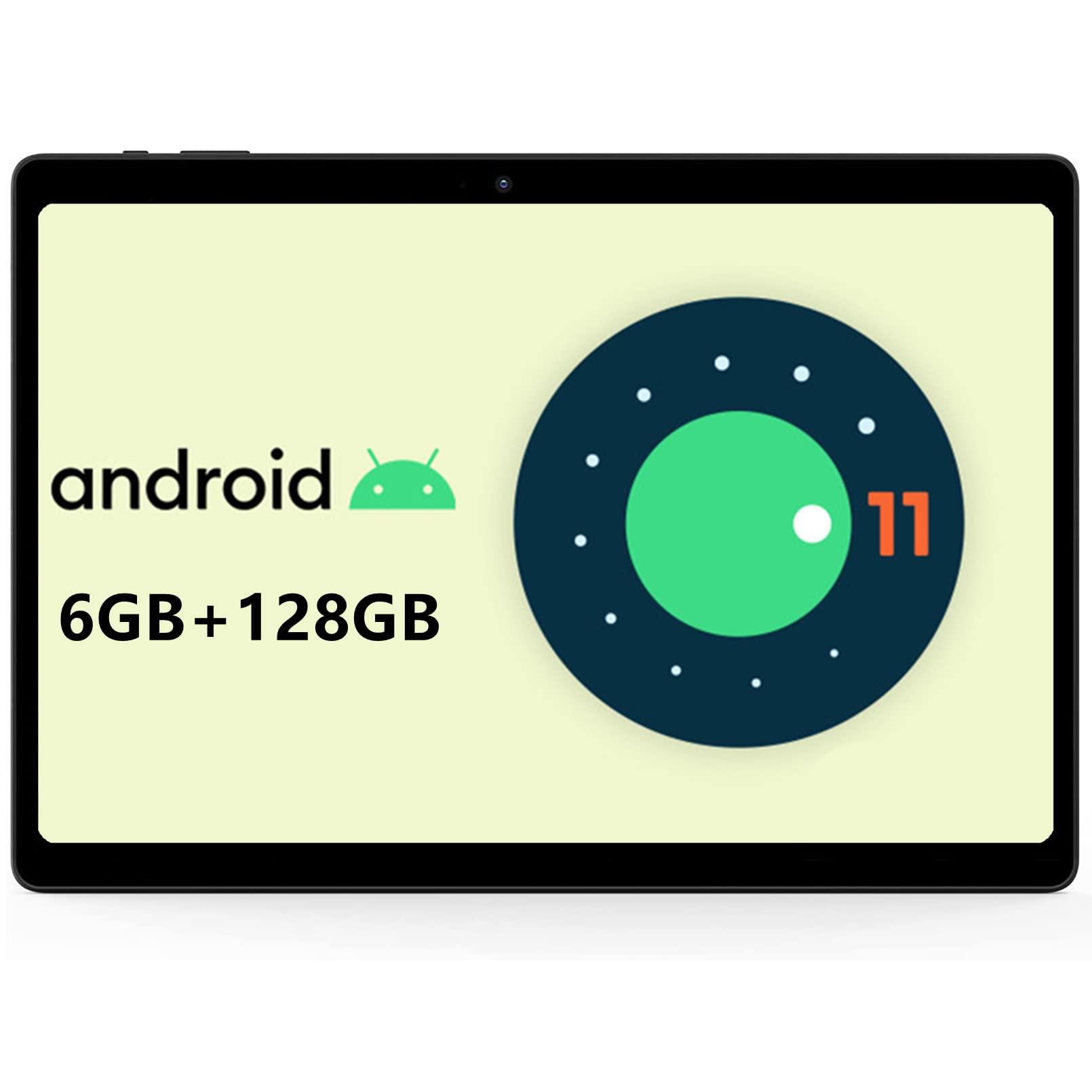
చిత్రం: ముందు భాగం view of the ALLDOCUBE iPlay20P tablet.
ముఖ్య లక్షణాలు:
- High-Performance 8-Core Processor: Equipped with a powerful octa-core processor for smooth multitasking and efficient operation.
- పూర్తి HD IPS డిస్ప్లే: A 10.1-inch screen with 1920x1200 resolution for vibrant visuals.
- Ample మెమరీ మరియు నిల్వ: 6GB RAM and 128GB internal storage, expandable via TF card.
- దీర్ఘకాలం ఉండే బ్యాటరీ: A 6000mAh battery provides extended usage times.
- Dual 4G LTE Support: Stay connected with dual 4G LTE capabilities.
- Dual-Band Wi-Fi & Bluetooth 4.2: వేగవంతమైన మరియు స్థిరమైన వైర్లెస్ కనెక్టివిటీ.
- డ్యూయల్ కెమెరాలు: 2MP front camera and 5MP rear camera for photos and video calls.
- ఆండ్రాయిడ్ 11 ఆపరేటింగ్ సిస్టమ్: Enjoy the latest features and security enhancements of Android 11.
4. సెటప్
4.1 ప్రారంభ ఛార్జింగ్
Before first use, fully charge your tablet using the provided charger. Connect the charger to the tablet's USB-C port and plug it into a power outlet. The battery indicator on the screen will show charging status.
4.2 పవర్ ఆన్/ఆఫ్
- పవర్ ఆన్ చేయడానికి: Press and hold the Power button until the ALLDOCUBE logo appears.
- పవర్ ఆఫ్ చేయడానికి: Press and hold the Power button until the power options appear on the screen, then select "Power off."
- పునఃప్రారంభించడానికి: Press and hold the Power button until the power options appear, then select "Restart."
4.3 భాషా సెట్టింగ్లు
సిస్టమ్ భాషను మార్చడానికి:
- వెళ్ళండి సెట్టింగ్లు.
- నావిగేట్ చేయండి వ్యవస్థ > భాషలు & ఇన్పుట్ > భాషలు.
- నొక్కండి ఒక భాషను జోడించండి and select your desired language from the list.
- Once added, press and hold the icon next to your desired language and drag it to the top of the list to set it as the primary system language.
Video: This short video demonstrates how to change the system language on your ALLDOCUBE tablet.
4.4 SIM కార్డ్ మరియు మైక్రో SD కార్డ్ ఇన్స్టాలేషన్
The tablet supports dual 4G LTE and expandable storage. Locate the SIM/MicroSD card tray on the side of the tablet. Use the provided ejector tool to open the tray. Insert your SIM card(s) and/or MicroSD card into the designated slots, ensuring correct orientation. Close the tray securely.
5. ఆపరేటింగ్ సూచనలు
5.1 ప్రాథమిక నావిగేషన్
- నొక్కండి: యాప్ను తెరవడానికి, అంశాన్ని ఎంచుకోవడానికి లేదా బటన్ను నొక్కడానికి స్క్రీన్ను ఒకసారి తాకండి.
- తాకి & పట్టుకోండి: మరిన్ని ఎంపికలను యాక్సెస్ చేయడానికి లేదా దానిని తరలించడానికి ఒక అంశాన్ని నొక్కి పట్టుకోండి.
- స్వైప్: Drag your finger across the screen to scroll through pages or content.
- చిటికెడు: చిత్రాలను జూమ్ ఇన్ లేదా అవుట్ చేయడానికి రెండు వేళ్లను ఉపయోగించండి మరియు web పేజీలు.
5.2 Wi-Fiకి కనెక్ట్ చేస్తోంది
- వెళ్ళండి సెట్టింగ్లు > నెట్వర్క్ & ఇంటర్నెట్ > Wi-Fi.
- Wi-Fi స్విచ్ను దీనికి టోగుల్ చేయండి On.
- జాబితా నుండి మీకు కావలసిన Wi-Fi నెట్వర్క్ను ఎంచుకోండి.
- ప్రాంప్ట్ చేయబడితే పాస్వర్డ్ను నమోదు చేయండి, ఆపై నొక్కండి కనెక్ట్ చేయండి.
5.3 బ్లూటూత్ పరికరాలకు కనెక్ట్ చేస్తోంది
- వెళ్ళండి సెట్టింగ్లు > కనెక్ట్ చేయబడిన పరికరాలు > బ్లూటూత్.
- బ్లూటూత్ స్విచ్ను దీనికి టోగుల్ చేయండి On.
- మీ బ్లూటూత్ పరికరం జత చేసే మోడ్లో ఉందని నిర్ధారించుకోండి.
- Select your device from the list of available devices and follow any on-screen prompts to complete pairing.
5.4 Using 4G LTE
If you have installed a SIM card with an active data plan, your tablet will automatically connect to the 4G LTE network. You can manage mobile data settings in సెట్టింగ్లు > నెట్వర్క్ & ఇంటర్నెట్ > మొబైల్ నెట్వర్క్.
5.5 కెమెరా వినియోగం
The tablet features a 2MP front camera and a 5MP rear camera. Open the Camera app to take photos or record videos. Tap the screen to focus and press the shutter button to capture.

Image: The tablet displaying its camera interface, ready for use.
5.6 Audio and Multimedia
The tablet is equipped with dual speakers for clear audio output and a 3.5mm headphone jack for private listening. You can adjust volume using the physical volume buttons or through the system settings.

Image: The tablet connected to wired headphones, demonstrating audio output options.
6. నిర్వహణ
6.1 బ్యాటరీ సంరక్షణ
- బ్యాటరీని తరచుగా పూర్తిగా డిశ్చార్జ్ చేయడాన్ని నివారించండి.
- Do not leave the tablet charging for extended periods after it's fully charged.
- Store the tablet in a cool, dry place if not used for a long time, with the battery charged to about 50%.
6.2 శుభ్రపరచడం
Use a soft, lint-free cloth to clean the tablet screen and body. Avoid using harsh chemicals or abrasive materials that could damage the surface.
6.3 సాఫ్ట్వేర్ నవీకరణలు
మీ టాబ్లెట్ తాజా ఫీచర్లు, భద్రతా ప్యాచ్లు మరియు పనితీరు మెరుగుదలలను కలిగి ఉందని నిర్ధారించుకోవడానికి సిస్టమ్ నవీకరణలను క్రమం తప్పకుండా తనిఖీ చేసి, ఇన్స్టాల్ చేయండి. వెళ్ళండి సెట్టింగ్లు > వ్యవస్థ > సిస్టమ్ నవీకరణ నవీకరణల కోసం తనిఖీ చేయడానికి.
7. ట్రబుల్షూటింగ్
7.1 టాబ్లెట్ ఆన్ కావడం లేదు
- బ్యాటరీ ఛార్జ్ అయ్యిందని నిర్ధారించుకోండి. ఛార్జర్ను కనెక్ట్ చేసి, పవర్ ఆన్ చేయడానికి ప్రయత్నించే ముందు కొన్ని నిమిషాలు వేచి ఉండండి.
- రీస్టార్ట్ చేయమని బలవంతం చేయడానికి పవర్ బటన్ను కనీసం 10-15 సెకన్ల పాటు నొక్కి పట్టుకోండి.
7.2 Wi-Fi కనెక్షన్ సమస్యలు
- Check if Wi-Fi is enabled in settings.
- మీ Wi-Fi రూటర్ను పునఃప్రారంభించండి.
- Forget the network in your tablet's Wi-Fi settings and reconnect.
- మీరు Wi-Fi సిగ్నల్ పరిధిలో ఉన్నారని నిర్ధారించుకోండి.
7.3 నెమ్మది పనితీరు
- అనవసరమైన నేపథ్య అనువర్తనాలను మూసివేయండి.
- Clear cache data for apps that are frequently used.
- తగినంత నిల్వ స్థలం అందుబాటులో ఉందని నిర్ధారించుకోండి.
- టాబ్లెట్ను పునఃప్రారంభించండి.
7.4 ఫ్యాక్టరీ రీసెట్
If you encounter persistent issues, a factory reset may resolve them. హెచ్చరిక: This will erase all data on your tablet. Back up important data before proceeding.
- వెళ్ళండి సెట్టింగ్లు > వ్యవస్థ > రీసెట్ ఎంపికలు.
- ఎంచుకోండి మొత్తం డేటాను తొలగించండి (ఫ్యాక్టరీ రీసెట్).
- Confirm your choice and follow the on-screen instructions.
8. స్పెసిఫికేషన్లు
| ఫీచర్ | స్పెసిఫికేషన్ |
|---|---|
| బ్రాండ్ | ALLDOCUBE |
| మోడల్ పేరు | iPlay20P |
| ఆపరేటింగ్ సిస్టమ్ | ఆండ్రాయిడ్ 11 |
| ప్రదర్శన పరిమాణం | 10.1 అంగుళాలు |
| డిస్ప్లే రిజల్యూషన్ | 1920x1200 పిక్సెల్స్ |
| CPU బ్రాండ్ | ARM (Helio P60 Octa-Core) |
| RAM సామర్థ్యం | 6 GB |
| మెమరీ స్టోరేజ్ కెపాసిటీ | 128 GB |
| ఫ్రంట్ కెమెరా రిజల్యూషన్ | 5 ఎంపీ |
| వెనుక కెమెరా రిజల్యూషన్ | 2 ఎంపీ |
| కనెక్టివిటీ | Cellular (4G LTE), Wi-Fi (2.4G/5G), Bluetooth 4.2, GPS |
| బ్యాటరీ కెపాసిటీ | 6000 mAh |
| వక్తలు | 2 |
| ఉత్పత్తి కొలతలు | 24.2 x 16.8 x 0.87 సెం.మీ |
| వస్తువు బరువు | 600 గ్రా |
9. వారంటీ మరియు మద్దతు
9.1 వారంటీ వ్యవధి
ALLDOCUBE provides a 1-year free warranty for this product.
9.2 Product Issues
If you encounter any issues with your product, please contact customer service via email first. We will send a new product free of charge or issue a full refund for your order.
9.3 మద్దతును సంప్రదిస్తోంది
You can contact support through the following methods:
- Via Product Page: On the product page, click on the store name "ALLDOCUBE Global Store" below the "Add to Cart" button, then click "Ask a question" in the upper right corner to send a message.
- Via Amazon Account: Go to your Amazon account > Order History > Select the relevant order > Contact Seller.