
Formuler Z10
Formuler Z10 Android 10 4K Streaming Media Player User Manual
మోడల్: Z10
1. పరిచయం
Thank you for choosing the Formuler Z10 Android 10 4K Streaming Media Player. This device is designed to provide a high-quality streaming experience with its powerful hardware and user-friendly Android 10 operating system. The Z10 supports 4K resolution, HDR10, and features dual-band 5G Wi-Fi for stable and fast connectivity. This manual will guide you through the setup, operation, and maintenance of your new device.
2. పెట్టెలో ఏముంది
Please check the contents of your Formuler Z10 package. If any items are missing or damaged, please contact your retailer.
- Formuler Z10 Streaming Media Player
- IR1 Remote Control
- పవర్ అడాప్టర్
- HDMI కేబుల్
- 2 x AAA బ్యాటరీలు (రిమోట్ కంట్రోల్ కోసం)
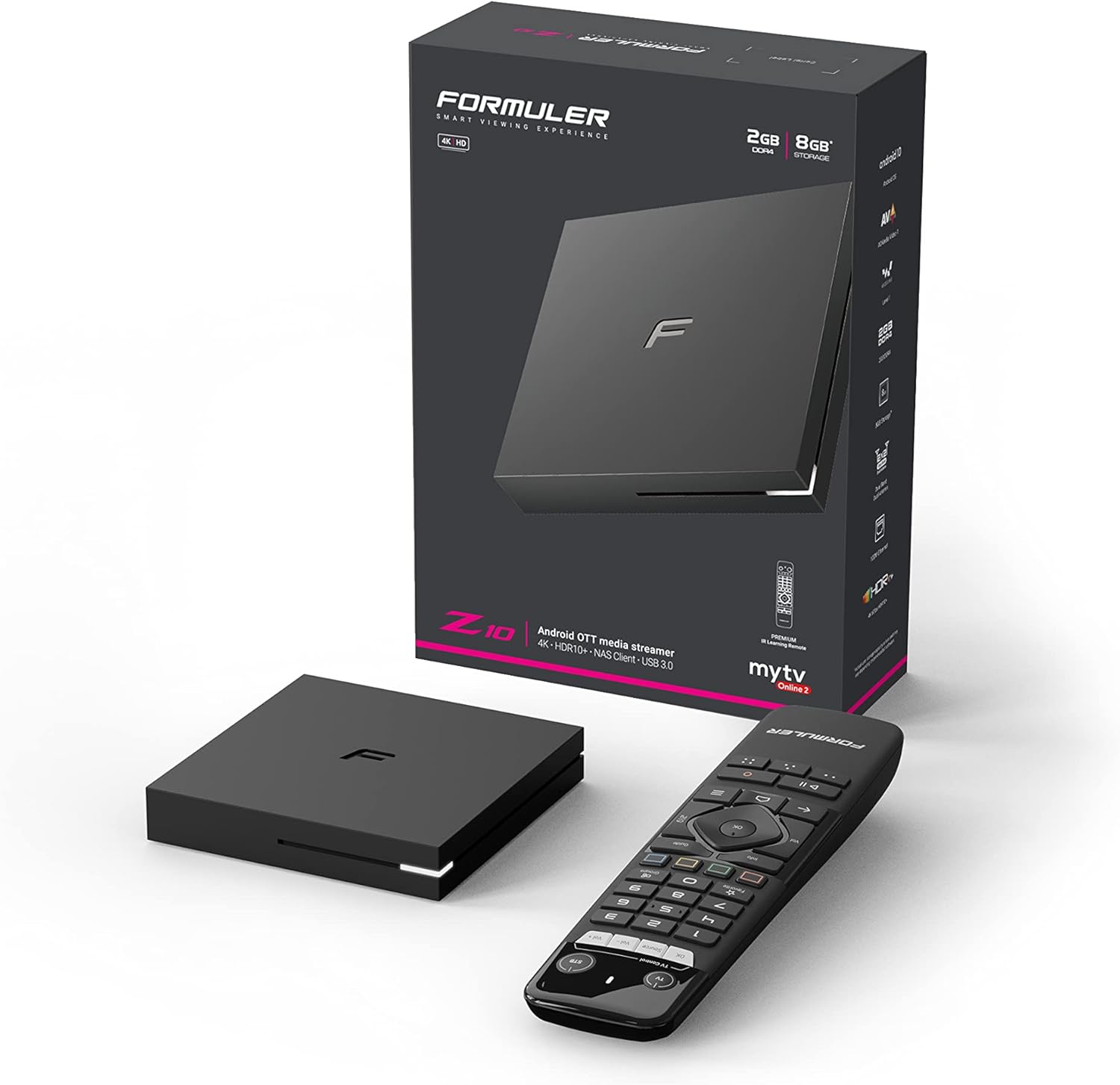
Image: Formuler Z10 retail box, the streaming device, and its remote control.

Image: The Formuler Z10 device and its remote control, showcasing వాటి డిజైన్.

చిత్రం: పై నుండి క్రిందికి view of the Formuler Z10 streaming device, highlighting its compact form factor.
3. సెటప్ గైడ్
3.1 పరికరాన్ని కనెక్ట్ చేస్తోంది
- శక్తికి కనెక్ట్ చేయండి: Insert the power adapter into the DC 12V/1A port on the back of the Formuler Z10 and plug the adapter into a wall outlet.
- టీవీకి కనెక్ట్ అవ్వండి: Use the provided HDMI cable to connect the HDMI port on the Formuler Z10 to an available HDMI input on your television.
- నెట్వర్క్కు కనెక్ట్ అవ్వండి (ఐచ్ఛికం): For a wired internet connection, connect an Ethernet cable from your router to the LAN port on the Formuler Z10. For wireless connection, you will set this up during initial software configuration.

చిత్రం: వెనుక view of the Formuler Z10 showing the power input, USB 3.0 port, LAN port, HDMI port, and reset button.
3.2 ప్రారంభ సాఫ్ట్వేర్ కాన్ఫిగరేషన్
- పవర్ ఆన్: Turn on your TV and select the correct HDMI input. The Formuler Z10 will power on automatically when connected to power.
- భాష ఎంపిక: మీకు నచ్చిన భాషను ఎంచుకోవడానికి స్క్రీన్పై కనిపించే ప్రాంప్ట్లను అనుసరించండి.
- నెట్వర్క్ కనెక్షన్: If you are using Wi-Fi, select your network from the list and enter the password. If using Ethernet, the connection should be established automatically.
- Google ఖాతా: Sign in with your Google account to access the Google Play Store and other Google services. If you don't have one, you can create one.
- సిస్టమ్ నవీకరణలు: The device may prompt you to download and install the latest firmware updates. It is recommended to perform these updates for optimal performance and security.
4. ఆపరేటింగ్ సూచనలు
4.1 రిమోట్ కంట్రోల్ ఓవర్view (IR1)
The IR1 remote control provides full functionality for navigating your Formuler Z10. Insert the two AAA batteries into the remote control before use.

Image: Detailed diagram of the Formuler IR1 remote control, indicating the function of each button.
- Power Button (TV/STB): Press once to put TV/STB into standby mode. Press and hold for Learning mode (TV Control).
- TV Control (OK, Source, Vol-, Vol+): Buttons for controlling your television (requires learning mode setup).
- నంబర్ ప్యాడ్ (0-9): Direct channel number input.
- ఇష్టమైన బటన్: Show/set favorite channels.
- Groups Button: Show channel or VOD categories.
- Colored Hotkeys (Red, Green, Yellow, Blue): Configurable hotkeys, follow on-screen instructions.
- సమాచార బటన్: Press twice to show detailed information.
- గైడ్ బటన్: Show grid EPG (Electronic Program Guide).
- నావిగేషన్ ప్యాడ్ (పైకి, క్రిందికి, ఎడమకు, కుడికి, సరే): Move cursor, channel list navigation, select items.
- వాల్యూమ్ +/-: Adjust STB volume.
- Ch +/-: Change channels, Page Up/Down.
- వెనుక బటన్: మునుపటి మెనుకి తిరిగి వెళ్ళు.
- హోమ్ బటన్: Go to System Home screen.
- మెనూ బటన్: Show Main Menu.
- ప్లే/పాజ్ బటన్: Timeshift/Resume, Pause playback.
- రికార్డ్ బటన్: రికార్డింగ్ ప్రారంభించండి.
4.2 ఇంటర్ఫేస్ను నావిగేట్ చేయడం
The Formuler Z10 runs on Android 10, providing a familiar and intuitive interface. Use the navigation pad and OK button on your remote to move through menus and select options.
- హోమ్ స్క్రీన్: Provides quick access to your favorite apps, recommended content, and system settings.
- యాప్లు: Access installed applications like Netflix, Hulu, Amazon Prime Video, and others downloaded from the Google Play Store.
- సెట్టింగ్లు: Located on the home screen or accessible via the Menu button, this section allows you to configure network settings, display options, sound, storage, and more.
4.3 మీడియా ప్లేబ్యాక్
The Formuler Z10 is capable of playing 4K content at 60 frames per second with HDR10 support, offering a vibrant viewing అనుభవం.
- స్ట్రీమింగ్ సేవలు: Launch your preferred streaming applications from the home screen or app drawer. Ensure you have an active subscription for paid services.
- Local Media: మీరు మీడియాను ప్లే చేయవచ్చు files from connected USB drives using a compatible media player app.
5. నిర్వహణ
- శుభ్రపరచడం: పరికరం యొక్క బాహ్య భాగాన్ని శుభ్రం చేయడానికి మృదువైన, పొడి వస్త్రాన్ని ఉపయోగించండి. ద్రవ క్లీనర్లను లేదా రాపిడి పదార్థాలను ఉపయోగించవద్దు.
- సాఫ్ట్వేర్ అప్డేట్లు: Regularly check for and install system updates to ensure your device has the latest features, security patches, and performance improvements. Navigate to Settings > About > System update.
- ఫ్యాక్టరీ రీసెట్: If you encounter persistent issues, a factory reset can resolve them. Be aware that this will erase all data and settings on the device. Navigate to Settings > Device Preferences > Reset.
6. ట్రబుల్షూటింగ్
This section addresses common issues you might encounter with your Formuler Z10.
- శక్తి లేదు:
- పవర్ అడాప్టర్ పరికరానికి మరియు పనిచేసే పవర్ అవుట్లెట్కు సురక్షితంగా కనెక్ట్ చేయబడిందని నిర్ధారించుకోండి.
- మరొక పరికరాన్ని ప్లగ్ చేయడం ద్వారా పవర్ అవుట్లెట్ పనిచేస్తుందో లేదో తనిఖీ చేయండి.
- వీడియో/ఆడియో అవుట్పుట్ లేదు:
- Verify the HDMI cable is securely connected to both the Formuler Z10 and your TV.
- మీ టీవీ సరైన HDMI ఇన్పుట్ సోర్స్కు సెట్ చేయబడిందని నిర్ధారించుకోండి.
- మీ టీవీలో వేరే HDMI కేబుల్ లేదా HDMI పోర్ట్ని ప్రయత్నించండి.
- నెట్వర్క్ కనెక్షన్ సమస్యలు:
- For Wi-Fi, ensure the correct password is entered and the device is within range of your router.
- For Ethernet, check the cable connection and ensure your router is functioning correctly.
- Restart your router and the Formuler Z10.
- రిమోట్ కంట్రోల్ స్పందించడం లేదు:
- రిమోట్ కంట్రోల్లో AAA బ్యాటరీలను భర్తీ చేయండి.
- రిమోట్ మరియు పరికరం యొక్క IR రిసీవర్ మధ్య ఎటువంటి అడ్డంకులు లేవని నిర్ధారించుకోండి.
- Applications Crashing or Freezing:
- అప్లికేషన్ను మూసివేసి, పునఃప్రారంభించండి.
- యాప్ కాష్ను క్లియర్ చేయండి (Settings > Apps > [App Name] > Clear cache).
- పరికరం యొక్క ఫర్మ్వేర్ తాజాగా ఉందని నిర్ధారించుకోండి.
- If issues persist, consider a factory reset (see Maintenance section).
7. స్పెసిఫికేషన్లు
Detailed technical specifications for the Formuler Z10:
| ఫీచర్ | స్పెసిఫికేషన్ |
|---|---|
| అవుట్పుట్ రిజల్యూషన్ | 4K (3840 x 2160) |
| CPU | RealTek |
| GPU | ARM G31 MP2 |
| RAM | 2GB DDR @2400MHz |
| నిల్వ | 8GB eMMC |
| ఆపరేటింగ్ సిస్టమ్ | ఆండ్రాయిడ్ 10 |
| వైర్లెస్ కనెక్టివిటీ | Dual-Band 2x2 AC Wireless |
| బ్లూటూత్ | 5.0 |
| ఈథర్నెట్ | 100M |
| కొలతలు (L x W x T) | 94mm x 94mm x 16.5mm (3.7 x 3.7 x 0.65 అంగుళాలు) |
| వస్తువు బరువు | 1.21 పౌండ్లు |
| ఓడరేవులు | 1 x Power Input, 1 x USB 3.0, 1 x HDMI, 1 x LAN |
| రిమోట్ బ్యాటరీలు | 2 x AAA (చేర్చబడింది) |
8. వారంటీ మరియు మద్దతు
Formuler products are manufactured to the highest quality standards. For information regarding warranty coverage, technical support, and service, please refer to the warranty card included with your product or visit the official Formuler webవారంటీ క్లెయిమ్ల కోసం మీ కొనుగోలు రుజువును ఉంచండి.
For further assistance, you may also contact your retailer or the Formuler customer support team directly.
Ask a question about this manual
Ask about setup, troubleshooting, compatibility, parts, safety, or missing instructions. Manuals+ will review the question and use this page’s manual context to help answer it.