
DUODUOGO S7
DUODUOGO 5G WiFi Android 11 Tablet S7 User Manual
మోడల్: S7
Brand: DUODUOGO
1. పరిచయం
This user manual provides comprehensive instructions for the DUODUOGO 5G WiFi Android 11 Tablet S7. It covers product features, setup, operation, maintenance, and troubleshooting to ensure optimal use of your device. Please read this manual thoroughly before using the tablet.
2. పెట్టెలో ఏముంది
- DUODUOGO 5G WiFi Android 11 Tablet (10.4 Inch)
- వేరు చేయగలిగిన కీబోర్డ్
- USB టైప్-సి కేబుల్
- పవర్ అడాప్టర్
- వినియోగదారు మాన్యువల్ (ఈ పత్రం)
3. ఉత్పత్తి ముగిసిందిview
The DUODUOGO S7 tablet features a 10.4-inch touchscreen display, powered by Android 11, and includes a detachable keyboard for enhanced productivity. It supports dual-band Wi-Fi (2.4G and 5G) and offers ample storage with 4GB RAM and 64GB internal storage, expandable up to 256GB.

Image: The DUODUOGO S7 tablet in blue, shown with its detachable keyboard and a hand interacting with the touchpad. The tablet screen displays "Android 11". A smaller inset image shows the tablet from the rear with its kickstand extended.
ముఖ్య లక్షణాలు:
- ఆపరేటింగ్ సిస్టమ్: ఆండ్రాయిడ్ 11
- ప్రదర్శన: 10.4-inch IPS Touchscreen (1280 x 800 resolution)
- మెమరీ: 4GB RAM
- నిల్వ: 64GB ROM (expandable up to 256GB)
- కెమెరాలు: Rear 8MP, Front 5MP
- కనెక్టివిటీ: Dual WiFi (2.4G/5G), Bluetooth, OTG, Type-C
- బ్యాటరీ: 6500mAh

Image: A stylized depiction of the Android 11 system, with a robotic hand reaching out from a tablet screen towards a small Android mascot holding the number 11. Text reads "Android 11 System" and "Visit your favorite apps, music, movies, books, etc".
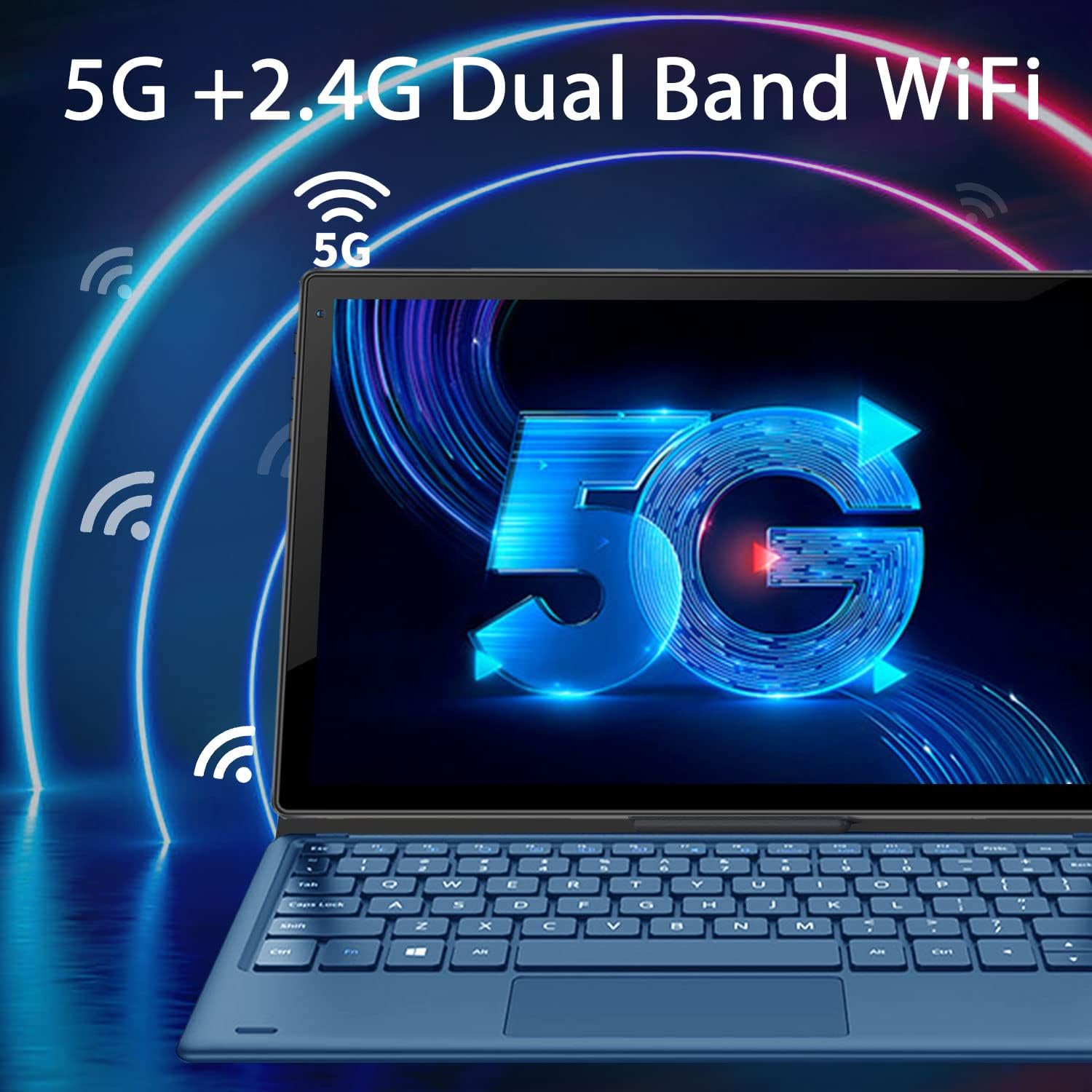
Image: The tablet screen displaying a large "5G" logo with Wi-Fi signals emanating from it, indicating dual-band 5G and 2.4G Wi-Fi connectivity. Text reads "5G + 2.4G Dual Band WiFi".

Image: Three tablets shown from the back, with the middle tablet displaying a photo gallery. Icons and text indicate "Large Capacity Battery", "4GB RAM", "64GB ROM", and "256GB Expand".
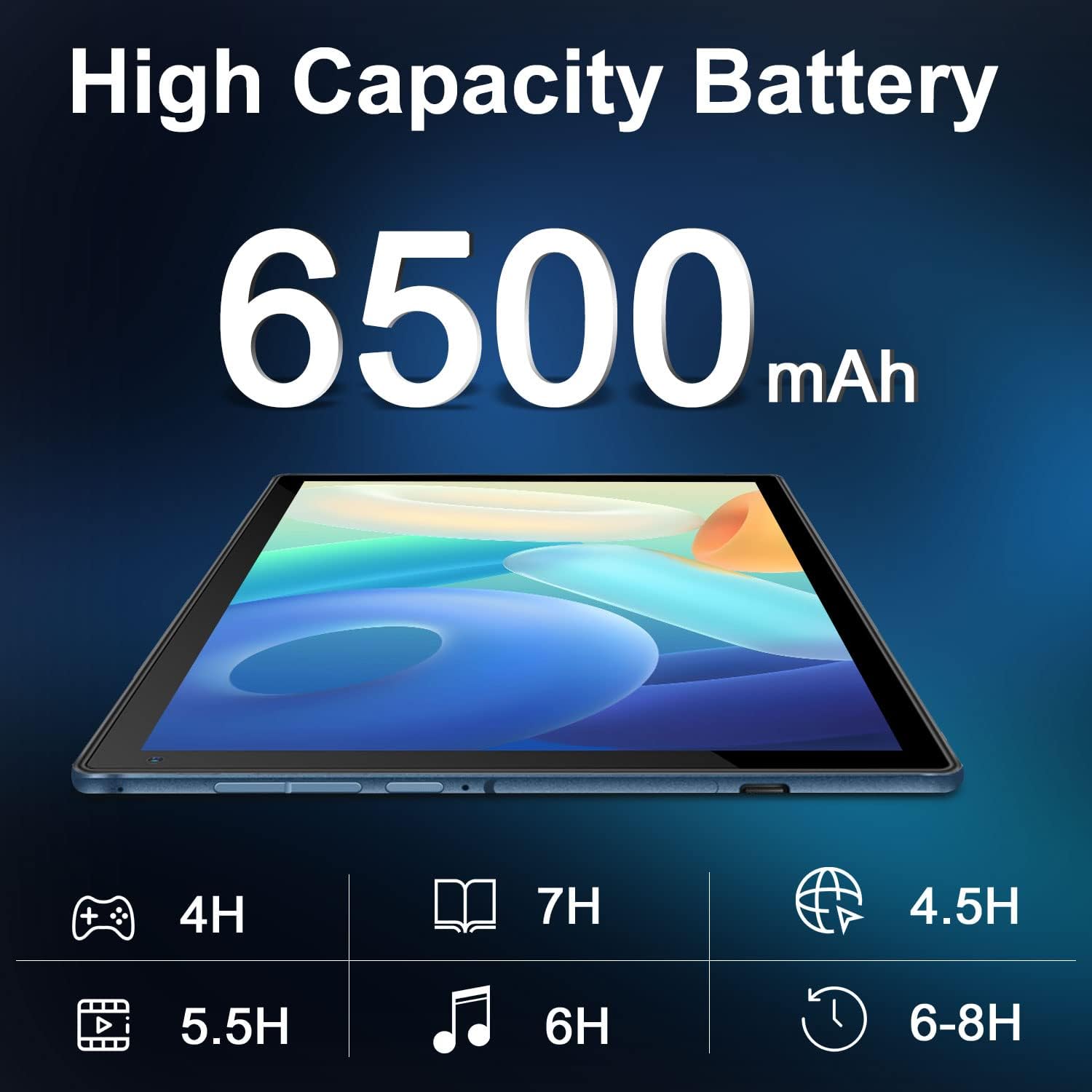
Image: A tablet lying flat, with a large "6500mAh" text overlay, indicating its high capacity battery. Below are icons and estimated usage times for various activities like gaming, reading, video playback, music, web browsing, and general use.

Image: A collage showing the tablet's camera capabilities (people on a beach, family on a boat) and its 10.4-inch IPS display quality (a surfer on a wave). Text highlights "Front 5MP Rear 8MP" and "10.4" IPS Display".

Image: A four-panel collage demonstrating different usage modes: a person using the tablet with keyboard, a child and adult using the tablet with a stand, and a child interacting with a learning app on the tablet. Text reads "Enjoy Different Mode".
4. సెటప్
4.1 టాబ్లెట్ను ఛార్జ్ చేయడం
Before first use, fully charge the tablet. Connect the USB Type-C cable to the tablet's charging port and the other end to the power adapter. Plug the adapter into a wall outlet. The charging indicator will show the charging status. A full charge typically takes 3-4 hours.
4.2 పవర్ ఆన్/ఆఫ్
- పవర్ ఆన్ చేయడానికి: Press and hold the Power button (usually located on the side or top edge) for a few seconds until the DUODUOGO logo appears on the screen.
- పవర్ ఆఫ్ చేయడానికి: Press and hold the Power button until a power-off menu appears. Select "Power off" or "Shut down".
- పునఃప్రారంభించడానికి: From the power-off menu, select "Restart".
4.3 ప్రారంభ సెటప్ విజార్డ్
Upon first power-on, the Android 11 setup wizard will guide you through essential configurations:
- మీకు ఇష్టమైన భాషను ఎంచుకోండి.
- Wi-Fi నెట్వర్క్కి కనెక్ట్ చేయండి.
- Sign in with your Google account or create a new one. This is necessary to download apps from Google Play Store.
- స్క్రీన్ లాక్ (పిన్, నమూనా, పాస్వర్డ్) సెటప్ చేయండి.
- Review and accept Google services terms.
4.4 కీబోర్డ్ను అటాచ్ చేయడం
The detachable keyboard connects magnetically to the tablet. Align the magnetic connector on the keyboard with the corresponding pins on the tablet's bottom edge. The keyboard will snap into place and connect automatically. No separate pairing is required.
5. ఆపరేటింగ్ సూచనలు
5.1 ఆండ్రాయిడ్ 11 ని నావిగేట్ చేయడం
- హోమ్ స్క్రీన్: విభిన్న హోమ్ స్క్రీన్లను యాక్సెస్ చేయడానికి ఎడమ లేదా కుడి వైపుకు స్వైప్ చేయండి.
- యాప్ డ్రాయర్: స్క్రీన్ దిగువ నుండి పైకి స్వైప్ చేయండి view అన్ని ఇన్స్టాల్ చేసిన అప్లికేషన్లు.
- నోటిఫికేషన్లు & త్వరిత సెట్టింగ్లు: Swipe down from the top of the screen to access notifications and quick settings toggles (Wi-Fi, Bluetooth, Brightness, etc.).
- మల్టీ టాస్కింగ్: Swipe up from the bottom and hold, then release to see recent apps. Tap an app to switch, or swipe it away to close.
5.2 వై-ఫై కనెక్టివిటీ
Wi-Fi నెట్వర్క్కి కనెక్ట్ చేయడానికి:
- వెళ్ళండి సెట్టింగ్లు > నెట్వర్క్ & ఇంటర్నెట్ > Wi-Fi.
- Wi-Fiని టోగుల్ చేయి On.
- జాబితా నుండి మీకు కావలసిన నెట్వర్క్ను ఎంచుకోండి.
- ప్రాంప్ట్ చేయబడితే పాస్వర్డ్ను నమోదు చేయండి, ఆపై నొక్కండి కనెక్ట్ చేయండి.
5.3 కెమెరాలను ఉపయోగించడం
ఈ టాబ్లెట్లో 5MP ముందు కెమెరా మరియు 8MP వెనుక కెమెరా ఉన్నాయి.
- తెరవండి కెమెరా app from the home screen or app drawer.
- ముందు మరియు వెనుక కెమెరాల మధ్య టోగుల్ చేయడానికి కెమెరా స్విచ్ చిహ్నాన్ని నొక్కండి.
- ఫోటో తీయడానికి లేదా వీడియో రికార్డింగ్ ప్రారంభించడానికి/ఆపడానికి షట్టర్ బటన్ను నొక్కండి.
5.4 నిల్వ నిర్వహణ
The tablet comes with 64GB of internal storage. You can expand this using a microSD card (up to 256GB).
- మైక్రో SD కార్డ్ని చొప్పించడం: Locate the microSD card slot (usually on the side of the tablet). Gently insert the card until it clicks into place.
- నిల్వ నిర్వహణ: వెళ్ళండి సెట్టింగ్లు > నిల్వ కు view నిల్వ వినియోగం మరియు నిర్వహణ files.
6. నిర్వహణ
- శుభ్రపరచడం: Use a soft, lint-free cloth to clean the screen and body of the tablet. Do not use liquid cleaners or aerosols directly on the device.
- బ్యాటరీ సంరక్షణ: Avoid extreme temperatures. Do not let the battery fully drain frequently. For long-term storage, charge the battery to about 50%.
- సాఫ్ట్వేర్ అప్డేట్లు: సిస్టమ్ నవీకరణల కోసం కాలానుగుణంగా తనిఖీ చేయండి సెట్టింగ్లు > వ్యవస్థ > సిస్టమ్ నవీకరణ సరైన పనితీరు మరియు భద్రతను నిర్ధారించడానికి.
- రక్షణ: Use the provided keyboard case to protect the tablet from scratches and minor impacts.
7. ట్రబుల్షూటింగ్
7.1 టాబ్లెట్ ఆన్ అవ్వడం లేదు
- టాబ్లెట్ తగినంత ఛార్జ్ చేయబడిందని నిర్ధారించుకోండి. కనీసం 30 నిమిషాలు దానిని ఛార్జర్కు కనెక్ట్ చేయండి.
- రీస్టార్ట్ చేయమని బలవంతం చేయడానికి పవర్ బటన్ను 10-15 సెకన్ల పాటు నొక్కి పట్టుకోండి.
7.2 Wi-Fi కనెక్షన్ సమస్యలు
- Check if Wi-Fi is enabled in Quick Settings or Network & internet settings.
- మీ Wi-Fi రూటర్ను పునఃప్రారంభించండి.
- టాబ్లెట్ సెట్టింగ్లలో నెట్వర్క్ను మర్చిపోయి, తిరిగి కనెక్ట్ చేయండి.
- మీరు Wi-Fi సిగ్నల్ పరిధిలో ఉన్నారని నిర్ధారించుకోండి.
7.3 కీబోర్డ్ స్పందించడం లేదు
- Ensure the keyboard is properly aligned and connected to the magnetic pins on the tablet.
- Gently clean the magnetic pins on both the tablet and keyboard to ensure good contact.
- టాబ్లెట్ను పునఃప్రారంభించండి.
7.4 యాప్లు క్రాష్ కావడం లేదా స్తంభించిపోవడం
- యాప్ను మూసివేసి తిరిగి తెరవండి.
- యాప్ కాష్ మరియు డేటాను క్లియర్ చేయండి సెట్టింగ్లు > యాప్లు & నోటిఫికేషన్లు > [యాప్ పేరు] > నిల్వ & కాష్.
- Ensure the app is updated to its latest version from Google Play Store.
- టాబ్లెట్ను పునఃప్రారంభించండి.
8. స్పెసిఫికేషన్లు
| ఫీచర్ | స్పెసిఫికేషన్ |
|---|---|
| బ్రాండ్ | DUODUOGO |
| మోడల్ సంఖ్య | S7 |
| ఆపరేటింగ్ సిస్టమ్ | ఆండ్రాయిడ్ 11 |
| స్క్రీన్ పరిమాణం | 10.4 అంగుళాలు |
| స్క్రీన్ రిజల్యూషన్ | 1280 x 800 |
| RAM | 4 GB |
| అంతర్గత నిల్వ | 64 GB |
| విస్తరించదగిన నిల్వ | 256 GB వరకు (MicroSD) |
| వెనుక కెమెరా | 8 ఎంపీ |
| ఫ్రంట్ కెమెరా | 5 ఎంపీ |
| బ్యాటరీ కెపాసిటీ | 6500 mAh |
| కనెక్టివిటీ | Dual WiFi (2.4G/5G), Bluetooth, OTG, Type-C |
| ఉత్పత్తి కొలతలు (LxWxH) | 9.5 x 6.4 x 0.35 అంగుళాలు |
9. వారంటీ మరియు మద్దతు
DUODUOGO provides comprehensive support for its products. For any issues or inquiries regarding your DUODUOGO S7 Tablet, please refer to the following:
- వారంటీ: The product comes with a one-month free replacement policy and 365 days of free repair in case of non-human damage.
- కస్టమర్ మద్దతు: If you encounter any problems using your DUODUOGO device, you can contact us through Amazon. Our support team aims to reply to your message and resolve your problem within 12 hours until you are satisfied.
- Software & Apps: The DUODUOGO Device is GMS certified, allowing you to download applications directly from Google Play Store.
Ask a question about this manual
Ask about setup, troubleshooting, compatibility, parts, safety, or missing instructions. Manuals+ will review the question and use this page’s manual context to help answer it.