
PCsensor 3 Key Mini Keypad
PCsensor 3-Key Mini Keypad User Manual
Model: 3 Key Mini Keypad
బ్రాండ్: PC సెన్సార్
పరిచయం
This manual provides detailed instructions for the setup, operation, and maintenance of your PCsensor 3-Key Mini Keypad. This wireless mechanical gaming keyboard is designed for customized hotkey programming, offering flexibility and enhanced control for various applications.

Image: The PCsensor 3-Key Mini Keypad in white, showcasing its three mechanical keys with red RGB backlighting. The compact design highlights its portability and functionality.
పెట్టెలో ఏముంది
ప్యాకేజీలో అన్ని అంశాలు ఉన్నాయని నిర్ధారించుకోండి:
- PCsensor 3-Key Mini Keypad (White-Bluetooth model)
- USB Type-C to USB-A Charging Cable
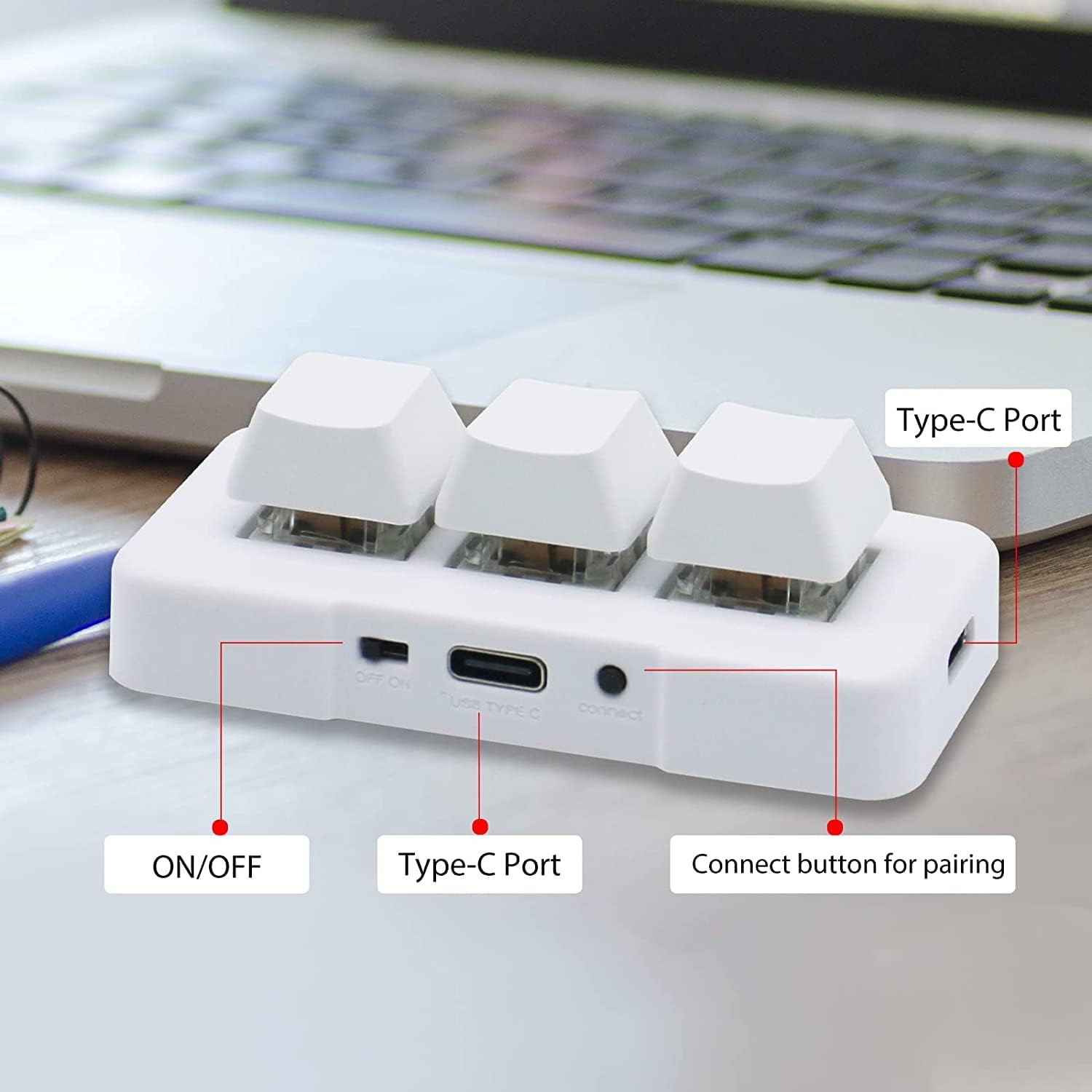
Image: A diagram illustrating the dimensions of the 3-Key Mini Keypad (approximately 3 inches long) and the included 59-inch (1500mm) USB Type-C charging cable.
ఉత్పత్తి ముగిసిందిview
Familiarize yourself with the components of your mini keypad:
- మెకానికల్ కీలు: Three programmable keys with durable mechanical switches.
- స్విచ్ ఆన్/ఆఫ్: Located on the side for power control.
- USB టైప్-సి పోర్ట్: వైర్డు కనెక్షన్ మరియు ఛార్జింగ్ కోసం.
- కనెక్ట్ బటన్: బ్లూటూత్ జత చేయడానికి ఉపయోగించబడుతుంది.
- RGB LED Backlighting: Customizable lighting under each key.

చిత్రం: క్లోజప్ view of the white 3-Key Mini Keypad, clearly labeling the ON/OFF switch, USB Type-C port, and the small connect button for pairing.
సెటప్
Charging the Keypad
- Connect the provided USB Type-C cable to the keypad's Type-C port.
- కేబుల్ యొక్క మరొక చివరను USB పవర్ సోర్స్కి కనెక్ట్ చేయండి (ఉదా. కంప్యూటర్ USB పోర్ట్, వాల్ అడాప్టర్).
- The keypad's LED light will indicate charging status. A full charge typically takes 2 hours and can provide up to 3 months of use. The LED will flash every 3 seconds when the battery is low.
కనెక్టివిటీ ఎంపికలు
The keypad supports both wired (USB) and wireless (Bluetooth) connections.
Wired Connection (USB Mode)
- Ensure the keypad is turned ఆఫ్ ఆన్/ఆఫ్ స్విచ్ ఉపయోగించి.
- Connect the USB Type-C cable from the keypad to your computer's USB port.
- The keypad will automatically be recognized as a standard keyboard. In USB mode, the key backlighting will typically display a blue light.
Wireless Connection (Bluetooth Mode)
- Turn the keypad ON ఆన్/ఆఫ్ స్విచ్ ఉపయోగించి.
- Long press the "connect" button on the side of the keypad until the LED light starts flashing rapidly, indicating pairing mode.
- On your device (computer, smartphone, tablet), navigate to Bluetooth settings and search for new devices.
- Select "3 Key Mini Keypad" or a similar name from the list of available devices to pair.
- Once successfully paired, the LED light will stop flashing and remain solid, typically displaying a red light in wireless mode.

Image: The 3-Key Mini Keypad illustrating the different LED colors for connectivity modes: blue light indicates USB mode, and red light indicates wireless (Bluetooth) mode.
గమనిక: For initial setup and programming, it is recommended to connect the keypad to a Windows system first. Once programmed, it can be freely used with Windows, Linux, Mac OS, Android, and iOS systems.
ఆపరేటింగ్ సూచనలు
కీ ప్రోగ్రామింగ్
The 3-Key Mini Keypad is fully programmable, allowing you to assign custom hotkeys, shortcuts, or macros to each of its three keys. Programming is done via dedicated software.
- Download the official programming software from the PCsensor website. (Refer to the product packaging or manufacturer's website for the download link).
- Install the software on your Windows computer.
- Connect the keypad to your computer via USB. Ensure the software recognizes the device.
- Within the software interface, select the key you wish to program.
- Assign the desired function (e.g., single key press, key combination, multimedia control, macro).
- Save the configuration to the keypad's onboard memory. The programmed functions will work across all compatible operating systems without needing the software running.

Image: A screenshot of the PCsensor programming software interface, showing options for customizing key functions and device settings. This software is essential for assigning specific commands to each key.

Image: A person interacting with the PCsensor programming software on a desktop computer, demonstrating the user interface for customizing the keypad's functions.
RGB LED నియంత్రణ
The keypad features RGB LED backlighting. The lighting can often be controlled through the programming software, allowing you to adjust colors, effects, or turn them off to conserve battery life.
నిర్వహణ
To ensure the longevity and optimal performance of your keypad, follow these maintenance guidelines:
- శుభ్రపరచడం: కీప్యాడ్ ఉపరితలాన్ని తుడవడానికి మృదువైన, పొడి వస్త్రాన్ని ఉపయోగించండి. మొండి ధూళి కోసం, కొద్దిగా damp తేలికపాటి సబ్బు ఉన్న వస్త్రాన్ని ఉపయోగించవచ్చు, తద్వారా పరికరంలోకి ద్రవం ప్రవేశించదు.
- నిల్వ: Store the keypad in a cool, dry place away from direct sunlight and extreme temperatures.
- బ్యాటరీ సంరక్షణ: Avoid fully discharging the battery frequently. Charge the keypad regularly to maintain battery health.
- ద్రవాలను నివారించండి: Do not expose the keypad to water or other liquids.
- జాగ్రత్తగా నిర్వహించండి: Avoid dropping or subjecting the keypad to strong impacts.
ట్రబుల్షూటింగ్
If you encounter issues with your PCsensor 3-Key Mini Keypad, refer to the following common problems and solutions:
| సమస్య | పరిష్కారం |
|---|---|
| Keypad not responding (Wired) |
|
| Keypad not connecting (Bluetooth) |
|
| Keys not performing programmed functions |
|
| బ్యాటరీ త్వరగా అయిపోతుంది |
|
స్పెసిఫికేషన్లు
| ఫీచర్ | వివరాలు |
|---|---|
| మోడల్ సంఖ్య | 3 Key Mini Keypad |
| కనెక్టివిటీ | బ్లూటూత్, USB-C (వైర్డ్) |
| కీల సంఖ్య | 3 |
| కీ రకం | మెకానికల్ |
| బ్యాక్లైటింగ్ | RGB LED |
| వైర్లెస్ దూరం | 33 అడుగుల (10 మీటర్లు) వరకు |
| బ్యాటరీ రకం | 1 లిథియం అయాన్ (చేర్చబడింది) |
| బ్యాటరీ లైఫ్ | Up to 3 months on a 2-hour charge (usage dependent) |
| అనుకూలత | Windows, Linux, Mac OS, Android, iOS |
| కొలతలు | 3.11 x 2.2 x 1.54 అంగుళాలు |
| వస్తువు బరువు | 2.82 ఔన్సులు |
| తయారీదారు | PC సెన్సార్ |
వారంటీ మరియు మద్దతు
PCsensor products are designed for durability and performance. For specific warranty information, please refer to the product packaging or the official PCsensor webసైట్.
For technical support, troubleshooting assistance, or inquiries regarding your 3-Key Mini Keypad, please visit the PCsensor Store on Amazon or contact PCsensor customer service directly.
యూజర్ మాన్యువల్ యొక్క PDF వెర్షన్ కూడా డౌన్లోడ్ చేసుకోవడానికి అందుబాటులో ఉంది: వినియోగదారు మాన్యువల్ (PDF)
Ask a question about this manual
Ask about setup, troubleshooting, compatibility, parts, safety, or missing instructions. Manuals+ will review the question and use this page’s manual context to help answer it.