
1. పరిచయం
The QNAP TVS-h474-PT-8G-US is a high-performance 4-bay desktop Network Attached Storage (NAS) solution designed for small to medium-sized businesses (SMBs). It features an Intel Pentium Gold dual-core processor and 8GB DDR4 RAM, providing a secure, reliable, and efficient platform for data storage, sharing, and management. This manual provides essential information for setting up, operating, and maintaining your NAS device.
ముఖ్య లక్షణాలు:
- Intel Pentium Gold G7400 2-core/4-thread 3.7 GHz processor and 8GB DDR4 RAM (up to 64GB)
- Dual M.2 PCIe Gen3x2 NVMe SSD slots for cache acceleration or SSD storage pools
- Dual 2.5GbE (2.5G/1G/100M) ports for accelerated file sharing and large file బదిలీలు
- Multiple USB 3.2 Gen 2 ports (Type-A & Type-C) with up to 10Gb/s transfer speeds
- 4K media playback and real-time transcoding via HDMI 1.4b (4K @30Hz) output
- PCIe Gen 4 expandability for 10/25GbE connectivity
- Business-class backup center supporting cloud data and VM backup/restore
2. ప్యాకేజీ విషయాలు
ప్యాకేజీలో అన్ని అంశాలు ఉన్నాయని నిర్ధారించుకోండి:
- QNAP TVS-h474-PT-8G-US NAS Unit
- పవర్ అడాప్టర్
- పవర్ కార్డ్
- ఈథర్నెట్ కేబుల్ (పిల్లి 5 ఇ)
- Hard Drive Screws
- Drive Bay Keys
- త్వరిత సంస్థాపన గైడ్
- వారంటీ సమాచారం
3. ఉత్పత్తి ముగిసిందిview
The QNAP TVS-h474-PT-8G-US features a compact and robust design, integrating seamlessly into various environments. Below are visual representations of the device's exterior and internal components.

చిత్రం 3.1: ముందు view of the QNAP TVS-h474-PT-8G-US NAS, showing the four drive bays, status indicators, USB port, and power button.
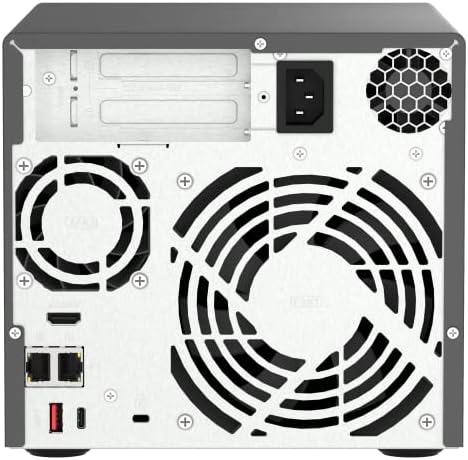
చిత్రం 3.2: వెనుక view of the QNAP TVS-h474-PT-8G-US NAS, highlighting the dual 2.5GbE ports, USB ports, HDMI output, and cooling fan.

చిత్రం 3.3: అంతర్గత view of the QNAP TVS-h474-PT-8G-US NAS, showing the motherboard, CPU heatsink, and fan assembly.
వీడియో 3.1: అధికారిక ఉత్పత్తిview వీడియో షోasing the QNAP TVS-h474-PT-8G-US NAS from various angles, highlighting its design and key features.
4. హార్డ్వేర్ ఇన్స్టాలేషన్
హార్డ్ డ్రైవ్లను ఇన్స్టాల్ చేస్తోంది:
- Unlock and Remove Drive Tray: Use the provided key to unlock the desired drive bay. Press the release latch and pull the drive tray out of the NAS unit.
- హార్డ్ డ్రైవ్ను ఇన్స్టాల్ చేయండి: Place your 3.5-inch or 2.5-inch SATA hard drive (HDD) or solid-state drive (SSD) into the drive tray. Secure it with the provided screws. For 3.5-inch HDDs, typically no screws are needed as the tray's side clips will hold it in place. For 2.5-inch drives, use the smaller screws.
- Insert Drive Tray: Carefully slide the loaded drive tray back into the empty bay until it clicks into place. Ensure it is fully seated.
- Lock Drive Tray (Optional): Use the key to lock the drive tray for added security.
వీడియో 4.1: A demonstration of installing hard drives into a 4-bay NAS, showing the tool-free installation process for 3.5-inch drives and securing 2.5-inch drives with screws.
వీడియో 4.2: This video illustrates the process of installing hard drives into the NAS bays, emphasizing the ease of hot-swapping drives if needed.
5. ప్రారంభ సెటప్
Connecting the NAS:
- నెట్వర్క్ కేబుల్ను కనెక్ట్ చేయండి: Connect one end of the provided Ethernet cable to a 2.5GbE port on the rear of the NAS and the other end to your router or network switch.
- పవర్ కనెక్ట్ చేయండి: Connect the power adapter to the DC-in port on the rear of the NAS, then plug the power cord into an electrical outlet.
- పవర్ ఆన్: Press the power button on the front panel of the NAS. The system will begin booting up.
Software Installation (QTS Smart Installation):
Once the NAS is powered on and connected to your network, you can proceed with the software installation using the QTS Smart Installation system. This process typically involves:
- Accessing the NAS via a web అదే నెట్వర్క్కి కనెక్ట్ చేయబడిన కంప్యూటర్లోని బ్రౌజర్.
- Following on-screen prompts to initialize disks, set up RAID configurations, and create user accounts.
- Updating the firmware to the latest available version for optimal performance and security.
వీడియో 5.1: A video demonstrating the QTS Smart Installation system, guiding users through the initial setup process and firmware updates.
6. NASను నిర్వహించడం
The QNAP TVS-h474-PT-8G-US runs on the QTS operating system, providing a user-friendly interface for managing your data and applications.
File Management and Sharing:
- ఉపయోగించండి File Station application to browse, upload, download, and manage fileమీ NASలో లు.
- Create shared folders and set user permissions for collaborative work.
- Utilize the dual 2.5GbE ports for high-speed file transfers across your network.
Multimedia Streaming:
The NAS supports 4K media playback and real-time transcoding. Connect a display via the HDMI 1.4b port (4K @30Hz) to enjoy multimedia content directly from your NAS.
బ్యాకప్ మరియు పునరుద్ధరణ:
Leverage the built-in backup center to protect your data. This includes support for backing up cloud data and virtual machines (VMs), ensuring data integrity and availability.
USB Quick Copy:
The front USB 3.2 Gen 2 port features a quick copy button, allowing you to rapidly back up data from external USB devices to your NAS with a single press.
7. నిర్వహణ
Regular maintenance ensures the longevity and optimal performance of your QNAP NAS.
- ఫర్మ్వేర్ నవీకరణలు: Regularly check for and install the latest firmware updates through the QTS interface to benefit from new features, security patches, and performance improvements.
- డిస్క్ ఆరోగ్య తనిఖీ: Monitor the health of your hard drives using the Storage & Snapshots application in QTS. Replace failing drives promptly.
- శుభ్రపరచడం: Keep the NAS unit clean and free from dust. Ensure ventilation areas and fans are not obstructed to prevent overheating.
- డేటా బ్యాకప్: Implement a robust backup strategy, including local and offsite backups, to protect against data loss.
8. ట్రబుల్షూటింగ్
If you encounter issues with your QNAP TVS-h474-PT-8G-US NAS, refer to the following common troubleshooting steps:
- శక్తి లేదు: Ensure the power cord is securely connected to both the NAS and the electrical outlet. Check if the power adapter is functioning correctly.
- నెట్వర్క్ కనెక్టివిటీ సమస్యలు: Verify that the Ethernet cable is properly connected to the NAS and your router/switch. Check network settings in QTS and ensure the NAS has a valid IP address.
- డ్రైవ్ గుర్తించబడలేదు: Ensure hard drives are correctly installed in their trays and fully seated in the bays. Check drive health in QTS.
- నెమ్మదిగా పనితీరు: Check network bandwidth, CPU/RAM usage in QTS. Consider adding SSD cache or upgrading RAM if performance bottlenecks persist.
- సిస్టమ్ బూట్ అవ్వడం లేదు: If the system does not boot, try restarting the NAS. If the issue persists, consult the QNAP support webసైట్ లేదా సాంకేతిక మద్దతును సంప్రదించండి.
9. స్పెసిఫికేషన్లు
| ఫీచర్ | స్పెసిఫికేషన్ |
|---|---|
| బ్రాండ్ | QNAP |
| మోడల్ సంఖ్య | TVS-h474-PT-8G-US |
| ప్రాసెసర్ | Intel Pentium Gold G7400 2-core/4-thread 3.7 GHz |
| జ్ఞాపకశక్తి | 8GB DDR4 RAM (expandable up to 64GB) |
| డ్రైవ్ బేస్ | 4 x 3.5-inch/2.5-inch SATA HDD/SSD |
| M.2 SSD స్లాట్లు | 2 x M.2 PCIe Gen3x2 NVMe SSD slots |
| ఈథర్నెట్ పోర్ట్స్ | 2 x 2.5GbE (2.5G/1G/100M) |
| USB పోర్ట్లు | Multiple USB 3.2 Gen 2 (Type-A & Type-C) |
| HDMI అవుట్పుట్ | 1 x HDMI 1.4b (4K @30Hz) |
| PCIe విస్తరణ | PCIe Gen 4 slot |
| కొలతలు (LxWxH) | 17 x 12 x 16 అంగుళాలు |
| వస్తువు బరువు | 14 పౌండ్లు |
| మెటీరియల్ | మెటల్ |
10. వారంటీ మరియు మద్దతు
Each QNAP product comes with a complete service warranty that guarantees excellent service and peace of mind. For additional coverage, you can purchase the QNAP Extended Warranty Service.
- ప్రామాణిక వారంటీ: Refer to the included warranty information for details on the standard coverage period.
- పొడిగించిన వారంటీ: To be eligible for a warranty extension, register your QNAP product within 9 months after purchase. Purchasing the extension can stretch your warranty coverage up to 5 years.
- ఆన్లైన్ మద్దతు: Visit the official QNAP support website for FAQs, knowledge base articles, and to create a support ticket.
వీడియో 10.1: This video highlights the QNAP Warranty Service, explaining how to check warranty status and extend coverage for your product.