
1. ఉత్పత్తి ముగిసిందిview
The havit GK59 Gaming Microphone is designed for clear audio capture during gaming, streaming, and voice communication. It features a condenser microphone for high-quality sound and a versatile design for ease of use.

మూర్తి 1.1: ముందు view of the havit GK59 Gaming Microphone, showcasing its main body, stand, and control buttons.
ముఖ్య లక్షణాలు:
- ఉపయోగించడానికి సులభం: Simple plug-and-play functionality.
- Good Performance: Delivers clear and consistent audio.
- Good Quality: Durable construction for reliable use.
- పోర్టబుల్ డిజైన్: కాంపాక్ట్ మరియు రవాణా సులభం.
- సర్దుబాటు స్టాండ్: Allows for flexible positioning.
2. సెటప్ సూచనలు
2.1 ప్యాకేజీ విషయాలు
దయచేసి ఈ క్రింది అంశాల కోసం ప్యాకేజీని తనిఖీ చేయండి:
- havit GK59 Gaming Microphone
- USB కనెక్షన్ కేబుల్
- వినియోగదారు మాన్యువల్ (ఈ పత్రం)
2.2 మైక్రోఫోన్ను కనెక్ట్ చేయడం
The GK59 microphone offers versatile connectivity options for various devices.
- USB కనెక్షన్: Connect the provided USB cable to the USB-C port on the back of the microphone and the other end to an available USB port on your computer or gaming console. The microphone is plug-and-play and should be automatically recognized by most operating systems.
- 3.5mm Jack Connection: For devices supporting a 3.5mm auxiliary input, connect a 3.5mm audio cable (not included) to the 3.5mm jack on the back of the microphone and to your device's audio input.
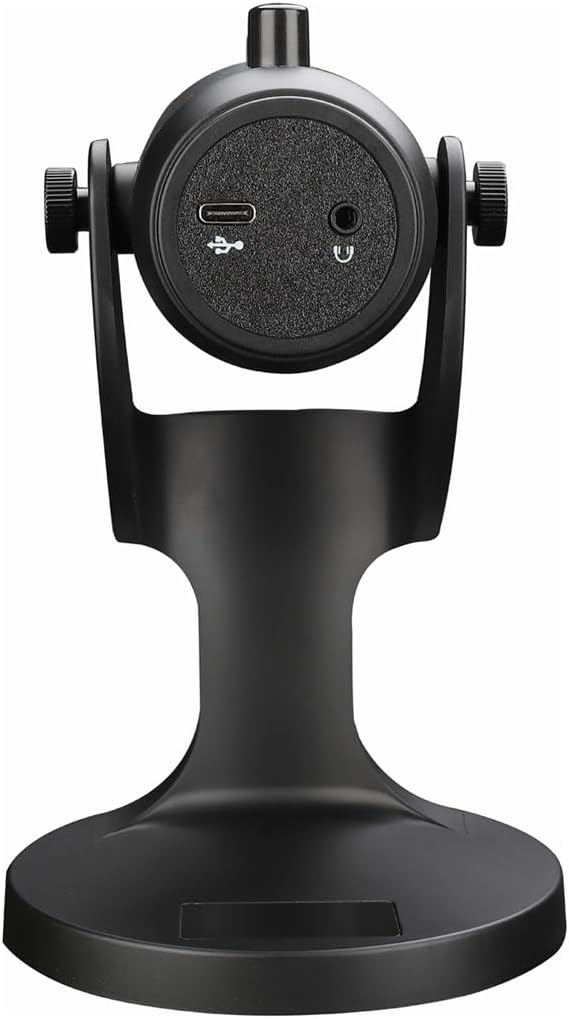
చిత్రం 2.1: వెనుక view of the havit GK59 Gaming Microphone, highlighting the USB-C port for data and power, and the 3.5mm headphone jack for monitoring.
After connecting, ensure the microphone is selected as the default input device in your system's sound settings or your gaming/streaming software.
3. ఆపరేటింగ్ సూచనలు
3.1 ప్రాథమిక నియంత్రణలు
The havit GK59 features intuitive controls located on the front of the microphone body:
- మ్యూట్ బటన్: Press to mute or unmute the microphone. An indicator light will typically show the mute status.
- MIC +/- బటన్లు: Adjust the microphone input sensitivity (gain). Press '+' to increase, '-' to decrease.
- VOL +/- బటన్లు: Adjust the headphone output volume for monitoring. Press '+' to increase, '-' to decrease.
- ECHO +/- బటన్లు: Adjust the echo effect level. Press '+' to increase, '-' to decrease.
మూర్తి 3.1: వివరంగా view of the microphone's control panel, including the mute button, microphone gain, volume, and echo adjustment buttons.
3.2 Adjusting Microphone Position
The microphone is equipped with an adjustable stand, allowing you to optimize its position for best sound capture and comfort.
- Gently hold the microphone body and the base of the stand.
- Tilt the microphone forward or backward to achieve the desired angle. The stand's design helps reduce vibration and abnormal sounds during use.
- Position the microphone approximately 6-12 inches (15-30 cm) from your mouth for optimal voice clarity.

Figure 3.2: The havit GK59 microphone demonstrating its adjustable tilt feature on the stand, designed for anti-vibration.
4. నిర్వహణ
4.1 శుభ్రపరచడం
To maintain the microphone's performance and appearance:
- Disconnect the microphone from its power source before cleaning.
- బయటి ఉపరితలాలను తుడవడానికి మృదువైన, పొడి వస్త్రాన్ని ఉపయోగించండి.
- లిక్విడ్ క్లీనర్లు, ఏరోసోల్స్ లేదా ద్రావకాలను ఉపయోగించవద్దు, ఎందుకంటే ఇవి ముగింపు లేదా అంతర్గత భాగాలను దెబ్బతీస్తాయి.
4.2 నిల్వ
When not in use, store the microphone in a cool, dry place away from direct sunlight and extreme temperatures. Protect it from dust and moisture.
5. ట్రబుల్షూటింగ్
If you encounter issues with your havit GK59 Gaming Microphone, please refer to the following table for common problems and solutions:
| సమస్య | సాధ్యమైన కారణం | పరిష్కారం |
|---|---|---|
| No sound input from microphone | మైక్రోఫోన్ సరిగ్గా కనెక్ట్ కాలేదు తప్పు ఇన్పుట్ పరికరం ఎంచుకోబడింది మైక్రోఫోన్ మ్యూట్ చేయబడింది | USB కేబుల్ సురక్షితంగా కనెక్ట్ చేయబడిందని నిర్ధారించుకోండి. Check system sound settings and select GK59 as input. Press the Mute button on the microphone to unmute. |
| తక్కువ మైక్రోఫోన్ వాల్యూమ్ | Microphone gain too low System input volume too low | Press the 'MIC +' button on the microphone. Adjust input volume in your system's sound settings. |
| వక్రీకరించబడిన లేదా అస్పష్టమైన ఆడియో | Microphone gain too high మైక్రోఫోన్ నోటికి చాలా దగ్గరగా ఉంది పర్యావరణ శబ్దం | Press the 'MIC -' button on the microphone. మైక్రోఫోన్ స్థానాన్ని సర్దుబాటు చేయండి (నోటి నుండి 6-12 అంగుళాలు). మీ వాతావరణంలో నేపథ్య శబ్దాన్ని తగ్గించండి. |
| No headphone monitoring sound | హెడ్ఫోన్లు కనెక్ట్ కాలేదు Headphone volume too low | Ensure headphones are plugged into the 3.5mm jack. Press the 'VOL +' button on the microphone. |
6. సాంకేతిక లక్షణాలు
Below are the technical specifications for the havit GK59 Gaming Microphone:
| ఫీచర్ | స్పెసిఫికేషన్ |
|---|---|
| బ్రాండ్ | హావిట్ |
| మోడల్ సంఖ్య | GK59 |
| కనెక్టివిటీ టెక్నాలజీ | USB, 3.5 mm Jack (Auxiliary) |
| సిఫార్సు చేసిన ఉపయోగాలు | గేమింగ్ |
| ధ్రువ నమూనా | ఏకదిశాత్మక |
| మైక్రోఫోన్ ఫారమ్ ఫ్యాక్టర్ | Handheld (with desktop stand) |
| వస్తువు బరువు | 429 గ్రాములు |
| ఇంపెడెన్స్ | ౪౦ ఓం |
| సిగ్నల్-టు-శబ్ద నిష్పత్తి | 18 డిబి |
| వినిపించే శబ్దం | 18 డెసిబెల్స్ |
| శక్తి మూలం | కార్డెడ్ ఎలక్ట్రిక్ (USB ద్వారా) |
| అనుకూల పరికరాలు | Gaming Consoles, PCs |
| అంశం కొలతలు (LxWxH) | 5.59 x 4.92 x 9.06 అంగుళాలు |
| రంగు | నలుపు |
7. వారంటీ మరియు మద్దతు
7.1 వారంటీ సమాచారం
The havit GK59 Gaming Microphone comes with a standard manufacturer's warranty. Please refer to the warranty card included in your product packaging or visit the official havit webవివరణాత్మక వారంటీ నిబంధనలు మరియు షరతుల కోసం సైట్.
7.2 కస్టమర్ మద్దతు
For technical assistance, troubleshooting not covered in this manual, or warranty claims, please contact havit customer support through their official channels. You can find more information and contact details on the అమెజాన్లో హ్యావిట్ స్టోర్ లేదా వారి అధికారి webసైట్.