
పరిచయం
This manual provides detailed instructions for the Qulose Magnetic Detachable Wireless Bluetooth Keyboard with Touchpad, designed for Microsoft Surface Go 3, Surface Go 2, and Surface Go 1 tablets. Please read this manual carefully before use to ensure proper operation and to maximize your product experience.
పెట్టెలో ఏముంది
- Surface Go Keyboard with Trackpad
- Case for Surface Go 3/2/1
- టైప్-సి ఛార్జింగ్ కేబుల్ (ఛార్జర్ లేదు)
- వినియోగదారు మాన్యువల్
The package includes the keyboard, protective case, charging cable, and this user manual.
అనుకూలత
This keyboard case is specifically designed for the following Microsoft Surface Go models:
- Surface Go 3 (10.5 inch)
- Surface Go 2 (10.5 inch)
- Surface Go 1 (10 inch)
Note: This product is not compatible with Surface Pro models (e.g., Surface Pro 3/4/5/6/7/8/X) or any other devices. Please verify your tablet model before purchase.

Figure 1: Compatible and Incompatible Surface Models. This image illustrates the specific Surface Go models (1, 2, 3) that are compatible with the keyboard case, and lists Surface Pro models as incompatible.
ఉత్పత్తి లక్షణాలు
- Magnetic Detachable Wireless Keyboard: Easily attach or remove the keyboard from the case. Connects via Bluetooth with a range of up to 33 feet.
- Full Mechanical Keyset & Scissors Switch: Provides a comfortable and efficient typing experience with optimal key spacing.
- Sensitive Trackpad: Offers precise navigation and control. (Note: Peel off the protective film before use).
- Rechargeable via USB Type-C: Convenient and quick charging for the keyboard's built-in 180mAh Li-ion battery.
- తేలికైన మరియు పోర్టబుల్: Compact size (9.65 x 7.35 x 0.26 inches) and light weight (13.93 oz) for easy transport.
- రక్షణ కేసు: Made with high-quality durable PC material to prevent scratches and bumps. Precise cutouts allow full access to all tablet features (buttons, speakers, cameras).
- సర్దుబాటు Viewకోణాలు: The built-in kickstand allows for secure and free adjustment of viewing or typing angles.
- షార్ట్కట్ కీలు: Includes dedicated shortcut and media keys for enhanced productivity.

Figure 2: Key Product Features. This image visually details the main features such as shortcut keys, protective case, ergonomic scissors switch, responsive trackpad, and Type-C charging port.
సెటప్ సూచనలు
1. Installing the Surface Go into the Case
- Slide your Surface Go tablet from the spine of the back case all the way towards the bottom.
- Open the tablet's built-in kickstand.
- Press the kickstand against the back case until it is fully snapped in place securely.
- Finish the installation and set the angle that works best for you.

Figure 3: Case Installation Guide. This image provides a visual, step-by-step guide for correctly installing your Surface Go tablet into the protective keyboard case.
2. బ్లూటూత్ కనెక్షన్
- Turn on the power switch located on the side of the keyboard.
- Press the "Fn" + "C" keys simultaneously to activate the keyboard's Bluetooth pairing mode. The Bluetooth LED indicator will flash.
- On your Surface Go tablet, go to Settings, then Devices, and turn Bluetooth ON.
- Select "Bluetooth Keyboard" from the list of available devices to pair. Once connected, the Bluetooth LED will stop flashing.
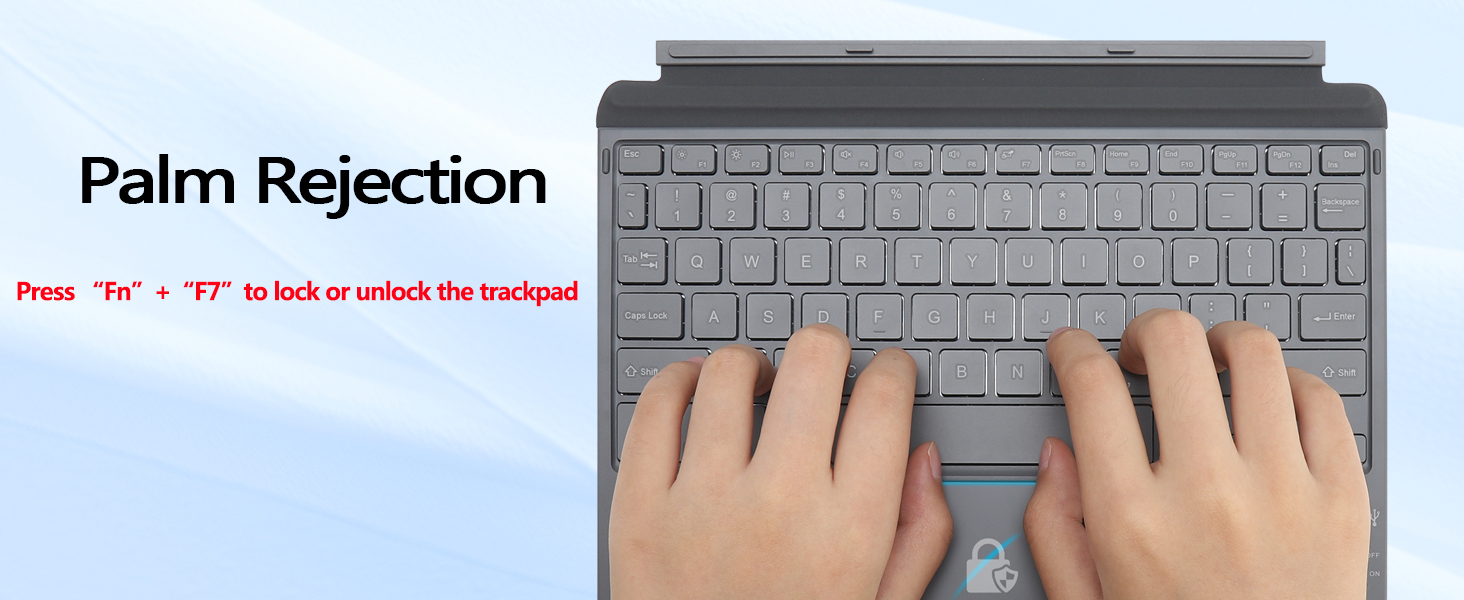
Figure 4: Bluetooth Connection Steps. This image illustrates the four steps required to successfully connect the keyboard to your Surface Go tablet via Bluetooth.
3. కీబోర్డ్ను ఛార్జ్ చేయడం
The keyboard features a built-in rechargeable battery. To charge:
- Connect the provided Type-C charging cable to the charging port on the side of the keyboard.
- కేబుల్ యొక్క మరొక చివరను USB పవర్ సోర్స్కి (ఉదా. కంప్యూటర్, USB వాల్ అడాప్టర్) కనెక్ట్ చేయండి.
- The battery status indicator will light up during charging. A full charge typically takes approximately 3 hours.
Important: This keyboard requires separate charging and does not draw power from the Surface Go tablet.

Figure 5: Keyboard Charging. This image highlights the Type-C charging port and the battery indicator lights on the keyboard.
ఆపరేటింగ్ సూచనలు
1. కీబోర్డ్ విధులు
The keyboard features a standard QWERTY layout with additional function keys for quick access to various controls.
- ఫంక్షన్ కీలు (F1-F12): These keys, often used in combination with the "Fn" key, provide shortcuts for brightness control, media playback, volume adjustment, and more.
- క్యాప్స్ లాక్ ఇండికేటర్: Caps Lock యాక్టివ్గా ఉన్నప్పుడు ఒక ప్రత్యేక లైట్ సూచిస్తుంది.
- బ్లూటూత్ LED సూచిక: Shows the status of the Bluetooth connection.
- బ్యాటరీ స్థితి సూచిక: Displays the charging status and low battery warning.

Figure 6: Keyboard Layout and Indicators. This image provides an overview of the keyboard layout, including the function keys, power switch, Type-C port, and various indicator lights.
2. Touchpad Gestures
The integrated touchpad supports multi-touch gestures for intuitive navigation:
- One-finger drag: కర్సర్ను తరలించండి.
- One-finger click: Left mouse button click.
- రెండు వేళ్లతో క్లిక్ చేయండి: Right mouse button click.
- Two-finger slide: Scroll (like a mouse wheel).
- Two-finger stretch/pinch: జూమ్ ఇన్/అవుట్.
- Three-finger click: శోధించండి.
- మూడు వేళ్లతో పైకి స్వైప్ చేయండి: Switch to the next active window.
- మూడు వేళ్లతో క్రిందికి స్వైప్ చేయండి: హోమ్ పేజీకి తిరిగి వెళ్ళు.
- Swipe left/right with three fingers: Switch between active windows.
- నాలుగు వేళ్ల క్లిక్: Open the Action Center.
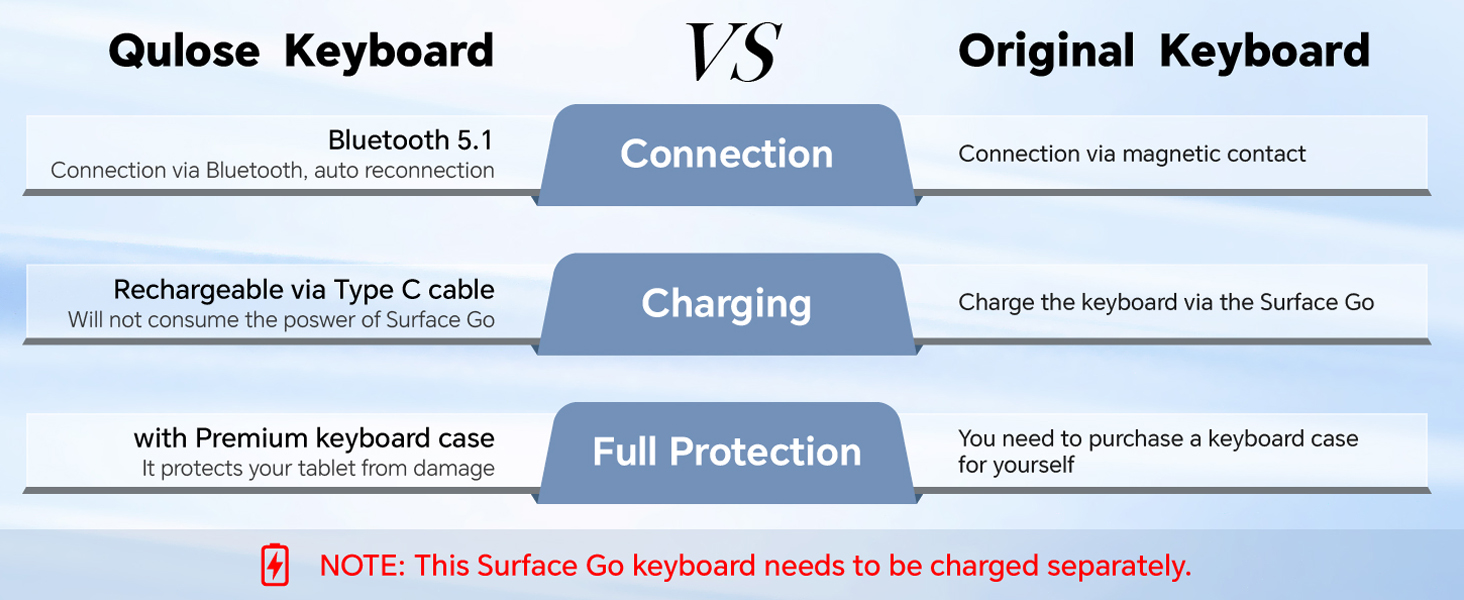
Figure 7: Touchpad Multi-Gesture Guide. This diagram visually explains different multi-touch gestures for efficient use of the touchpad.
To lock or unlock the touchpad, press Fn + F7.
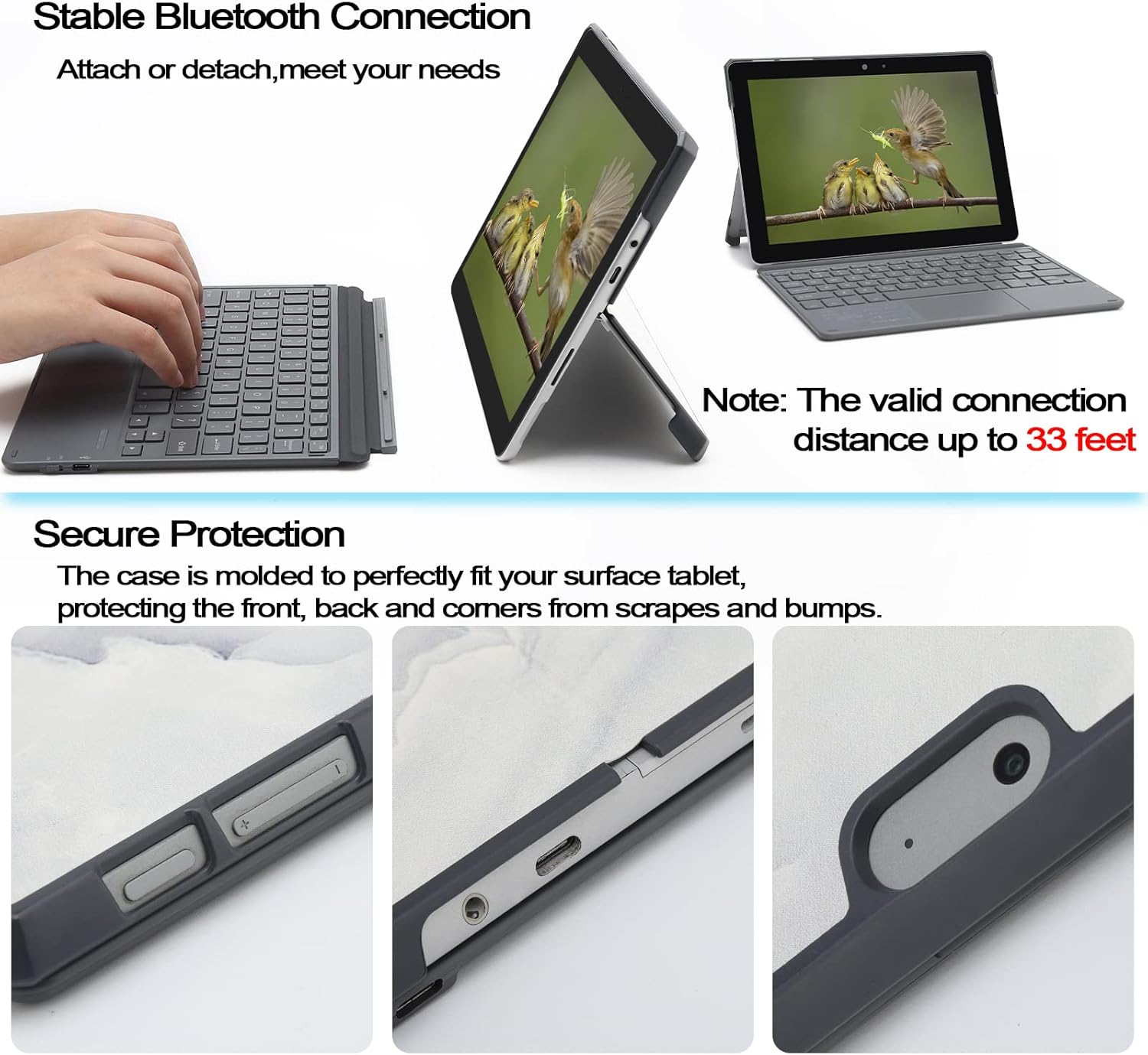
Figure 8: Lock/Unlock Touchpad. This image demonstrates how to use the Fn+F7 key combination to lock or unlock the touchpad functionality.
నిర్వహణ
To ensure the longevity and optimal performance of your Qulose Keyboard Case:
- శుభ్రపరచడం: Use a soft, dry cloth to wipe the keyboard and case. For stubborn dirt or debris on the velvet bottom, a piece of scotch tape can be used to lift particles. Avoid using harsh chemicals or abrasive cleaners.
- నిల్వ: When not in use, keep the keyboard case closed to protect the screen and keys. Store in a cool, dry place away from direct sunlight and extreme temperatures.
- బ్యాటరీ సంరక్షణ: Recharge the keyboard periodically, even if not in frequent use, to maintain battery health. Avoid fully draining the battery for extended periods.
ట్రబుల్షూటింగ్
- కీబోర్డ్ బ్లూటూత్ ద్వారా కనెక్ట్ కావడం లేదు:
- Ensure the keyboard's power switch is ON.
- Press "Fn" + "C" to put the keyboard into pairing mode.
- Check that Bluetooth is enabled on your Surface Go tablet.
- Remove any previously paired "Bluetooth Keyboard" entries from your tablet's Bluetooth settings and try pairing again.
- కీబోర్డ్ ఛార్జ్ అయ్యిందని నిర్ధారించుకోండి.
- టచ్ప్యాడ్ స్పందించడం లేదు:
- Ensure the touchpad protective film has been removed.
- Press "Fn" + "F7" to ensure the touchpad is not locked.
- Restart the keyboard by turning it off and on again.
- బ్లూటూత్ కనెక్షన్ని మళ్లీ కనెక్ట్ చేయండి.
- కీబోర్డ్ ఛార్జ్ అవ్వడం లేదు:
- Verify the Type-C cable is securely connected to both the keyboard and the power source.
- వేరే USB పవర్ సోర్స్ లేదా ఛార్జింగ్ కేబుల్ని ప్రయత్నించండి.
- పవర్ సోర్స్ యాక్టివ్గా ఉందని నిర్ధారించుకోండి.
స్పెసిఫికేషన్లు
| ఉత్పత్తి కొలతలు | 9.65"లీ x 7.35"వా x 0.26"హ |
| వస్తువు బరువు | 1.15 pounds (13.93 oz for keyboard) |
| బ్రాండ్ | Qulose |
| మోడల్ సంఖ్య | JL001 |
| అనుకూల పరికరాలు | Microsoft Surface Go 3/2/1 |
| కనెక్టివిటీ టెక్నాలజీ | బ్లూటూత్ 5.1 |
| కీబోర్డ్ వివరణ | Surface Go Bluetooth Keyboard |
| ప్రత్యేక లక్షణాలు | సర్దుబాటు Viewing Angles, Hotkeys and Media Keys, Magnetic Detachable, Rechargeable, Trackpad |
| బ్యాటరీ | 1 Lithium Ion battery (included), 180mAh capacity |
| ఛార్జింగ్ సమయం | సుమారు 3 గంటలు |
| ఆటో స్లీప్ | 10 నిమిషాల నిష్క్రియ తర్వాత |
వారంటీ మరియు మద్దతు
For any issues or questions regarding your Qulose Keyboard Case, please refer to the seller's support channels. Some users have reported positive experiences with customer service for troubleshooting and replacements.
Please retain your proof of purchase for any warranty claims. Specific warranty duration may vary; refer to your purchase documentation for details.