
1. పరిచయం
This manual provides detailed instructions for the setup, operation, and maintenance of your CUPEISI Android 14 Tablet, Model Q2S. Please read this manual thoroughly before using your device to ensure proper functionality and to maximize its lifespan.
The CUPEISI Q2S is a 7-inch tablet featuring the Android 14 operating system, a 1.6GHz Quad-core processor, 8GB RAM (4GB fixed, 4GB virtual), 32GB internal storage expandable up to 1TB, a 1024x600 IPS touch screen, and dual cameras.
2. ప్యాకేజీ విషయాలు
క్రింద జాబితా చేయబడిన అన్ని అంశాలు మీ ఉత్పత్తి ప్యాకేజింగ్లో ఉన్నాయని నిర్ధారించుకోండి:
- CUPEISI Android 14 Tablet (Model Q2S)
- టైప్-సి యుఎస్బి కేబుల్
- వినియోగదారు మాన్యువల్ (ఈ పత్రం)
ఏవైనా వస్తువులు తప్పిపోయినా లేదా దెబ్బతిన్నా, దయచేసి కస్టమర్ సపోర్ట్ను సంప్రదించండి.
3. పరికరం ముగిసిందిview
మీ టాబ్లెట్ యొక్క భౌతిక భాగాలతో మిమ్మల్ని మీరు పరిచయం చేసుకోండి.
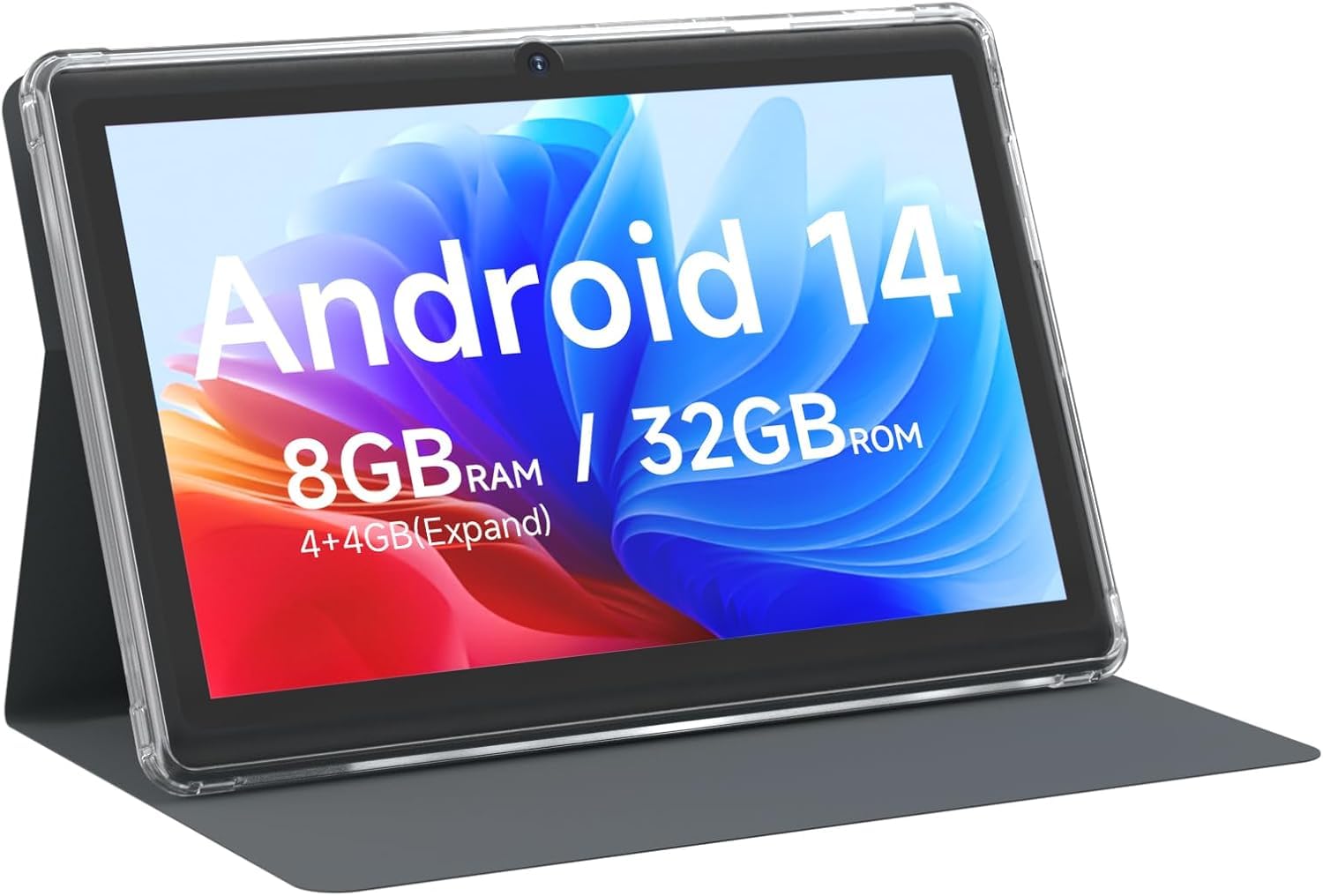
మూర్తి 3.1: ముందు view of the CUPEISI Q2S Tablet, showing the display with various application icons.

మూర్తి 3.2: ముందు మరియు వెనుక views of the CUPEISI Q2S Tablet, highlighting its compact design and textured rear panel.

మూర్తి 3.3: The 7-inch IPS screen of the CUPEISI Q2S Tablet, showcasing its display quality.
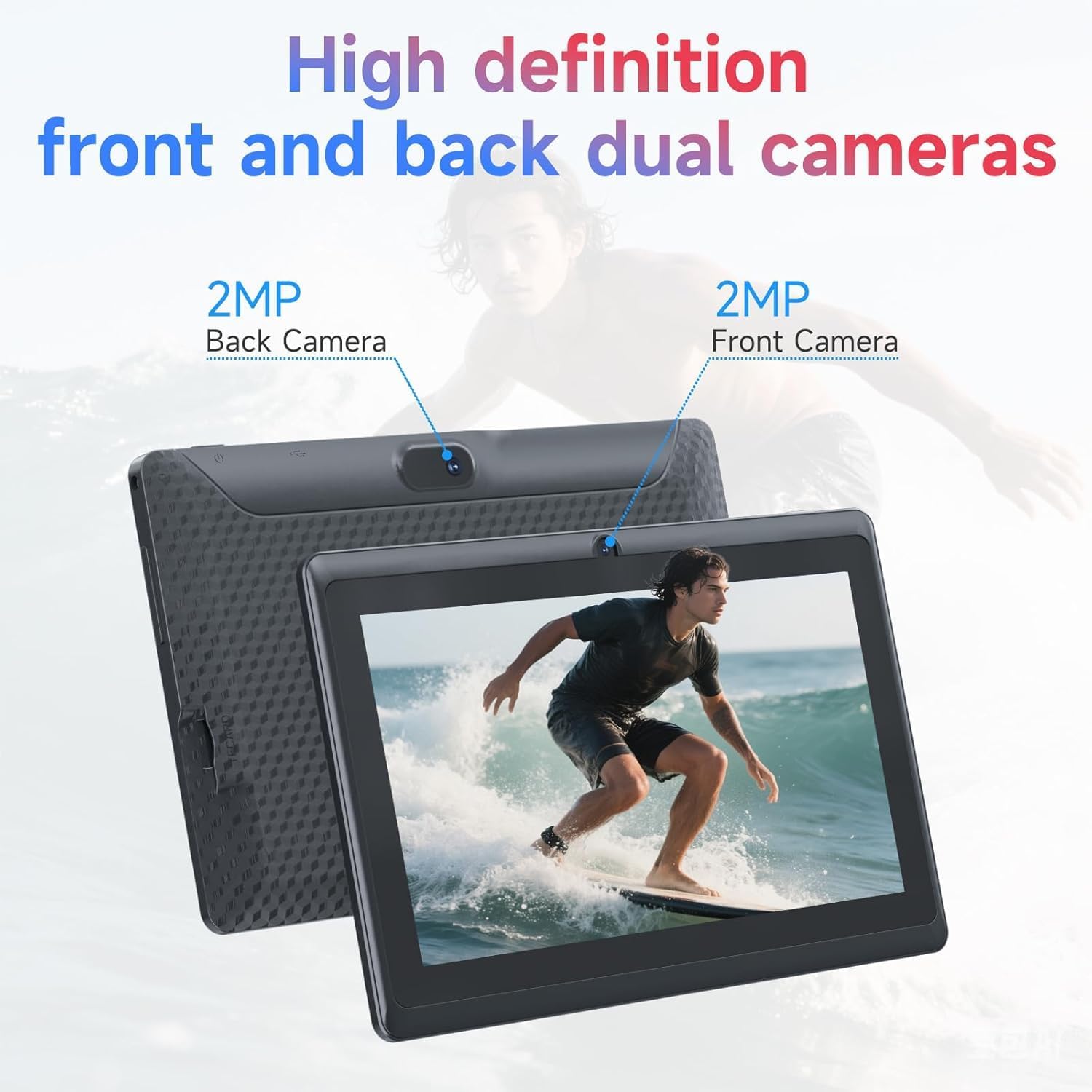
మూర్తి 3.4: Illustration of the CUPEISI Q2S Tablet's front and rear camera locations.
3.1 బటన్లు మరియు పోర్ట్లు
- పవర్ బటన్: Press and hold to turn the tablet on or off. Press briefly to sleep or wake the screen.
- వాల్యూమ్ బటన్లు: ఆడియో వాల్యూమ్ను సర్దుబాటు చేయండి.
- USB టైప్-సి పోర్ట్: For charging the tablet and connecting to a computer for data transfer.
- మైక్రో SD కార్డ్ స్లాట్: విస్తరించిన నిల్వ కోసం మైక్రో SD కార్డ్ని చొప్పించండి.
- ముందు కెమెరా: ముందు బెజెల్పై ఉంది, వీడియో కాల్లు మరియు సెల్ఫీల కోసం ఉపయోగించబడుతుంది.
- వెనుక కెమెరా: Located on the back panel, used for taking photos and videos.
- స్పీకర్: ఆడియో అవుట్పుట్.
4. సెటప్
4.1 టాబ్లెట్ను ఛార్జ్ చేయడం
Before first use, fully charge the tablet. Connect the provided Type-C USB cable to the tablet's charging port and the other end to a compatible USB power adapter (not included) or a computer's USB port. The battery indicator on the screen will show charging status.
4.2 పవర్ చేయడం ఆన్/ఆఫ్
- పవర్ ఆన్ చేయడానికి: Press and hold the Power button until the CUPEISI logo appears.
- పవర్ ఆఫ్ చేయడానికి: పవర్ ఆప్షన్స్ మెనూ కనిపించే వరకు పవర్ బటన్ను నొక్కి పట్టుకోండి. "పవర్ ఆఫ్" ఎంచుకుని నిర్ధారించండి.
- పునఃప్రారంభించడానికి: పవర్ ఆప్షన్స్ మెను నుండి, "పునఃప్రారంభించు" ఎంచుకుని నిర్ధారించండి.
4.3 ప్రారంభ సెటప్ విజార్డ్
Upon first power-on, the tablet will guide you through an initial setup process:
- భాష ఎంపిక: మీకు ఇష్టమైన భాషను ఎంచుకోండి.
- Wi-Fi కనెక్షన్: Connect to an available Wi-Fi network. This is essential for downloading apps and accessing online services.
- Google ఖాతా: Sign in with your Google account or create a new one. This allows access to Google Play Store, Gmail, and other Google services.
- తేదీ & సమయం: సరైన తేదీ మరియు సమయాన్ని సెట్ చేయండి లేదా నెట్వర్క్ దానిని స్వయంచాలకంగా సెట్ చేయడానికి అనుమతించండి.
- స్క్రీన్ లాక్: Set up a PIN, pattern, or password for screen security.
5. ఆపరేటింగ్ సూచనలు
5.1 ప్రాథమిక నావిగేషన్
- స్పర్శ సంజ్ఞలు: ఎంచుకోవడానికి నొక్కండి, స్క్రోల్ చేయడానికి స్వైప్ చేయండి, జూమ్ చేయడానికి పించ్ చేయండి.
- హోమ్ స్క్రీన్: మీ యాప్లు మరియు విడ్జెట్ల కోసం కేంద్ర కేంద్రం.
- నోటిఫికేషన్ ప్యానెల్: నోటిఫికేషన్లు మరియు త్వరిత సెట్టింగ్లను యాక్సెస్ చేయడానికి స్క్రీన్ పై నుండి క్రిందికి స్వైప్ చేయండి.
- యాప్ డ్రాయర్: స్క్రీన్ దిగువ నుండి పైకి స్వైప్ చేయండి view అన్ని ఇన్స్టాల్ చేసిన అప్లికేషన్లు.
5.2 Installing and Managing Apps
You can download and install applications from the Google Play Store. The tablet is GMS certified, ensuring compatibility with Google services.
- యాప్లను ఇన్స్టాల్ చేయండి: తెరవండి ప్లే స్టోర్ app, search for your desired app, and tap "Install".
- యాప్లను అన్ఇన్స్టాల్ చేయండి: Press and hold an app icon on the home screen or app drawer, then drag it to "Uninstall" or select the uninstall option. Alternatively, go to Settings > Apps > See all apps, select the app, and tap "Uninstall".
6 కనెక్టివిటీ
6.1 Wi-Fi కనెక్షన్
Wi-Fi నెట్వర్క్కి కనెక్ట్ చేయడానికి:
- వెళ్ళండి సెట్టింగ్లు > నెట్వర్క్ & ఇంటర్నెట్ > Wi-Fi.
- Wi-Fiని టోగుల్ చేయి On.
- అందుబాటులో ఉన్న నెట్వర్క్ల జాబితా నుండి మీకు కావలసిన నెట్వర్క్ను ఎంచుకోండి.
- ప్రాంప్ట్ చేయబడితే పాస్వర్డ్ను నమోదు చేసి, నొక్కండి కనెక్ట్ చేయండి.
The tablet supports 2.4G/5G WiFi 6 for faster and more stable connections.
6.2 బ్లూటూత్ జత చేయడం
To pair with a Bluetooth device (e.g., headphones, speakers):
- వెళ్ళండి సెట్టింగ్లు> కనెక్ట్ చేయబడిన పరికరాలు> కనెక్షన్ ప్రాధాన్యతలు> బ్లూటూత్.
- బ్లూటూత్ను టోగుల్ చేయండి On.
- మీ బ్లూటూత్ పరికరం జత చేసే మోడ్లో ఉందని నిర్ధారించుకోండి.
- నొక్కండి కొత్త పరికరాన్ని జత చేయండి and select your device from the list.
- జత చేయడాన్ని పూర్తి చేయడానికి ఏదైనా ఆన్-స్క్రీన్ ప్రాంప్ట్లను అనుసరించండి.
7. కెమెరా వినియోగం
Your tablet is equipped with a 2MP front camera and a 5MP rear camera.
- తెరవండి కెమెరా అనువర్తనం.
- ముందు మరియు వెనుక కెమెరాల మధ్య మారడానికి కెమెరా చిహ్నాన్ని నొక్కండి.
- ఫోటో తీయడానికి షట్టర్ బటన్ను నొక్కండి.
- వీడియోలను రికార్డ్ చేయడానికి వీడియో మోడ్ను ఎంచుకోండి.
8. నిల్వ నిర్వహణ
The tablet comes with 32GB of internal storage. You can expand this storage up to 1TB using a microSD card.

మూర్తి 8.1: Tablet screen illustrating available storage space (8GB RAM, 32GB ROM).
8.1 మైక్రో SD కార్డ్ని చొప్పించడం
- టాబ్లెట్ వైపు మైక్రో SD కార్డ్ స్లాట్ను గుర్తించండి.
- Carefully insert the microSD card into the slot until it clicks into place.
- The tablet will detect the new storage. You may be prompted to format the card for optimal use with the tablet.
8.2 నిల్వ నిర్వహణ
కు view and manage your storage, go to సెట్టింగ్లు > నిల్వ. Here you can see how much space is used by apps, photos, videos, and other files, and manage your microSD card.
9. నిర్వహణ
9.1 టాబ్లెట్ను శుభ్రపరచడం
- టాబ్లెట్ స్క్రీన్ మరియు బాడీని శుభ్రం చేయడానికి మృదువైన, మెత్తటి బట్టను ఉపయోగించండి.
- మొండి మచ్చల కోసం, కొద్దిగా dampఎలక్ట్రానిక్స్ కోసం రూపొందించిన నీటితో వస్త్రం లేదా స్క్రీన్ క్లీనర్.
- కఠినమైన రసాయనాలు, రాపిడి క్లీనర్లు లేదా ఏరోసోల్ స్ప్రేలను ఉపయోగించడం మానుకోండి.
9.2 బ్యాటరీ సంరక్షణ
- టాబ్లెట్ను తీవ్రమైన ఉష్ణోగ్రతలకు (వేడి లేదా చలి) బహిర్గతం చేయకుండా ఉండండి.
- Do not allow the battery to fully discharge frequently. Charge it before it drops below 20%.
- ఛార్జింగ్ కోసం అందించిన టైప్-సి కేబుల్ను మాత్రమే ఉపయోగించండి.
9.3 సాఫ్ట్వేర్ నవీకరణలు
సరైన పనితీరు మరియు భద్రతను నిర్ధారించుకోవడానికి సాఫ్ట్వేర్ నవీకరణల కోసం కాలానుగుణంగా తనిఖీ చేయండి. వెళ్ళండి సెట్టింగ్లు > సిస్టమ్ > సిస్టమ్ అప్డేట్.
10. ట్రబుల్షూటింగ్
ఈ విభాగం మీ టాబ్లెట్తో మీరు ఎదుర్కొనే సాధారణ సమస్యలను పరిష్కరిస్తుంది.
10.1 టాబ్లెట్ ఆన్ అవ్వడం లేదు
- Ensure the tablet is sufficiently charged. Connect it to a power source and wait a few minutes before attempting to power it on again.
- బలవంతంగా రీస్టార్ట్ చేయడానికి పవర్ బటన్ను కనీసం 10-15 సెకన్ల పాటు నొక్కి పట్టుకోండి.
10.2 Slow Performance or Apps Crashing
- అనవసరమైన నేపథ్య అనువర్తనాలను మూసివేయండి.
- Clear the cache of frequently used apps (సెట్టింగ్లు > యాప్లు > అన్ని యాప్లను చూడండి > [యాప్ పేరు] > నిల్వ & కాష్ > కాష్ను క్లియర్ చేయండి).
- Ensure you have sufficient free storage space. Uninstall unused apps or move large fileమైక్రో SD కార్డ్కి s.
- టాబ్లెట్ను పునఃప్రారంభించండి.
10.3 Wi-Fi కనెక్షన్ సమస్యలు
- Ensure Wi-Fi is enabled on the tablet (సెట్టింగ్లు > నెట్వర్క్ & ఇంటర్నెట్ > Wi-Fi).
- మీ Wi-Fi రూటర్ను పునఃప్రారంభించండి.
- నెట్వర్క్ను మర్చిపోయి తిరిగి కనెక్ట్ చేయండి (సెట్టింగ్లు > నెట్వర్క్ & ఇంటర్నెట్ > Wi-Fi, tap the network, then మరచిపో).
10.4 బ్యాటరీ త్వరగా అయిపోతుంది
- స్క్రీన్ ప్రకాశాన్ని తగ్గించండి.
- ఉపయోగంలో లేనప్పుడు Wi-Fi, బ్లూటూత్ మరియు GPS లను నిలిపివేయండి.
- గణనీయమైన శక్తిని వినియోగించే నేపథ్య అనువర్తనాలను మూసివేయండి.
- బ్యాటరీ వినియోగాన్ని తనిఖీ చేయండి సెట్టింగ్లు > బ్యాటరీ శక్తి దాహం ఉన్న యాప్లను గుర్తించడానికి.
11. స్పెసిఫికేషన్లు
Detailed technical specifications for the CUPEISI Android 14 Tablet Q2S.
| మోడల్ పేరు | Q8MPRO |
| అంశం మోడల్ సంఖ్య | Q2S |
| ఆపరేటింగ్ సిస్టమ్ | ఆండ్రాయిడ్ 14 |
| ప్రాసెసర్ | 1.6 GHz Quad-core (ARM) |
| RAM | 8GB (4GB fixed, 4GB virtual) |
| అంతర్గత నిల్వ | 32 GB ఫ్లాష్ మెమరీ |
| విస్తరించదగిన నిల్వ | మైక్రో SD కార్డ్ ద్వారా 1TB వరకు |
| స్క్రీన్ పరిమాణం | 7 అంగుళాలు |
| స్క్రీన్ రిజల్యూషన్ | 1024 x 600 pixels IPS HD Touch Screen |
| వెనుక కెమెరా | 5 ఎంపీ |
| ఫ్రంట్ కెమెరా | 2 ఎంపీ |
| వైర్లెస్ రకం | 802.11g (2.4G/5G WiFi 6) |
| బ్లూటూత్ | BT 5.0 |
| సగటు బ్యాటరీ జీవితం | 6 గంటలు |
| వస్తువు బరువు | 13.4 ఔన్సులు |
| ఉత్పత్తి కొలతలు | 7.5 x 0.3 x 4.3 అంగుళాలు |
12. భద్రతా సమాచారం
- టాబ్లెట్ను నీరు లేదా అధిక తేమకు గురిచేయవద్దు.
- టాబ్లెట్ను పడవేయడం లేదా తీవ్రమైన ప్రభావాలకు గురిచేయడం మానుకోండి.
- Do not attempt to disassemble or repair the tablet yourself. This may void the warranty and cause damage.
- Use the tablet in well-ventilated areas.
- Keep the tablet away from strong magnetic fields.
- స్థానిక నిబంధనల ప్రకారం టాబ్లెట్ మరియు దాని బ్యాటరీని బాధ్యతాయుతంగా పారవేయండి.
13. వారంటీ మరియు మద్దతు
For warranty information and customer support, please refer to the documentation provided with your purchase or visit the official CUPEISI website. If you encounter any issues not covered in this manual, please contact CUPEISI customer service for assistance.