
పరిచయం
This manual provides essential information for the safe and efficient operation of your Saba SA40S77A11 40-inch Full HD Smart Android TV. Please read these instructions carefully before using the product and retain them for future reference. This television combines Full HD resolution with the Android 11 operating system, offering integrated smart features like Chromecast and Airplay, along with versatile connectivity options.
ముఖ్యమైన భద్రతా సమాచారం
విద్యుత్ షాక్, మంటలు లేదా టెలివిజన్కు నష్టం జరగకుండా ఉండటానికి ఎల్లప్పుడూ క్రింది భద్రతా జాగ్రత్తలను పాటించండి.
- వర్షం లేదా తేమకు టీవీని బహిర్గతం చేయవద్దు.
- టీవీ తెరవవద్దు casing; అన్ని సర్వీసింగ్లను అర్హత కలిగిన సిబ్బందికి సూచించండి.
- టీవీ చుట్టూ సరైన వెంటిలేషన్ ఉండేలా చూసుకోండి. వెంటిలేషన్ ఓపెనింగ్లను బ్లాక్ చేయవద్దు.
- టీవీ పడిపోకుండా ఉండటానికి స్థిరమైన, స్థాయి ఉపరితలంపై ఉంచండి.
- పవర్ కార్డ్ను నడవకుండా లేదా పించ్ చేయకుండా రక్షించండి.
- మెరుపు తుఫానుల సమయంలో లేదా ఎక్కువసేపు ఉపయోగించనప్పుడు టీవీని అన్ప్లగ్ చేయండి.
- Keep small objects and liquids away from the TV to prevent them from entering the unit.
ప్యాకేజీ విషయాలు
పెట్టెలో అన్ని అంశాలు ఉన్నాయని నిర్ధారించుకోండి:
- Saba SA40S77A11 40-inch Full HD Smart Android TV
- Remote Control (with 2x AAA 1.5V batteries)
- Mini AV Adapter Cable
- పవర్ కేబుల్
- TV Stand (if not pre-assembled)
- వినియోగదారు మాన్యువల్ (ఈ పత్రం)
సెటప్
1. స్టాండ్ అటాచ్ చేయడం (ఐచ్ఛికం)
If your TV stand is not pre-assembled, carefully attach it to the bottom of the television using the provided screws. Ensure the TV is placed face down on a soft, clean surface to prevent screen damage during this process.

చిత్రం: ముందు భాగం view of the Saba SA40S77A11 TV with its silver stand attached, ready for placement.
Alternatively, the TV can be wall-mounted using a compatible VESA mount (sold separately). Refer to the wall mount's instructions for installation.
2. పెరిఫెరల్స్ కనెక్ట్ చేయడం
Connect your external devices to the appropriate ports on the back or side of the TV.
- HDMI: For Blu-ray players, game consoles, set-top boxes, etc.
- USB: For USB drives to play media or connect compatible accessories.
- యాంటెన్నా/కేబుల్: Connect an antenna or cable TV signal for DVB-T2/S2/C reception.
- ఈథర్నెట్: వైర్డు ఇంటర్నెట్ కనెక్షన్ కోసం.
- మినీ AV: Use the provided adapter cable for older analog devices.

చిత్రం: వైపు view of the Saba SA40S77A11 TV, illustrating the various input and output ports for connecting external devices.
3. పవర్ ఆన్ మరియు ప్రారంభ సెటప్
After connecting all necessary cables, plug the power cord into an electrical outlet. Press the power button on the remote control or on the TV itself.
The first time you turn on the TV, a setup wizard will guide you through initial configurations:
- భాష ఎంపిక: మీకు ఇష్టమైన భాషను ఎంచుకోండి.
- నెట్వర్క్ కనెక్షన్: Connect to your Wi-Fi network or use an Ethernet cable for internet access.
- Google ఖాతా: Google Play Store మరియు ఇతర Android TV ఫీచర్లను యాక్సెస్ చేయడానికి మీ Google ఖాతాతో సైన్ ఇన్ చేయండి.
- ఛానల్ స్కాన్: Scan for available digital TV channels (DVB-T2/S2/C).
ఆపరేటింగ్ సూచనలు
1. రిమోట్ కంట్రోల్ ఓవర్view
The remote control allows you to navigate the TV's interface and control various functions. Common buttons include:
- శక్తి: టీవీని ఆన్ లేదా ఆఫ్ చేస్తుంది.
- ఇన్పుట్: ఇన్పుట్ సోర్స్ను (HDMI, AV, TV) ఎంచుకుంటుంది.
- Navigation (Up/Down/Left/Right) & OK: మెనూ నావిగేషన్ మరియు ఎంపిక కోసం.
- వాల్యూమ్ (+/-): వాల్యూమ్ స్థాయిని సర్దుబాటు చేస్తుంది.
- Channel (P+/P-): టీవీ ఛానళ్లు మారుస్తాడు.
- హోమ్: ఆండ్రాయిడ్ టీవీ హోమ్ స్క్రీన్కు తిరిగి వస్తుంది.
- వెనుకకు: మునుపటి స్క్రీన్ లేదా మెనుకి తిరిగి వస్తుంది.
- Google అసిస్టెంట్: వాయిస్ నియంత్రణను సక్రియం చేస్తుంది.
2. Smart Android TV Features
Your Saba TV runs on Android 11, providing access to a wide range of smart features.

Image: The Saba SA40S77A11 TV screen showing the Android TV home interface with various streaming app icons and content recommendations.
- Google Play Store: Download and install your favorite streaming apps, games, and utilities.
- Chromecast అంతర్నిర్మిత: Cast content (videos, photos, music) from your compatible smartphone, tablet, or computer directly to the TV.
- ఎయిర్ప్లే: Stream content from Apple devices to your TV.
- వాయిస్ నియంత్రణ: Use the Google Assistant button on your remote to search for content, control smart home devices, and get information using voice commands.
3. ఇన్పుట్ సోర్స్ ఎంపిక
Press the "Input" button on your remote control to cycle through available input sources (e.g., HDMI 1, HDMI 2, AV, TV Tuner). Select the desired source for your connected device.
నిర్వహణ
1. టీవీని శుభ్రపరచడం
- శుభ్రం చేసే ముందు టీవీని ఎల్లప్పుడూ అన్ప్లగ్ చేయండి.
- స్క్రీన్ మరియు క్యాబినెట్ను తుడవడానికి మృదువైన, పొడి వస్త్రాన్ని ఉపయోగించండి.
- తెరపై మొండి గుర్తుల కోసం, తేలికగా dampనీటితో లేదా ప్రత్యేక స్క్రీన్ క్లీనర్తో వస్త్రాన్ని తుడవండి. స్క్రీన్పై ఎప్పుడూ ద్రవాన్ని నేరుగా పిచికారీ చేయవద్దు.
- రాపిడి క్లీనర్లు, మైనపులు లేదా ద్రావణాలను ఉపయోగించడం మానుకోండి.
2. సాఫ్ట్వేర్ నవీకరణలు
Your Android TV may receive software updates periodically to improve performance and add new features. Ensure your TV is connected to the internet to receive these updates. You can usually check for updates in the TV's settings menu under "About" or "System Update."
ట్రబుల్షూటింగ్
If you encounter problems with your TV, refer to the following common issues and solutions:
| సమస్య | సాధ్యమైన పరిష్కారం |
|---|---|
| శక్తి లేదు | పవర్ కార్డ్ టీవీకి మరియు వాల్ అవుట్లెట్కి సురక్షితంగా ప్లగ్ చేయబడిందో లేదో తనిఖీ చేయండి. వేరే అవుట్లెట్ని ప్రయత్నించండి. రిమోట్ కంట్రోల్ బ్యాటరీలు ఖాళీ కాకుండా చూసుకోండి. |
| చిత్రం లేదు, కానీ ధ్వని ఉంది | సరైన ఇన్పుట్ సోర్స్ ఎంచుకోబడిందని నిర్ధారించుకోండి. కేబుల్ కనెక్షన్లను (HDMI, AV) తనిఖీ చేయండి. టీవీని పునఃప్రారంభించడానికి ప్రయత్నించండి. |
| శబ్దం లేదు, కానీ చిత్రం ఉంది | Check the volume level and ensure the TV is not muted. Verify audio settings in the TV menu. Check external audio device connections if applicable. |
| "సిగ్నల్ లేదు" సందేశం | Verify the antenna/cable connection. Ensure the correct input source is selected. Perform a channel scan if using the TV tuner. |
| Wi-Fiకి కనెక్ట్ చేయడం సాధ్యపడదు | మీ Wi-Fi రూటర్ ఆన్లో ఉందని మరియు పనిచేస్తుందని నిర్ధారించుకోండి. Wi-Fi పాస్వర్డ్ను తిరిగి నమోదు చేయండి. టీవీ మరియు రూటర్ రెండింటినీ పునఃప్రారంభించడానికి ప్రయత్నించండి. |
| రిమోట్ కంట్రోల్ పనిచేయడం లేదు | బ్యాటరీలను మార్చండి. రిమోట్ మరియు టీవీ యొక్క IR సెన్సార్ మధ్య ఎటువంటి అడ్డంకులు లేవని నిర్ధారించుకోండి. |
స్పెసిఫికేషన్లు
Below are the technical specifications for the Saba SA40S77A11 TV:
| ఫీచర్ | వివరాలు |
|---|---|
| బ్రాండ్ | సబా |
| మోడల్ సంఖ్య | SA40S77A11 |
| స్క్రీన్ పరిమాణం | 40 అంగుళాలు (100.3 సెం.మీ. వికర్ణంగా) |
| ప్రదర్శన సాంకేతికత | LED |
| రిజల్యూషన్ | 1920 x 1080 (పూర్తి HD) |
| ఆపరేటింగ్ సిస్టమ్ | ఆండ్రాయిడ్ 11 |
| రిఫ్రెష్ రేట్ | 60 Hz |
| కనెక్టివిటీ | Wi-Fi, Ethernet, Bluetooth, HDMI, USB |
| ప్రత్యేక లక్షణాలు | Flat screen, Chromecast, Airplay |
| మొత్తం USB పోర్ట్లు | 1 |
| చేర్చబడిన భాగాలు | Mini AV adapter cable, Remote control with 2x AAA 1.5V batteries |
| ఉత్పత్తి కొలతలు (DxWxH) | 22.9 x 89.8 x 56.8 సెం.మీ |
| ఎనర్జీ ఎఫిషియెన్సీ క్లాస్ (SDR) | G |
| విద్యుత్ వినియోగం (SDR) | 47.0 W / 1000గం |
| విద్యుత్ వినియోగం (స్టాండ్-బై) | 0.4 W |
| Minimum Software Updates Guaranteed Until | సమాచారం అందుబాటులో లేదు |
| కనీస విడిభాగాల లభ్యత | సమాచారం అందుబాటులో లేదు |

Image: EU Energy Label for the Saba SA40S77A11 TV, showing energy efficiency class G and power consumption of 47 kWh/1000h.
మరిన్ని వివరాల కోసం, సందర్శించండి EPREL డేటాబేస్.
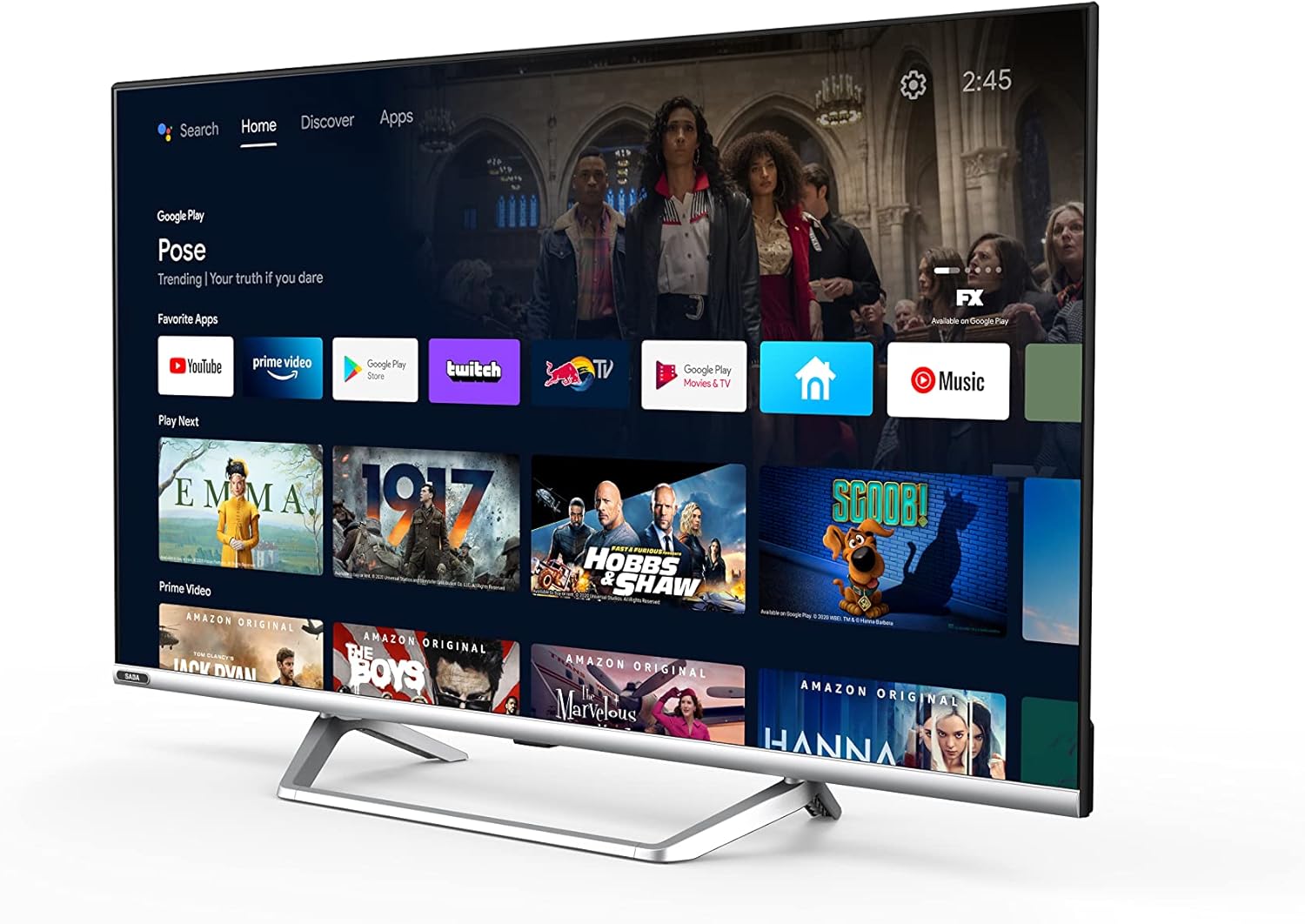
Image: Official product information sheet for the Saba SA40S77A11 TV, detailing various technical parameters and energy consumption data.
వారంటీ మరియు మద్దతు
The manufacturer provides a minimum general warranty period of 2 సంవత్సరాలు for this product. For specific warranty terms and conditions, please refer to the warranty card included with your product or contact the retailer where the TV was purchased.
For technical support, troubleshooting beyond this manual, or inquiries regarding spare parts and software updates, please contact Saba customer service or your local dealer. Information regarding the guaranteed availability of spare parts and software updates is not explicitly provided in the product specifications.