
GreenLaw Y168
GreenLaw Keyboard Case User Manual
మోడల్: Y168
పరిచయం
This manual provides instructions for the GreenLaw Keyboard Case, designed for iPad 11th Generation (A16, 2025) and iPad 10th Generation (2022). It features a stain-resistant cover, 7-color backlit keyboard, detachable design, touchpad, and pencil holder, aiming to enhance your iPad experience.

Image: The GreenLaw Keyboard Case in blue, shown with an iPad inserted and the keyboard detached, ready for use.
అనుకూలత
This keyboard case is engineered for the following iPad models:
- iPad 11th Generation (A16) 2025
- iPad 10th Generation 2022 (Model: A2696/A2777/A2757)
Please verify your iPad's model number on the back of the device to ensure compatibility before use.

Image: Visual representation of compatible iPad models, highlighting the 11th and 10th generation iPads.
పెట్టెలో ఏముంది
ప్యాకేజీని తెరిచిన తర్వాత, మీరు ఈ క్రింది అంశాలను కనుగొనాలి:
- కీబోర్డు కేస్
- USB కేబుల్
- వినియోగదారు మాన్యువల్ (ఈ పత్రం)
Note: The iPad itself is not included in the package.
ఉత్పత్తి లక్షణాలు
The GreenLaw Keyboard Case offers several features designed to enhance your iPad experience:
- Customizable Backlit Keyboard: Features 7 vibrant backlight colors and 3 adjustable brightness levels for optimal typing in various lighting conditions.
- Effortless Maintenance with Stain-Resistant Case: Constructed with SKIN/semiSi-tech material, the case resists common stains and is easy to clean.
- Dual-Device Connection for Multitasking: Allows seamless switching between your iPad and another Bluetooth-enabled device (e.g., smartphone) using dual Bluetooth channels.
- Precision Touchpad: Integrated smart touchpad supports multi-gesture controls for efficient navigation.
- Convenient Top-Mounted Pencil Holder: Positioned at the top for easy access and storage of your Apple Pencil. A rear opening facilitates easy retrieval.
- Versatile Detachable Design: The keyboard can be magnetically attached or detached, offering flexibility. Adjustable viewing angles (110°, 120°, 130°) provide ergonomic screen positioning.

Image: A visual summary of the keyboard case's key features, including slim design, multiple viewing angles, 7-color backlight, full protection, scissor keys, magnetic detachable keyboard, multi-touch trackpad, upper pen slot, dirt-proof PU leather, scratch-proof, fingerprint-proof, and Type-C charging port.
సెటప్
1. కీబోర్డ్ను ఛార్జ్ చేయడం
Before initial use, ensure the keyboard is fully charged. Connect the provided USB cable to the keyboard's Type-C charging port and a power source.

Image: A close-up of the keyboard's side, showing the Type-C charging port with a charging cable connected.
2. Pairing the Keyboard via Bluetooth
- ప్రక్కన ఉన్న పవర్ స్విచ్ని ఉపయోగించి కీబోర్డ్ను ఆన్ చేయండి.
- నొక్కండి Fn + C keys simultaneously to enter Bluetooth pairing mode. The Bluetooth indicator light will flash.
- మీ ఐప్యాడ్లో, ఇక్కడికి వెళ్లండి సెట్టింగ్లు > బ్లూటూత్ మరియు బ్లూటూత్ను ఆన్ చేయండి.
- Select "GreenLaw Keyboard" (or similar name) from the list of available devices.
- Once connected, the Bluetooth indicator light on the keyboard will stop flashing.
For dual-device connection, repeat steps 2-4 for the second device, using Fn + 1 for the first device and Fn + 2 for the second device to switch between them.

Image: A close-up of the keyboard keys, highlighting the 'W' and 'Q' keys which may correspond to BT1 and BT2 for dual-device pairing.
3. Attaching and Detaching the iPad and Keyboard
The keyboard case features magnetic attachments for easy assembly and disassembly. Simply align the iPad with the case and the keyboard with its magnetic strip to secure them.

Image: The keyboard case with an iPad, demonstrating the detachable keyboard and various viewing కోణాలు.
ఆపరేటింగ్ సూచనలు
1. Using the Backlit Keyboard
To control the keyboard backlight:
- నొక్కండి లైట్ బల్బ్ key to turn the backlight on/off and cycle through 7 different colors.
- నొక్కండి సూర్యుడు key (often combined with Fn) to adjust the brightness level (3 levels available).

Image: The keyboard case with the backlight illuminated, showcasing the 7-color options and brightness adjustments.
2. Utilizing the Precision Touchpad
The integrated touchpad supports multi-gesture controls for enhanced navigation. Refer to your iPad's settings for specific gesture configurations.

Image: A hand demonstrating multi-touch gestures on the keyboard's touchpad, illustrating its precision control.
3. Switching Between Dual Devices
If you have paired two devices, use the dedicated function keys to switch between them:
- నొక్కండి Fn + 1 to connect to the first paired device.
- నొక్కండి Fn + 2 to connect to the second paired device.

Image: An iPad in the keyboard case connected to one device (link 1) and a smartphone connected to another (link 2), illustrating the dual-device connection capability.
4. సర్దుబాటు చేయడం Viewకోణాలు
The case allows for adjustable viewing angles at 110°, 120°, and 130° to suit your preference for typing or media consumption.

Image: A sequence showing the iPad case being adjusted to different viewing కోణాలు.
5. Using the Pencil Holder
The top-mounted pencil holder provides convenient storage for your Apple Pencil. The rear opening allows for easy retrieval.
Note: The iPad 2025 11th Generation (A16) / 2022 10th Generation does not support Apple Pencil magnetic charging through the case.

Image: A close-up of the top edge of the iPad case, showing the integrated slot for an Apple Pencil and how it can be easily accessed.
నిర్వహణ
Cleaning the Stain-Resistant Case
The SKIN/semiSi-tech material of the case is designed to resist stains. For spills like soy sauce, ink, or coffee, simply wipe the surface with a damp వస్త్రం. కఠినమైన రసాయనాలు లేదా రాపిడి క్లీనర్లను నివారించండి.
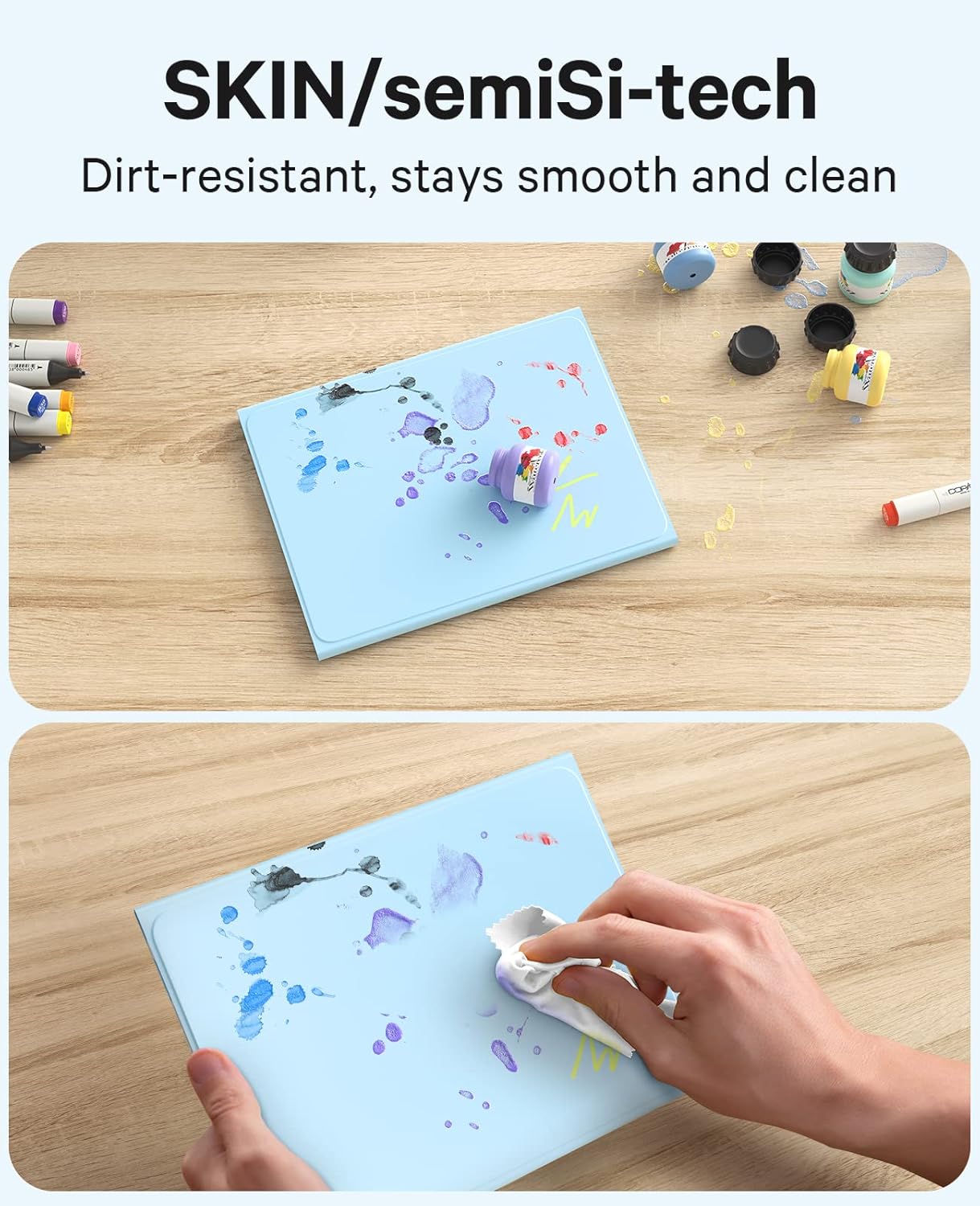
Image: Demonstrates the stain-resistant property of the case, showing a spill being easily wiped away from the blue surface.
సాధారణ సంరక్షణ
- Keep the keyboard and case away from extreme temperatures and direct sunlight.
- Avoid placing heavy objects on the keyboard to prevent damage.
- When not in use for extended periods, turn off the keyboard to conserve battery life.
ట్రబుల్షూటింగ్
| సమస్య | సాధ్యమైన పరిష్కారం |
|---|---|
| కీబోర్డ్ బ్లూటూత్ ద్వారా కనెక్ట్ కావడం లేదు. |
|
| Backlight not working or changing colors. |
|
| టచ్ప్యాడ్ స్పందించడం లేదు. |
|
| కీలు స్పందించడం లేదు. |
|
స్పెసిఫికేషన్లు
| ఫీచర్ | వివరాలు |
|---|---|
| ఉత్పత్తి కొలతలు | 9.84 x 7.09 x 0.79 అంగుళాలు |
| వస్తువు బరువు | 1.51 పౌండ్లు |
| తయారీదారు | GreenLaw |
| మోడల్ సంఖ్య | Y168 |
| బ్యాటరీలు | 1 లిథియం పాలిమర్ బ్యాటరీ (చేర్చబడింది) |
| అనుకూల పరికరాలు | iPad 2022 (10th Generation) A2696/A2777/A2757, iPad 2025 (A16) (11th Generation) |
| కనెక్టివిటీ టెక్నాలజీ | బ్లూటూత్ |
| కీబోర్డ్ వివరణ | వైర్లెస్ |
| ప్రత్యేక లక్షణాలు | బ్యాక్లిట్, ట్రాక్ప్యాడ్ |
| కీబోర్డ్ బ్యాక్లైటింగ్ | 7 రంగులు, 3 ప్రకాశం స్థాయిలు |
| కేస్ మెటీరియల్ | SKIN/semiSi-tech (Stain-Resistant) |
| సర్దుబాటు Viewకోణాలు | 110°, 120°, 130° |
వారంటీ మరియు మద్దతు
For warranty information or technical support, please contact GreenLaw customer service through their official webఉత్పత్తిని కొనుగోలు చేసిన సైట్ లేదా ప్లాట్ఫారమ్. కొనుగోలు రుజువుగా మీ కొనుగోలు రసీదుని ఉంచండి.
You can visit the GreenLaw Store for more information: GreenLaw Store on Amazon
Ask a question about this manual
Ask about setup, troubleshooting, compatibility, parts, safety, or missing instructions. Manuals+ will review the question and use this page’s manual context to help answer it.