
పరిచయం
Thank you for choosing the AILRINNI 17.3 Inch Portable Monitor. This monitor is designed to provide a high-quality visual experience with its IPS FHD 1080P display, making it ideal for extending your display, gaming, or business presentations on the go. Its slim profile and lightweight design ensure maximum portability. This manual provides essential information for setting up, operating, maintaining, and troubleshooting your new portable monitor.
పెట్టెలో ఏముంది
అన్ని అంశాలు ఉన్నాయని నిర్ధారించుకోవడానికి దయచేసి ప్యాకేజీలోని విషయాలను తనిఖీ చేయండి:
- 1 x AILRINNI 17.3 Inch Portable Monitor
- 1 x Foldable Monitor Smart Case
- 1 x స్క్రీన్ ప్రొటెక్టర్
- 1 x మినీ HDMI నుండి HDMI కేబుల్
- 1 x USB టైప్-సి నుండి టైప్-సి కేబుల్
- 1 x USB-A to Type-C Cable (for power)
- 1 x Charging Head (Power Adapter)
- 1 x వినియోగదారు మాన్యువల్

Image: Package contents showing the portable monitor, smart case, various cables, power adapter, and user manual.
ఉత్పత్తి లక్షణాలు
- 17.3 Inch IPS FHD 1080P Display: Enjoy crisp, clear visuals with a 1920x1080 resolution and a wide 178° viewing కోణం.
- HDR Technology: Enhances image contrast and color for a more dynamic viewing అనుభవం.
- Dual Integrated Speakers: Provides audio output without external speakers.
- బహుముఖ కనెక్టివిటీ: Features Mini HDMI and Full Function USB-C ports for broad compatibility.
- పోర్టబుల్ డిజైన్: స్లిమ్ 0.4-అంగుళాల ప్రోfile and lightweight for easy transport.
- స్మార్ట్ కేసు: Included foldable case offers protection and multi-angle viewing ఎంపికలు.

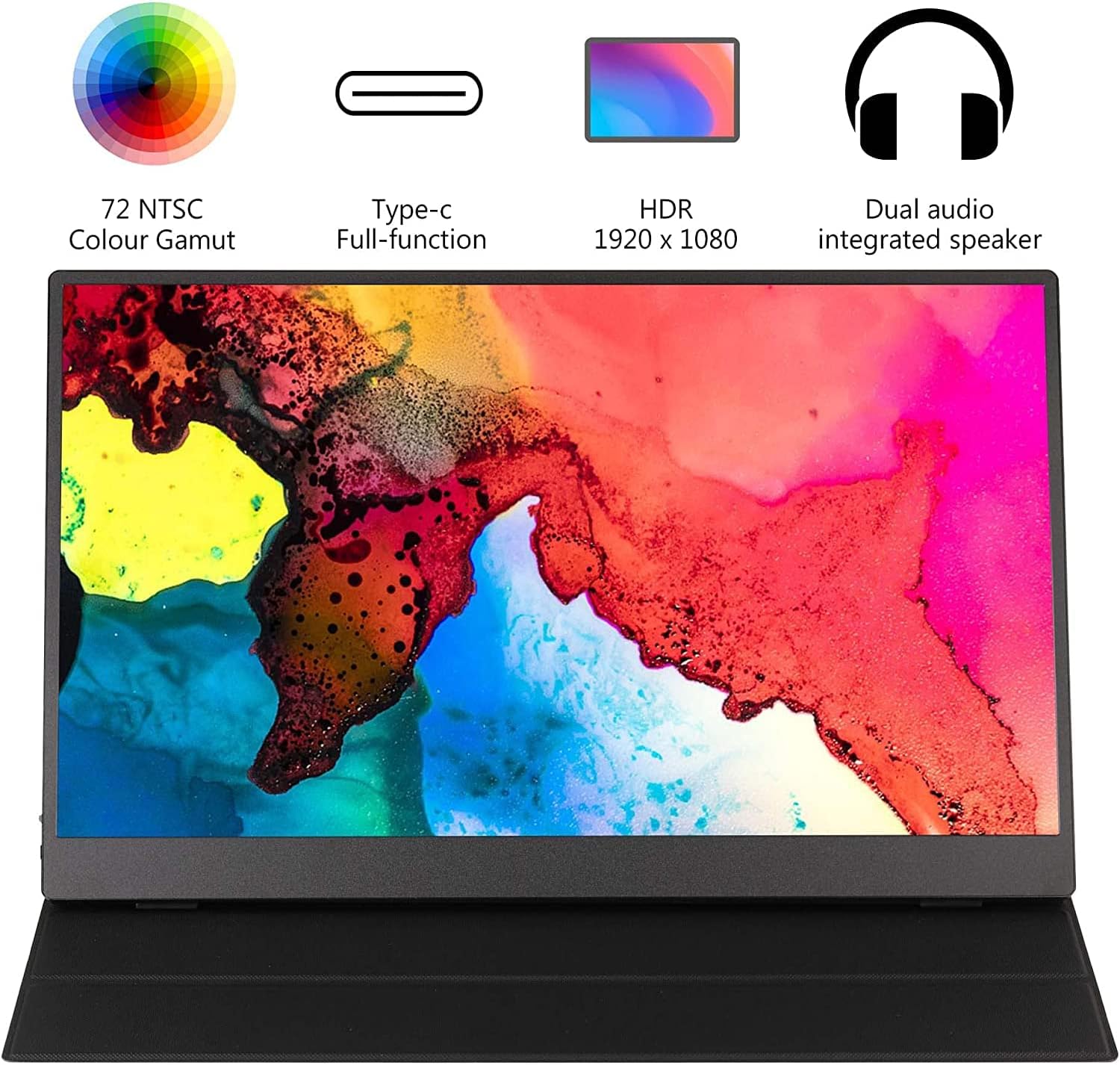
Image: Key features of the monitor, including 72% NTSC color gamut, full-function Type-C, HDR 1080P, and dual speakers.
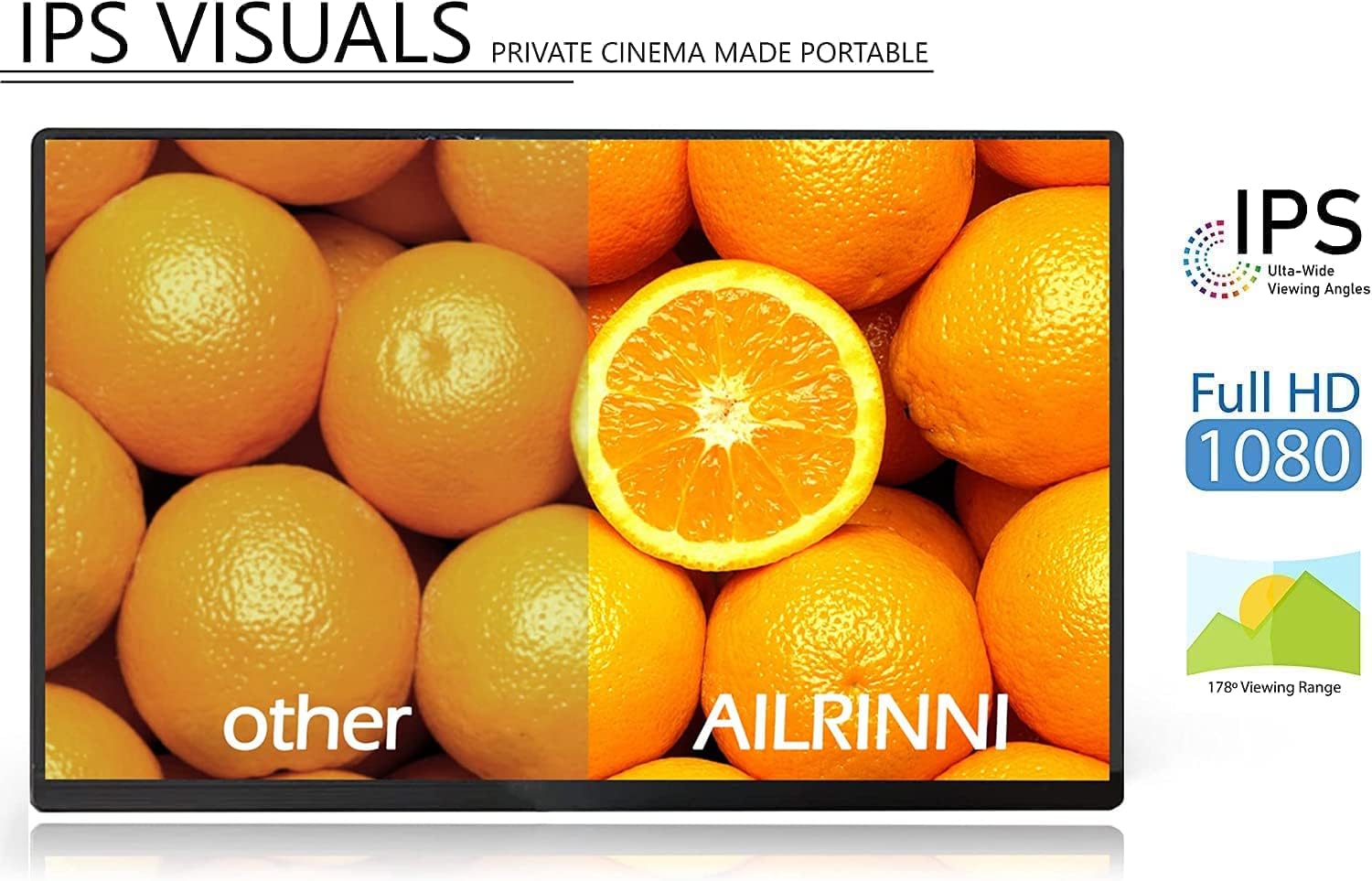
Image: Visual comparison demonstrating the quality of IPS visuals with a 178-degree viewing range and Full HD 1080P.
సెటప్
The AILRINNI portable monitor offers flexible connectivity options. Ensure your device supports the necessary output for optimal performance.
పరికరాలకు కనెక్ట్ చేస్తోంది
- Using USB-C (Full Function):
If your laptop, phone, or tablet has a full-featured USB-C port (supporting video output and power delivery), connect the monitor using the provided USB Type-C to Type-C cable. This single cable can transmit both video signal and power.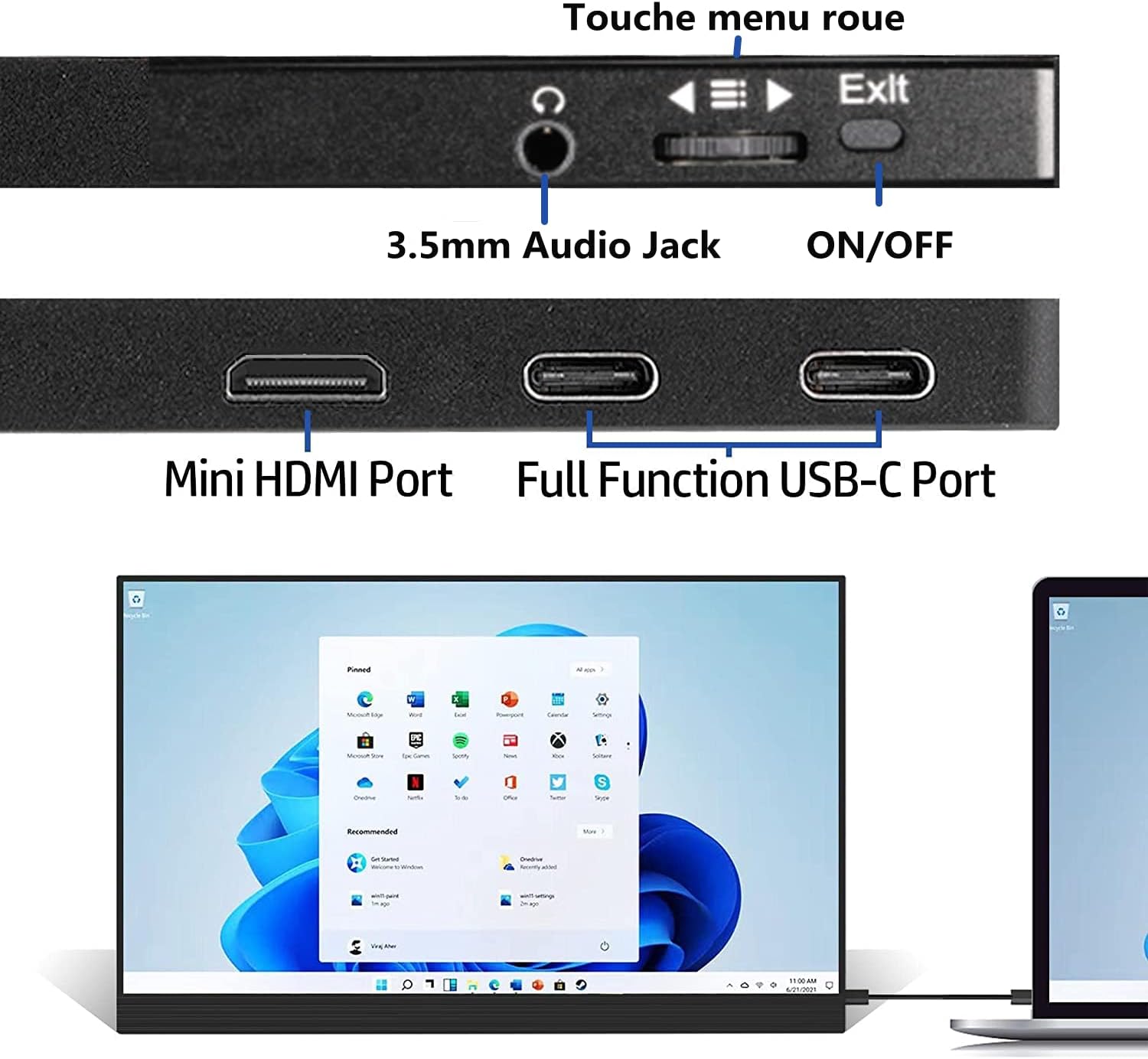
Image: Connecting the portable monitor to a laptop via USB-C for extended display.
- మినీ HDMIని ఉపయోగించడం:
For devices with an HDMI output (e.g., PC, gaming consoles like PS4, Xbox, Nintendo Switch), connect the monitor using the provided Mini HDMI to HDMI cable. You will also need to connect the USB-A to Type-C cable to the monitor for power, using the included charging head or another compatible USB power source.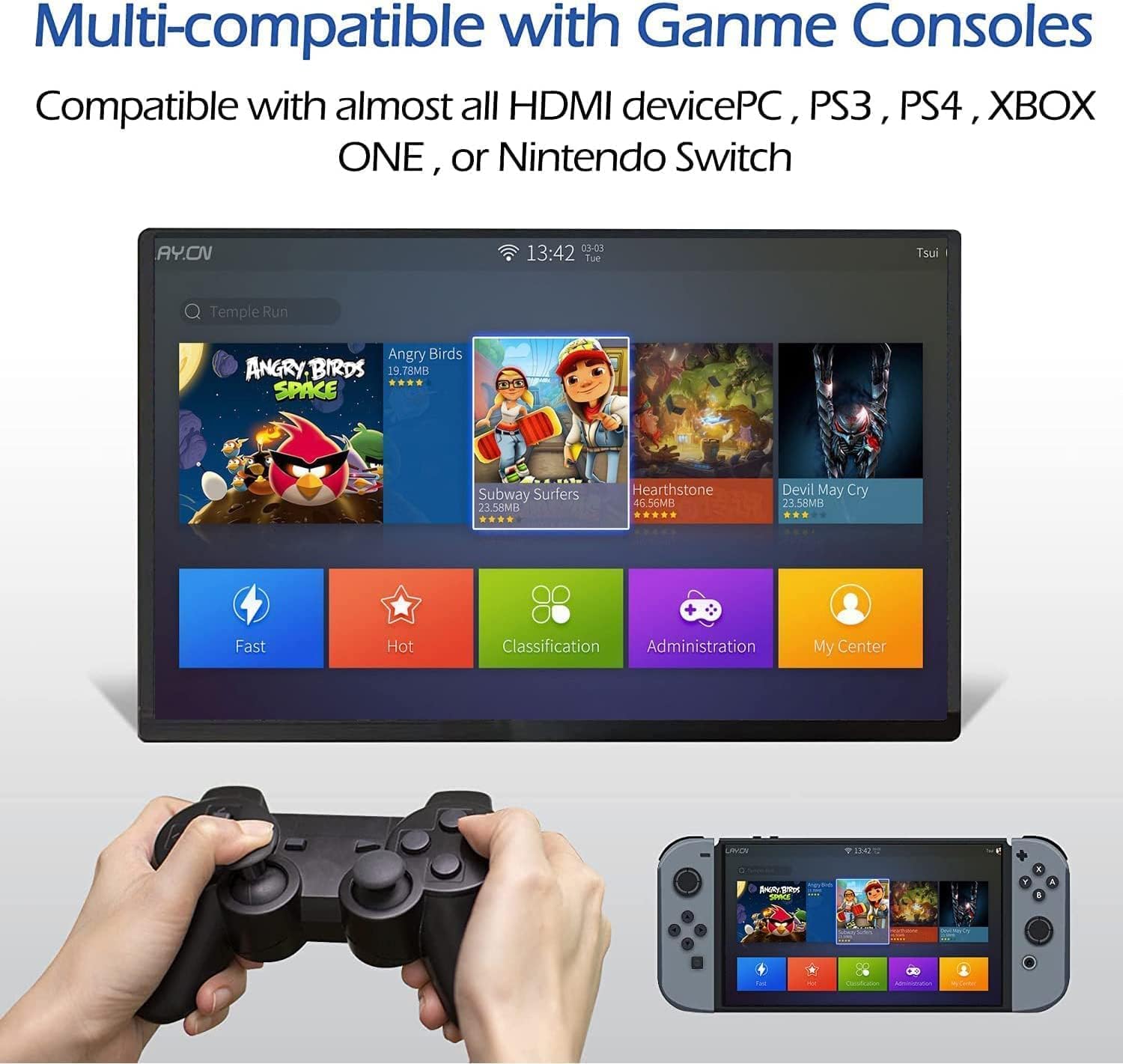
Image: Connecting the portable monitor to a gaming console (Nintendo Switch) via HDMI.
మానిటర్ను శక్తివంతం చేస్తోంది
The monitor can be powered via a full-function USB-C connection from your device or by connecting the USB-A to Type-C cable to the monitor's power input and plugging the USB-A end into the included charging head or a powered USB port.
మానిటర్ ఆపరేటింగ్
ప్రాథమిక ఆపరేషన్
- పవర్ ఆన్/ఆఫ్: Use the dedicated ON/OFF button located on the side of the monitor.
- ప్లగ్ మరియు ప్లే: The monitor is designed for plug-and-play functionality, requiring no driver installation for most compatible devices.
- ప్రదర్శన మోడ్లు: Supports mirror mode and extended display mode to suit your workflow or entertainment needs.
ఆన్-స్క్రీన్ డిస్ప్లే (OSD) మెనూ
The monitor features an intuitive OSD menu for adjusting settings such as brightness, contrast, color temperature, and input source. Navigate the menu using the control wheel or buttons usually located on the side of the monitor.
చిత్రం: వైపు view of the monitor showing input ports (Mini HDMI, USB-C) and control buttons (ON/OFF, menu wheel, audio jack).
నిర్వహణ
Proper care will extend the life and performance of your portable monitor.
- స్క్రీన్ క్లీనింగ్: కొద్దిగా మెత్తని, మెత్తని బట్టను ఉపయోగించండి dampనీరు లేదా స్క్రీన్-క్లీనింగ్ ద్రావణంతో కలిపి ఉంచండి. కఠినమైన రసాయనాలు లేదా రాపిడి పదార్థాలను నివారించండి.
- శరీరాన్ని శుభ్రపరచడం: మానిటర్ యొక్క బాహ్య భాగాన్ని మృదువైన, పొడి వస్త్రంతో తుడవండి.
- Smart Case Care: The included smart case is designed to be anti-scratch and waterproof. Wipe it clean with a damp అవసరమైన విధంగా వస్త్రం.
- నిల్వ: When not in use, store the monitor in its smart case to protect it from dust and scratches. Avoid placing heavy objects on top of the monitor.

Image: The magnetic smart cover, demonstrating its protective and versatile features.
ట్రబుల్షూటింగ్
If you encounter issues with your monitor, please refer to the following common solutions:
- No Signal on Monitor:
- Ensure the connected device (phone, laptop, console) is powered on and outputting a video signal.
- Verify that the USB-C port on your device is a full-featured Type-C port that supports video output (DisplayPort Alternate Mode). Not all USB-C ports support video.
- Check if the laptop's video card drivers are up to date and functioning correctly.
- Confirm that the correct input source is selected on the monitor's OSD menu.
- Try using different cables or connecting to another device to rule out cable or source device issues.
- మానిటర్ ఆన్ కావడం లేదు:
- Ensure the power cable is securely connected to the monitor and a working power source.
- If using USB-C for power, ensure your device provides sufficient power. You may need to use the dedicated power adapter.
- మినుకుమినుకుమనే తెర:
- కేబుల్ కనెక్షన్లు వదులుగా ఉన్నాయా అని తనిఖీ చేయండి.
- విద్యుత్ సరఫరా స్థిరంగా ఉందని నిర్ధారించుకోండి.
- Adjust the refresh rate settings on your connected device.
- ధ్వని లేదు:
- Check the volume settings on both the monitor and the connected device.
- Ensure the audio output is directed to the monitor from your source device.
స్పెసిఫికేషన్లు
| ఫీచర్ | స్పెసిఫికేషన్ |
|---|---|
| స్క్రీన్ పరిమాణం | 17.3 అంగుళాలు |
| ప్యానెల్ రకం | IPS |
| రిజల్యూషన్ | 1920 x 1080 (FHD 1080P) |
| కారక నిష్పత్తి | 16:9 |
| కాంట్రాస్ట్ రేషియో | 800:1 |
| ప్రకాశం | 250 cd/m² |
| రిఫ్రెష్ రేట్ | 60Hz |
| ప్రతిస్పందన సమయం | 10 ms |
| Viewing యాంగిల్ | 178° (H/V) |
| రంగు స్వరసప్తకం | 72% NTSC |
| ఇన్పుట్ ఇంటర్ఫేస్లు | Mini HDMI, USB Type-C (Full Function) |
| పవర్ ఇన్పుట్ | USB టైప్-C |
| వక్తలు | Built-in (1W*2) |
| ప్రత్యేక లక్షణాలు | Built-In Speakers, Portable, Ultrawide Screen, HDR |
| మోడల్ సంఖ్య | b39df48b-38b9-4e1b-bb3f-e1881ddbdad1 |
వారంటీ మరియు మద్దతు
The AILRINNI 17.3 Inch Portable Monitor comes with a 3 సంవత్సరాల వారంటీ కొనుగోలు చేసిన తేదీ నుండి. ఈ వారంటీ తయారీ లోపాలను కవర్ చేస్తుంది మరియు సాధారణ ఉపయోగంలో నమ్మకమైన పనితీరును నిర్ధారిస్తుంది.
For technical support, warranty claims, or any questions regarding your product, please refer to the contact information provided in your product packaging or visit the official AILRINNI support webసైట్.