
1. పరిచయం
Thank you for choosing the Havit MS1038 Programmable RGB Gaming Mouse. This manual provides essential information for setting up, operating, maintaining, and troubleshooting your new gaming mouse. Please read this guide thoroughly to ensure optimal performance and longevity of your device.
2. ఉత్పత్తి ముగిసిందిview
The Havit MS1038 is a high-performance wired gaming mouse designed for precision and customization. It features a high-precision optical sensor, adjustable DPI settings up to 8000, 7 programmable buttons, and dynamic RGB backlighting to enhance your gaming experience.
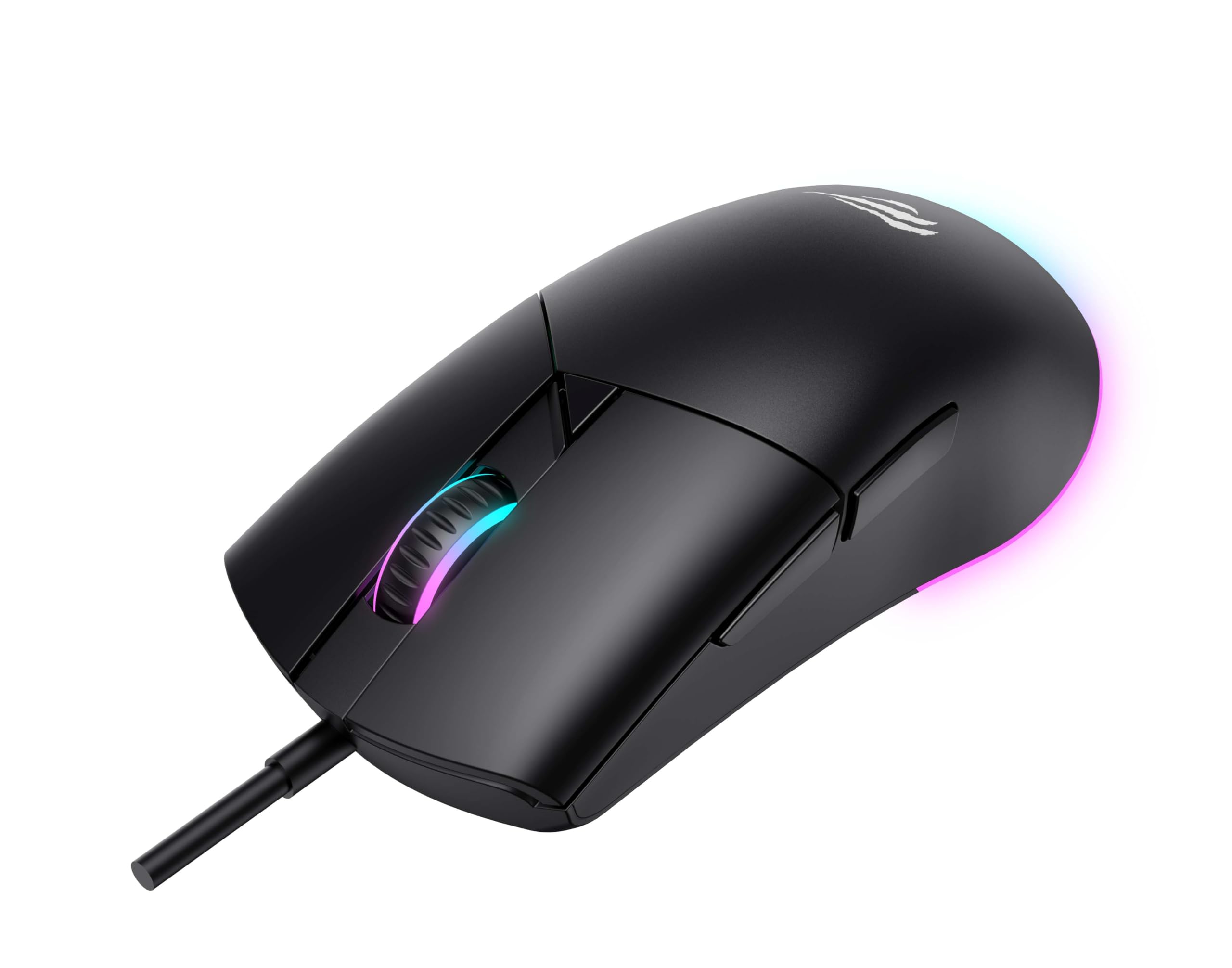
మూర్తి 1: ముందు view of the Havit MS1038 Gaming Mouse, showcasinదాని ఎర్గోనామిక్ డిజైన్ మరియు RGB లైటింగ్.
3. స్పెసిఫికేషన్లు
| ఫీచర్ | వివరాలు |
|---|---|
| బ్రాండ్ | హవిత్ |
| మోడల్ | MS1038 |
| రంగు | నలుపు |
| కనెక్టివిటీ | USB (వైర్డ్) |
| ప్రత్యేక లక్షణాలు | RGB Backlight, Programmable Buttons, High-Precision Optical Sensor |
| అనుకూల పరికరాలు | PC, ల్యాప్టాప్, టాబ్లెట్ |
| మోషన్ డిటెక్షన్ | ఆప్టికల్ |
| DPI సెట్టింగులు | 1200-2400-3200-4800-6400-8000 DPI |
| బటన్ల సంఖ్య | 7 |
| కీ జీవితకాలం | 3,000,000 క్లిక్లు |
| కేబుల్ పొడవు | 1.6 మీటర్లు |
| ఆపరేటింగ్ వాల్యూమ్tage | 5V |
| ఆపరేటింగ్ కరెంట్ | 150mA |
| చిప్ | SPCP199C |
| కొలతలు (L*W*H) | 121 x 64 x 42 మిమీ |
| ఉత్పత్తి బరువు | 82గ్రా |
| బ్యాటరీలు అవసరం | నం |
| శక్తి మూలం | corded |
| అనుకూల OS | Windows, Mac, Linux |
| మూలం దేశం | చైనా |
4. సెటప్ గైడ్
- మౌస్ను విప్పండి: Carefully remove the Havit MS1038 mouse from its packaging.
- కంప్యూటర్కు కనెక్ట్ చేయండి: మీ కంప్యూటర్లో అందుబాటులో ఉన్న USB పోర్ట్లో మౌస్ యొక్క USB కనెక్టర్ను ప్లగ్ చేయండి.
- డ్రైవర్ ఇన్స్టాలేషన్: The mouse is typically plug-and-play. Your operating system (Windows, Mac, Linux) should automatically detect and install the necessary drivers. Allow a few moments for the installation to complete.
- సాఫ్ట్వేర్ ఇన్స్టాలేషన్ (ఐచ్ఛికం): For advanced customization of programmable buttons and RGB lighting, download the official Havit MS1038 software from the manufacturer's webసైట్. ఇన్స్టాలేషన్ కోసం స్క్రీన్పై ఉన్న సూచనలను అనుసరించండి.
5. ఆపరేటింగ్ సూచనలు
5.1 ప్రాథమిక విధులు
- ఎడమ క్లిక్ చేయండి: ప్రాథమిక చర్య.
- కుడి క్లిక్ చేయండి: ద్వితీయ చర్య, సాధారణంగా సందర్భ మెనులను తెరుస్తుంది.
- స్క్రోల్ వీల్: Scrolls content up or down. Pressing the scroll wheel often acts as a middle click.
5.2 DPI సర్దుబాటు
The Havit MS1038 features a dedicated DPI button (usually located behind the scroll wheel) to cycle through different sensitivity settings. Each press will switch to the next DPI level, indicated by a change in the RGB lighting color or pattern.
- అందుబాటులో ఉన్న DPI సెట్టింగ్లు: 1200, 2400, 3200, 4800, 6400, 8000.
- Select the DPI that best suits your preference for gaming or general use.
5.3 ప్రోగ్రామబుల్ బటన్లు
The mouse has 7 buttons, including the standard left/right click, scroll wheel, DPI button, and additional side buttons. These additional buttons can be customized using the Havit MS1038 software.

మూర్తి 2: వైపు view of the Havit MS1038 Gaming Mouse, highlighting the additional programmable buttons.
6 అనుకూలీకరణ
To unlock the full potential of your Havit MS1038 mouse, utilize the dedicated software (available for download from the Havit official webసైట్). ఈ సాఫ్ట్వేర్ మిమ్మల్ని వీటిని అనుమతిస్తుంది:
- Remap Buttons: Assign custom functions, macros, or keyboard shortcuts to any of the 7 programmable buttons.
- Adjust DPI Stages: Fine-tune the DPI levels and assign specific values to each stage.
- RGB లైటింగ్ను నియంత్రించండి: Choose from various lighting effects, colors, and brightness levels to personalize your mouse's appearance.
- ప్రో సృష్టించండిfiles: Save different configurations for various games or applications.
7. నిర్వహణ
Proper care ensures the longevity and performance of your mouse.
- శుభ్రపరచడం: మౌస్ ఉపరితలాన్ని తుడవడానికి మృదువైన, పొడి వస్త్రాన్ని ఉపయోగించండి. మొండి ధూళి కోసం, కొద్దిగా dampen గుడ్డను నీటితో లేదా తేలికపాటి శుభ్రపరిచే ద్రావణంతో తుడవండి. కఠినమైన రసాయనాలను నివారించండి.
- సెన్సార్ కేర్: Keep the optical sensor on the underside of the mouse clean and free from dust or debris. Use a cotton swab if necessary.
- కేబుల్ నిర్వహణ: USB కేబుల్ దెబ్బతినకుండా ఉండటానికి పదునైన వంపులు లేదా ఎక్కువగా లాగడం మానుకోండి.
- నిల్వ: ఉపయోగంలో లేనప్పుడు, తీవ్రమైన ఉష్ణోగ్రతలకు దూరంగా శుభ్రమైన, పొడి వాతావరణంలో మౌస్ను నిల్వ చేయండి.
8. ట్రబుల్షూటింగ్
If you encounter issues with your Havit MS1038 mouse, refer to the following common solutions:
- మౌస్ స్పందించడం లేదు:
- USB కేబుల్ పనిచేసే USB పోర్ట్కి సురక్షితంగా ప్లగ్ చేయబడిందని నిర్ధారించుకోండి.
- మౌస్ని వేరే USB పోర్ట్లోకి ప్లగ్ చేసి ప్రయత్నించండి.
- మీ కంప్యూటర్ని పునఃప్రారంభించండి.
- అనియత కర్సర్ కదలిక:
- మౌస్ అడుగున ఉన్న ఆప్టికల్ సెన్సార్ను శుభ్రం చేయండి.
- మీరు మౌస్ను శుభ్రమైన, ప్రతిబింబించని ఉపరితలంపై లేదా మౌస్ ప్యాడ్లో ఉపయోగిస్తున్నారని నిర్ధారించుకోండి.
- ఏవైనా సాఫ్ట్వేర్ వైరుధ్యాలు లేదా పాత డ్రైవర్ల కోసం తనిఖీ చేయండి.
- RGB లైటింగ్ పని చేయడం లేదు:
- Verify that the mouse is properly connected.
- If using customization software, ensure lighting effects are enabled and configured correctly.
- పనిచేయని బటన్లు:
- If programmable buttons are not working as expected, check the settings in the Havit MS1038 software.
- Ensure no other software is interfering with mouse button assignments.
9. వారంటీ మరియు మద్దతు
The Havit MS1038 Programmable RGB Gaming Mouse comes with a 1 సంవత్సరాల వారంటీ కొనుగోలు చేసిన తేదీ నుండి. ఈ వారంటీ సాధారణ ఉపయోగంలో తయారీ లోపాలను కవర్ చేస్తుంది.
For technical support, warranty claims, or further assistance, please contact Havit customer service through their official website or your local retailer. Please have your proof of purchase ready when contacting support.