
1. పరిచయం
Thank you for choosing the OMOTON KB515 Bluetooth Keyboard. This full-size wireless keyboard is specifically designed for Mac OS devices, offering a comfortable typing experience with multi-device connectivity. Please read this manual carefully to ensure proper setup and operation.

The OMOTON KB515 Bluetooth Keyboard integrated into a multi-device Mac OS workspace.
2. ప్యాకేజీ విషయాలు
- OMOTON KB515 బ్లూటూత్ కీబోర్డ్
- కీకాప్ పుల్లర్
- వినియోగదారు మాన్యువల్
గమనిక: ఆపరేషన్ కోసం 2 AAA బ్యాటరీలు అవసరం మరియు ప్యాకేజీలో చేర్చబడలేదు.
3. సెటప్ మరియు జత చేయడం
3.1 బ్యాటరీ ఇన్స్టాలేషన్
- కీబోర్డ్ వెనుక భాగంలో బ్యాటరీ కంపార్ట్మెంట్ను గుర్తించండి.
- బ్యాటరీ కంపార్ట్మెంట్ కవర్ తెరవండి.
- రెండు (2) AAA బ్యాటరీలను చొప్పించండి, సరైన ధ్రువణతను (+/-) నిర్ధారించుకోండి.
- బ్యాటరీ కంపార్ట్మెంట్ కవర్ను మూసివేయండి.
3.2 పవర్ ఆన్/ఆఫ్
Slide the power switch, located on the top edge of the keyboard, to the "ON" position to power on the keyboard. Slide it to "OFF" to power off.
3.3 Bluetooth Pairing Instructions
The OMOTON KB515 keyboard supports connection to up to three devices simultaneously via Bluetooth. Ensure Bluetooth is enabled on your Mac OS device before proceeding.
- ఆన్/ఆఫ్ స్విచ్ ఉపయోగించి కీబోర్డ్ను ఆన్ చేయండి.
- నొక్కండి మరియు పట్టుకోండి Fn కీ మరియు బ్లూటూత్ ఛానల్ కీలలో ఒకటి (BT1, BT2, లేదా BT3) for 3-5 seconds until the corresponding LED indicator (blue light) blinks. This activates pairing mode for the selected channel.
- On your Mac OS device, go to సిస్టమ్ సెట్టింగ్లు (లేదా సిస్టమ్ ప్రాధాన్యతలు) > బ్లూటూత్.
- In the list of available devices, select "OMOTON కీబోర్డ్".
- Follow any on-screen prompts to complete the pairing process. The blue indicator light will turn off once successfully connected.
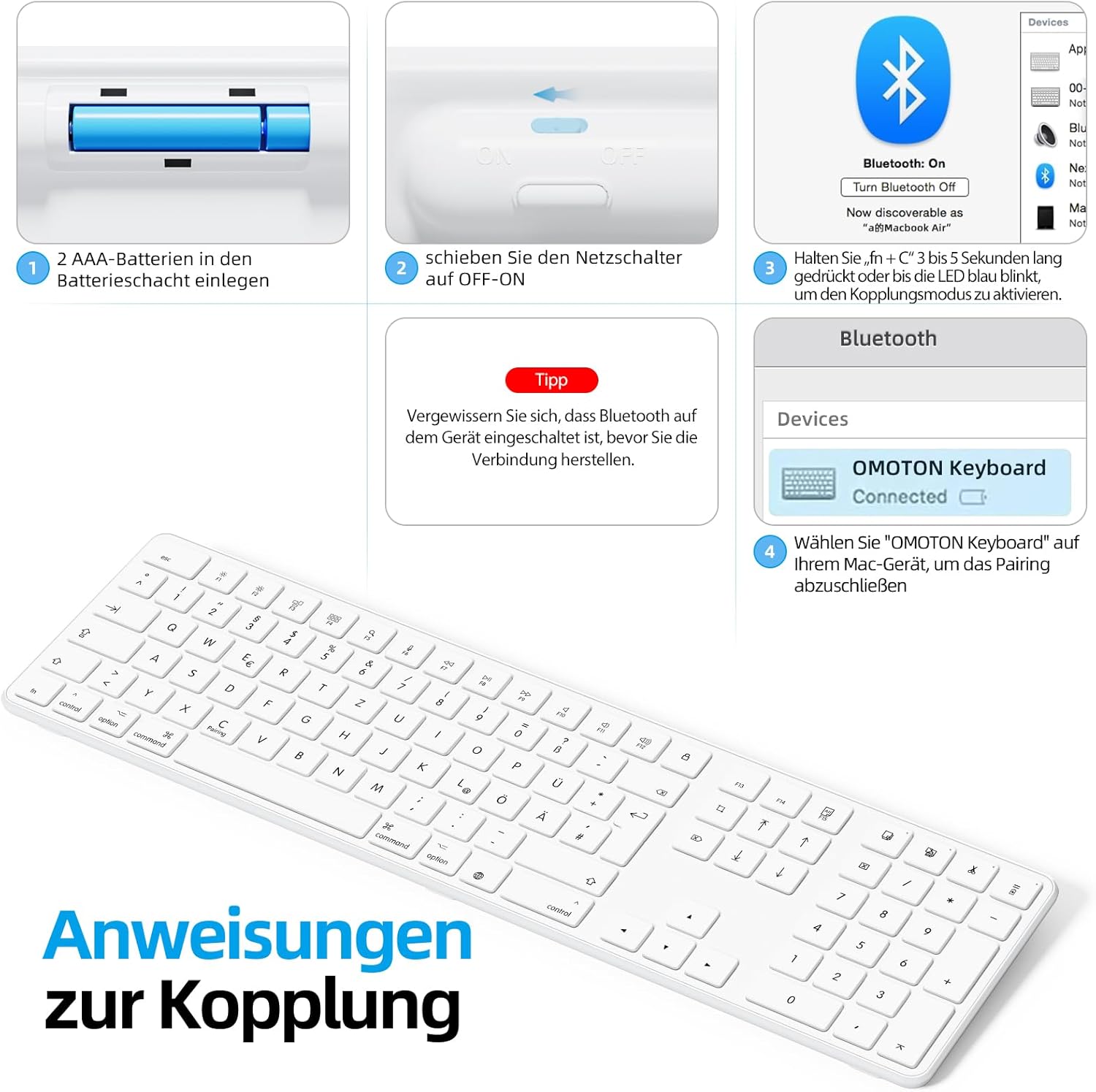
Visual guide for battery insertion and Bluetooth pairing steps.
చిట్కా: To pair with additional devices, repeat step 2 using a different Bluetooth channel (BT2 or BT3).
4. కీబోర్డ్ను ఆపరేట్ చేయడం
4.1 జత చేసిన పరికరాల మధ్య మారడం
మీ జత చేసిన పరికరాల మధ్య మారడానికి, కేవలం నొక్కండి Fn సంబంధిత బ్లూటూత్ ఛానల్ కీతో పాటు కీ (BT1, BT2, లేదా BT3) that your desired device is paired to. A short press is sufficient for switching.
4.2 మల్టీమీడియా మరియు ఫంక్షన్ కీలు
The OMOTON KB515 keyboard features 12 dedicated multimedia shortcut keys optimized for Mac OS, providing quick access to various functions.

The keyboard layout highlighting the optimized multimedia keys for Mac OS.
- F1-F2: స్క్రీన్ బ్రైట్నెస్ సర్దుబాటు
- F3: మిషన్ కంట్రోల్
- F4: లాంచ్ప్యాడ్
- F7-F9: Media Playback Controls (Previous, Play/Pause, Next)
- F10-F12: వాల్యూమ్ నియంత్రణలు (మ్యూట్, వాల్యూమ్ డౌన్, వాల్యూమ్ పెంపు)
4.3 విద్యుత్ పొదుపు మోడ్
To conserve battery life, the keyboard will automatically enter sleep mode after 10 minutes of inactivity. To wake it up, simply press any key. The keyboard will reconnect to the last active device.
5. నిర్వహణ
- కీబోర్డ్ను మృదువైన, పొడి వస్త్రంతో తుడిచి శుభ్రంగా ఉంచండి.
- Avoid exposing the keyboard to liquids or excessive moisture.
- Do not disassemble the keyboard, as this will void the warranty.
- When not in use for extended periods, turn off the keyboard to save battery life.
- Use the included keycap puller to carefully remove and clean individual keycaps if necessary.
6. ట్రబుల్షూటింగ్
6.1 కీబోర్డ్ కనెక్ట్ కావడం లేదు/జత చేయడం లేదు
- Ensure the keyboard is powered on and has fresh batteries.
- Make sure Bluetooth is enabled on your Mac OS device.
- Verify that the keyboard is in pairing mode (blue LED blinking) for the selected channel.
- మీ పరికరం బ్లూటూత్ సెట్టింగ్ల నుండి కీబోర్డ్ను అన్పెయిర్ చేసి, తిరిగి జత చేయడానికి ప్రయత్నించండి.
- Restart your Mac OS device and try pairing again.
- కీబోర్డ్ ప్రభావవంతమైన బ్లూటూత్ పరిధిలో (సాధారణంగా 10 మీటర్ల వరకు) ఉందని నిర్ధారించుకోండి.
6.2 కీలు స్పందించడం లేదు
- బ్యాటరీ స్థాయిలను తనిఖీ చేయండి మరియు అవసరమైతే భర్తీ చేయండి.
- Ensure the keyboard is properly connected to your device. Try switching Bluetooth channels.
- కీల కింద ఉన్న ఏవైనా చెత్తను శుభ్రం చేయండి.
6.3 Lag or Disconnections
- Move the keyboard closer to your Mac OS device to reduce interference.
- Ensure there are no other strong wireless signals or devices interfering with the Bluetooth connection.
- Check for any available software updates for your Mac OS.
7. స్పెసిఫికేషన్లు
| మోడల్ సంఖ్య | KB515 |
| బ్రాండ్ | ఓమోటన్ |
| కనెక్టివిటీ టెక్నాలజీ | బ్లూటూత్ |
| శక్తి మూలం | 2 x AAA బ్యాటరీలు (చేర్చబడలేదు) |
| కీబోర్డ్ లేఅవుట్ | QWERTZ (జర్మన్) |
| అనుకూలత | Mac OS X 10.10 and above (MacBook Air, MacBook Pro, iMac, iPad, etc.) |
| ప్రత్యేక లక్షణాలు | Wireless Connection, Numeric Keypad, Multimedia Keys, Ergonomic Design |
| మెటీరియల్ | Rubber (keypad cushioning) |
| రంగు | తెలుపు |

Keyboard dimensions and key features like ON/OFF switch and battery slot.
8. వారంటీ మరియు మద్దతు
For warranty information or technical support, please refer to the documentation provided with your purchase or contact OMOTON customer service directly through their official website or the retailer where you purchased the product. Please have your model number (KB515) and proof of purchase ready.